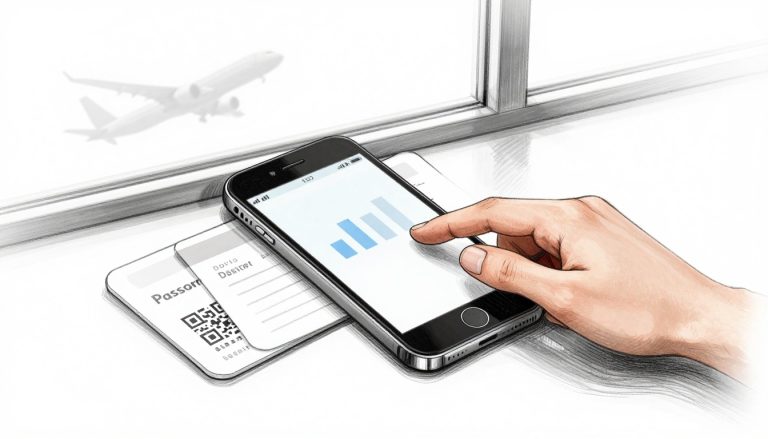
You bought a shiny new iPhone before your trip, then wondered whether your travel eSIM will move with it. The short answer is: sometimes. Your home carrier may support Apple’s Quick Transfer, but many prepaid travel eSIMs use single-use QR codes tied to the original device.
Before deleting anything, check the new iPhone’s carrier lock status, keep the old eSIM active, and contact your provider for a replacement profile if needed. You’ll need stable Wi-Fi to install the new profile, and setting up a travel eSIM on your iPhone is usually easier than wrestling with airport Wi-Fi while holding three bags and a boarding pass.
This guide covers compatibility, Quick Transfer, replacement QR codes, dual SIM settings, Wi-Fi setup, and common troubleshooting steps. If you still need a travel plan, Get your free esim now or install your travel profile before takeoff.
This post may contain affiliate links. If you make a purchase through these links, I may earn a small commission at no extra cost to you.
Can You Transfer a Travel eSIM to a New iPhone? Start With the eSIM Type
The answer depends on the profile you bought. A permanent home carrier eSIM may transfer through iOS Quick Transfer, but a standard travel data pass often needs a new activation profile. Before touching your old iPhone, check the order email, provider app, or account portal for transfer and QR code rules.
Permanent home carrier eSIM
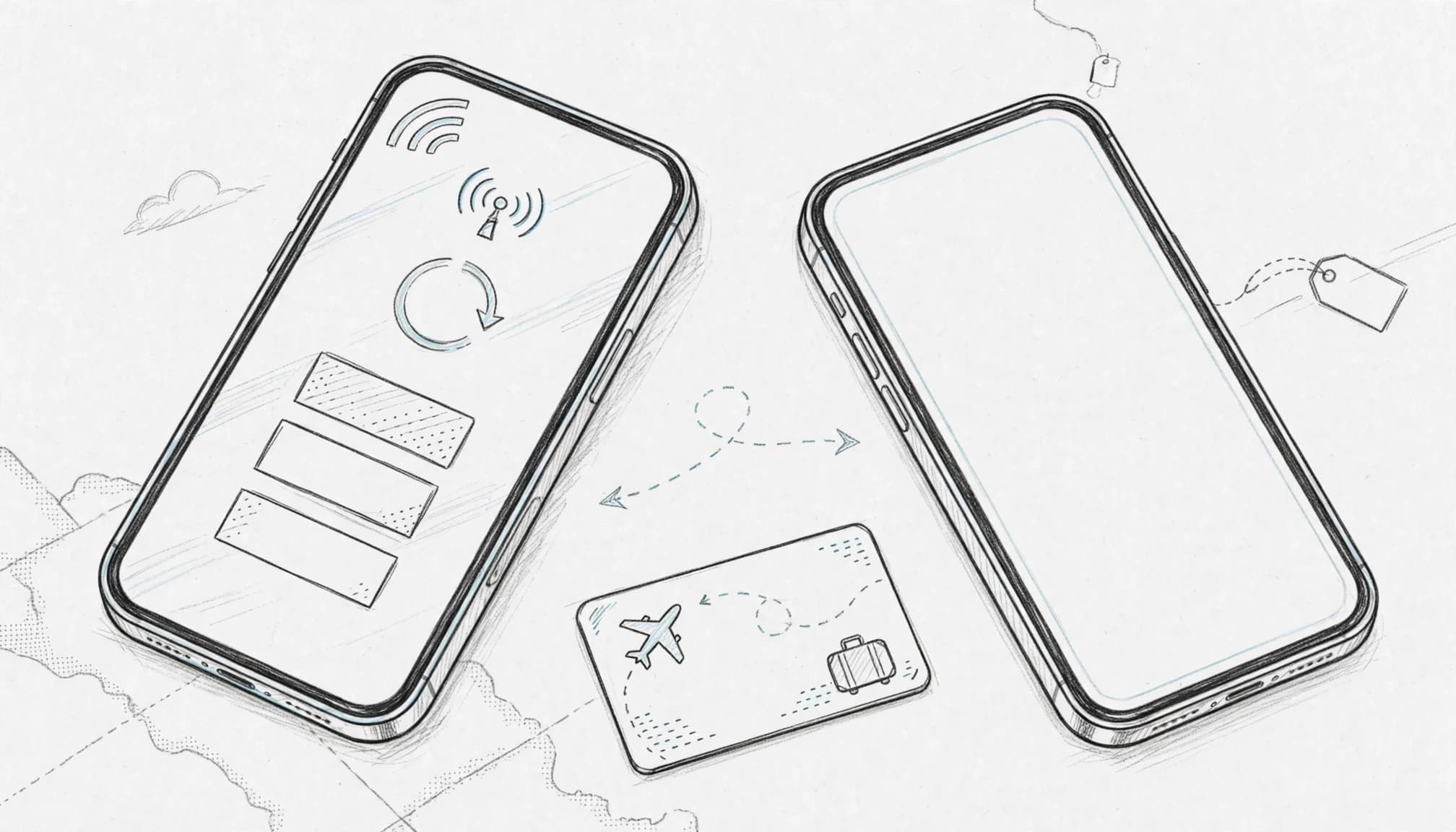
Your regular carrier may support iOS Quick Transfer. This option moves the cellular plan between nearby iPhones after both devices approve the request. However, Quick Transfer depends on carrier support, iPhone compatibility, and your account settings.
If the option appears under Settings > Cellular > Add eSIM, follow the on-screen instructions. You can also transfer an eSIM to a new iPhone with a carrier-provided QR code or account app.
Standard single-use travel data pass
Most prepaid travel eSIMs work differently. The first QR scan can link the profile to the original iPhone’s eSIM hardware, so scanning that same code again may fail. Deleting the profile also may not return the plan to the provider.
Therefore, keep the travel eSIM active on your old phone until the provider confirms your replacement. Ask support for a new activation profile, then install it on the new iPhone over stable Wi-Fi.
Multi-device travel eSIM
Some travel plans allow installation on another device through a provider portal. You may need to deactivate the profile on the old iPhone before scanning a new QR code. The account page should explain whether the plan supports another device or only one installation.
| Profile type | iOS Quick Transfer support | QR code reuse | Required transfer method |
|---|---|---|---|
| Permanent home carrier eSIM | Depends on carrier support | Usually managed by the carrier | Quick Transfer, carrier app, or replacement QR code |
| Standard single-use travel data pass | Usually unavailable | Often single-use | Provider-issued replacement profile |
| Multi-device travel eSIM | Provider-dependent | Allowed under plan rules | Account portal, deactivation, or new QR code |
When you transfer a travel eSIM to a new iPhone, the provider’s activation policy matters more than the phone’s transfer menu. Check those rules first, then protect the old profile until the new line connects.
How to Move Your Travel eSIM Safely Before You Fly
A careful transfer starts before you pack your charger. Follow these four steps while your old iPhone still connects, and keep both phones available until the new line works.
1. Check the new iPhone’s carrier lock
Connect the new iPhone to stable home Wi-Fi. Then open Settings > General > About and scroll to Carrier Lock.
The status should say “No SIM restrictions.” If it shows a restriction, contact the seller or carrier before installing a travel plan. A locked iPhone may reject the profile, even when the QR code works correctly.
Also check that the phone runs a current version of iOS. Keep the old iPhone nearby, powered on, and connected to Wi-Fi. You may need it for account approval or transfer prompts.
2. Review the travel eSIM’s activation rules
Open your order email, provider app, or account portal. Look for instructions about single-use QR codes, device limits, and replacement profiles.
Many travel eSIM QR codes work once. After the first scan, the activation key may connect to the old iPhone’s eSIM hardware. Scanning that same code on the new phone can then produce an error.
Some plans allow several devices, but they may require you to deactivate the old profile first. Don’t guess, because an incorrect scan can consume an activation attempt.
If you need more setup guidance, review this eSIM iPhone setup guide before changing your phone.
3. Keep the old profile active
Leave the travel eSIM installed on the old iPhone until the new device receives replacement credentials. Deleting the profile doesn’t automatically return the plan to the provider.
In some cases, removal can permanently consume the activation key. Contact support when the original profile cannot move, and request a replacement QR code or fresh installation details.
Save the provider’s response before deleting anything. You can also review how to delete an eSIM on iPhone when the new line has passed its connection test.
Deleting the old travel eSIM first can leave you with no working profile and no reusable QR code.
4. Install the replacement and test data
On the new iPhone, open Settings > Cellular > Add eSIM. Choose Use QR Code, then scan the replacement code from your provider. Follow the prompts until the plan appears under Cellular.
Some providers use an app or direct installation link instead. Follow those instructions instead of scanning an old code. Label the new line Travel Data so you don’t confuse it with your home number.
Next, select the travel line under Cellular Data and test a webpage with Wi-Fi turned off. Confirm that mobile data works before removing the old profile. Complete this setup at home, not in an airport line or airplane, where weak internet can turn a simple transfer into travel-day theater.
If you still need a plan, you can Get your free esim now before departure.
Why iPhone eSIM Transfers Fail, and How to Avoid the Usual Traps
A travel eSIM can fail during an iPhone upgrade even when both phones support eSIMs. The usual culprit is the provider’s activation system, not a broken iPhone. Before you delete anything, check the profile rules, carrier lock, device model, and internet connection.
Why Apple Quick Transfer Often Fails for Travel Data Passes
Apple’s Quick Transfer works mainly with supported home carrier plans. Your carrier connects its account system directly to Apple’s transfer process, which lets the new iPhone request and activate the line.
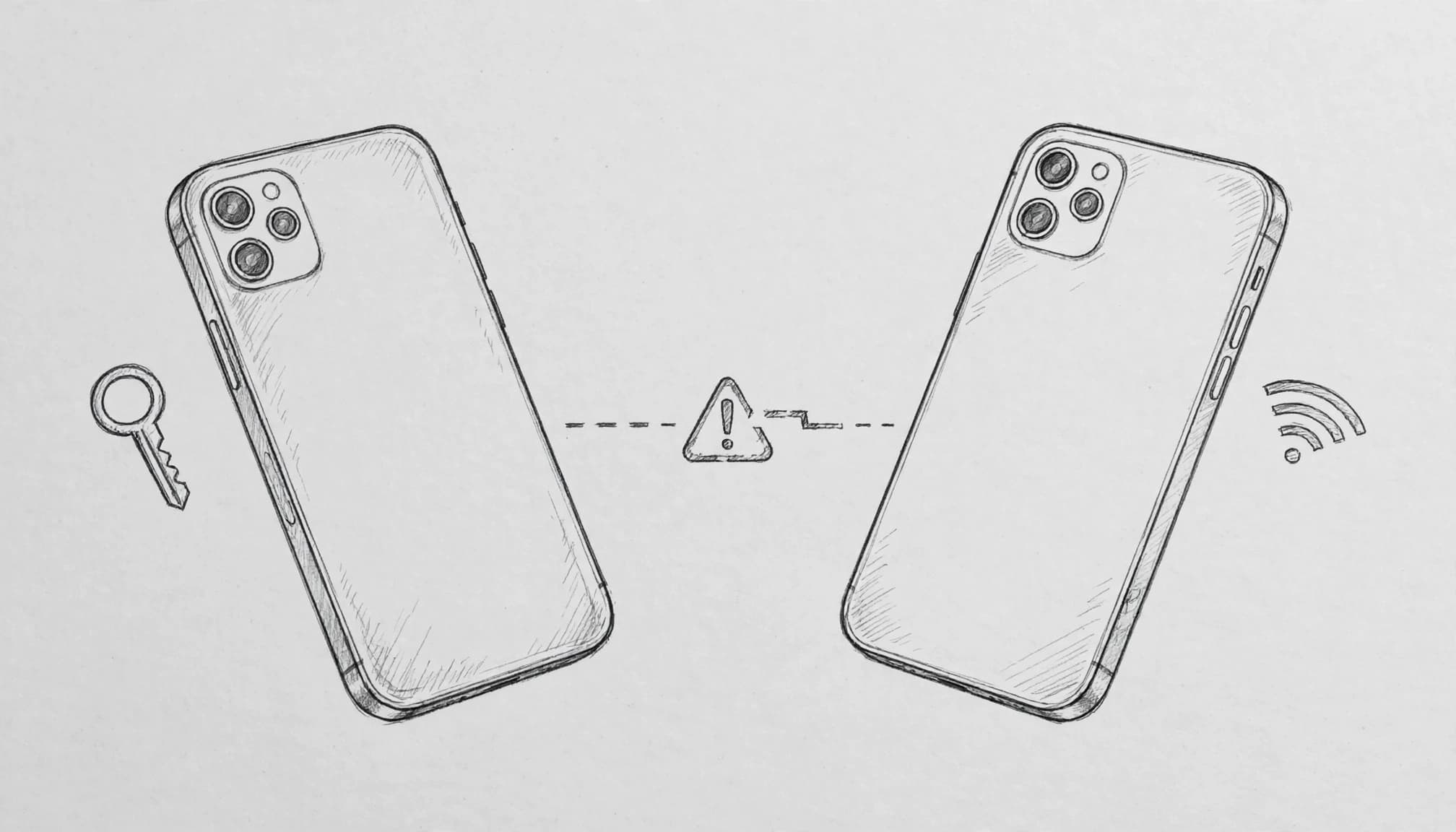
Many travel eSIM providers use a separate provisioning system. Their prepaid data pass may include a security key tied to the old iPhone’s EID, which is the device identifier for its eSIM hardware. After the first QR scan, the provider may treat that profile as installed on the original phone.
As a result, Bluetooth transfer or a second scan can trigger an activation error. Repeating the same attempt rarely fixes the underlying issue. Stop after the first clear failure, then contact the provider and request a replacement profile or activation code.
What Happens If You Delete the Old Travel eSIM Too Soon
Deleting an eSIM removes its local profile from the old iPhone. It does not automatically return prepaid data to the provider or create a fresh activation slot.
The provider’s server may still associate the original profile with the old device. In some cases, the original QR code remains unusable after removal. Your data allowance can still exist in the account, but the phone may no longer have valid credentials to access it.
Keep the old iPhone charged and connected to Wi-Fi until the new device connects to cellular data. If you already removed the profile, check the provider portal first. Then request a replacement activation code and explain that you deleted the original profile before completing the move.
Why Wi-Fi Matters During eSIM Installation
The new iPhone must contact the provider’s SM-DP+ provisioning server during installation. That server delivers the profile and checks whether the activation request matches the plan, device, and security rules.
Use stable home or hotel Wi-Fi with both phones charged. Save the QR code, activation details, or provider email before you begin. A plane offers no useful setup environment, and weak public Wi-Fi can interrupt the download halfway through.
Also check the new phone before scanning. An unsupported iPhone model, a carrier-locked device, or regional eSIM restrictions can block installation. The iPhone may need a compatible model sold in a region that supports eSIM service. If you need another setup method, review this complete iPhone travel eSIM guide.
How to Keep Your Home Number Working During the Move
Your home line may still handle calls, texts, and banking verification codes after you add the travel profile. Label the lines immediately under Settings > Cellular, using names such as Home and Travel Data.
Choose the home carrier as the default voice line. Then select the travel eSIM under Cellular Data after installation succeeds. Keep Allow Cellular Data Switching turned off when you want to prevent the iPhone from using your home line for roaming data.
These Dual SIM settings help separate phone calls from travel internet access. They also reduce the chance of missing an authentication text while your travel eSIM handles local data. For more detail, follow this guide to manage travel eSIM and primary SIM lines. Before departure, Get your free esim now if you still need a plan.
Use This New iPhone Travel eSIM Checklist Before Departure
A few minutes of preparation can save you from troubleshooting cellular settings beside Gate 42. Before you transfer a travel eSIM to a new iPhone, check each item while both phones still have power and internet access.
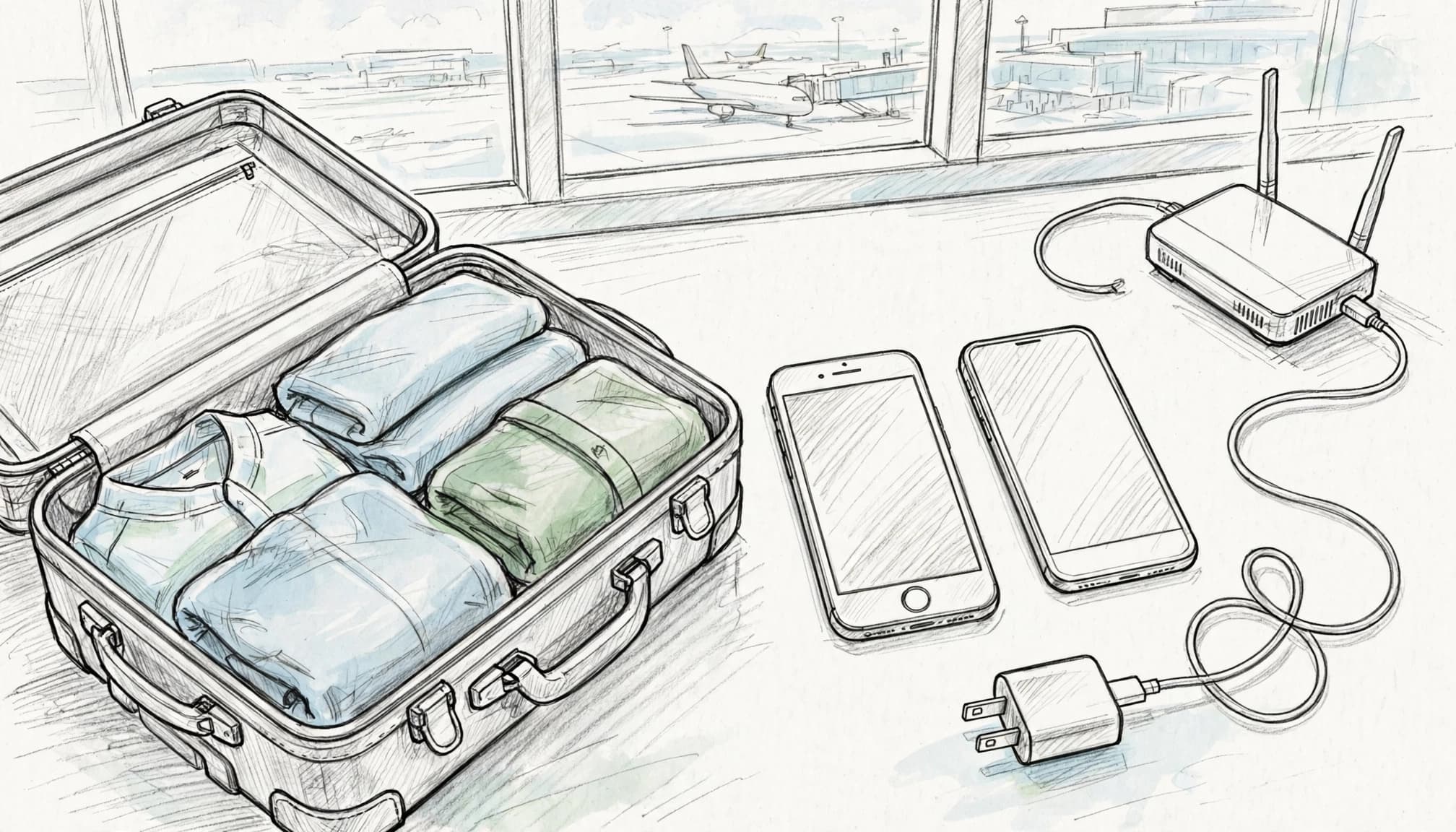
Complete these checks at home
Use this checklist before leaving for the airport. For model details, review the iPhone eSIM compatibility list before installing any profile.
| Check | What to confirm before departure |
|---|---|
| Carrier lock | Open Settings > General > About and confirm Carrier Lock says “No SIM restrictions.” |
| iPhone compatibility | Confirm the new iPhone supports eSIM and works with your destination network. |
| iOS updates | Install the latest available iOS update, then restart the phone. |
| iCloud or device backup | Back up the old iPhone before changing cellular settings or erasing anything. |
| Home eSIM transfer | Move your home line, then test calls, texts, and banking codes on the new iPhone. |
| Travel profile status | Keep the travel eSIM active on the old iPhone until the new phone connects. |
| Replacement QR code | Request a fresh code if the provider uses single-use activation details. Save it securely. |
| Wi-Fi access | Connect the new iPhone to stable Wi-Fi before downloading the replacement profile. |
| Line labels | Name the profiles Home and Travel Data so you select the correct line later. |
| Cellular data selection | Choose Travel Data under Settings > Cellular > Cellular Data. |
| Data roaming | Keep roaming off during installation unless your provider says otherwise. Turn it on after arrival when required. |
| Connection test | Turn off Wi-Fi and load a webpage using the travel line before removing the old profile. |
The old iPhone is your safety net, so keep it charged and nearby. Don’t delete its travel profile until the new iPhone works on cellular data. A successful profile installation doesn’t always mean the line has finished connecting.
Save support details offline
Download the provider’s app, save its support email, and keep your order number in a note or screenshot. Store those details offline because airport Wi-Fi may be slow, crowded, or unavailable.
Before takeoff, follow the provider’s installation steps, such as the travel eSIM installation guide. If the connection test fails, keep both phones intact and contact support before trying another QR scan.
Finish the Transfer and Test Your New iPhone Before Takeoff
The transfer is only complete when the new iPhone connects to cellular data. Before leaving home, confirm the travel line appears, works, and won’t quietly spend your home plan’s roaming data.
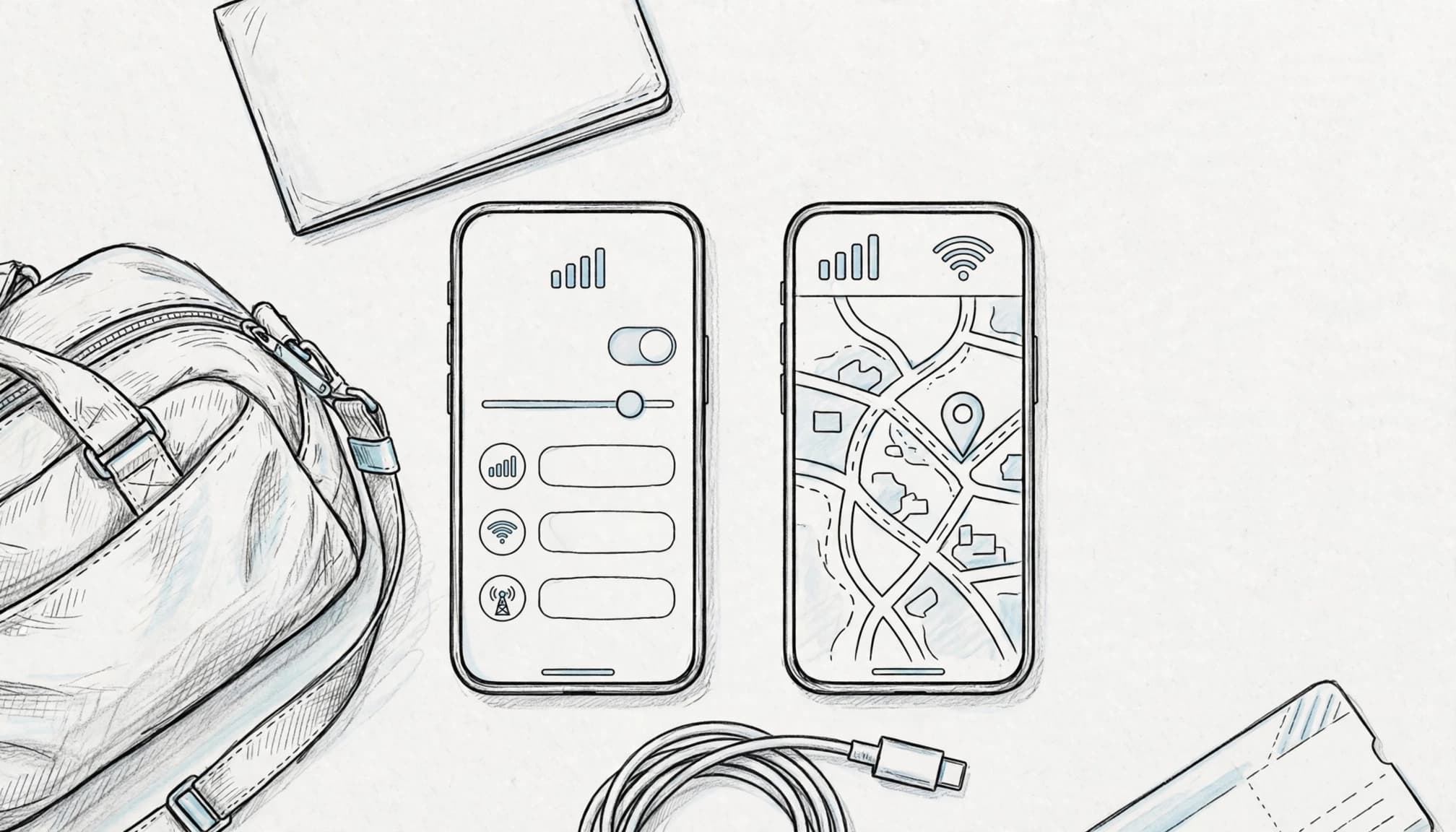
Confirm the correct line and connection
Open Settings > Cellular and confirm your travel eSIM appears under SIMs. Tap the line, then turn on Turn On This Line if needed.
Next, choose Cellular Data and select Travel Data. Turn off Allow Cellular Data Switching when you don’t want the iPhone selecting your home line automatically.
Check the status bar for signal bars and a carrier name. Then turn off Wi-Fi and open a webpage or map app. A successful load confirms that your travel eSIM can use cellular data.
You can also review usage under Settings > Cellular. Check the travel line’s data total after testing, then confirm your home line’s Data Roaming setting remains off. If your travel provider requires roaming, enable it only for the travel line.
For more detailed instructions, follow this guide to test your eSIM mobile data connection. You can also use the provider’s esimthailand.co installation steps if the replacement profile needs another setup method.
Fix an activation error before takeoff
If the travel line shows “Activating” or displays an error, use this order:
- Restart the new iPhone and reconnect it to stable Wi-Fi.
- Recheck the QR code, activation link, or manual details.
- Confirm Carrier Lock says “No SIM restrictions.”
- Scan the replacement profile again only when your provider allows retries.
- Contact the provider if the profile remains tied to the old device.
Keep the old iPhone active until this test succeeds. A few extra minutes at home beat an airport troubleshooting session with 4% battery and a boarding group announcement.
Conclusion
Transferring a travel eSIM to a new iPhone isn’t always a quick tap-and-go job. Don’t assume iOS Quick Transfer supports every travel plan. Check your provider’s rules, keep the old profile active, and request a replacement QR code when the original is single-use.
Before departure, confirm the new iPhone shows “No SIM restrictions,” then install the profile over stable Wi-Fi. Test mobile data with Wi-Fi turned off, and keep your support instructions saved offline. If the connection acts shy, these iPhone travel eSIM troubleshooting tips can help you find the problem.
Give the new phone a proper test at home before heading to the airport. A few minutes of checking now can keep your travel data working when you need it most.