Yes, most iPhone 13 models support eSIM, including the iPhone 13, 13 mini, 13 Pro, and 13 Pro Max. However, regional versions differ, especially models sold in Mainland China, Hong Kong, and Macao, so check your exact device before buying a plan. You can check your iPhone 13 eSIM compatibility first.
For travelers, an eSIM can provide mobile data abroad without removing your home SIM. That means you can keep your regular number available while your travel line handles maps, messages, and airport Wi-Fi rescue missions. Before activation, check that your iPhone isn’t carrier-locked and connect it to reliable Wi-Fi.
Next, you’ll follow the iPhone 13 eSIM setup steps, scan your provider’s QR code, label your lines, choose the correct cellular data line, and adjust dual-line settings. You’ll also find practical troubleshooting advice for failed activation, expired QR codes, and unwanted roaming charges. If you’re ready to get connected, Get your free esim now.
This post may contain affiliate links. If you make a purchase through these links, I may earn a small commission at no extra cost to you.
Does iPhone 13 Have eSIM? Check Your Model and Region
Yes, standard global iPhone 13 models support eSIM. However, regional hardware can change the answer, especially for iPhones sold in Mainland China, Hong Kong, and Macao. Carrier support also matters, so a compatible phone still needs a provider that offers eSIM activation.
Use the table below as a quick guide, then confirm your exact model in Settings > General > About. Apple also explains that eSIM availability varies by country and region in its Dual SIM guidance.
| iPhone model or region | Physical SIM tray | eSIM support | Active dual eSIM support |
|---|---|---|---|
| iPhone 13 series, US models | One nano-SIM | Yes | Yes, two eSIM lines |
| iPhone 13 series, global models | One nano-SIM | Yes | Yes, two eSIM lines |
| iPhone 13, 13 Pro, and 13 Pro Max, China, Hong Kong, or Macao versions | Usually two nano-SIMs | Usually no | No |
| iPhone 13 mini, China, Hong Kong, or Macao versions | Regional variation | May support eSIM | May support one eSIM plus one physical SIM |
Regional listings can vary by exact model number, so don’t rely only on where the phone seller ships it. Open Settings, tap General, choose About, and check the model information before purchasing an eSIM plan. You can also review this iPhone 13 eSIM compatibility guide for another model check.
What Dual eSIM Support Means on iPhone 13
Your iPhone can store several eSIM plans, but stored plans aren’t the same as active lines. A saved profile waits on the phone until you turn it on, while an active line connects to a carrier and can handle calls, texts, or data.
Supported iPhone 13 models can keep multiple plans stored and use two eSIM lines at the same time. For example, your home number can stay active while a travel eSIM provides local data overseas. Your maps keep working, and your regular number doesn’t vanish into the SIM-card Bermuda Triangle.
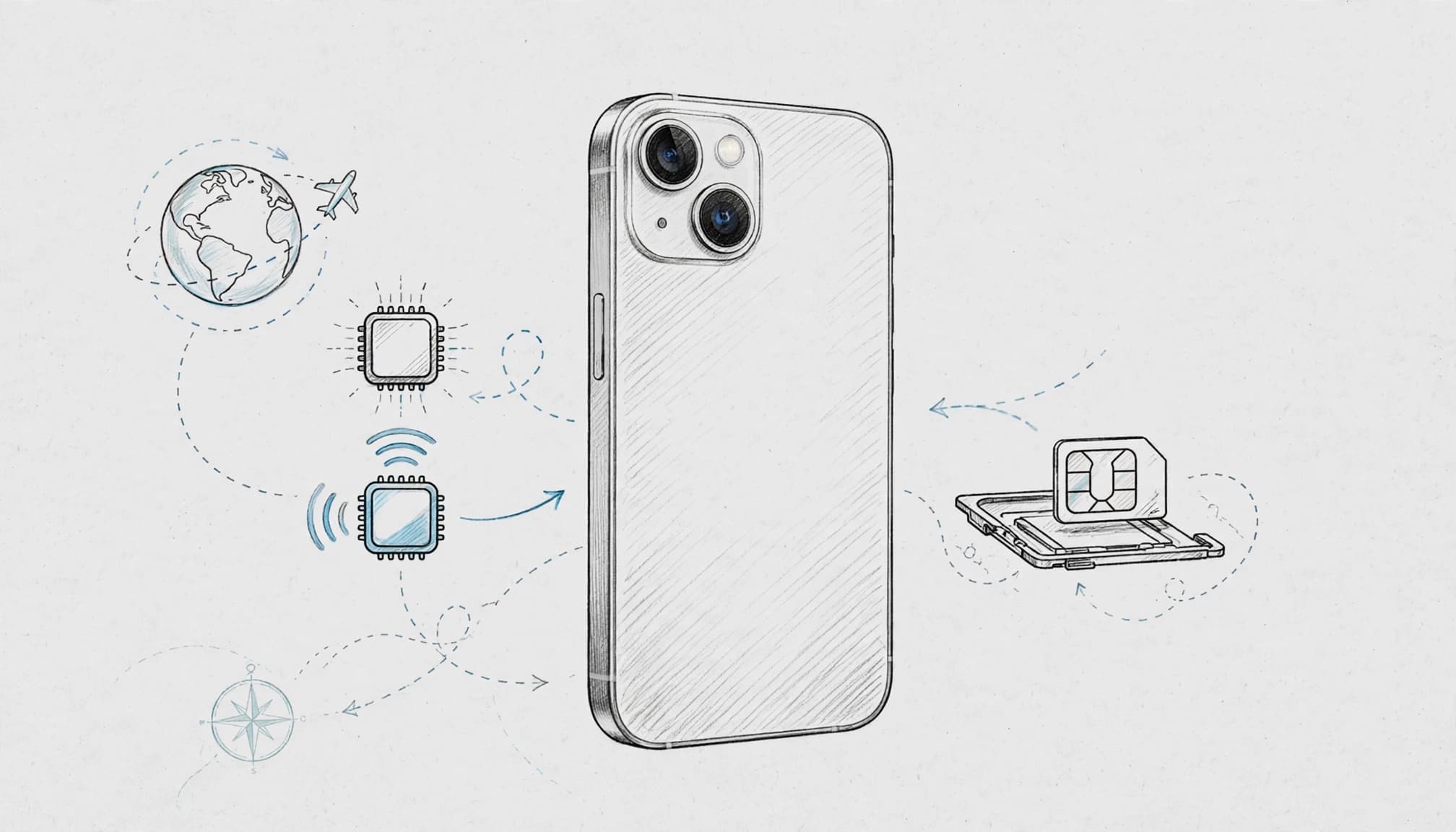
The phone may also use a physical nano-SIM, depending on its model and region. That means dual-line use can involve two eSIMs, one eSIM plus one nano-SIM, or two physical SIMs on certain regional versions.
How to Confirm Your iPhone 13 Is Unlocked
An eSIM won’t activate on a carrier-locked iPhone unless the current carrier permits that plan. To check, open Settings, tap General, select About, and find Carrier Lock.
The ideal result says “No SIM restrictions.” If you see a carrier name or another restriction, contact that carrier before buying a travel eSIM. Apple’s international eSIM instructions also recommend checking this setting first.
Even with an unlocked phone, you still need reliable Wi-Fi during setup and a compatible eSIM plan. The carrier must support your iPhone model, destination, and activation method. A phone can pass every hardware check and still reject a plan that doesn’t match its network requirements.
How to Set Up an eSIM on iPhone 13 in Four Simple Steps
Setting up an eSIM on iPhone 13 takes only a few minutes when you prepare first. Install the plan before departure while connected to reliable home or office Wi-Fi. Airport Wi-Fi can be slow, crowded, or unavailable when you need it most.
Keep your iPhone charged, and have your activation email, QR code, or carrier link ready. If you still need a travel plan, you can Get your free esim now.
Step One: Check the Carrier Lock and Prepare Wi-Fi
- Open Settings, tap General, and select About. Scroll to Carrier Lock and confirm that it says “No SIM restrictions.” This confirms your iPhone can accept a plan from another carrier.
If a carrier name or restriction appears, contact your current carrier before purchasing an eSIM. A locked phone may reject the travel plan, even when the iPhone 13 supports eSIM.
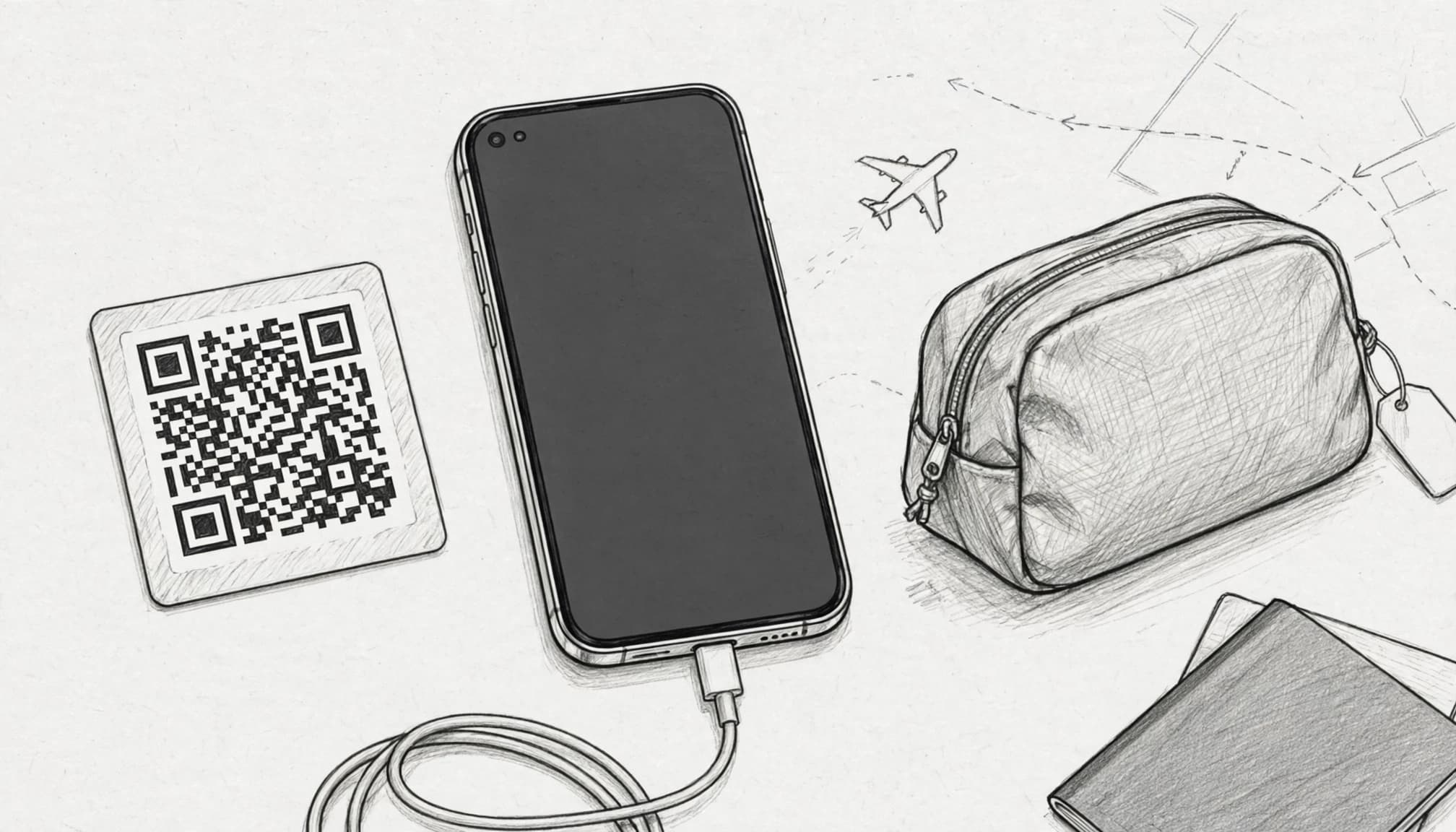
Next, connect to a stable Wi-Fi network at home or work. Keep the phone plugged in or above 50% battery, then open the activation email. Save the QR code where you can scan it easily, such as on another screen or printed paper.
Install the eSIM before leaving home. That way, airport delays won’t turn a simple setup into a Wi-Fi scavenger hunt.
Step Two: Scan the eSIM QR Code in Cellular Settings
- Open Settings, tap Cellular, and choose Add eSIM. Select Use QR Code, then place the carrier’s code inside the camera frame.
Your iPhone should recognize the code automatically. Follow each on-screen prompt, review the plan details, and confirm the activation. Apple provides the same path in its official eSIM setup instructions.
Some providers send a carrier activation link instead. Tap that link on your iPhone and follow the displayed instructions. You may also see an option to transfer a plan from another nearby iPhone.
If your provider supplies an SM-DP+ address and activation code, choose the manual entry option. Enter every detail exactly as shown in the provider’s email. One missing character can send the setup process into a small but annoying maze.
The phone may briefly display Activating while it contacts the carrier. Keep Wi-Fi connected, and don’t close Settings during this process. Most QR codes work only once, so don’t share yours with anyone or scan it on another phone.
For more help with the camera step, use this iPhone eSIM QR code guide.
Step Three: Label the Lines and Choose the Travel Line
- After activation, your iPhone asks you to label each cellular plan. Give the lines clear names, such as Home and Travel Data.
Clear labels prevent mistakes later, especially when you switch between plans at the airport or after landing. Generic labels can make both lines look like mystery guests at a family reunion.
When prompted, choose which line handles calls and messages. Keep your home line as the Default Voice Line if you need your usual number for calls, texts, or bank verification codes.
Then open Settings > Cellular > Cellular Data and select your travel eSIM. Your iPhone will use that line for maps, browsing, messaging apps, and other mobile data.
Apple’s eSIM setup guide also covers transferring service between compatible iPhones. Check that your travel line shows Turn On This Line before your flight.
Step Four: Prevent Accidental Home-Line Roaming Charges
- Open Settings > Cellular, select your Home line, and turn off Data Roaming. This prevents the home plan from using foreign networks for mobile data.
Next, select Travel Data and turn on Data Roaming if your travel plan requires it. Many travel eSIMs need this setting because they connect through a local partner network.
Return to Settings > Cellular > Cellular Data, then turn off Allow Cellular Data Switching. With this setting disabled, iOS won’t quietly use your home line when the travel eSIM has a weak signal.
Some providers use different activation rules, so follow the instructions included with your plan. Before takeoff, confirm three settings: Cellular Data uses Travel Data, Home Data Roaming is off, and Allow Cellular Data Switching is off. Your iPhone 13 will then know which line pays for the data bill.
Fix Common iPhone 13 eSIM Activation Problems
Most iPhone 13 eSIM problems come from weak network access, incorrect line settings, or carrier activation limits. Try the fixes below before deleting any profile.
The eSIM Cannot Be Added or the QR Code Expired
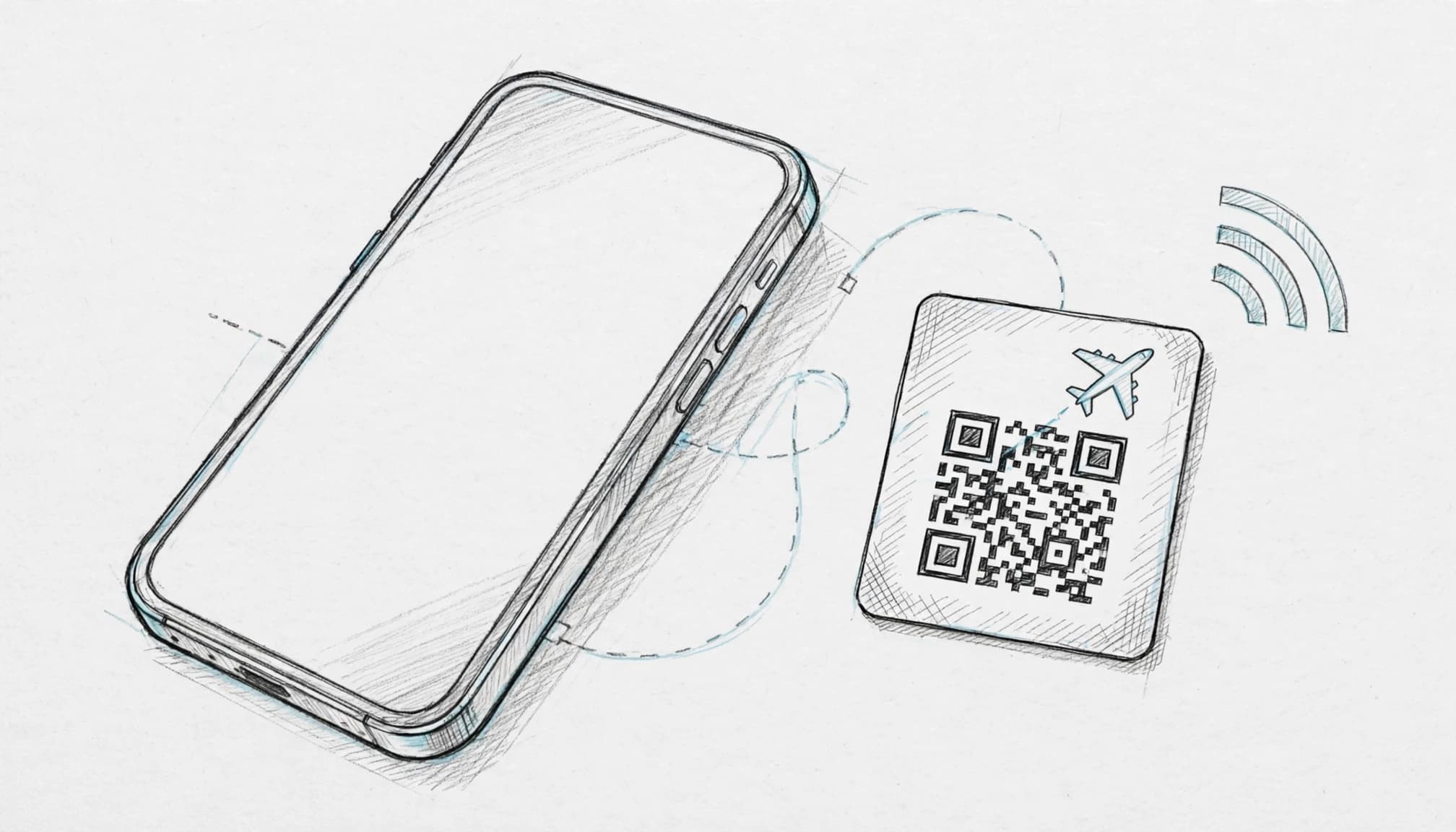
A lost Wi-Fi connection can interrupt activation and trigger this message. The same error appears when someone already used the QR code or the activation code expired.
Reconnect your iPhone 13 to strong, reliable Wi-Fi. Then restart the phone and try again through Settings > Cellular > Add eSIM. If the QR code still fails, ask your provider for a replacement code.
Some providers supply an SM-DP+ address and activation code instead. Enter those details through Settings > Cellular > Add eSIM, then choose the manual entry option. Copy every character exactly as provided.
Never guess the SM-DP+ address, confirmation code, or activation details. One incorrect character can cause another failed attempt, and some providers limit code usage.
If a working eSIM already appears under Cellular, don’t delete it yet. Confirm that your provider can reissue the plan first. Deleting a valid profile may leave you without a usable QR code.
For more help, follow these eSIM activation troubleshooting steps. You can also review Apple’s iPhone eSIM setup guidance before contacting the carrier.
The iPhone Shows No Service After Installation
An installed eSIM may need several minutes to connect, especially after you land in a new country. Network registration can take longer when your phone searches for a local partner network.
Open Settings > Cellular and select your travel line. Confirm that Turn On This Line is enabled. Next, open Settings > Cellular > Cellular Data and choose the travel eSIM.
Check the travel line’s Data Roaming setting as well. Turn it on when your plan requires roaming access. Without it, the phone may show signal bars but still refuse mobile data.
If the line remains inactive, use this short reset sequence:
- Turn Airplane Mode on for about 30 seconds.
- Turn Airplane Mode off and wait for the network search.
- Restart the iPhone 13.
- Install any available iOS update under Settings > General > Software Update.
- Check Settings > Cellular > Network Selection and enable automatic selection.
Your provider may require a specific network instead of automatic selection. Follow its instructions if automatic selection fails. If the plan still shows No Service, contact the provider and ask them to confirm activation, destination coverage, and account status.
The Home Line Uses Foreign Data by Mistake
The iPhone can switch data lines when Allow Cellular Data Switching remains enabled. That fallback can send mobile data through your home line and create roaming charges.
Before departure, open Settings > Cellular > Cellular Data. Turn off Allow Cellular Data Switching, then select your travel eSIM as the cellular data line.
Next, open your home line’s settings and turn off Data Roaming. Keep the home line active if you need calls or verification texts. It can receive those messages without handling mobile data.
Your travel line may still need Data Roaming enabled. Check the plan instructions, then confirm the travel line handles data before leaving Wi-Fi.
Use This iPhone 13 Travel eSIM Checklist Before Takeoff
Your iPhone 13 setup deserves one final inspection before the plane leaves the gate. These checks help prevent failed activation, surprise roaming charges, and a frantic search for support details at baggage claim.
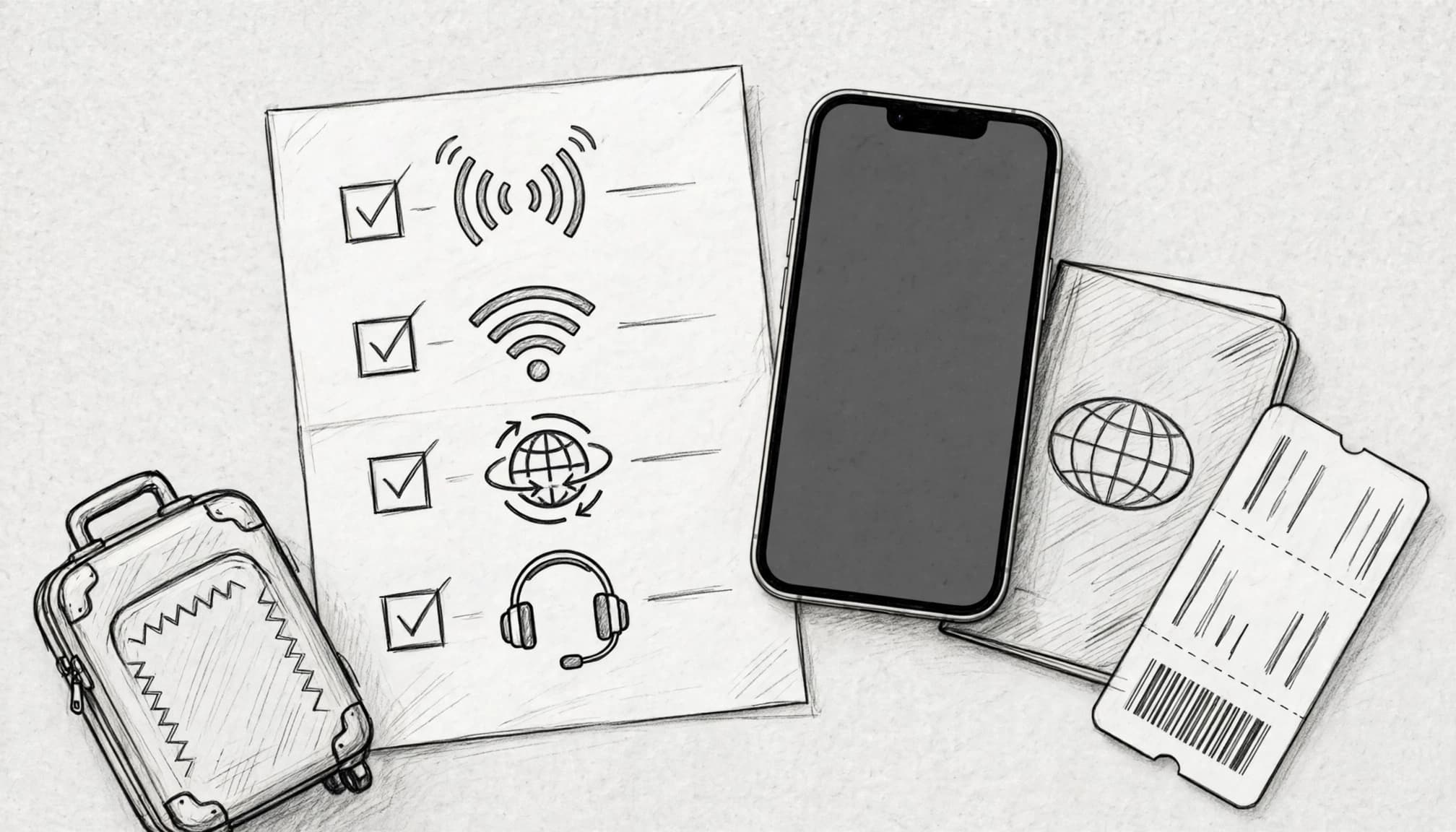
- Carrier Lock: Confirm it says No SIM restrictions. This allows the phone to accept the travel eSIM.
- eSIM installation: Check that the travel profile appears under Settings > Cellular. This prevents QR-code panic after takeoff.
- Cellular Data: Select the travel line. This sends web traffic through your travel plan.
- Travel Data Roaming: Turn it on when your provider requires it. Otherwise, the plan may show signal but fail to load data.
- Allow Cellular Data Switching: Turn it off. This stops iOS from falling back to your home line.
- Home Data Roaming: Turn it off. This helps prevent accidental charges from your regular carrier.
- Support details: Save the provider’s email, chat link, and emergency instructions. Airport stress is a terrible filing system.
- Activation email or QR code: Keep it available until the eSIM works. Don’t delete it immediately after installation.
Test the Travel Line Before You Leave Home
Briefly turn off Wi-Fi, then open a webpage or map using your selected travel line. Keep the test short so you don’t waste valuable plan data before departure.
Next, open Settings > Cellular > Cellular Data and confirm that the travel eSIM remains selected. You can also check each line’s settings to verify which profile handled the connection. If the page loads through your home line, switch Cellular Data back to the travel profile and test again.
Turn Wi-Fi back on as soon as you finish. For a visual refresher, use this iPhone cellular data switching guide. Apple’s Dual SIM guidance also explains how iPhone chooses cellular data when multiple lines remain active.
Keep Calls, Texts, and Verification Codes Working
Mobile data and your home number are separate controls. You can use the travel eSIM for internet access while keeping your home line active for bank texts, incoming calls, or verification codes.
Set the travel eSIM under Cellular Data, then leave your home line turned on. Keep Allow Cellular Data Switching disabled so the phone doesn’t use the home line for data when coverage changes.
Your home carrier may charge for calls, SMS, returned calls, or voicemail while you’re abroad. Check the plan before departure, because dual-line features vary by carrier. Some providers also handle incoming texts differently when roaming is enabled.
If you need detailed roaming settings, review this iPhone data roaming guide before leaving home.
Make Your iPhone 13 Ready for Affordable International Data
Does iPhone 13 have eSIM support for travel? Yes, most models do. A few regional versions remain the exception, so check your phone before purchasing a plan.
Check Your Region and Carrier Lock First
Global iPhone 13 models support eSIM, including US versions. However, iPhone 13, 13 Pro, and 13 Pro Max models from Mainland China, Hong Kong, and Macao usually lack eSIM support.
The iPhone 13 mini from those regions may support one eSIM with one physical SIM. Check Settings > General > About before buying anything.
Next, find Carrier Lock on the same screen. Your phone should display “No SIM restrictions.” A locked iPhone can reject an otherwise compatible travel plan.
For a deeper device check, follow this iPhone 13 eSIM setup guide.
Install on Wi-Fi and Control the Data Line
Install your travel eSIM before leaving home. Use stable Wi-Fi, keep your activation QR code nearby, and open Settings > Cellular > Add eSIM.
After scanning the code, label the new line Travel Data. Then choose it under Settings > Cellular > Cellular Data. This directs maps, messages, and browsing through the travel plan.
Keep your home line active if you need verification texts. Turn off Data Roaming for that line, then disable Allow Cellular Data Switching. Otherwise, your iPhone may fall back to your home carrier and create roaming charges.
Installing the plan on Wi-Fi removes one headache before your trip even begins.
So, the answer is clear: most iPhone 13 models support affordable international eSIM data. Check the region and carrier lock first, install on Wi-Fi, select the travel line, and disable automatic switching. When you’re ready to connect, Get your free esim now.
Conclusion
Most iPhone 13 models support eSIM, but regional versions can differ. Check your exact model before buying a plan, especially if the phone came from Mainland China, Hong Kong, or Macao.
Before setup, confirm “No SIM restrictions” under Carrier Lock. Install the eSIM while connected to reliable Wi-Fi, then assign the travel line to cellular data. Finally, turn off roaming for your home line and disable automatic data switching.
These quick checks keep your iPhone 13 ready for travel without turning setup into a pre-flight puzzle. Your travel eSIM handles the data, your home number stays close at hand, and surprise roaming bills can remain firmly grounded.