You are deep in the woods or navigating a chaotic foreign transit hub; your primary lifeline is a glowing screen that’s rapidly losing juice. When your battery percentage starts its frantic dive toward zero, it’s easy to point fingers at the newest tech in your pocket. Because many people believe the myth that an eSIM iPhone setup is a secret power hog, they hesitate to make the switch, fearing they’ll be stranded without a charge.
The short answer is no; using an eSIM does not inherently drain your battery more than a traditional piece of plastic. In fact, if you compare eSIM and physical SIM battery performance, you’ll find the digital chip is just as efficient as its predecessor. The real battery killer is usually a weak signal or running two active lines at once, not the technology itself.
Whether you’re a digital nomad jumping between borders or a weekend camper needing a backup line, this tech is designed to keep you connected without the bulk. You can even get your free esim now to test the efficiency for yourself on your next adventure. Let’s look at why your battery is actually draining and how to keep your device running longer while traveling.
Does an eSIM drain battery life on iPhone more than a physical SIM?
Let’s cut right to the chase: No. Using an eSIM on your iPhone doesn’t suck back juice like a thirsty traveler at a free water station. The tiny chip inside your phone, known as the eUICC, is an integrated part of the motherboard. It doesn’t move, it doesn’t vibrate, and it definitely doesn’t require extra mechanical energy to function.
Whether you’re using a digital profile or a physical piece of plastic, your phone’s modem treats them both with the same level of respect. In fact, if you’re only using one active line, there’s absolutely no measurable difference in power consumption between the two formats. The hardware inside a modern eSIM iPhone is built for efficiency, ensuring that the digital transition is as smooth as possible for your battery life.
The Real Villain: Signal Strength and Cellular Searching
If your battery is falling faster than a dropped phone, the blame usually lies with your local cell tower—or the lack of one. Understanding how your device interacts with network infrastructure is key to managing your power consumption.
The Modem’s Workload
Your iPhone’s modem, such as the sophisticated Qualcomm Snapdragon X70 found in the iPhone 15, is a high-performance, yet power-hungry component. Under ideal conditions—when you have a full set of signal bars—the modem can operate in a low-power state, sipping energy efficiently while maintaining a stable connection.
The Impact of Weak Signals
The situation changes drastically when you find yourself in an area with poor coverage. When your signal drops to -110 dBm or lower, your modem is forced into overdrive. It must constantly increase its transmission power to maintain communication with the distant tower and aggressively scan for better signals.
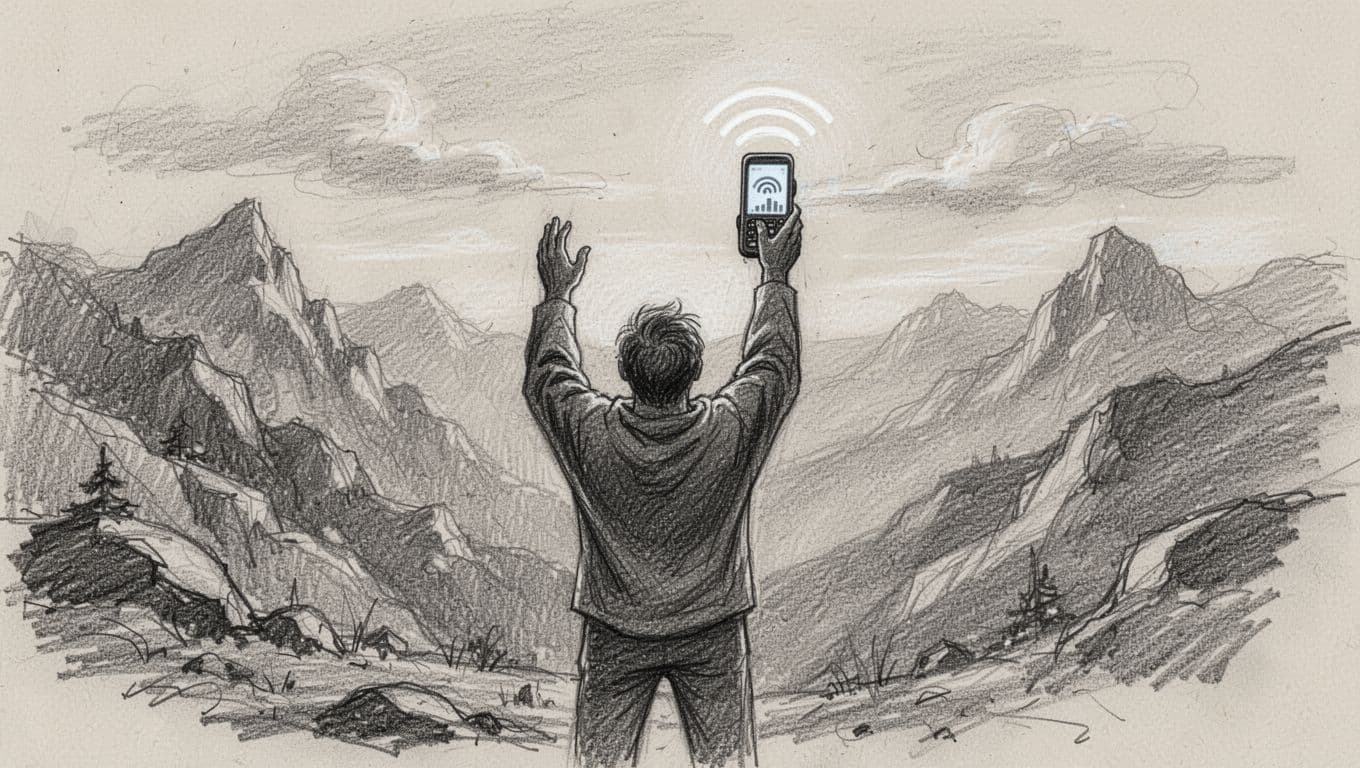
This process is what techies call “Cell Reselection,” and it’s the primary reason for mysterious battery drain. Imagine you’re a camper deep in a remote valley with zero bars of service. Your iPhone doesn’t just give up; it constantly shouts into the void, searching for any tower that will listen. This constant shouting requires a massive amount of energy compared to a quiet whisper in a city center.
When your device struggles to find a signal, the power draw can increase significantly. Here is how signal quality generally impacts your modem’s energy usage:
| Signal Strength | Modem Effort | Battery Impact |
|---|---|---|
| Excellent (-50 to -70 dBm) | Low | Minimal drain |
| Good (-80 to -90 dBm) | Moderate | Standard usage |
| Poor (-100 to -110 dBm) | High | Noticeable drain |
| Searching (No Service) | Maximum | Rapid drain |
As you can see, the modem works hardest when it’s lonely. If you find yourself in a dead zone, jumping into airplane mode is a smart move to save your charge. Because searching for a signal is so taxing, understanding eSIM capacity and battery usage on modern iPhones can help you manage your settings more effectively.
Your phone’s brain is constantly calculating how much power to feed the antennas based on the environment. If you’re traveling through a series of tunnels or hiking in a canyon, your battery will tank regardless of whether you’re using a physical SIM or an eSIM. It’s the hunt for a connection, not the type of credentials you’re using, that really kills your vibes and your percentage.
Why using an eSIM iPhone setup might actually save you power
It sounds counterintuitive, but your digital SIM might actually be the hero your battery deserves. While most people assume adding more tech equals more drain, the way an eSIM iPhone interacts with modern networks is remarkably efficient. The magic happens because digital profiles allow for a cleaner, more direct handshake with local towers than old-school roaming ever could.
When you use a local eSIM while traveling, your phone acts like a local resident instead of a confused tourist. Instead of your home carrier’s signal constantly shouting across the ocean to check in, a local profile hops onto the nearest high-quality mast and stays there. This reduces the heavy lifting your modem has to do, which directly translates to a happier battery and a phone that doesn’t feel like a pocket-sized space heater.
Understanding the Dual SIM Battery Penalty
If you are noticing an unexplained dip in your battery percentage, the culprit is often Dual SIM Dual Standby (DSDS) logic. This technology allows your iPhone to maintain two “heartbeats” simultaneously, enabling you to receive calls on your home number while using data on a travel line.
The Trade-off for Connectivity
While convenient, this dual-management approach significantly increases the operational load on your device’s hardware. The system is constantly balancing the demands of two distinct networks, which is inherently more resource-intensive than a standard single-SIM configuration.
How Modem Synchronization Impacts Power
The primary issue arises because these two networks rarely synchronize their communication schedules. Consequently, your phone’s modem must wake up twice as often to listen for “pages” or incoming signals.
Maintaining Constant Radio Alertness
This constant state of alertness keeps the cellular radio active far more frequently than a single-SIM setup requires. The hardware cannot easily “rest” because it must constantly attend to the paging cycles of both networks.
The Cumulative Cost of Dual Handshakes
This constant switching and monitoring creates a significant background tax on your device’s power, as the modem is forced to manage two independent signal handshakes rather than one.
The Strain on Radio Architecture
By maintaining separate connections for both networks, the device’s radio architecture is under continuous, simultaneous load. The system is essentially performing double the work to maintain the same level of connectivity.
The Impact on Daily Battery Longevity
Because the radio must remain active to support both networks at all times, your iPhone consumes energy at a much faster rate than it would with a single-SIM setup.
Identifying the Hidden Culprit
This increased power draw is often the hidden culprit behind rapid, unexplained battery depletion during travel or while using multiple active lines. Understanding this mechanism is the first step toward better managing your battery life while on the go.
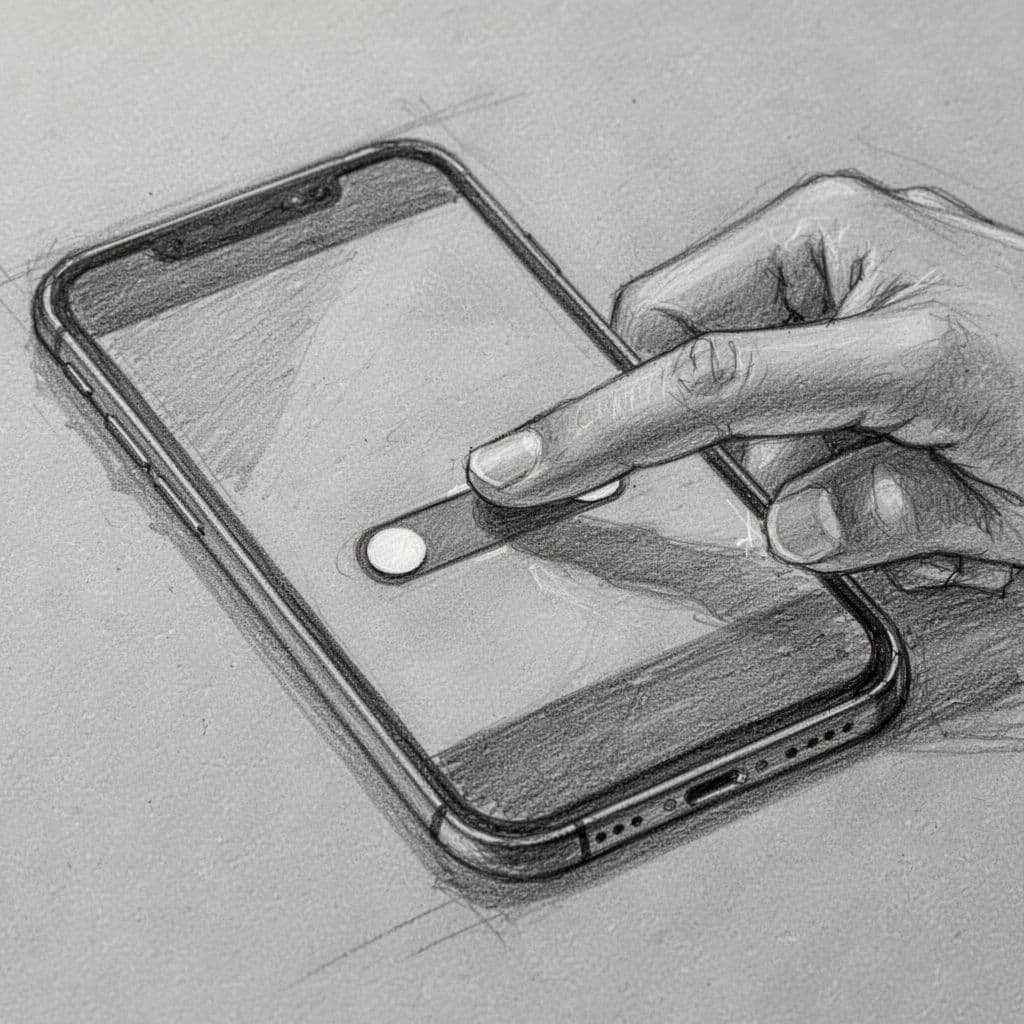
This constant multitasking can lead to a sneaky idle drain of 5% to 15% over a full day. The modem is basically working a double shift, monitoring two different paging channels from two different carriers. To stop the bleed, you should dive into your settings and toggle off the line you aren’t using for the day. You’ll find that reducing signal search battery consumption on iPhone is one of the fastest ways to stretch your charge.
Managing your lines effectively ensures your hardware isn’t spinning its wheels in the background. Here is how different active setups generally impact your daily battery floor:
| SIM Configuration | Modem Activity | Estimated Idle Drain |
|---|---|---|
| Single Active Line | Optimized / Low | Baseline |
| Dual SIM (Strong Signal) | Moderate | +5-10% |
| Dual SIM (Weak Signal) | High | +15-20% |
| Airplane Mode | Zero | 0% |
By turning off your secondary line when it’s not needed, you give your battery a much-needed break. If you’re a heavy data user, optimizing iPhone background refresh to save eSIM battery alongside managing your SIMs will keep you powered up through your entire itinerary. When you’re ready to see how efficient a single-line setup can be, get your free esim now and test the difference during your next weekend getaway.
The beauty of the eSIM iPhone setup is the total control it gives you over these antennas. You aren’t stuck with a physical card that’s a hassle to remove; you simply flip a software switch to go from “high-power traveler” to “battery-sipping pro” in seconds. According to users on discussions regarding dual SIM battery impact, the hardware treats eSIM and physical SIM equally, so the real secret is simply knowing when to let one of them sleep.
How to maximize your iPhone battery while traveling and camping
Master Your Battery for the Journey
Staring at a “10% battery” notification far from a power outlet is stressful. In the backcountry or a foreign city, your phone is more than a social media tool. It is your map, your translator, and your emergency beacon. Because your battery is a finite resource, you must treat every milliamp like gold.
By mastering a few simple settings, you can transform your device into a lean, efficient trekking machine. It is all about knowing which features to “shush.” This allows your modem to stop working overtime. Whether you are using a local travel plan or just squeezing every drop from your primary line, these pro moves will keep your screen bright until you reach a charging port.
Optimize Connectivity with Low Data Mode
Think of Low Data Mode as a “quiet hours” rule for your iPhone apps. When this feature is enabled, your phone actively prevents applications from communicating with the internet in the background.
Under normal circumstances, apps like Instagram, Mail, or social media aggregators are constantly “tapping” the modem on the shoulder to ask, “Is there any new content?” This persistent background activity keeps your cellular chip in a state of high alert, causing it to consume power every single time it initiates a connection to a tower to fetch data.
Minimize Background Refresh for Longevity
Beyond data management, restricting Background App Refresh is essential. It helps preserve your battery life. By limiting background updates, you reduce how often your modem and processor must wake up.
Stop this constant stream of “whispering” from your apps. This allows the modem to remain in a low-power, dormant state. Now, your cellular chip will only draw significant power when you are actively using an app. You will no longer drain your battery on background tasks you do not need.
Prioritizing Critical Tasks via Low Data Mode
When you are relying on an eSIM configuration for critical tasks—like finding your campsite on a map—you cannot afford to have a random game download an update while your phone is in your pocket.
Turning on Low Data Mode pauses these background tasks and halts automatic cloud backups. It is the single best way to ensure your iPhone stays optimized while traveling, pairing essential connectivity with tangible power savings.
Taking Control of App Behavior
To tighten the leash even further, you should manually disable “Background App Refresh” in your general settings. This stops your apps from refreshing their content when they are not in active use. By doing this, you keep the modem in a “sleep” state longer, which is the secret to making a single charge last through a long day of travel or hiking.

### Offline everything: The traveler’s secret weapon
The most efficient way to use your cellular data is to not use it at all. Every time your phone has to reach out to a satellite or a tower to download a new section of a map or stream a song, it uses a burst of energy. Before you leave the hotel Wi-Fi or hit the trailhead, you should download your entire “life” for the day.
Google Maps allows you to save massive rectangular chunks of territory for offline use, and music apps like Spotify let you keep your playlists on the device. By having this data stored locally, your phone doesn’t have to keep the “data straw” open while you move. This significantly lowers the power floor of your device because the processor can pull data from local storage much faster and cheaper than the modem can pull it from the air.
Taking these steps also helps you how to monitor your iPhone data usage more effectively, as you won’t be surprised by high consumption from navigation apps. Here is a quick checklist of what to grab before you lose Wi-Fi:
- Download offline maps for your current city or hiking area.
- Save your favorite playlists and podcasts for offline listening.
- Use the “Save for Offline” feature on travel guides or blog posts.
- Download your boarding pass and hotel confirmation PDFs to your Files app.
The Airplane Mode trick for zero coverage areas
If you are camping in a spot where the signal bars have vanished, your iPhone is basically screaming into a pillow. It keeps amping up the power to its antennas, desperately trying to find a tower that isn’t there. This “searching” phase is the fastest way to kill your battery; it can drain a full charge in just a few hours if left unchecked.
The easiest fix is to flip on Airplane Mode the moment you realize you are out of range. This tells the modem to stop searching entirely. If you still need to use GPS for hiking, don’t worry, as your iPhone’s GPS chip is a “passive” receiver that can often work even when cellular radios are off. According to Apple’s guidance on maximizing battery performance, managing your wireless connections is the most effective way to save power.
By using Airplane Mode strategically, you can save your phone for the moments that actually matter, like taking a photo at the summit or calling home when you finally get back to a town. It is a simple habit that separates the pro travelers from the ones who end up with a dead phone by lunchtime. If you want to see how long your battery can really last on a well-managed single line, you can get your free esim now and practice these power-saving habits on your next trip.
Common questions about eSIM battery usage
When new tech lands in our palms, we naturally treat it with a bit of side-eye. It is easy to assume that a digital chip somehow works harder than a physical one, but the reality is much more boring (and battery-friendly). Understanding how these digital profiles function helps demystify the process and settles the nerves of every traveler worried about a dead phone in a foreign city. The internal eUICC chip is an integrated piece of your hardware, not a power-hungry parasite.
Does installing an eSIM profile use battery?
Adding a new line to your device is essentially a software download. Think of it like grabbing a small app or a PDF. When you scan a QR code or use a carrier app, your phone speaks to a server. It securely grabs your digital credentials. This interaction is known as Remote SIM Provisioning. It is a one-time event that ends in less than two minutes.
This process uses a tiny amount of data. It is often less than one megabyte, so it has a microscopic impact on your charge. Your cellular modem does jump into an active state to handle the download. However, it returns to its idle, power-sipping mode almost immediately. You might see a quick flicker of activity. Still, following an iPhone eSIM installation guide once will not hurt your long-term battery health or noticeably drain your daily power.
How can I see which apps are eating my power?
If your battery percentage is falling faster than a clumsy hiker, don’t immediately blame your eSIM iPhone configuration. More often than not, a rogue app is the true culprit behind your power woes. High-refresh social media feeds, location-tracking maps, and bright screens are the usual suspects that masquerade as “modem drain,” and your iPhone keeps a very detailed receipt of exactly who is spending your energy.
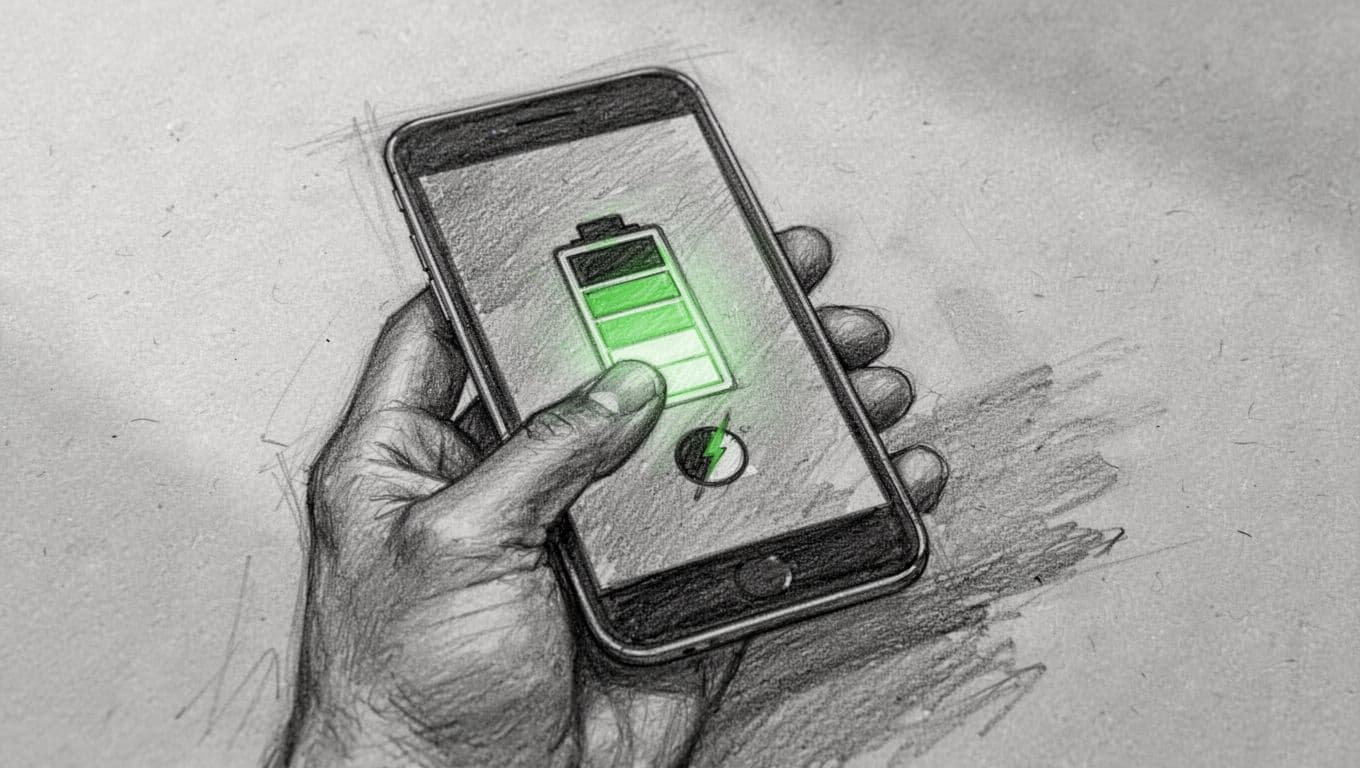
To solve the mystery, head into your Settings and tap on the Battery section to pull up a full breakdown of your usage. You can see which apps have been active in the foreground and what has been sneaking around in the background while you weren’t looking. For a truly deep look, you should check battery usage on your iPhone using the last 24 hours or even the last 10 days of data provided by Apple Support.
- Open your Settings app and scroll down to select Battery.
- Wait a heartbeat for the charts to load their data.
- Tap on a specific hour or bar in the chart to see which apps were active then.
- Toggle between “Show Battery Usage” and “Show Activity” for more clarity.
Once you identify the high-energy offenders, you can make smarter choices about your habits. Maybe you dim the screen a notch or close that video-streaming app once you’re done. By monitoring these stats, you ensure that your hardware works for you rather than against your itinerary.
Conclusion
The idea that an eSIM is a power hungry gremlin is a total myth. Your iPhone’s internal hardware treats a digital profile exactly like a physical one; neither is more taxing on your device. The reality is that your battery life depends on how hard your modem has to climb to reach a cell tower.
Strong signals and smart settings choices are the true kings of power management. By toggling off lines you aren’t using and downloading maps for offline use, you keep your battery percentage in the green zone. The convenience of switching plans with a few taps far outweighs any negligible tech differences between SIM formats.
If you are ready to ditch the paperclip and the fear of a dead phone, you can get your free esim now to see how efficient a digital setup can be. Grab a travel plan before your next trip and spend more time taking photos and less time hunting for a charging block.
This post may contain affiliate links. If you make a purchase through these links, I may earn a small commission at no extra cost to you.