You finally escaped the office, landed in a new city, and realize your phone signal is a ghost. It’s incredibly annoying when your data drops right when you need a map or a ride. Usually, getting an esim iphone back on the grid involves a quick settings tweak rather than a hardware crisis.
Most connection hiccups stem from simple network desyncs, carrier activation delays, or having too many active lines at once. You might just need to refresh the digital handshake between your device and the cell tower. If you’re stuck in the dark, you can get your free esim now to see if a fresh profile clears the air.
This guide walks through the fast diagnostics to flip that “No Service” bar back into a high-speed connection.
Quick-Fix Checklist: Try These First
Before you start hunting for a local technician or assume your device is broken, try these digital first aid maneuvers. Most connection dropouts are just temporary brain farts where your phone and the local cell tower lose their rhythm. These steps are designed to snap your hardware back into reality. If you’ve already tried the basics and still feel stuck, you might want to look at a comprehensive eSIM troubleshooting guide to dig into more specific errors. Otherwise, let’s start with the easiest fixes to get you back online.
The Airplane Mode Toggle
Think of Airplane Mode as a quick nap for your phone’s antennas. By toggling this on, you force the device to stop searching for a signal entirely, which clears out any stuck attempts to connect to a distant or weak tower. It’s often the fastest way to get your data flowing again without a full restart.
- Swipe down from the top right corner of your screen to open the Control Center.
- Tap the airplane icon so it turns orange.
- Count to 15 while you enjoy a brief moment of being truly off the grid.
- Tap the icon again to turn it off.
Your phone will now initiate a fresh scan for the best available signal. This “handshake” process often picks up a closer or stronger tower that your phone was ignoring just a moment ago.
Perform a Force Restart
Sometimes the software controlling your mobile data gets tangled up in a background process. A standard “slide to power off” is nice, but a force restart is like a splash of cold water for your device’s motherboard. This clears the system memory and stops any rogue apps that might be hogging your connection.

To execute this on a modern iPhone, press and quickly release the Volume Up button, then do the same with the Volume Down button. Immediately after, press and hold the Side button. Keep holding it even after the power slider appears on the screen. Only let go once you see the Apple logo pop up. This deeper reset often flushes out those stubborn signal bugs.
Verify Your Wi-Fi Connection
It sounds backwards, but you often need the internet to get the internet. Your digital profile lives in the cloud, and for your device to download or verify that profile, it needs to reach Apple’s activation servers. If your current Wi-Fi is spotty or requires a login page you haven’t seen yet, your cellular data might stay in a “Searching” loop.
Without a solid wireless link, your phone cannot complete the “digital handshake” required for activation. If you find yourself in a hotel or airport where the Wi-Fi is terrible, you may find it difficult to troubleshoot eSIM installation errors effectively. Try to find a stable hotspot or a strong home network before assuming the profile itself is the problem.
Update Your Carrier Settings
Wireless carriers frequently release tiny files that tell your phone how to interact with new 5G towers or updated network protocols. These aren’t full iOS updates, so they often go unnoticed. If your software is out of date, your phone might be trying to talk to the network in a language the towers no longer understand.
Checking for these is simple and takes less than a minute. Head over to Settings, tap on General, and then select About. If an update is waiting, a pop-up menu will appear automatically within about 30 seconds. Tap “Update” and let the phone do its thing. These small patches are specifically designed to squash signal bugs and improve how your esim iphone handles modern network handoffs.
Mastering Deep eSIM iPhone Troubleshooting
When the basic restart doesn’t cut it, it’s time to play digital detective. Your esim iphone is a marvel of engineering, but even the smartest tech gets stage fright when trying to talk to a foreign cell tower. These deeper issues usually hide in your settings menus, waiting for a human touch to straighten them out. If you’ve exhausted your patience, you can get your free esim now to start over with a fresh, clean profile that hasn’t been bogged down by previous errors.
Fixing the No Service or Searching Status
A phone that refuses to find a signal is essentially a very expensive calculator. Often, the culprit is a simple software toggle that decided to take a nap. You should first navigate to Settings and then Cellular to ensure your specific line is actually switched to On. It sounds obvious, but many travelers accidentally leave their primary line active while the travel profile sits idle.
If the line is on but still “Searching,” your phone might be struggling with Automatic Network Selection. This happens when the device tries to shake hands with a roaming partner that doesn’t want to talk.
- Go to Settings and tap on Cellular.
- Select your active eSIM plan.
- Tap on Network Selection.
- Toggle the Automatic switch to Off.
- Wait for the list of available carriers to appear and select one manually.
This manual override forces your device to stop being picky and settle on a specific local provider. For more detailed steps on resolving these dead zones, check out this step-by-step eSIM troubleshooting guide.
Solving Data Load Issues Despite Having Signal
There is nothing quite as teasing as seeing four bars of 5G while your browser refuses to load a single page. If you have a signal but no data flow, the Data Roaming switch is the most likely villain. For most international profiles, this must be enabled to allow the local provider to pass internet traffic to your device.
You also need to verify your Cellular Data Assignment. Your iPhone can handle multiple lines, but it can only use one for data at a time. If your phone is trying to pull data from an expired home line instead of your new travel profile, you won’t get anywhere.
| Setting To Check | Correct Configuration for Travel |
|---|---|
| Data Roaming | Must be toggled ON for most travel eSIMs |
| Default Voice Line | Can stay as your Primary home number |
| Cellular Data | Must be set to your new eSIM profile |
| Allow Data Switching | Toggle OFF to prevent unexpected roaming charges |
Managing these settings ensures your phone isn’t trying to send data through a pipe that has already been capped or disconnected.
Handling the Unable to Complete Cellular Plan Change Error
Facing a “Plan Change” error during installation is the digital equivalent of a “Keep Out” sign. This usually happens if you try to scan a QR code multiple times or if the profile was partially downloaded and then interrupted. Apple’s security is tight; if it thinks a profile is already being used or has been corrupted, it will block the installation.
Some hardware versions of the iPhone, particularly those manufactured for mainland China, Hong Kong, or Macau, may lack eSIM capabilities entirely because they use physical dual-SIM slots. If your hardware is compatible but the scan fails, try the manual entry method. This involves typing in the SM-DP+ Address and Activation Code provided by your carrier.

Manual entry bypasses several camera-related glitches and ensures the data reaches the internal chip correctly. If the error persists, you may need to contact Apple support to ensure there isn’t a regional lock or a deeper hardware restriction preventing the activation. Often, a quick chat with the carrier to “reset” the QR code on their end is the secret key to unlocking the connection.
A Quick Guide to Core Connection Issues
When your phone refuses to play nice with the local towers, it feels like the digital world has slammed its doors in your face. Most people assume the hardware is failing, but usually, it’s just a communication breakdown between your device and the carrier. You don’t need a degree in computer science to fix this; you just need to know which digital levers to pull.
Manual Profile Entry for Failed Scans
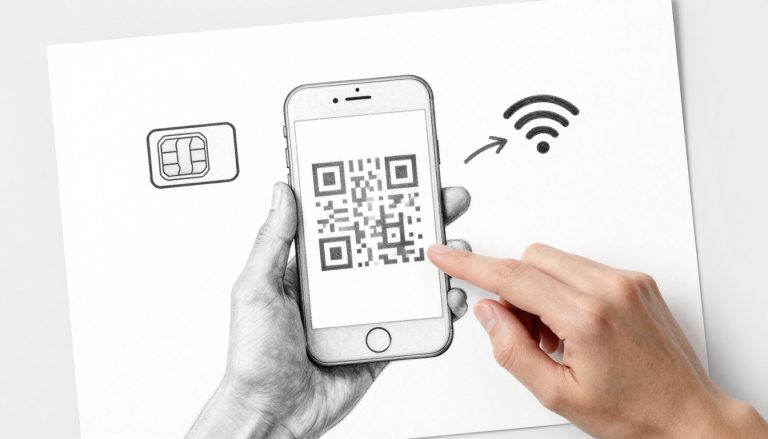
Sometimes your camera misses the mark or the QR code just won’t behave, leaving you staring at a spinning wheel of doom. If the automatic setup fails, you can skip the visual hunt and type in the details yourself. This manual path is often more stable because it removes common camera focus glitches from the equation.
- Locate your SM-DP+ Address and Activation Code in your confirmation email.
- Navigate to Settings and tap on Cellular.
- Choose Add eSIM and then select Use QR Code.
- Tap on Enter Details Manually at the bottom of the screen.
- Carefully copy the address and code into the corresponding fields.
This method gives your esim iphone a direct line to the activation server without relying on a fuzzy image. Because you are bypassing the scan, you eliminate errors caused by low light or glare on a second screen. If you still see an error message, it might be time to look into a guide to resolving eSIM connectivity issues to identify if the server itself is having a bad day.
Requesting IMEI Unlocks for Carrier-Locked Phones
Your phone might be physically capable of using an eSIM, but your home carrier might have it on a short leash. If you bought your device on a payment plan, it is likely “locked” to a single network, which prevents any other profile from making a connection. You can check this by looking for the “No SIM restrictions” label in your settings.
To break these digital chains, you must contact your original provider and request a device unlock. Most companies will do this for free once the phone is paid off or if you are traveling internationally for military service. They will typically ask for your IMEI number, which you can find under Settings, then General, and finally About. Once they process the request on their end, your device will magically start accepting new profiles without a fight.
The Nuclear Option: Resetting Network Settings
If you have tried every toggle and your bars are still missing, it is time for the “magic fix” that technicians swear by. Resetting your network settings is like giving your phone a total case of amnesia regarding every tower, Wi-Fi router, and Bluetooth speaker it has ever met. It flushes out deep system caches and resets the internal modem’s logic to factory defaults.

Before you tap that reset button, you need to understand the trade-offs. This process is highly effective because it removes corrupt data, but it also clears your saved Wi-Fi passwords and paired Bluetooth devices. You will have to reconnect to your home network and your car’s audio system once the phone reboots.
- Go to Settings and tap General.
- Scroll to the bottom and select Transfer or Reset iPhone.
- Tap Reset and choose Reset Network Settings.
- Enter your passcode to confirm the choice.
Your device will restart and immediately begin a clean scan for any available cellular signals. This often clears up “ghost” errors where the phone thinks it is connected to a network that doesn’t actually exist. If you find that the connection is still spotty after a total reset, check Apple’s eSIM setup support to ensure your specific model supports the frequency bands of the country you are visiting. In many cases, starting with a clean slate is the only way to get your data flowing correctly. After the reboot, your esim iphone should automatically pick up the strongest available signal in the area.
Crucial Things to Remember About Digital SIMs
Navigating the world of virtual SIM cards is a bit like handling high-end jewelry; it is elegant but surprisingly fragile if you start poking at things you don’t understand. Your esim iphone relies on a tiny piece of software known as an activation token to prove to the world that you are a paying customer. Because this token is a one-time-use security key, how you manage your device settings can be the difference between a working phone and an expensive paperweight.

The Golden Rule: Never Delete Your eSIM Profile
Imagine your digital profile as a physical key that melts the moment you pull it out of the lock. That is exactly what happens when you hit the delete button on your cellular plan. Deleting that profile destroys the unique activation token, and in the world of mobile security, you usually can’t just get a new one without starting the whole purchase process over.
Because of this rigid security design, you must resist the urge to “reset” the profile when a connection gets wonky. Unless your carrier explicitly tells you to scrub the data, keep your hands off that delete button. Most providers will charge you for a replacement code because they view a deleted profile as a used service. If you are struggling with a setup, it is much safer to troubleshoot eSIM QR code scanning errors through your settings than to wipe the plan entirely.
Managing Cloud Backups and Network Tokens
Many of us assume that an iCloud restore is a total carbon copy of our digital lives, but that isn’t quite the case for your connection settings. While Apple is great at bringing back your vacation photos and that high score in your favorite game, it often fails to re-authenticate secure cellular tokens. A backup remembers that you had a plan, but it doesn’t always have the “secret handshake” saved to reconnect you to the tower.
When you migrate to a new device or restore from a previous save, you will likely need to perform a manual setup for your travel lines. Your phone might show the name of your carrier, but the data will stay dead until you re-verify the account. This happens because the security chip inside your esim iphone requires a fresh verification to prevent hackers from cloning your phone number via the cloud.
Always keep your original activation emails or QR codes in a safe spot outside of your phone. Because the cloud won’t save you here, having a hard copy or a screenshot stored on a separate laptop is a lifesaver. If you find yourself staring at a blank signal bar after a restore, get your free esim now to see if a fresh line solves the authentication gap without the headache of calling traditional tech support.
Conclusion
Most hiccups with your esim iphone are just digital mood swings rather than a hardware catastrophe. These issues typically live within the software, meaning a few taps in your settings menu usually solve the puzzle. You don’t need a toolbox when a quick refresh of your network logic can do the heavy lifting.
Keeping your iOS version current is your best defense against random signal drops and activation bugs. Apple and carriers constantly ship small patches that teach your device how to talk to new towers more efficiently. If you stay updated, your phone stays smart enough to avoid those annoying “No Service” loops.
Now that you’ve mastered the art of the digital handshake, you can stop staring at those empty signal bars and get back to your adventure. Just think of your eSIM as a tiny, invisible travel buddy who sometimes needs a little nap and a software snack to keep going. Safe travels and may your data always be fast.
This post may contain affiliate links. If you make a purchase through these links, I may earn a small commission at no extra cost to you.