You just touched down after a long flight, ready to find your hotel, yet your phone shows a depressing “No Service” bar where your internet should be. It’s a classic travel nightmare; you’ve installed your travel tech, but the data won’t flow.
Actually, about 90% of these connection headaches stem from simple slips like forgotten Data Roaming toggles or unconfigured APN settings. When you’re using an esim iphone abroad, your device essentially needs a manual “okay” to start chatting with local cell towers.
If you’re stuck at the airport curb, don’t panic or hunt for overpriced terminal Wi-Fi just yet. Most fixes take less than a minute of clicking around your cellular settings to get you back on the map; you might even consider a reset eSIM settings to fix roaming if things get really stubborn.
The One-Second Fix: Turning on Data Roaming on iPhone
It feels like your phone has just forgotten how to speak the local language. You see those bars at the top of your screen, but the spinning wheel of doom won’t let you check your email. Most of the time, your esim iphone is perfectly healthy; it’s simply waiting for a formal invitation to use a foreign network. Without clicking that one specific switch, your device stays in a protective bubble to save you from roaming charges, even when you have a pre-paid travel plan ready to go.
Enabling this setting tells your phone it’s safe to wander onto local towers. It’s essentially the “yes” your device needs to start pulling in data from another country’s provider. If you skip this, your phone acts like a tourist who is too shy to ask for directions.

Where to Find the Magic Switch
Finding the toggle isn’t a treasure hunt, but it hides behind a few layers of menus. You start by opening your Settings app. This is the gray gear icon that you probably ignore until something breaks. Once you’re inside, tap on Cellular, which sits right near the top of the list.
Next, you’ll need to look for Cellular Data Options. Depending on your iOS version, this might be right at the top or listed under your specific travel line. Inside that menu, you’ll see a toggle labeled Data Roaming. Flip that switch until it turns green. For a more visual guide, you can check out this walk-through on iPhone roaming settings.
Why the Travel Toggle Matters
Your iPhone is built to be cautious with your wallet. By default, it keeps roaming off so you don’t accidentally spend a fortune on a carrier’s “pay-as-you-go” rates. However, your travel eSIM is designed specifically for this, so you must override that safety feature manually.
| Action | Status | What Happens |
|---|---|---|
| Toggle Off | Gray | No internet data outside your home country. |
| Toggle On | Green | Internet works using local carrier towers. |
The chart above shows that the “Green” state is your goal for a working internet connection. Once that switch is green, give your phone about ten seconds to catch its breath and find a signal. If it still feels a bit sleepy, try toggling Airplane Mode on and off to force a fresh search.
Common Mistakes During Setup
Sometimes people turn on roaming for their home SIM by mistake instead of their new travel line. This can lead to a very expensive surprise when you get home. When you’re in the Cellular menu, make sure you’ve selected your travel eSIM as the primary data line first.
If you struggle with the initial configuration, a guide to activating an iPhone eSIM can help you verify the setup steps. You can also Get your free esim now if you suspect your current provider is the one causing the lockout. Once you confirm the correct line is active, turning on roaming usually solves the problem instantly.
Step-by-Step Troubleshooting for an eSIM iPhone with No Connection
When your phone refuses to cooperate after landing, it usually isn’t a hardware failure or a broken plan. Most of the time, your esim iphone just needs a little nudge to realize it has permission to use the local towers. These steps act as a quick health check to clear the digital cobwebs and get your data flowing.
Enable the Correct Line and Toggle Roaming
Your first stop is always the Settings app because your iPhone might still be trying to use your home line for everything. Head to Settings and then Cellular to see your list of available SIMs. You must ensure that your travel line is toggled to “On” so it can actually look for a signal.
Once the line is active, tap into it and verify that Data Roaming is showing a green switch. Many travelers think that simply having the eSIM “On” is enough, but without that roaming toggle, the phone will stay silent to avoid extra costs. Checking this first saves you from over-complicating things when the fix is just a single tap away.
Set Your Cellular Data to the Travel Profile
Now that the line is talking to local towers, you need to tell your esim iphone actually to use that line for your internet browsing. In the Cellular menu, look for the “Cellular Data” section at the top. You want to select your travel profile here so you aren’t accidentally paying your home carrier five dollars every time you check a map.
While you are in there, do yourself a massive favor and turn off “Allow Cellular Data Switching.” This sneaky little setting lets your phone jump back to your home SIM if the travel data gets a bit slow. Turning it off keeps your home carrier out of your pockets and ensures you only use the data you already paid for. You can Get your free esim now if you want to test this out with a fresh profile before your next big trip.
Manually Update Your APN Settings
Sometimes your phone shows full bars of signal but zero internet speed, which usually means the “Access Point Name” or APN is missing. Think of the APN as the digital address of the internet gateway for your specific provider. If your phone doesn’t know the address, it can’t find the web.
- Open your Settings and go to Cellular.
- Select your active travel eSIM.
- Tap on Cellular Data Network.
- Type the specific name provided by your travel plan into the APN fields.
You can usually find the correct text in your eSIM confirmation email or on the provider’s website. If you’re stuck, you can view and edit your APN on iPhone through the official Apple support steps. Filling this in manually often acts like a key turning in a lock, instantly bringing your data to life.
Switch Off Automatic Network Selection
By default, your iPhone is a bit of a social butterfly and tries to connect to the strongest signal it finds. This is a problem if it picks a carrier that doesn’t have a deal with your eSIM provider. When “Automatic” is on, your phone might be barking up the wrong tree.
Go to Settings, then Cellular, and select your travel line. Tap on Network Selection and flip the “Automatic” switch to off. Now, you’ll need to be patient for about 30 seconds while your phone scans the airwaves. Once the list of local carriers appears, manually tap the one your eSIM provider recommended to force a stable connection.
Why Your Travel eSIM Still Might Not Be Working
Sometimes you follow every instruction perfectly and your esim iphone still acts like a stubborn brick. It is frustrating because you’ve done the hard work of buying the plan and scanning the code. Usually, the culprit isn’t a broken chip but rather a hidden restriction or a simple timing issue with the network.
When settings are correct but the data remains ghost-quiet, you need to look at the factors outside of a simple toggle switch. These are the physical and provider-level boundaries that can stop your connection before it even starts.
Is Your iPhone Carrier Locked?
Imagine trying to enter a private club with a library card; it’s just not going to happen. If your phone is still on a payment plan or tied to a specific provider back home, it likely has a carrier lock. This digital padlock prevents you from using any third-party eSIMs because the phone is programmed to only accept “keys” from your original carrier.
Checking this status is a vital pre-flight ritual so you don’t end up stranded at a foreign baggage claim. You can quickly see your status by going to Settings, tapping General, and looking at the About section. You want to see “No SIM restrictions” next to the Carrier Lock label.

If you see a specific carrier name or a “SIM locked” message, the limitations of locked iphones with esim will prevent your travel plan from ever activating. You must contact your home provider to request an unlock before you leave. Most carriers are happy to help as long as your device is paid off, but it’s much better to find this out in your living room than in a different time zone. You can follow the official steps for how to unlock your iPhone for use with a different carrier if you find yourself stuck.
Activation Rules and Data Balance Checks
Not all eSIMs are ready to party the second you buy them. Some travel plans have a “wake up” rule where the data won’t actually activate until the esim iphone pings a local tower in the destination country. If you tried to set it up while still sitting on your couch at home, it might show an error or “activating” status indefinitely.
Because these plans are often pre-paid, it is easy to burn through your data unexpectedly. Background apps like iCloud or Google Photos can eat your allowance while you’re busy navigating a new city. Most providers have a dedicated app where you can check your remaining balance in real-time.
- Open your provider’s app or website.
- Log in with the account you used for purchase.
- Check the “Data Remaining” or “Status” tab.
- Top up your balance if you’ve hit zero.
If everything looks good on the app and you have plenty of data left, double-check your plan’s expiration date. Many travel eSIMs expire within 7, 15, or 30 days of that first ping. If your plan has expired, you’ll need to purchase a fresh one. If you need a reliable plan for your next leg of the journey, you can Get your free esim now to ensure you stay connected without the headache of manual balance hunting.
Pro-Tips to Avoid Data Roaming Glitches on Your Next Trip
Preparation is the secret sauce to a stress-free landing. You don’t want to be that person wandering the arrivals hall like a lost puppy because your data won’t kick in. Setting up your adventure while you still have a solid home Wi-Fi signal is a total power move.
It is much easier to troubleshoot your esim iphone while sitting on your couch than it is in a crowded foreign customs line. Most travel plans allow you to install the profile before you even pack your bags. This gives the digital “handshake” between your phone and the new network a chance to prepare behind the scenes.
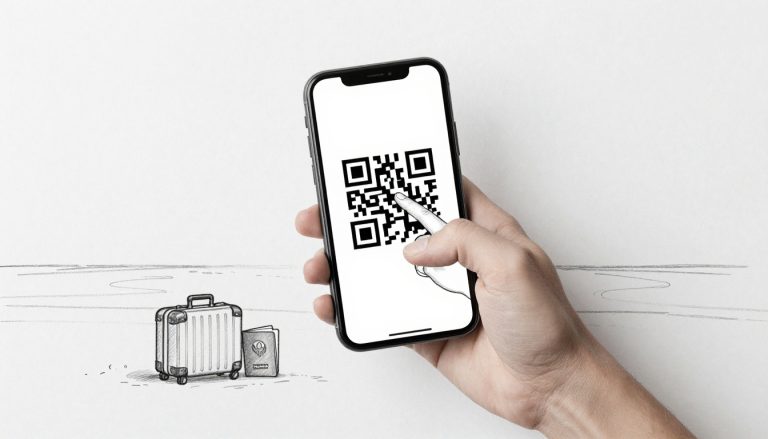
One legendary trick is to save a screenshot of your eSIM QR code to your photo library or print it out on actual paper. If your phone asks for the code again and you don’t have internet, you’ll be glad you have that backup image. It’s like bringing an extra physical key to a digital house. While you’re at it, download your offline maps in Google Maps so you can navigate even if the initial connection takes a minute to wake up.

The Reset Chain: Airplane Mode and More
Sometimes the software just needs a quick slap on the wrist to behave. If you followed all the rules and your esim iphone is still being shy, try the “Airplane Mode Shuffle.” Toggling Airplane Mode on for ten seconds and then off again forces your phone to drop all its current (and potentially broken) connections and start a fresh search for local towers.
If the basic toggle doesn’t cut it, the next step in the chain is a full device restart. It sounds like advice from 1995, but a reboot clears out temporary cache files that might be blocking your data flow. If you’re also troubleshooting SMS issues on eSIM, this “turn it off and back on again” ritual is often the silver bullet you need.
For the most stubborn glitches, there is always the “Nuclear Option” known as Reset Network Settings. You can find this under Settings, then General, and finally Transfer or Reset iPhone. Be aware that this will wipe out all your saved Wi-Fi passwords and Bluetooth pairings along with your cellular cache. It’s a bit of a hassle to re-enter your home Wi-Fi password later, but it has a high success rate for clearing out deep-seated technical cobwebs. After the wipe, your phone should treat the local roaming signal as a brand-new friend.
Conclusion
Landing in a new place is exciting, but wrestling with a silent phone is a total mood killer. Most connection issues with your esim iphone live inside the Cellular menu and just need a quick nudge. Whether you’re flipping that roaming switch or manually picking a carrier, you’re usually just a few taps away from getting back to your maps and messages.
Don’t let a small technical glitch dampen your travel spirit. Keep your iOS updated to the latest version because Apple often sneaks in tiny fixes that make roaming much smoother on your device. Once you’ve checked your data line and confirmed those APN settings, you’re ready to explore with total confidence.
Safe travels and enjoy your trip without the data stress.
If you want to stay prepared for your next adventure, you can Get your free esim now and keep your connection rock solid. Feel free to check out our steps to enable data roaming for Airalo if you need more specific setup help. Can you imagine how much easier your next landing will be now that you’re a tech pro?
This post may contain affiliate links. If you make a purchase through these links, I may earn a small commission at no extra cost to you.