Landing at the airport with full signal bars but no working data is a special kind of travel prank. Your iPhone 11 supports eSIM, but that doesn’t guarantee a smooth arrival: carrier locks, regional model differences, weak Wi-Fi, roaming settings, and network registration can all leave your travel line stuck in limbo.
The good news is that most iPhone 11 eSIM problems have a clear cause and a practical fix. This guide follows current iOS and travel eSIM guidance for 2026, so you can check compatibility, complete activation, select the right data line, and restore service without relying on the classic “restart it and hope” routine. Before you install anything, use this iPhone 11 eSIM compatibility guide to check your Carrier Lock status, EID, and model details.
Next, we’ll work through five common failures, including QR code errors, activation hangs, full bars with no internet, roaming trouble, and stubborn network registration. Start with the first problem, because a locked or region-specific iPhone can make every later fix a wild goose chase.
This post may contain affiliate links. If you make a purchase through these links, I may earn a small commission at no extra cost to you.
Check Your iPhone 11 Before Installing a Travel eSIM
A quick preflight check can prevent a small settings issue from becoming an airport-side scavenger hunt. Before installing an iPhone 11 eSIM, confirm your software, carrier status, model, Wi-Fi connection, and travel plan requirements.
Confirm iOS and carrier unlock status
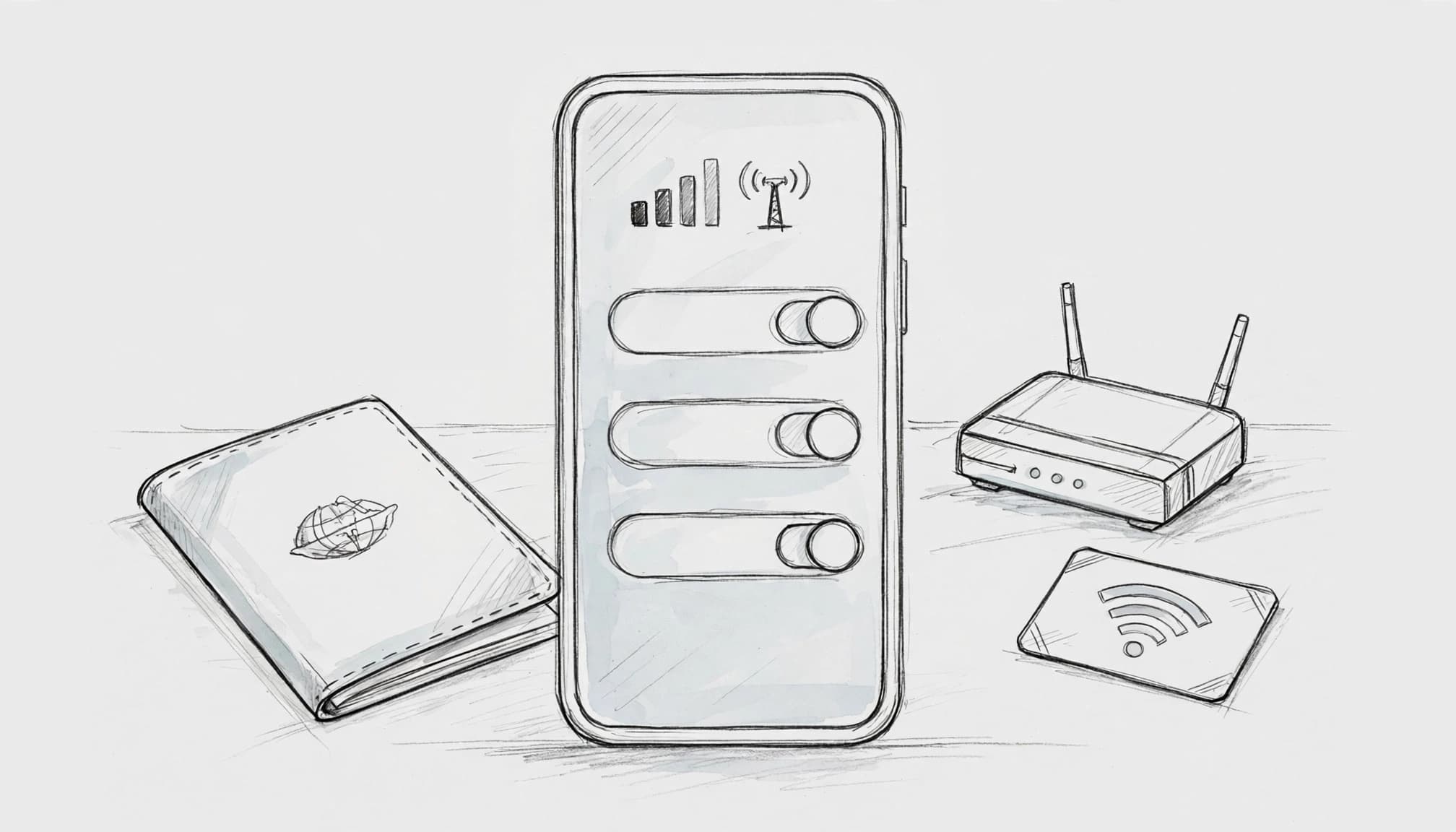
First, open Settings > General > Software Update and install any available update. A current iOS version can improve Dual SIM stability and prevent activation errors caused by outdated carrier settings.
Next, check Settings > General > About > Carrier Lock. The entry should say “No SIM restrictions.” If it names a carrier or shows that the phone is locked, contact that carrier before buying a travel plan. An eSIM can’t bypass a carrier lock wearing a tiny digital disguise.
Verify the model and SIM configuration
The standard iPhone 11, iPhone 11 Pro, and iPhone 11 Pro Max usually support one physical nano-SIM and one eSIM at the same time. However, regional versions from mainland China, Hong Kong, and Macao may use two physical SIM cards instead and may not support eSIM.
Check the model details in Settings > General > About, then compare them with the provider’s compatibility information. Apple’s guide to using eSIM while traveling internationally also explains regional differences and local activation limits.
Prepare the connection before installation
Install the profile while connected to stable, private Wi-Fi. Airport Wi-Fi can drop during the carrier-server handshake, leaving the setup stuck halfway. Also confirm that your provider covers the destination and that the plan requires Data Roaming.
For extra setup help, follow this step-by-step iPhone eSIM installation guide. If everything checks out, you can Get your free esim now.
Don’t delete a partially installed eSIM profile. The original QR code may not work again, so ask the provider for instructions before removing anything.
iPhone 11 eSIM Problems and the Fixes That Actually Work
Most iPhone 11 eSIM failures come from a short list of causes: the phone is locked, the plan is incompatible, the activation connection drops, or iOS sends data through the wrong line. Start with the visible symptom, then work through the safest fix before changing advanced settings.
The eSIM Option Is Missing or the QR Code Will Not Work
The symptom is easy to spot. You open Settings > Cellular, but Add eSIM or Add Cellular Plan is missing. In other cases, the option appears, but the QR code refuses to install the plan.
The iPhone 11 supports eSIM, but the phrase “iPhone 11” covers several regional versions. Some models sold in mainland China, Hong Kong, or Macao use two physical SIM cards instead of one physical SIM and one eSIM. Those phones may look identical to an eSIM-compatible model, which makes this problem especially sneaky.
A carrier lock can cause a similar headache. Your phone may have the right hardware, yet a domestic carrier can block a travel eSIM from another provider. Check the status before blaming the QR code:
- Open Settings > General > About.
- Scroll down to Carrier Lock.
- Confirm that it says “No SIM restrictions.”
If the phone shows a carrier name or another restriction, contact that carrier. A travel eSIM cannot unlock the iPhone 11 by waving a tiny digital magic wand.
Also compare the plan’s compatibility details with your exact phone. Confirm that:
- The eSIM provider supports the iPhone 11, iPhone 11 Pro, or iPhone 11 Pro Max.
- The plan covers your destination country.
- Your regional model supports eSIM.
- The phone is unlocked for use with another carrier.
You can compare regional support with this iPhone 11 eSIM compatibility guide before buying a plan. Apple’s international eSIM travel guidance also covers unlocked phones, local network support, and travel setup.
A QR code can fail even when the phone and plan are compatible. The code may have been used already, scanned from a blurry screenshot, or issued for a different device. Some providers make each QR code single-use, so repeatedly scanning the same code usually gets you nowhere.
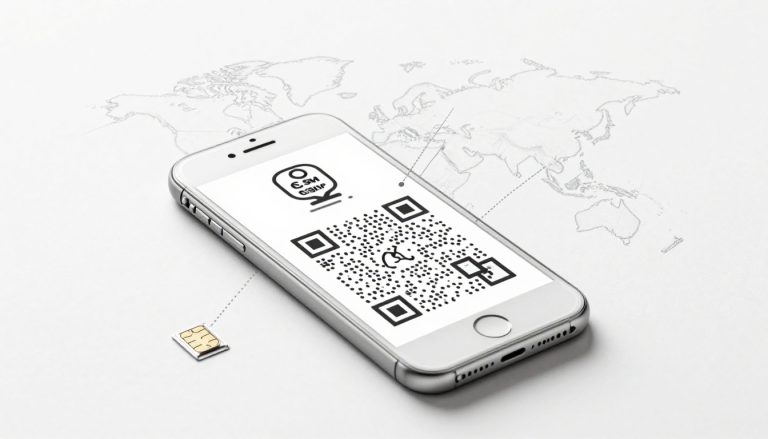
If the camera scan fails, open Settings > Cellular > Add eSIM, then choose the option for entering details manually. Use the provider’s SM-DP+ address and activation code exactly as shown in the activation email. Do not add spaces or copy the label around the code.
A QR code that worked once may become invalid after a partial installation. Save the original activation email before troubleshooting.
If the phone is unlocked and the model is compatible, choose a verified travel eSIM that supports the iPhone 11, such as Get your free esim now. If the eSIM still will not install, contact the provider and request a new activation code. Do not delete an existing partial profile unless support tells you to.
Activation Hangs on “Unable to Complete Cellular Plan Change”
This error often appears while the installation wheel spins, stops, or returns you to the Cellular settings screen. You may be sitting beside an airport charging station with full Wi-Fi bars, yet the eSIM activation still refuses to finish. Airport Wi-Fi has a talent for looking helpful right before it disappears.
During installation, the iPhone needs a stable internet connection to reach the provider’s SM-DP+ server. Weak airport Wi-Fi, captive portals, VPN settings, outdated iOS software, or a temporary provider outage can interrupt that connection.
Use this order because it avoids unnecessary profile deletion:
- Connect to reliable hotel Wi-Fi or a trusted personal hotspot.
- If airport Wi-Fi requires a browser sign-in, complete that sign-in first.
- Install any available update under Settings > General > Software Update.
- Turn off your VPN temporarily under Settings > General > VPN & Device Management.
- Restart the iPhone 11.
- Return to Settings > Cellular > Add eSIM and try again.
A normal restart is usually enough. If the phone has frozen, press and quickly release Volume Up, press and quickly release Volume Down, then press and hold the Side button until the Apple logo appears.
When the QR camera fails, choose the manual activation option instead. Copy the SM-DP+ server address and activation code from the provider’s email, then submit them carefully. Manual entry does not fix an incompatible plan, but it can bypass a damaged image, poor screen brightness, or a camera that cannot focus on the code.
Keep the activation email open on another device if possible. If your only copy is on the iPhone, take a screenshot before starting. That small bit of preparation can save you from hunting through an inbox while balancing luggage on your knee.
Avoid deleting and reinstalling the eSIM as a first response. Removing the profile may consume the original QR code or make it invalid. If the provider confirms that the code has expired, ask for a replacement activation code rather than trying the same one twenty more times.
If the error continues on stable Wi-Fi after an iOS update and restart, the provider may be experiencing an outage or may need to reset the activation request. Send support the exact error message, your iPhone model, and the time of the failed attempt.
Full Signal Bars but No Internet After Landing
Full bars can be misleading. They show that the iPhone 11 has connected to a nearby network, but they do not prove that mobile data is using the travel eSIM. With Dual SIM Dual Standby, the phone can display a strong connection while sending data through the wrong line.
First, confirm that the travel line is active:
- Open Settings > Cellular.
- Tap the travel eSIM.
- Turn on Turn On This Line.
- Return to Cellular and tap Cellular Data.
- Select the travel eSIM.
- Tap the travel line again and open Cellular Data Options.
- Turn on Data Roaming only if the provider requires it.
- Return to Cellular and turn off Allow Cellular Data Switching.
That last setting matters because it allows the iPhone to jump between lines when one connection seems stronger. During international travel, the stronger line may be your home SIM, which could trigger expensive roaming charges. Apple’s Dual SIM instructions explain how the iPhone handles two active lines.
Next, toggle Airplane Mode on for about 15 seconds, then turn it off. This forces the phone to search for the available network again. Give it a minute or two to register before opening a browser.
If data still fails, check the network selection. Go to Settings > Cellular > travel eSIM > Network Selection. Leave Automatic enabled first. If the provider lists supported local networks, disable Automatic and select one of those networks manually. A nearby carrier may provide bars but no data access under your plan.
Roaming deserves careful handling. Travel eSIMs often need Data Roaming enabled because they connect through partner networks. However, your home carrier may charge for roaming if the iPhone selects the physical SIM for data. Confirm the active line under Settings > Cellular > Cellular Data before enabling anything.
Signal bars answer one question, “Can the phone see a network?” They do not answer the more important question, “Which line is carrying the data?”
If the travel line is selected, the provider’s roaming setting is correct, and supported networks appear in the list, contact the eSIM provider. Ask them to confirm that the plan is active in your destination and that your account has access to the local partner network.
PDP Authentication Errors, APN Problems, and Sudden Speed Drops
A PDP authentication failure means the network cannot match your phone’s data request with the access details supplied by the eSIM provider. In plain English, the phone is knocking on the network’s door with the wrong credentials.
Incorrect or missing APN settings are a common cause, especially when the travel plan uses a partner network. An APN, or Access Point Name, tells the iPhone which gateway to use for mobile data.
Check the settings here:
Settings > Cellular > travel eSIM > Cellular Data Network
If the provider supplies an APN, enter it only in the field they identify. Leave the username, password, MMS, and personal hotspot fields unchanged unless the provider gives separate values for them. A random APN copied from an online forum can make the problem worse, especially when the plan uses a private roaming gateway.
Some providers hide the APN fields. That is normal. The carrier may send the settings automatically, so you cannot manually edit them. In that situation, ask support to confirm whether the plan supports manual APN configuration before changing other settings.
After entering the correct value:
- Return to the previous screen so iOS saves the change.
- Turn Airplane Mode on for about 15 seconds.
- Turn Airplane Mode off.
- Wait for the travel line to reconnect.
- Test a simple webpage or messaging app.
If the connection worked earlier and then slowed or stopped, the issue may be network registration rather than the APN. Check that the travel line remains selected for Cellular Data, Data Roaming matches the provider’s instructions, and the phone is connected to a supported local network.
Resetting network settings is a later option, not the opening move. Go to Settings > General > Transfer or Reset iPhone > Reset > Reset Network Settings. This removes saved Wi-Fi passwords, VPN settings, and other network preferences, but it does not delete the eSIM profile.
After the reset, reconnect to Wi-Fi and test the travel line again. You may need to re-enter a Wi-Fi password or configure a VPN you use for work.
Stop changing settings when the provider needs to verify the account. Contact support if the correct APN produces the same error, the plan worked in another country but not this one, or the provider has not confirmed its roaming agreement. Ask them to check the APN, destination coverage, partner network, and account status. Those details live on the provider’s side, where no amount of enthusiastic tapping can reach them.
An Apple Watch Disconnects When the Travel eSIM Is Active
Many travelers expect an iPhone travel eSIM to give their cellular Apple Watch an independent connection. It usually does not. Most travel eSIMs provide data for the iPhone only, while Apple Watch cellular service requires carrier support for NumberShare or a similar shared-number feature.
The practical fix is to keep the Watch paired with the iPhone:
- Leave Bluetooth turned on.
- Keep Wi-Fi enabled when it helps the Watch stay connected.
- Make the travel eSIM the active data line on the iPhone.
- Keep the iPhone nearby when you need the Watch to use that connection.
When the Watch is near the iPhone, it can use the phone’s connection through Bluetooth or Wi-Fi. If you leave the iPhone in the hotel and walk away with the Watch, the Watch may lose data service even though the iPhone’s travel eSIM works perfectly.
An independent cellular Apple Watch plan must be activated through a supported carrier. It may require a separate subscription, a compatible domestic account, and carrier approval for the Watch model. A prepaid travel eSIM generally does not add that service automatically.
If the Watch disconnects after you install the travel line, open the Watch app on the iPhone and check My Watch > Cellular. Confirm that the existing Watch plan remains listed. If the plan disappeared or shows an activation error, contact the carrier that provides Apple Watch service rather than the travel eSIM provider.
The iPhone 11 can still provide reliable travel data for the paired Watch. Just treat the Watch as a companion device, not as a second phone that automatically inherits every eSIM plan.
Fast Symptom Checks Before You Reset Anything
Before you reset network settings or delete an eSIM profile, match the symptom to its likely cause. A quick check often fixes the problem without wiping saved Wi-Fi passwords or turning your activation code into digital confetti.
| Symptom | Most likely cause | First action |
|---|---|---|
| No Service after installation | The line has not registered, or the phone selected an unsupported network | Restart the iPhone, toggle Airplane Mode for 15 seconds, then check the travel line |
| QR code is no longer valid | The code was already used or the profile was partially installed | Contact the provider for a replacement code; don’t delete the existing profile |
| Full bars but no data | The wrong line is handling mobile data, or roaming is disabled | Select the travel eSIM under Settings > Cellular > Cellular Data, then confirm roaming |
| PDP Authentication Failure | The APN is missing or incorrect | Verify the provider’s APN under Cellular Data Network |
| Slow speeds | The phone connected to a congested or unsupported partner network | Check the provider’s supported networks and try manual selection |
| Apple Watch shows offline | The Watch expects its own supported cellular plan | Keep Bluetooth enabled and the iPhone nearby |
If Automatic network selection chooses a partner that provides signal but no usable data, manual selection can help. Open Settings > Cellular > travel eSIM > Network Selection, turn off Automatic, and choose only a network listed by your eSIM provider. Picking a random carrier with the strongest bars is a reliable way to create a new problem.
Work through the basic checks in this order:
- Restart the iPhone 11.
- Toggle Airplane Mode on, wait 15 seconds, and turn it off.
- Confirm the travel eSIM is active and selected for cellular data.
- Check whether Data Roaming matches the provider’s instructions.
- Verify the APN details exactly, if the provider supplied them.
- Use Reset Network Settings only after those checks fail.
A network reset won’t remove the eSIM, but it will erase saved Wi-Fi passwords and VPN settings. For more guidance, see these quick fixes for an eSIM that is not working. Deleting the eSIM is not a first-line fix, especially when the original QR code may not work again.
Prevent iPhone 11 eSIM Trouble on Your Next Trip
A few minutes of preparation can prevent an airport gate from becoming your unpaid tech-support desk. Check your iPhone 11 before departure, save every activation detail offline, and set the correct data line before your plane lands.
Build your pre-departure checklist
Before buying a plan, use an iPhone eSIM compatibility list to confirm that your exact iPhone 11 model supports eSIM. Then open Settings > General > About and check Carrier Lock. It must show “No SIM restrictions.” A compatible phone still cannot use another provider’s eSIM while locked.
Install the profile over dependable home, hotel, or office Wi-Fi while you can still contact the provider. Public airport Wi-Fi loves disappearing at the worst possible moment. Label your lines clearly as Home and Travel, so you don’t accidentally send data through your domestic carrier.
Save the provider’s QR code, manual activation code, APN instructions, and support contact offline. Store them in your Files app, notes, or a screenshot folder that remains available without internet access. If the provider allows pre-trip testing, confirm that the profile appears under Settings > Cellular and that the line can connect. Some plans activate only after the phone reaches the destination, so a profile that looks inactive before departure may still be working as designed.
Keep iOS updated, but avoid installing a major update immediately before a flight. Give the phone time to complete the update and reveal any setup problems while support is still reachable. Apple’s international eSIM travel guidance covers compatible plans and travel setup details.
Use the same landing routine every time
After landing, turn off Data Roaming on your Home line. Then choose the Travel eSIM under Settings > Cellular > Cellular Data. Open the Travel line’s settings and enable Data Roaming only when the provider requires it. Next, disable Allow Cellular Data Switching so the iPhone 11 doesn’t jump back to your home line.
Finally, open Safari and load a simple webpage. If it works, your basic data setup is ready. If it fails, check the selected line, roaming setting, and network registration before deleting the eSIM profile. Apple also explains how Dual SIM settings work, including how the iPhone manages two active lines.
Conclusion
An iPhone 11 eSIM problem usually has a practical explanation, even when the phone chooses the worst possible moment to reveal it. Regional model limits and carrier locks can block installation before it starts. Activation failures often trace back to unstable Wi-Fi or incorrect provider details. After setup, Dual SIM routing, roaming settings, APN errors, and Apple Watch limits can still cause trouble. For a broader refresher, review this iPhone 11 eSIM setup guide.
Most importantly, full signal bars don’t guarantee working data. Check the active cellular data line, confirm the roaming setting matches your provider’s instructions, and verify the APN or network choice before deleting the eSIM profile. Removing it too soon can turn a fixable settings problem into a replacement-code headache.
A few checks before takeoff can prevent a connectivity scavenger hunt beside the baggage carousel. Confirm compatibility, save your activation details, and test the travel line while reliable Wi-Fi is still within reach.