Getting a new iPhone is always exciting, but figuring out how to transfer eSIM to new iPhone can feel confusing at first. According to GSMA, more than 60% of iPhone users in the US already rely on eSIM instead of physical SIM cards by 2024, and Apple’s latest iPhone 17 lineup is now eSIM-only. I recently moved my eSIM from an iPhone 14 to the iPhone 17 in under two minutes using Apple’s Quick Transfer, and it worked flawlessly. In this guide, you’ll learn step-by-step how to transfer your eSIM, the fastest methods (Quick Transfer, manual setup, carrier apps), plus easy fixes for common issues. (Note: steps may vary slightly depending on your carrier or country. Always check Apple’s official support guide for the latest instructions.)
I. Quick Answer: Fastest Way to Transfer eSIM to New iPhone
The fastest and most reliable way to transfer eSIM to new iPhone is Apple’s built-in Quick Transfer. I tested this when moving from iPhone 14 Pro to iPhone 17, and the process took less than two minutes.

Here’s how it works:
- Place both iPhones close together. Make sure Wi-Fi and Bluetooth are turned on.
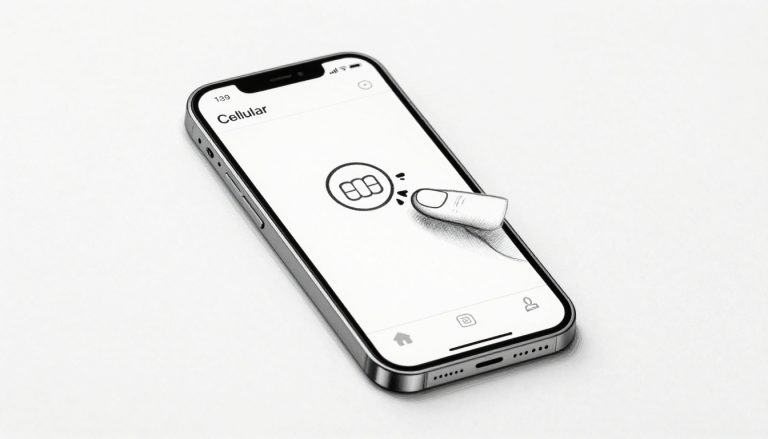
- On your new iPhone, go to Settings → Cellular → Add eSIM → Transfer from Nearby iPhone.
- Confirm the verification code shown on both devices.
- Wait while the new iPhone shows “Activating eSIM.” Within a minute or two, your number should be active.
- Test by making a call or using mobile data.
💡 Pro tip: Do not erase the eSIM on your old iPhone until the new one is fully active. This prevents downtime if activation fails.
👉 For more details, check Apple’s official eSIM transfer support page.
II. Prerequisites Before Transferring eSIM to New iPhone
Before you start the transfer, there are a few important checks. These steps help avoid errors and make sure your eSIM moves without issues.
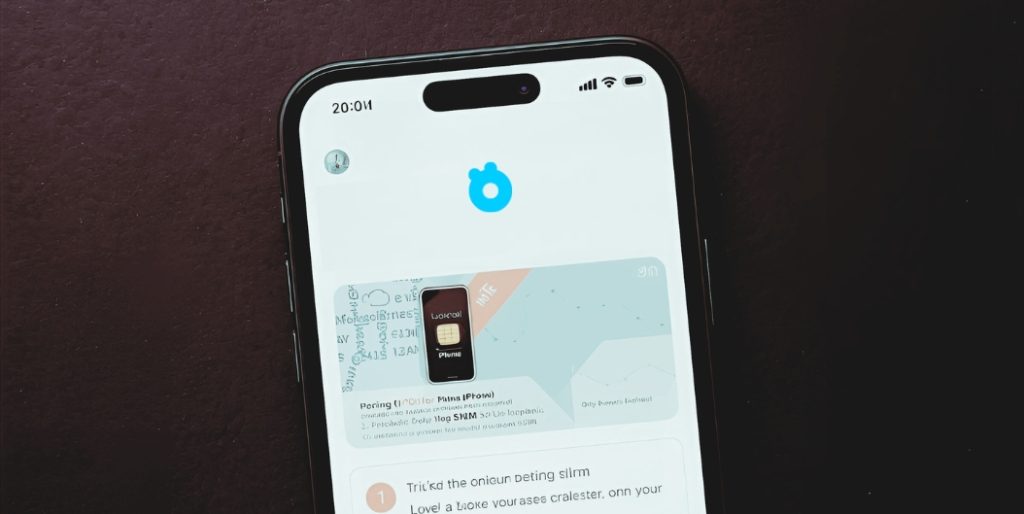
1. Update iOS on both devices
Always install the latest iOS version on your old and new iPhones. Updates often fix bugs and add improvements for eSIM. This small step can prevent activation problems later.
2. Place both iPhones side by side
Keep your devices close to each other during the transfer. Quick Transfer relies on proximity, so having them nearby speeds up the process.
3. Turn on Wi-Fi and Bluetooth
Both need to be active for Quick Transfer to detect your old iPhone. If one is off, your new device may not find the eSIM to move.
4. Keep your old eSIM active
Do not delete or erase your eSIM on the old iPhone yet. Wait until the new eSIM is fully active. This ensures you won’t lose service in the middle of the transfer.
5. Check carrier support
Most US carriers—Verizon, T-Mobile, and AT&T—plus Vodafone in Europe, already support eSIM transfer. However, it’s still worth confirming. You can check on your carrier’s website or by opening their official app.
6. Prepare your Apple ID and carrier login
Sometimes you may need to log in with your Apple ID or your carrier account. Having your details ready saves time if the process asks for extra verification.
Once these steps are done, you are ready to move on. Next, let’s look at Apple Quick Transfer, the easiest method for most iPhone users.
III. Method 1: Apple Quick Transfer (Step by Step)
Apple built a feature called Quick Transfer to make moving your eSIM simple. It works directly between your old iPhone and your new one. Here’s how to do it:
Step 1: Place both iPhones together
Keep your old and new iPhones side by side. Make sure both are turned on, unlocked, and connected to Wi-Fi with Bluetooth enabled.
Step 2: Open settings on the new iPhone
On your new device, go to Settings > Cellular > Add eSIM. You should see an option called Transfer from Nearby iPhone.
Step 3: Confirm the transfer
A notification will pop up on your old iPhone asking if you want to move your number. Tap Continue. Your new iPhone may display a verification code. Enter or confirm the code on your old iPhone.
Step 4: Wait for activation
Your carrier account details will move automatically. The new iPhone will say Activating eSIM, which usually takes a minute or two. Stay connected to Wi-Fi during this step.
Step 5: Test your connection
Once activation is complete, make a quick call or try mobile data. If everything works, you’re good to go.
Step 6: Remove eSIM from the old device (optional)
Only after your new eSIM is active should you erase it from your old iPhone. This prevents service interruptions.
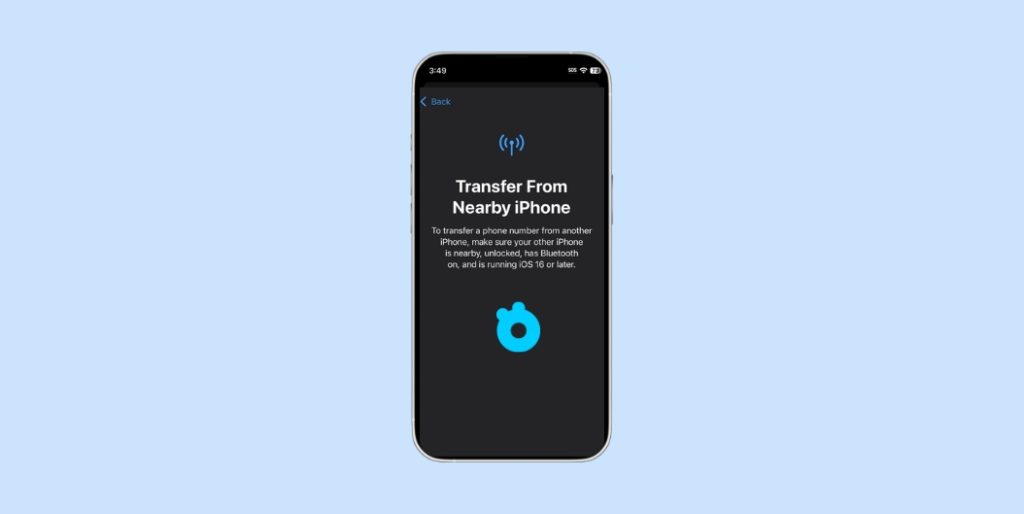
💡 Tip: If Quick Transfer doesn’t appear, don’t worry. You can still use the manual setup option or complete the transfer with your carrier’s app.
IV. Method 2: Manual Setup on New iPhone
Sometimes Quick Transfer does not show up. This usually happens if Wi-Fi is unstable, Bluetooth is off, or the carrier requires extra verification. In that case, you can still move your eSIM manually. Here’s how:
Step 1: Open Settings
On your new iPhone, go to Settings > Cellular > Add eSIM.
Step 2: Choose “Use QR Code” or “Transfer from Nearby iPhone”
- If your carrier gave you a QR code, point your iPhone camera at it and follow the instructions on screen.
- If you see the option Transfer from Nearby iPhone, tap it and confirm the request on your old device.
Step 3: Log in if required
Some carriers, like Verizon or T-Mobile, may ask you to sign in to your carrier account. This step confirms that you own the number being transferred.
Step 4: Wait for activation
Your iPhone will show Activating eSIM. Stay connected to Wi-Fi and keep both phones nearby until the process finishes.
Step 5: Confirm your plan is active
Go back to Settings > Cellular on your new iPhone. You should see your phone number listed and ready to use.
🔗 Check if your carrier allows manual eSIM setup via QR at GSMArena’s eSIM support list.
💡 Tip: If you don’t have a QR code or transfer option, open your carrier’s app (such as My Verizon or T-Mobile) and look for the “Activate eSIM” feature.
V. Method 3: Carrier Transfer (Vodafone, Verizon, T-Mobile)
If Quick Transfer or manual setup doesn’t work, your carrier has its own process. Each network handles eSIM activation a little differently. Let’s break it down.
Verizon eSIM Transfer
Step 1: Download the My Verizon app on your new iPhone.
Step 2: Sign in with your Verizon account details.
Step 3: Go to Devices > Activate or Switch Device.
Step 4: Select your new iPhone and follow the on-screen prompts to move your eSIM.
Step 5: Wait for activation. The app will confirm once your line is active.
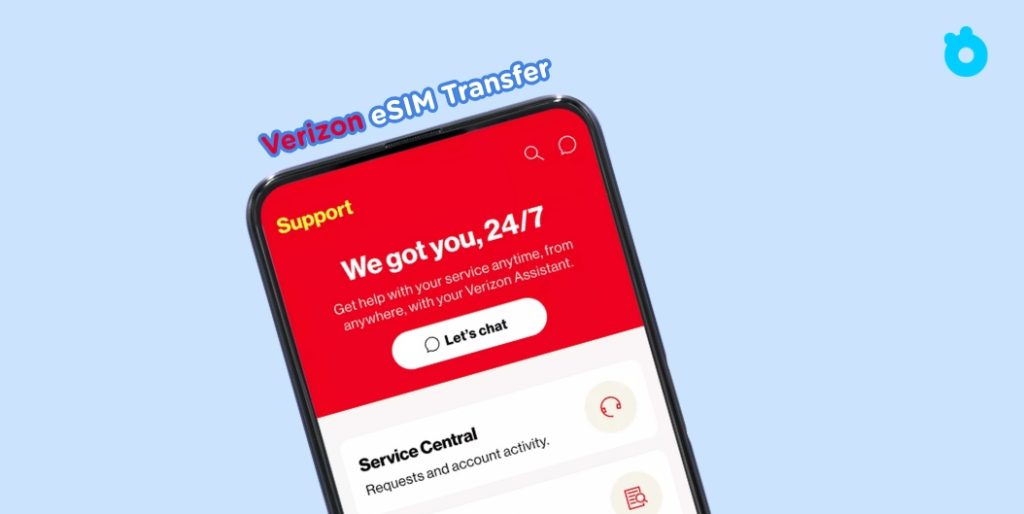
💡 Tip: If you’re stuck on “Activating,” restart your iPhone or switch to a stronger Wi-Fi connection.
T-Mobile eSIM Transfer
Step 1: Open Settings > Cellular > Add eSIM on your new iPhone.
Step 2: Tap Transfer from Nearby iPhone if available. If not, continue.
Step 3: Download and open the T-Mobile app.
Step 4: Go to Lines > Replace SIM with eSIM and select your new iPhone.
Step 5: Follow the prompts and wait for your number to activate.
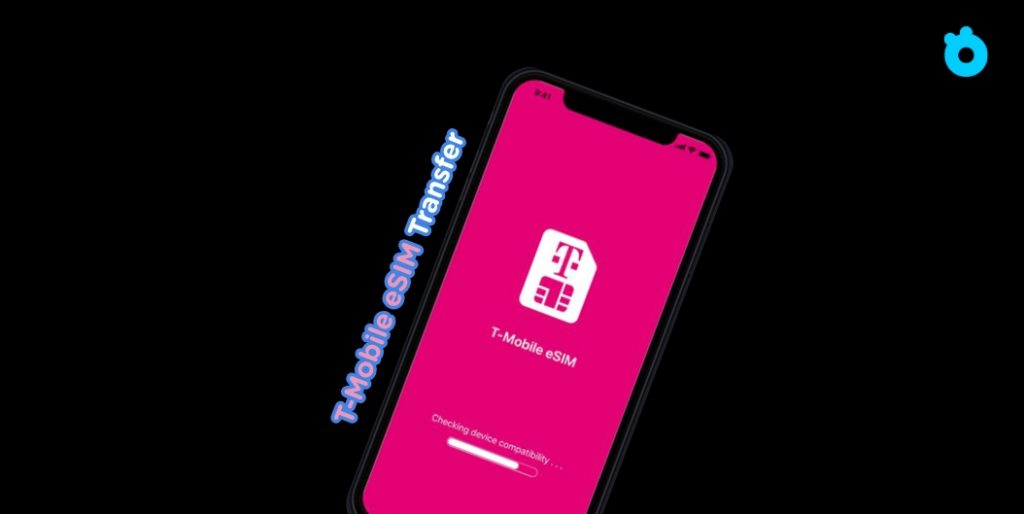
💡 Tip: T-Mobile warns not to erase your old eSIM until your new one is working.
Vodafone eSIM Transfer
Step 1: Make sure your new iPhone is connected to Wi-Fi.
Step 2: Log in to your Vodafone account online or through the Vodafone app.
Step 3: Request a new eSIM QR code from the app or your account page.
Step 4: On your new iPhone, go to Settings > Cellular > Add eSIM and scan the QR code.
Step 5: Wait for activation. Once your plan appears under Cellular, you’re ready to go.
💡 Tip: Vodafone often requires a fresh QR code each time you switch iPhones, so don’t reuse an old one.
VI. Troubleshooting Common eSIM Transfer Issues
Even with Apple’s Quick Transfer and carrier apps, things don’t always go smoothly. Here are the most common issues and how to fix them.
1. No Transfer Option Appears
Problem: You don’t see Transfer from Nearby iPhone on your new device.
Fix:
- Make sure both phones are on the latest iOS.
- Turn on Wi-Fi and Bluetooth on both devices.
- Keep the phones close together and unlocked.
- If it still doesn’t show, use your carrier’s app or a QR code.
2. eSIM Stuck on “Activating”
Problem: The new iPhone says Activating for too long.
Fix:
- Stay connected to a strong Wi-Fi network.
- Restart both phones.
- Turn Airplane Mode on, then off again.
- If activation still fails, contact your carrier. Verizon and T-Mobile often fix this with a quick reset.

3. Activation Failed
Problem: Your iPhone shows an error when adding the eSIM.
Fix:
- Check if your iPhone is carrier-locked. A locked device may not allow an eSIM from a different carrier.
- Delete the failed eSIM profile and start again.
- Use your carrier’s app (My Verizon, T-Mobile, or Vodafone) for direct activation.
4. Can’t Receive Calls or Data After Transfer
Problem: The eSIM appears active but calls or data don’t work.
Fix:
- Go to Settings > Cellular and make sure the correct eSIM is set as the default line.
- Turn Cellular Data off and back on.
- Reset Network Settings (Settings > General > Transfer or Reset iPhone > Reset > Reset Network Settings).
5. Deleted eSIM by Mistake
Problem: You erased the eSIM before activating it on the new iPhone.
Fix:
- Contact your carrier for a new QR code.
- Most carriers can re-issue an eSIM instantly through their app or customer support.
💡 Pro tip: Always confirm your number works on the new iPhone before erasing it on the old one. This prevents downtime.
What if activation keeps failing even after trying everything?
Sometimes carriers need your eSIM ICCID to reset or re-issue the profile. 👉 Here’s a simple step-by-step guide on how to find eSIM ICCID on iPhone or iPad.
VII. FAQ: eSIM Transfer on iPhone
Do I need to erase the eSIM on my old iPhone first?
No. Wait until your new eSIM is active. Then you can erase the old one safely.
Can I use two eSIMs on my new iPhone?
Yes, most newer iPhones support dual eSIM. You can keep one for your main number and another for travel or work.
What if I don’t have a QR code from my carrier?
You can still transfer using Quick Transfer or your carrier’s app. QR codes are just one option.
Does every carrier support eSIM transfer?
Most big carriers like Verizon, T-Mobile, and Vodafone do. Still, check with your provider before you start.
Can I transfer eSIM from iPhone to Android?
Yes, but it often requires help from your carrier. Some will issue a new QR code for Android devices.
Does the iPhone 17 support eSIM?
Yes. In the US, all iPhone 17 models are eSIM-only, which means there is no physical SIM tray at all. You can store multiple eSIMs on the device and use two active lines at the same time. This makes transferring eSIMs between iPhones even more important for new owners.
Final Tips for Travelers Using eSIM
Switching eSIMs between iPhones is easy once you know the steps. Quick Transfer is the fastest method, but manual setup and carrier apps also work well.
If you’re a frequent traveler, consider adding a travel eSIM alongside your primary number. This way, you keep your US (or home country) line active while using affordable local data abroad. I’ve done this on trips to Japan and Europe, and it saved me from expensive roaming charges.
👉 Gohub travel eSIM makes this even easier with:
- Instant activation in 190+ countries
- One-tap setup on iPhone
- 24/7 multilingual support
- 100% refund guarantee if activation fails
⚠️ Trust note: Always test your line before erasing the old eSIM, and buy travel eSIMs from official providers only.
👉 Get your travel eSIM with Gohub and stay connected wherever your new iPhone takes you.