Sometimes you need to delete eSIM from iPhone—whether you’re upgrading to a new device, switching carriers, or fixing an activation issue. The good news is that the process is quick, safe, and takes less than a minute. According to GSMA Intelligence, more than 80% of iPhones sold in the US by 2024 supported eSIM, so you’re not alone if you need help managing it. I recently removed a travel eSIM from my iPhone 14 before moving to iPhone 17, and the process was smooth with no impact on apps, contacts, or photos. In this guide, you’ll learn step by step how to delete eSIM across iOS versions (from iOS 14 to iOS 18) and what happens after removal.
(Updated September 2025. Steps may vary slightly depending on your carrier and region. Always check Apple’s official support article for the latest details.)
Quick Answer: Delete eSIM from iPhone in Seconds
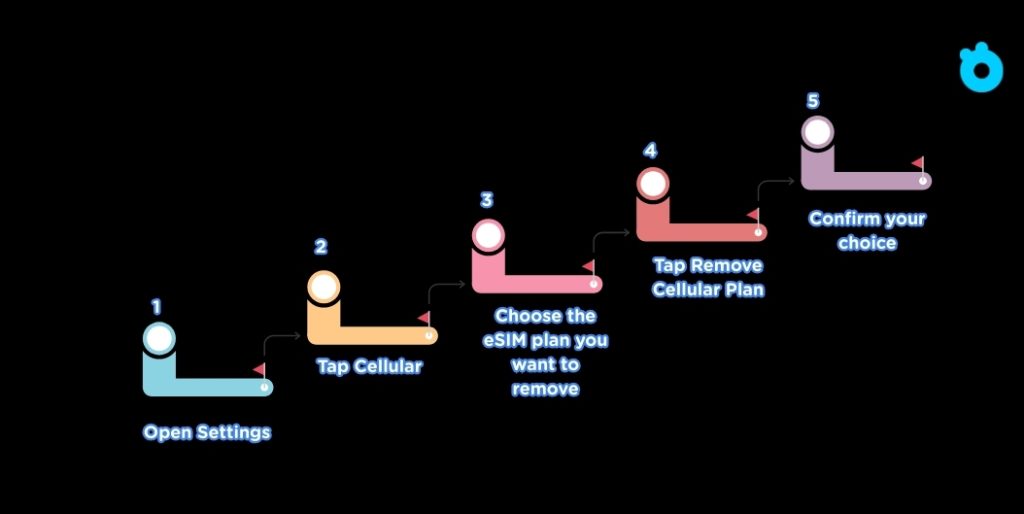
The fastest way to delete eSIM from iPhone is through the Settings app.
Step 1: Open Settings.
Step 2: Tap Cellular (sometimes called Mobile Data).
Step 3: Choose the eSIM plan you want to remove.
Step 4: Tap Remove Cellular Plan.
Step 5: Confirm your choice.
That’s it. The eSIM line is now removed, and your iPhone is ready for a new setup.
🔗 Need Apple’s official guide? See Apple’s support article on removing eSIMs
💡 Tip: If you are deleting the eSIM because you’re moving to a new phone, wait until the new eSIM is active before removing it from the old device.
Step-by-Step: How to Delete eSIM on iPhone (All iOS Versions)
Removing an eSIM takes only a few minutes. The menus look slightly different depending on your iOS version, but the process is almost the same.
iOS 17 and iOS 18 (Latest iPhones, including iPhone 17)
- Open the Settings app from your Home Screen.
- Scroll down and tap Cellular.
- Under SIMs, you’ll see a list of your active plans.
- Tap the eSIM plan you want to remove.
- It usually shows your carrier’s name, like Verizon, T-Mobile, or AT&T.
- It usually shows your carrier’s name, like Verizon, T-Mobile, or AT&T.
- Scroll down and select Delete eSIM (sometimes it says Remove Cellular Plan).
- A pop-up will ask you to confirm. Tap Delete eSIM again.
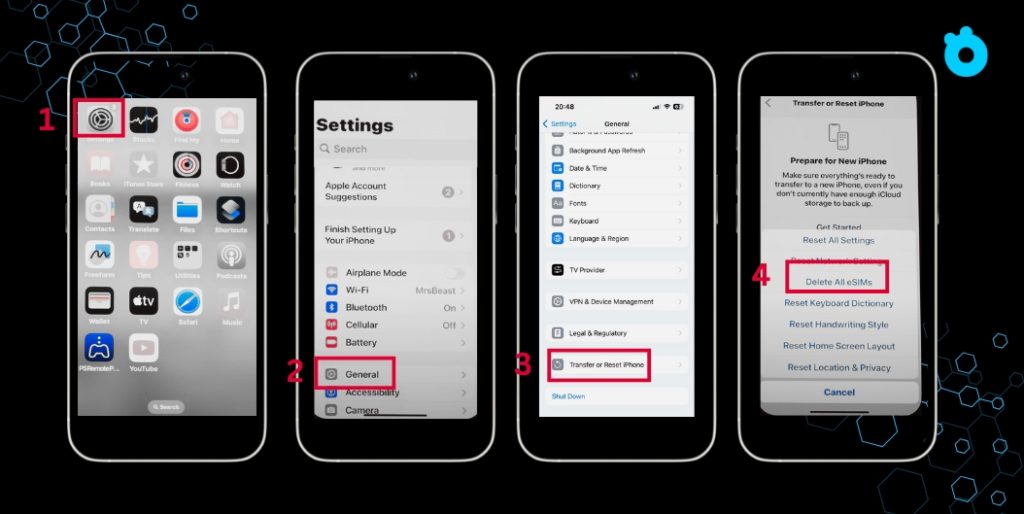
👉 Your iPhone will disconnect that line right away. Calls, texts, and data tied to that plan will stop until you add it back or install another eSIM.
iOS 16 (Popular on iPhone 14 and iPhone 13 users)
- Go to Settings.
- Tap Cellular.
- Under Cellular Plans, select the eSIM profile you want to delete.
- You’ll recognize it by the carrier name or label you assigned (like “Work” or “Travel”).
- You’ll recognize it by the carrier name or label you assigned (like “Work” or “Travel”).
- Tap Remove Cellular Plan.
- Confirm by tapping Remove in the pop-up message.
👉 Once deleted, the eSIM disappears from your list of plans. If you need it back, you’ll have to re-scan your carrier’s QR code or request a new one.
iOS 14 and iOS 15 (Older models, iPhone 12 and earlier)
- Open Settings.
- Tap Mobile Data (instead of Cellular).
- Under Mobile Data Plans, choose the plan you want to erase.
- Tap Remove Mobile Data Plan.
- Confirm your choice.
👉 On older iOS versions, the menu wording is slightly different, but the result is the same—the eSIM plan gets deleted.
🔗 Curious how older iPhones handle eSIMs? Check Apple’s compatibility list for eSIM devices
💡 Tip: If you have more than one eSIM installed, repeat these steps for each one you want to remove.
What Happens After You Delete an eSIM
Deleting an eSIM is safe, but it does have direct effects on your phone service. Here’s what you can expect once the eSIM is removed.

1. The plan becomes inactive immediately
As soon as you delete the eSIM, your iPhone disconnects from that mobile network. You will no longer be able to make calls, send texts, or use mobile data with that plan.
2. Your phone stays usable
Removing an eSIM does not affect your contacts, photos, apps, or Apple ID. Only the mobile line is removed. Everything else on your iPhone works normally.
3. You can add it back later
If you still have the QR code or carrier credentials, you can reinstall the same eSIM on your phone. Some carriers let you re-download the eSIM from their app.
4. You may need a new QR code
Not all eSIMs can be re-added after removal. Many carriers, like Vodafone UK or AT&T, will issue a new QR code if you delete one by mistake. It only takes a few minutes through their app or website.
5. Dual SIM setups change
If you were using two eSIMs or an eSIM plus a physical SIM, your default line settings may reset. For example, iMessage and FaceTime might switch back to your remaining line.
💡 Tip: If you are deleting an eSIM because you are moving to a new phone, wait until the new device is activated before removing it from the old one. This avoids service interruptions.
When You Should Delete an eSIM
Deleting an eSIM is not something you do every day. But there are several situations where it’s the smart move. Knowing these cases helps you stay in control of your mobile plan and avoid service headaches.
1. When upgrading to a new iPhone
If you’ve just bought a new iPhone, you’ll transfer your mobile line to the new device. Once the transfer is complete, it’s important to delete the eSIM from your old iPhone. Why? Because leaving it active can cause confusion with iMessage, FaceTime, or carrier records. By removing the old profile, you make sure all calls and texts route only to your new phone.
2. When moving from iPhone to Android
Switching platforms almost always requires deleting the old eSIM. Most carriers, like Verizon and Vodafone, will issue a new QR code for your Android phone. If you don’t remove the old eSIM from your iPhone, you may end up with two devices trying to claim the same number—which can block your service. Deleting it ensures a smooth handoff.
3. When changing carriers
Say you’re moving from AT&T to T-Mobile. You’ll want to erase the old eSIM profile before setting up the new one. Keeping both can make it unclear which line is active, especially if both profiles use similar labels. By removing the old one, you keep your Cellular settings clean and avoid picking the wrong plan by mistake.
4. When fixing activation issues
It’s common to see errors like “eSIM stuck on Activating” or “Activation Failed.” In many cases, deleting the eSIM and reinstalling it with a fresh QR code solves the issue instantly. Think of it like restarting your connection. This quick reset is often recommended by Apple Support and carriers alike.
5. When cleaning up old travel plans
Frequent travelers sometimes install multiple eSIMs for short trips—maybe a Japan plan, a Europe plan, and a local work plan. Once those trips are over, keeping unused eSIMs just clutters your phone. Deleting them keeps your Cellular list tidy and reduces the chance of choosing the wrong line for data or calls.
🔗 If you use Android too, here’s Google’s guide to deleting eSIMs
💡 Pro tip: Always double-check that you no longer need the plan before deleting. Once it’s gone, you may need to request a new QR code to get it back.
Troubleshooting eSIM Removal on iPhone
Deleting an eSIM is usually simple, but sometimes things don’t go as planned. Here are the most common problems you may face, along with practical fixes.
1. The “Remove Cellular Plan” option is missing
- Why it happens: Your iOS version may be outdated, or the profile is locked by the carrier.
- How to fix:
- Update your iPhone to the latest iOS version.
- Restart your device and check again.
- If the option still doesn’t appear, contact your carrier to unlock or reset the line.
- Update your iPhone to the latest iOS version.
2. Error message when trying to delete
- Why it happens: The eSIM is still in use as your default line for calls, data, or iMessage.
- How to fix:
- Go to Settings > Cellular and switch your default line to another SIM or Wi-Fi.
- After switching defaults, try removing the eSIM again.
- Go to Settings > Cellular and switch your default line to another SIM or Wi-Fi.
3. eSIM deleted but still shows up in settings
- Why it happens: The phone cached the profile information.
- How to fix:
- Restart your iPhone.
- If it persists, go to Settings > General > Transfer or Reset iPhone > Reset > Reset Network Settings. This clears old eSIM data without affecting your personal files.
- Restart your iPhone.
4. Accidentally deleted the wrong eSIM
- Why it happens: Easy mistake when you have multiple plans installed.
- How to fix:
- Log into your carrier’s app or website and request a new QR code.
- Re-scan the code on your iPhone to restore the line. Most carriers allow instant reissue.
- Log into your carrier’s app or website and request a new QR code.
5. Deleted eSIM but phone still can’t activate a new one
- Why it happens: The carrier’s system hasn’t fully released the line.
- How to fix:
- Contact your carrier and ask them to “reset” or “reprovision” your line.
- Once done, you can add the new eSIM without errors.
- Contact your carrier and ask them to “reset” or “reprovision” your line.
💡 Pro tip: If you often face eSIM issues, always keep your carrier’s support app installed (Verizon, T-Mobile, Vodafone, etc.). Many allow one-tap re-activation without waiting on customer service.
FAQ: Deleting eSIM from iPhone
Do I need to delete my eSIM before selling my iPhone?
Yes. Removing your eSIM ensures the new owner can’t use your mobile plan. It’s just like taking out a physical SIM card before selling.
Can I recover a deleted eSIM?
Not directly. Once you delete it, the plan is gone from your phone. To use it again, you’ll need to request a new QR code or activation from your carrier.
Does deleting an eSIM erase my contacts or apps?
No. Deleting an eSIM only removes the mobile line. Your photos, messages, apps, and Apple ID stay untouched.
Can I delete multiple eSIMs at once?
No. Each eSIM must be removed one by one in Settings > Cellular.
Is deleting eSIM on iPhone 17 different?
No. The steps are the same. On iPhone 17 and iOS 18, you still go to Settings > Cellular > Select Plan > Delete eSIM.
Will my iPhone stop working after deleting the eSIM?
Your iPhone will still work as normal over Wi-Fi. Only cellular service tied to that plan will stop.
Final Tips for Managing eSIM on iPhone
Deleting an eSIM is simple once you know where to look. The key is to confirm you no longer need the plan before removing it. If you’re upgrading to a new phone, switching carriers, or tidying up old travel eSIMs, always activate the new line first before deleting the old one. This way, you never lose service.
For frequent travelers, you don’t need to delete your personal eSIM to stay connected abroad. Instead, you can add a travel eSIM for affordable data while keeping your main number active. It’s the easiest way to manage work, calls, and travel apps at the same time.
👉 With Gohub, you can get instant eSIM setup, flexible data packages in 190+ countries, and 24/7 support. Perfect for travelers who want reliable internet without expensive roaming fees.
Get your travel eSIM with Gohub and enjoy stress-free connectivity on your next trip.
Related Articles
How to Transfer eSIM to New iPhone – A complete step-by-step guide from EsimIphone.co that shows you how to move your eSIM safely when upgrading to a new iPhone.