The airport Wi-Fi is wobbling, your iPhone says “No Service,” and your trip has barely started. Since the iPhone 12 was Apple’s first major 5G iPhone, it’s especially common among travelers, and it supports eSIM for adding a travel data line without hunting for a tiny plastic SIM card.
Still, an iPhone 12 eSIM can misbehave abroad when roaming settings, carrier locks, APN details, or dual-SIM behavior get in the way. You may face an installation hang, sudden signal loss, a PDP authentication error, battery drain while searching for 5G, or data switching back to your home line. We’ll walk through each problem with clear, step-by-step fixes, so your phone can return to its proper job: finding directions, translating menus, and helping you locate the nearest snack.
If your phone is ready for a travel plan, you can Get your free esim now, then start with the first troubleshooting check.
This post may contain affiliate links. If you make a purchase through these links, I may earn a small commission at no extra cost to you.
Check Your iPhone 12 eSIM Before You Leave Home
A five-minute pre-trip check can prevent most iPhone 12 eSIM problems at the airport. Update iOS, confirm your carrier status, and install the travel profile while you still have reliable Wi-Fi and time to troubleshoot.
Update iOS and confirm eSIM support
Open Settings > General > Software Update and install the latest available iOS update for your phone. Updates can fix cellular bugs and improve compatibility with newer carrier activation systems.
Next, open Settings > General > About and look for Carrier Lock. It should say “No SIM restrictions.” If your iPhone is locked, contact your home carrier before buying a travel eSIM. A QR code can’t bypass a carrier lock, no matter how enthusiastically you scan it.
You can also check Settings > Cellular for an Add eSIM or Add Cellular Plan option. For a model-by-model check, use this iPhone 12 eSIM compatibility guide.
Most iPhone 12 models use one physical SIM and one eSIM. However, some versions sold in mainland China, Hong Kong, and Macao use two physical nano-SIM cards instead. Those models may not support a travel eSIM, so check the exact regional version before leaving. Apple explains the regional differences in its guide to using Dual SIM with two nano-SIM cards.
Install and label the travel line at home
Install the travel eSIM on stable home Wi-Fi, preferably at least a day before your flight. Keep the QR code, SM-DP+ address, and manual activation code available in case the camera scan fails. Apple also recommends a reliable Wi-Fi connection during setup, so airport Wi-Fi should be your backup plan, not your first choice.
After installation, label your lines clearly as Primary and Travel Data. Leave your home line available for calls if needed, but select Travel Data for cellular data when you arrive.
Finally, don’t delete the eSIM profile during troubleshooting. Many travel QR codes are single-use, and deleting the profile can leave you waiting for a replacement instead of checking in at your hotel.
iPhone 12 eSIM: Five Problems That Can Stop Your Data
An iPhone 12 eSIM can fail for several unrelated reasons. The phone may reject the plan before installation, lose battery while searching for 5G, show signal bars without internet access, switch data back to your home line, or hang during activation. Start with the visible symptom, then apply the fix that matches it.
The eSIM Will Not Add Because the iPhone Is Locked or Region-Limited
You may see no Add eSIM option under Settings > Cellular, or the QR scan may return, “Cellular Plans From This Carrier Cannot Be Added.” A compatible-looking iPhone can still reject a travel plan when the device is locked to its original carrier.
Check Settings > General > About > Carrier Lock. The result should say “No SIM restrictions.” If it shows a restriction, the original carrier must unlock the iPhone. An eSIM provider cannot bypass that lock with a new QR code.
Regional hardware can cause the same headache. Most iPhone 12 models support one physical SIM and one eSIM, but versions sold in mainland China, Hong Kong, and Macao may use two physical nano-SIM cards instead. Those models can look identical while lacking the eSIM hardware required for a travel plan. Review the exact model number and sales region before assuming the phone is ready. This iPhone 12 eSIM guide explains the regional differences in more detail.
Try these checks:
- Confirm that Carrier Lock says “No SIM restrictions.”
- Ask the original carrier to unlock the phone if it remains restricted.
- Check the model number and region against the provider’s compatibility list.
- Contact the eSIM provider if the iPhone is unlocked and compatible but still rejects the plan.
Avoid deleting an existing profile while testing. Some QR codes work once, so removing a partially installed plan can turn a small setup problem into a support ticket.
5G Drains the Battery and Makes the Phone Run Hot
Rapid battery loss, a warm case, and constant network searching often point to weak or changing 5G coverage. The iPhone 12 uses an early 5G modem, and roaming can make it work harder when the phone repeatedly searches for a usable signal.
This happens often on non-standalone 5G networks, where 5G depends on an LTE connection behind the scenes. A travel eSIM may also have access to different roaming partners than a local subscriber. As a result, the phone can bounce between LTE and 5G while you wait for a map to load. Apple explains how 5G Auto lets the iPhone switch to LTE when 5G offers no clear benefit in its 5G settings guide.
Change the network mode here:
Settings > Cellular > Travel Data Line > Voice & Data
Choose 5G Auto for normal use. The iPhone can then use 5G when it helps and fall back to LTE when the signal is weak. If the phone stays hot or keeps searching, select LTE temporarily.
LTE is often more stable during international travel, especially indoors, underground, or outside major cities. It can also save battery without stopping your trip data.
Before leaving the hotel, charge the phone and reduce background activity for apps that do not need mobile access. Use trusted Wi-Fi when available, and keep Low Power Mode in reserve for long travel days. A slightly less flashy LTE icon is a fair trade for directions that load and a battery that survives dinner.
PDP Authentication Failure Leaves You With Bars but No Internet
This problem feels especially confusing because the signal bars look healthy. You may see 4G or 5G at the top of the screen, yet websites refuse to load. In some cases, the iPhone displays PDP Authentication Failure.
The most common cause is a missing or incorrect APN, or Access Point Name. The APN tells the iPhone how to connect to the provider’s mobile data service. Each eSIM provider can use different APN values, so guessing from a forum post may make the problem worse. Provider-side activation issues, expired data, or missing roaming agreements can also block access.
Open:
Settings > Cellular > Travel eSIM Line > Cellular Data Network
Enter only the APN information supplied by your eSIM provider. Do not invent a username or password, and leave fields blank when the provider gives no value. Apple also documents the APN menu in its iPhone APN settings guide.
After saving the details, refresh the cellular connection:
- Open Control Center and turn on Airplane Mode.
- Wait about 15 seconds.
- Turn Airplane Mode off and allow the travel line to reconnect.
- Test a webpage or messaging app without Wi-Fi.
If the error returns, restart the iPhone and check that the travel line is turned on and data roaming is enabled when the plan requires it. You can also follow this PDP authentication troubleshooting guide for additional checks. When the correct APN still fails, contact the provider and ask whether the plan is active in your destination and whether its roaming partner is available there.
iOS Switches Back to Your Home Line and Triggers Roaming Fees
The iPhone 12 supports Dual SIM Dual Standby, which means both lines can remain available while the phone manages calls, texts, and data. That convenience can become expensive when the travel signal drops and iOS is allowed to switch cellular data to the primary home line.
A brief loss of travel service may trigger the switch. You might continue browsing without noticing that the phone is now using your home carrier’s roaming connection. The same surprise can happen after you return home if the travel line remains selected for data or briefly reconnects in the background.
Set the travel line as the data source here:
Settings > Cellular > Cellular Data
Select Travel eSIM, then turn Allow Cellular Data Switching off. This prevents the iPhone from choosing the home line when the travel connection becomes unstable. Apple’s cellular settings documentation also covers data roaming controls and line selection in iPhone cellular data settings.
Next, open the primary home line under Settings > Cellular and turn Data Roaming off. When practical, turn off the primary line entirely during the trip. You can switch it back on when you need a call or a verification text.
Remember that voice, text, and data can follow different rules. A home line may receive calls while the travel eSIM handles data, or an app may use one line while SMS uses another. Review both lines before departure, then check your carrier account for international roaming blocks and spending controls.
The eSIM Activation Hangs on Unable to Complete Cellular Plan Change
A QR scan may appear to work, then stall at Unable to Complete Cellular Plan Change. This happens often at airports, where public Wi-Fi may require a captive-portal login, throttle traffic, or drop the connection halfway through setup.
During activation, the iPhone needs a reliable internet connection to contact the provider’s SM-DP+ activation server and download the eSIM profile. If that connection breaks, the phone may not finish the plan change even though the QR code is valid.
Use this recovery sequence:
- Connect the iPhone to trusted Wi-Fi or a phone hotspot.
- Force restart it by pressing and quickly releasing Volume Up, pressing and quickly releasing Volume Down, then holding the Side button until the Apple logo appears.
- Return to Settings > Cellular > Add eSIM and retry the setup.
- If the QR scan fails again, choose the manual entry option.
- Enter the SM-DP+ address and activation code supplied by the eSIM provider.
Keep the activation email or app open on another device if possible. Manual entry avoids a blurry screen, a dim airport display, and a camera that decides it has seen enough QR codes for one day. This guide explains how to fix eSIM activation problems when the download refuses to finish.
Do not delete a partially installed profile before contacting support. The provider may be able to refresh or complete the activation remotely, while a deleted profile may require a replacement QR code.
A Fast iPhone 12 eSIM Troubleshooting Cheat Sheet
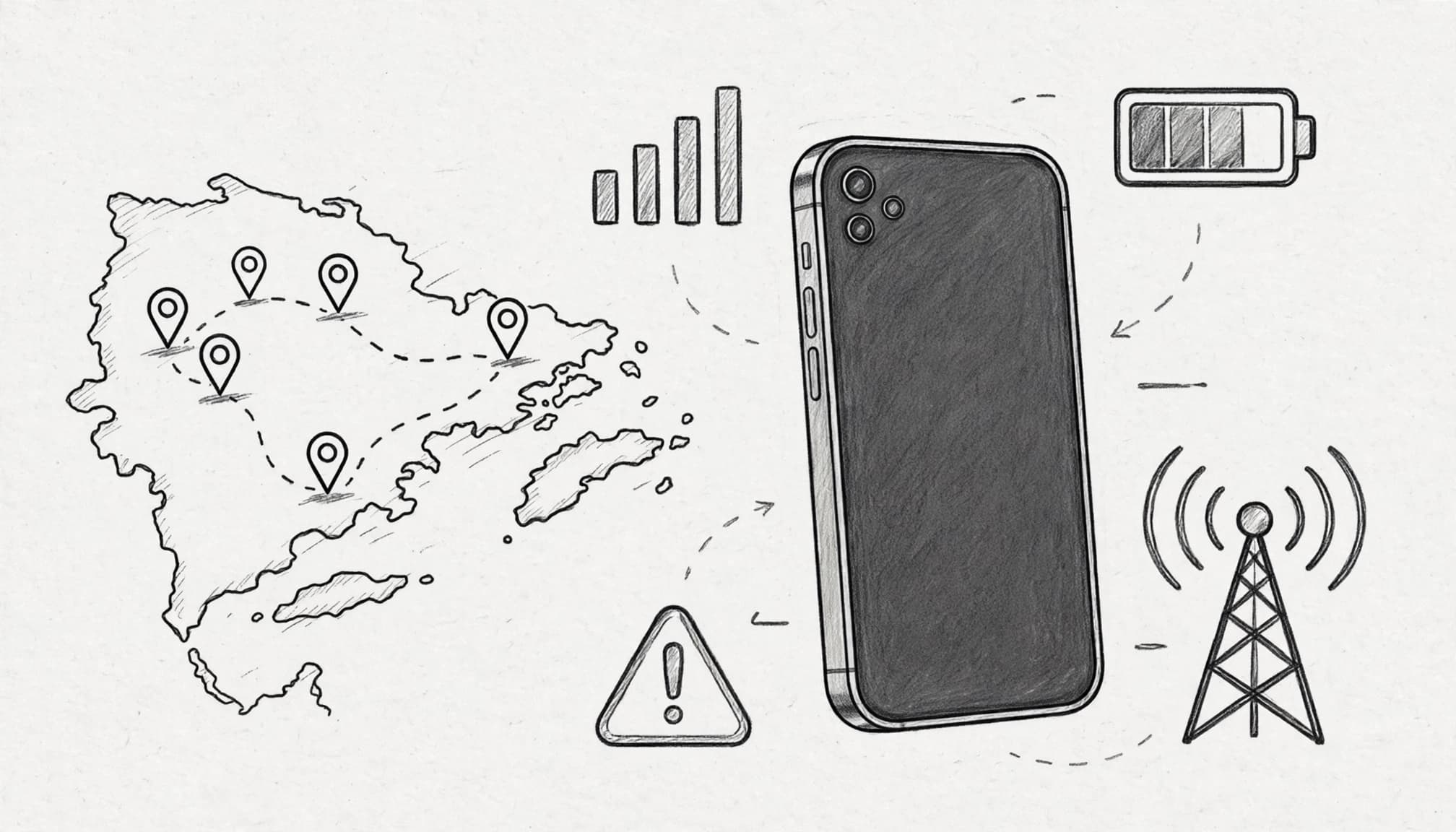
When an iPhone 12 eSIM misbehaves, start with the symptom instead of changing five settings at once. The table below gives you the most likely cause and the quickest first move.
Match the symptom to the first fix
| Symptom | Most likely cause | First action to try |
|---|---|---|
| Add eSIM is missing | The iPhone may be carrier-locked or a regional model with two physical SIM slots. | Check Settings > General > About > Carrier Lock, then confirm the model supports eSIM. |
| PDP Authentication Failure | The APN is missing, incorrect, or the plan has not activated correctly. | Open Settings > Cellular > Travel eSIM > Cellular Data Network and enter the provider’s exact APN. |
| Rapid battery drain | The iPhone 12 is repeatedly searching for unstable 5G coverage. | Go to Voice & Data and select 5G Auto or LTE. |
| No Service after several minutes | Automatic selection chose a weak roaming partner. | Turn Airplane Mode on for 15 seconds, then reconnect. |
| Home-line data is being used | iOS switched data when the travel line briefly lost service. | Set the travel eSIM under Cellular Data and turn off Allow Cellular Data Switching. |
| Activation hangs | Unstable Wi-Fi interrupted communication with the activation server. | Use trusted Wi-Fi or a hotspot, restart the phone, and retry manual activation. |
If automatic selection keeps choosing a poor roaming partner, open Settings > Cellular > Network Selection and disable Automatic. Manually choose a stronger local network only when your eSIM provider supports that option. Apple’s guidance on international cellular data roaming explains why roaming settings affect connectivity.
Most importantly, test one change at a time. Wait briefly, then check cellular data without Wi-Fi. That small habit tells you which fix worked instead of turning troubleshooting into a settings scavenger hunt. For more network-selection steps, see this guide to manually choosing a carrier network.
Set Up Your Travel eSIM So Problems Are Less Likely
A smooth trip starts before you reach the airport. Check your eSIM provider’s country coverage and roaming partners before purchase, because a plan can look affordable yet fail where you need it most.
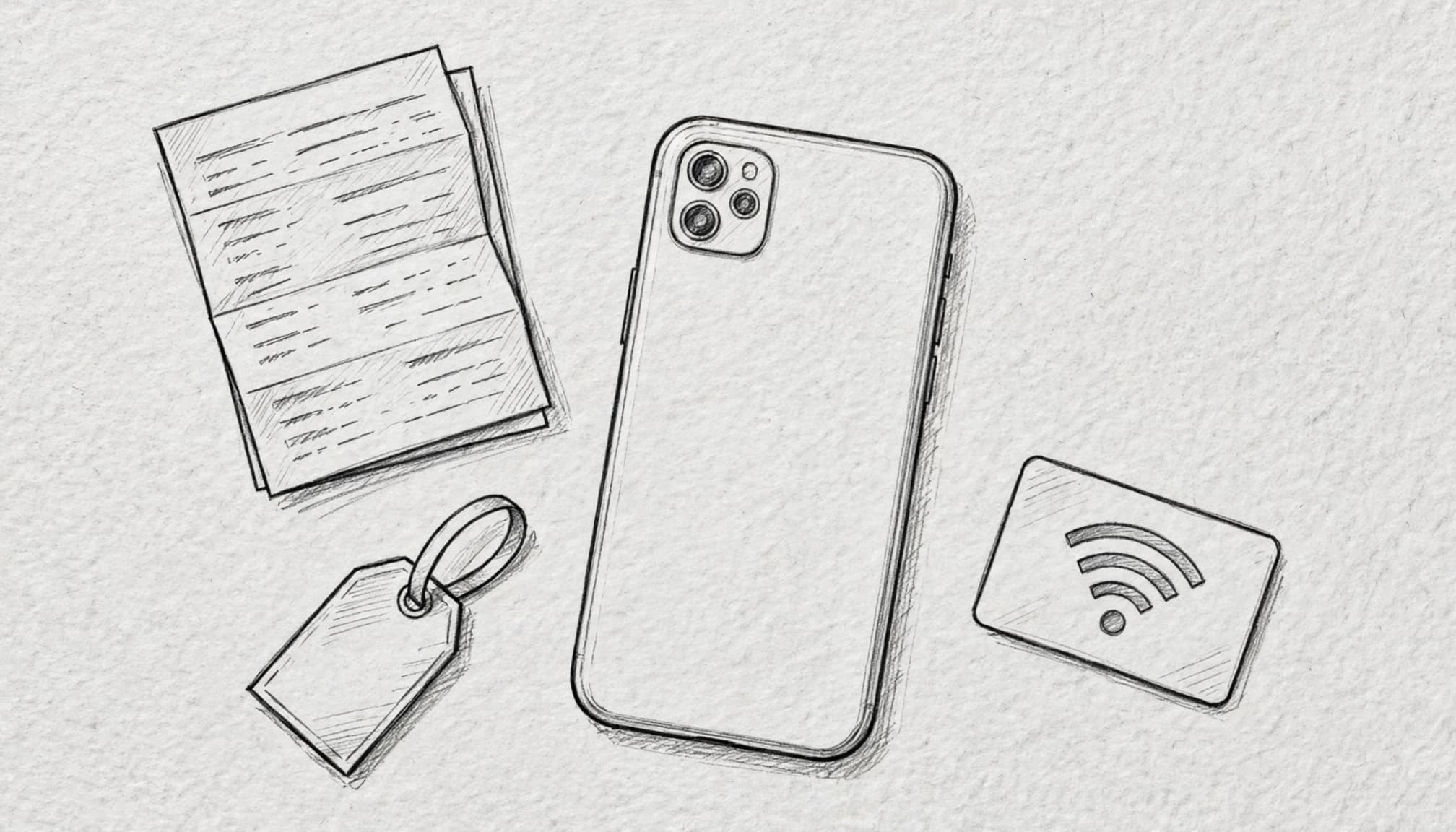
Download the profile before departure
Download the eSIM profile on reliable home Wi-Fi at least 24 hours before departure. That gives you time to confirm the installation and contact the provider if the QR code misbehaves.
After installation, open Settings > Cellular and confirm that the travel profile appears. Label each line clearly, such as Primary and Travel Data, so you don’t accidentally select the wrong connection while juggling luggage and airport coffee.
Save the provider’s APN details, activation code, and setup instructions offline. A screenshot or downloaded PDF works well because airport Wi-Fi has a talent for failing precisely when you need it.
For a complete setup walkthrough, follow this step-by-step iPhone eSIM installation guide. Also, don’t delete the profile if it stops connecting. Many travel QR codes are single-use.
Use the right settings after landing
Once you arrive, open Settings > Cellular and select the travel line under Cellular Data. Turn on Data Roaming for that line when the plan requires it, then keep Allow Cellular Data Switching turned off. This stops the iPhone from quietly using your home line when the travel signal flickers.
Leave the travel line enabled and wait a few minutes for local network registration. Then turn off Wi-Fi and test a website or map before leaving the airport. If everything loads, your iPhone 12 eSIM is ready for directions, messages, and the occasional emergency search for tacos.
When you’re ready to choose a plan, Get your free esim now.
Conclusion
Most iPhone 12 eSIM failures trace back to five suspects: a locked or region-limited phone, aggressive 5G searching, incorrect APN details, accidental data switching, or an interrupted activation. Start with the simplest checks, change one setting at a time, and keep the eSIM profile installed while you troubleshoot. If cellular data still refuses to cooperate, this guide can help you fix iPhone eSIM internet problems.
A stable hotspot, manual activation, or switching from 5G to LTE can often restore service faster than scanning the same QR code until your camera files a complaint. With the right line selected and roaming settings checked, your iPhone 12 eSIM should get back to its main travel duties: maps, messages, and finding food before the battery joins the rebellion.