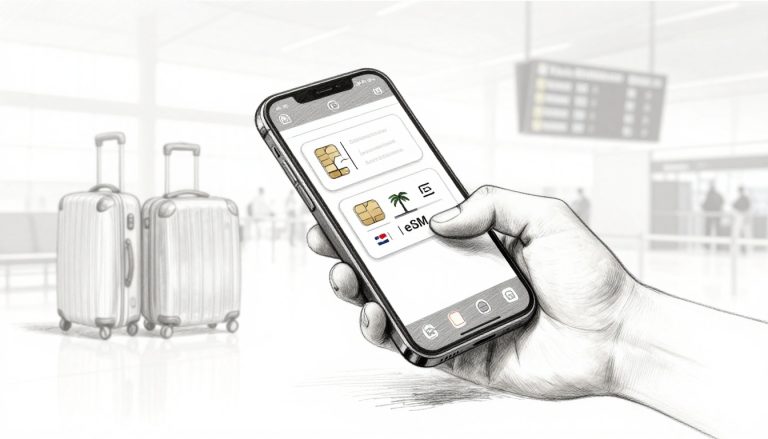
Arriving abroad and reaching for your phone is no fun when you still need to hunt down a local SIM card. To add an eSIM to your iPhone, connect to Wi-Fi, open Settings > Cellular (or Mobile Data) > Add eSIM, then follow your carrier’s setup steps.
The exact menu options can vary by iPhone model, iOS version, and carrier, but the process is usually a few taps and a QR code scan. Check the iPhone eSIM setup step by step guide if you want a little extra help before takeoff.
This post may contain affiliate links. If you make a purchase through these links, I may earn a small commission at no extra cost to you.
Add eSIM to iPhone: Choose the Setup Method That Fits
Your carrier’s email or app should tell you which activation method to use. Match its instructions to the options below, and treat setup times as rough estimates, not guarantees.
| Method | What you need | Typical setup time | Best for |
|---|---|---|---|
| QR code scan | Carrier-provided QR code and internet access | Under 1 minute | Installing a new travel eSIM |
| Manual SM-DP+ entry | Carrier-provided SM-DP+ address and activation code | 1 to 2 minutes | When you can’t scan the QR code |
| Carrier app or direct activation | Carrier app or a plan assigned to your iPhone | Under 1 minute | Buying and installing a plan through the carrier |
| eSIM Quick Transfer | Nearby iPhones and carrier support | 2 to 3 minutes | Moving an existing line to another iPhone |
These times vary with your connection, iPhone, and carrier. A QR code may appear in an email on another screen, or you can use a printed copy. If the activation message includes an SM-DP+ address and activation code, choose manual entry instead. Some carriers install a plan directly through their app or push it to your iPhone, so you won’t need to scan a code. Apple’s iPhone eSIM setup options cover these carrier-dependent methods.

Know when to scan, enter details, or transfer a line
For a new travel plan, follow the provider’s instructions. Scan its QR code when supplied, enter the activation details if it provides them, or use its app when it offers direct installation. For more help, see how to enter eSIM activation details manually.
Quick Transfer has a different job: it moves an existing line between nearby iPhones, and your carrier must support it. It doesn’t install a new travel plan. Once you’ve picked the right activation route, you can Get your free esim now and use the provider’s directions to add it.
Check Your iPhone and Travel Plan Before Setup
A few quick checks can save you from a failed installation or a data plan that won’t work when you land. Confirm your iPhone supports eSIM, check its carrier lock status, and make sure your plan covers your destination before you begin.
Confirm eSIM support and carrier unlock status
eSIM support depends on your exact iPhone model, its region, your carrier, and your iOS version. In Settings, open General > About and check your model details. You can also look under Settings > Cellular (or Mobile Data) for an Add eSIM option. For a closer check, see how to check whether your iPhone supports eSIM.
While you’re in General > About, find Carrier Lock. An unlocked iPhone shows “No SIM restrictions.” Apple explains how to check if your iPhone is unlocked. If another carrier appears, your iPhone may reject a travel provider’s eSIM because it’s restricted to your current carrier. Contact that carrier to request an unlock before you buy a travel plan.
Also confirm that the plan supports your destination and fits your trip. Check the provider’s coverage details and any activation or validity rules before checkout. Once your phone and destination pass the checks, you can Get your free esim now.

Get Wi-Fi and activation details ready
Connect your iPhone to reliable Wi-Fi before you start. Your phone needs an internet connection to download and activate the eSIM, so avoid relying on airport Wi-Fi that drops every few minutes.
Keep the provider’s QR code open on another device or printed out. If your plan uses manual setup, have the SM-DP+ address and activation code ready instead. Some QR codes work only once, so don’t delete the email or close the app until the plan appears in your iPhone’s Cellular settings. For the full process, follow these iPhone eSIM installation instructions.
How to Add and Activate an eSIM on iPhone
Once your iPhone is unlocked and connected to Wi-Fi, you can add a travel eSIM in Settings. Menu names may vary slightly by iOS version or carrier, and installing a plan doesn’t always mean it activates immediately.

Install the eSIM with a QR code or manual details
Follow the activation method your carrier provided. Keep the QR code on another screen or printed page so your iPhone can scan it.
- Open Settings, then tap Cellular or Mobile Data.
- Tap Add eSIM. Depending on your iPhone or carrier, you may see Add Cellular Plan or Set Up Cellular instead.
- Choose Use QR Code, then scan the code from your carrier.
- Follow the on-screen prompts. Your iPhone may ask you to confirm adding the plan or assign it a label.
If your iPhone offers Carrier Activation, follow the prompt to download the plan assigned by your carrier. If you see Quick Transfer, use it only to move an existing line from a nearby iPhone. It isn’t the usual choice for installing a new travel plan.
Can’t scan the QR code? On the QR scanning screen, tap Enter Details Manually if that option appears. Enter the SM-DP+ address and activation code supplied by your carrier, then follow the prompts. For more help, see how to install an eSIM on iPhone. Apple also lists its iPhone eSIM setup options.
Finish setup and choose how each line works
After installation, label the new line so you can spot it in Cellular settings. For example, use Home for your regular number and Travel Data for the new plan. These labels help you choose the right line later.
When prompted, select which line handles cellular data. Choose Travel Data to use the travel plan for internet access. You can keep your home line available for calls or texts if your carrier and plan allow it. Then decide whether to enable Allow Cellular Data Switching. When it’s on, your iPhone can switch lines for data based on availability, which may cause charges on your home plan.
Finally, check when your travel plan starts. Some plans activate during installation, while others begin when they first connect to a supported network or when you follow a carrier’s separate activation instructions. Turn on Data Roaming for the travel line only if the plan requires it, and follow your carrier’s directions. Apple explains how to select a line for cellular data while traveling.
Fix Common eSIM Setup and Connection Problems
An eSIM error usually points to a specific issue: a carrier restriction, activation detail, or line setting. Check the message on your iPhone, then try the fix that matches it.

Resolve a carrier lock or unsupported SIM message
If you see “SIM Not Supported,” your iPhone may be locked to your current carrier. A locked iPhone can reject an eSIM profile from another provider, even when the phone supports eSIM.
To check, open Settings > General > About and find Carrier Lock. If the screen doesn’t say “No SIM restrictions,” contact your current carrier and request an official unlock. Only that carrier can remove the restriction. For Apple’s setup guidance, see what to do if you can’t set up an eSIM.
Fix “eSIM Cannot Be Added” or an invalid code
First, connect to stable Wi-Fi and compare the QR code or activation details with the carrier’s instructions. Check for typos in any manual entry, and confirm that the plan supports your iPhone and destination. Wi-Fi can affect activation, but it doesn’t automatically explain an invalid code.
If you already scanned the QR code or installed the profile, don’t keep retrying the same code. Many activation codes work only once. Ask the carrier to confirm the profile’s status or issue a replacement. Manual entry can help when the carrier provides those details, but it won’t fix every activation error. Apple’s eSIM activation troubleshooting steps offer additional checks.
Restore service when the iPhone shows “No Service”
If installation finishes but the signal stays missing, check whether the travel eSIM is active and selected for cellular data. Open Settings > Cellular (or Mobile Data) and choose the travel line for data. Then review the plan’s roaming instructions, since some providers require Data Roaming while others do not.
Next, restart your iPhone and give it a moment to reconnect. If service still doesn’t appear, contact the carrier to check coverage, activation status, and whether the profile needs replacement. For more troubleshooting steps, see this guide to iPhone eSIM connection problems.
Run This iPhone Travel eSIM Checklist Before Takeoff
A few final checks can keep your travel eSIM ready and help prevent accidental charges on your home plan. Complete them before you leave reliable Wi-Fi, and follow your provider’s instructions for when the plan activates.

Check your iPhone’s travel settings
Confirm your iPhone is unlocked and the travel eSIM appears in Settings > Cellular. Give the lines clear labels, such as Home and Travel Data, then choose the travel line for cellular data. Apple’s international eSIM travel guidance explains how to select a data line.
Turning off Allow Cellular Data Switching can help prevent your iPhone from falling back to your home line for data. However, check your carrier’s plan before changing settings, since coverage and charges depend on your specific plan. Apple’s Dual SIM settings explain how data switching works.
If you need bank verification texts, keeping your home line on may help you receive them, depending on your carrier and plan. Keep Data Roaming off for that line unless your carrier’s instructions say otherwise. For more help with travel line settings, see this iPhone travel eSIM setup checklist. When you’re ready, Get your free esim now.
Travel eSIM activation timing varies. Some plans start during installation, while others activate at arrival or first network connection, so follow the provider’s instructions.
| Check | Before takeoff | Why it matters |
|---|---|---|
| Unlocked status | Confirm No SIM restrictions appears under Settings > General > About. | An unlocked iPhone can accept another carrier’s eSIM. |
| eSIM installation | Confirm the travel plan appears in Settings > Cellular. | A saved activation email alone doesn’t confirm installation. |
| Line labels | Name the lines Home and Travel Data, or use equally clear labels. | Clear names help you select the right line quickly. |
| Cellular data line | Select Travel Data for cellular data. | Your travel plan handles mobile internet use. |
| Data switching | Turn off Allow Cellular Data Switching, unless your plan calls for it. | This can help prevent unintended home-line data use. |
| Roaming settings | Follow the travel plan’s roaming instructions; keep home-line data roaming off unless your carrier says otherwise. | Roaming rules vary by line and plan. |
Conclusion
Adding an eSIM to your iPhone is a short setup, as long as you check that your device can use the plan and connect to Wi-Fi first. Install the profile, select it for cellular data, and follow the provider’s instructions for Data Roaming. Those few checks can save a lot of fiddling after you land.
For a closer walkthrough, read Gohub’s iPhone eSIM setup guide. Then Get your free esim now and give your travel data plan a head start before takeoff.