Rushing to get online after landing is no fun, especially when you’d rather skip the hunt for a local SIM shop. Some Xiaomi phones support eSIM, but availability depends on the exact model, region, and software, so check compatibility before buying a travel plan. This guide walks you through checking your phone, installing a travel profile, choosing the right data line, and fixing common setup issues.
First, confirm your phone has eSIM support, then follow the steps for your Xiaomi’s settings. You can also check Xiaomi eSIM compatibility by model before you travel.
This post may contain affiliate links. If you make a purchase through these links, I may earn a small commission at no extra cost to you.
Which Xiaomi Phones Support eSIM?
Some Xiaomi phones support eSIM, but the family name alone won’t confirm compatibility. Check the exact model, country variant, software, and carrier lock status before buying a travel plan.
| Xiaomi phone family | eSIM support |
|---|---|
| Xiaomi 13, 14, and 15 | Select global models |
| Xiaomi 13T series | Select regional models |
| Xiaomi 12T Pro | Select regional models |
| Redmi and POCO | Varies by exact model; many models lack eSIM |
Xiaomi’s official eSIM support information also notes that availability depends on country, region, and carrier.
Check the model and region, not just the phone name
Select global versions in the Xiaomi 13, 13T, 14, and 15 families, along with the 12T Pro, may include eSIM support. However, regional versions can differ, and China-market phones may lack the same eSIM hardware or software.
Before you order a plan, look up your phone’s full model number in Settings under About phone. Then compare it with Xiaomi’s supported-device information or the provider’s compatibility list. For example, check whether your Xiaomi 12 supports eSIM rather than assuming every phone in that series works.
Use the EID check to confirm eSIM hardware
Open the Phone app, enter *#06#, and look for an EID in the device information. An EID is a useful sign that your phone has eSIM hardware, but it doesn’t guarantee that your specific model, software, or carrier supports activation.
Check the model’s eSIM support as well, and make sure the phone is carrier-unlocked. Many Redmi and POCO phones don’t support eSIM, though availability varies by model. If your device passes these checks, you can get your free esim now before your trip.
Xiaomi eSIM Setup Guide: Install Your Travel Plan
Once your Xiaomi phone passes the compatibility checks, install the travel profile over Wi-Fi before your trip. Keep your eSIM plan details nearby, including its QR code or manual activation information.
Find eSIM management in MIUI or HyperOS
Connect to Wi-Fi or another internet connection first. You’ll also need an eSIM plan and its QR code or manual activation details. Menu names can vary slightly by Xiaomi model and software version, but the setup usually follows this path:
- Open Settings and tap SIM cards & mobile networks. On some versions, the menu may say Mobile networks.
- Look for Manage eSIM or Add eSIM. Your phone may first ask you to enable Use eSIM.
- If prompted, turn on the eSIM setting, then choose Manage eSIM or Add eSIM.
Xiaomi’s eSIM activation instructions describe a similar route, though labels may differ across devices. If eSIM management doesn’t appear, return to the model, region, and EID checks. The missing menu can indicate that your particular variant lacks eSIM support, so avoid trying unsupported workarounds.
For more general Android guidance, see this step-by-step eSIM installation guide.
Scan the QR code and finish activation
After you tap Add eSIM, select the QR-code option and scan the code from your provider. Follow the prompts on your Xiaomi screen, then wait while the eSIM profile downloads. Keep the phone connected to the internet until setup finishes.
Some providers offer manual activation instead. In that case, choose the manual entry option and enter the activation details exactly as provided. Most eSIM QR codes work only once, so keep the original code available until your phone confirms the profile installed successfully. Don’t delete the profile during setup.
Choose the travel eSIM for mobile data
Once the profile appears in your SIM settings, select it as the default SIM for mobile data. You can keep your home line active for calls or texts, if your plan and carrier allow it. Check the selected data SIM before leaving Wi-Fi, so your phone doesn’t use your home line for browsing abroad.
Your provider may require data roaming for the travel profile. Check its instructions before changing roaming settings, then turn roaming on for that profile when needed. Leave roaming off on your home line if you want to reduce the chance of unexpected data charges.
With the travel profile installed and selected for data, you’re ready to connect when your plan becomes active. Get your free esim now and keep the setup details handy for your trip.
Set Up Your Xiaomi Before You Leave Home
A few minutes of preparation can keep your Xiaomi eSIM from turning into an airport troubleshooting project. Before departure, confirm your phone is unlocked, the travel profile is installed, and mobile data is assigned to the right line.

Keep your home number without using its data
You can often leave your home SIM active for calls or bank verification texts while your travel eSIM handles mobile data. In your Xiaomi’s SIM settings, check that the travel profile is selected as the default data SIM.
Then turn off data roaming on your home line to reduce the risk of roaming charges. Your carrier may still charge for calls, sent texts, or other services, so check its international terms before you leave. For a broader overview of dual-SIM travel settings, read the GoHub dual-SIM travel guide.
Know when to turn on the travel profile
Installing an eSIM profile and starting its validity period are not always the same event. Some plans begin when you buy or install them; others start at first network connection or use. Check your provider’s validity rules before installing early, especially if you want to set everything up at home.
After you arrive, follow the provider’s instructions to enable the travel line and turn on data roaming for that line if required. Keep roaming off on your home line unless your carrier’s terms call for something different. For arrival steps, use this guide to start using your eSIM at your destination.
Run a quick pre-flight check
Before you leave Wi-Fi, verify these settings on your Xiaomi:
- Your phone displays an EID when you dial
*#06#. - Your device is unlocked for use with another provider.
- The travel eSIM profile appears in SIM settings.
- The travel eSIM is selected as the default data SIM.
- Data roaming is off for your home line.
- Mobile data is off or not assigned to your home line.
These checks help prevent surprise data charges and make it easier to connect when you land.
Fix Xiaomi eSIM Problems Without Guesswork
A missing menu, a stubborn “No service” message, or data coming from the wrong SIM usually points to a specific setting or compatibility issue. Check the symptom first, then change one thing at a time so you know what actually helped.
The Manage eSIM option is missing
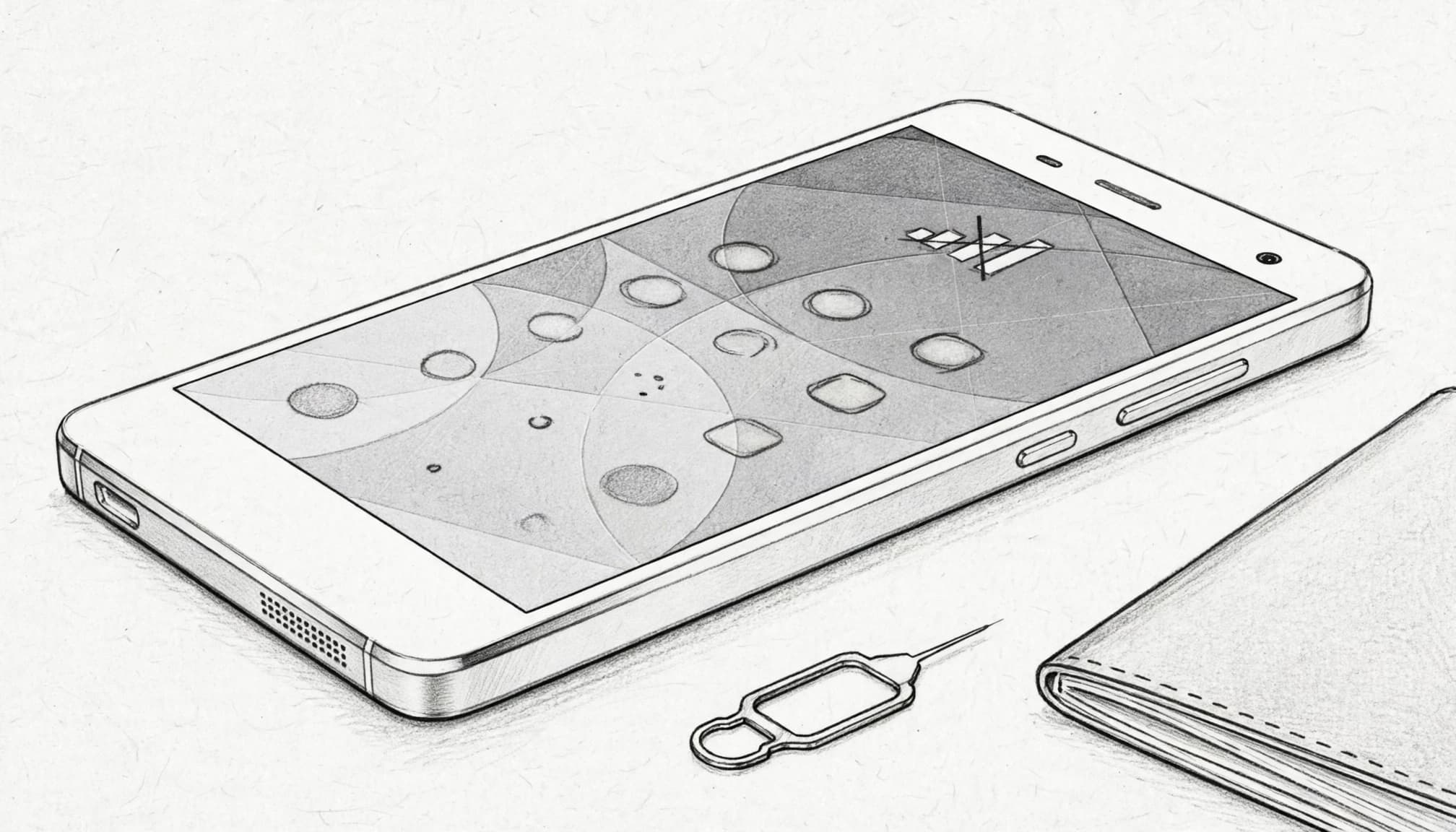
If Manage eSIM or Add eSIM doesn’t appear under Settings > SIM cards & mobile networks, your phone may lack eSIM hardware. A regional variant may also omit support, even when another version of the same Xiaomi model includes it. Software version and carrier restrictions can affect access, too.
Open the Phone app, dial *#06#, and check whether the device displays an EID. No EID can mean the phone doesn’t have eSIM hardware. If an EID appears, confirm the exact model and region, then check its software version and compare it with the Xiaomi eSIM device compatibility list. Xiaomi support notes that availability can vary by country, region, and carrier.
Before contacting your plan provider, confirm the phone itself supports eSIM and is unlocked. A provider can’t activate a profile on hardware that doesn’t support it.
The profile installed, but there is no service
First, open SIM settings and confirm the travel line is enabled. Check that the plan is active and that you’re in a supported coverage area. Some plans only connect at the destination, so an “Activating” message at home may be expected.
Next, follow your provider’s instructions for data roaming on the travel line. Then set network selection to automatic, toggle airplane mode on and off, and give the phone a moment to register. Network registration can take a short time after arrival. If service still doesn’t appear, restart the phone; Xiaomi also recommends a restart for some eSIM issues in its eSIM troubleshooting guidance.
If the profile remains stuck or shows an activation error, check your plan’s activation details before deleting it. Some QR codes work only once, and deleting the profile may make reinstallation harder. You can also use this eSIM connection and activation troubleshooting guide to check the next steps.
Your home SIM is still using mobile data
When your home line handles browsing abroad, change the default data SIM. Go to Settings > SIM cards & mobile networks, select the travel eSIM as the default for mobile data, and confirm the travel line is enabled.
Then review data roaming for your home SIM. Turn it off if you want to avoid accidental roaming data charges, unless your carrier instructs otherwise. Finally, turn off Wi-Fi briefly and test mobile data. If the connection still uses the wrong line, return to SIM settings and verify the default data selection again.
Take Off With Your Xiaomi eSIM Ready
Before you leave, make sure your Xiaomi eSIM is installed and set as your mobile data line. A quick check now can save you from fiddling with settings at the airport.
Run through these final checks
Confirm your exact phone variant supports eSIM, and look for its EID by dialing *#06#. If you have a Xiaomi 12, check the Xiaomi 12 eSIM compatibility guide for your specific variant.
Next, install the profile using your provider’s instructions. Xiaomi’s official eSIM activation steps can help you locate the right settings. Set the travel eSIM as your default for mobile data, then check roaming settings for both lines. Many travel plans require roaming on the eSIM, while turning it off for your home line can help avoid data charges.
Check when your plan’s validity begins, too. When you’re ready to choose a plan, use this international travel eSIM buying guide. Get your free esim now and prepare your phone before takeoff.