Setting up a Samsung Galaxy S24 eSIM before an international trip can help you get mobile data abroad without a surprise roaming bill. The S24 supports eSIM, but availability and dual-SIM options can vary by model, region, carrier, and software, so check your exact device before you buy a plan.
You’ll find the SIM settings, add your provider’s eSIM, and choose which line handles mobile data. I’ll also cover travel-line settings and quick fixes, with a Galaxy S24 eSIM compatibility guide to help confirm support.
This post may contain affiliate links. If you make a purchase through these links, I may earn a small commission at no extra cost to you.
Samsung Galaxy S24 eSIM Support: Check Your Model First
Most Galaxy S24 models support eSIM, but the model name alone doesn’t guarantee that yours can activate one. Support can vary by model number, country, carrier, and device lock status, so check your specific phone before purchasing a travel plan.
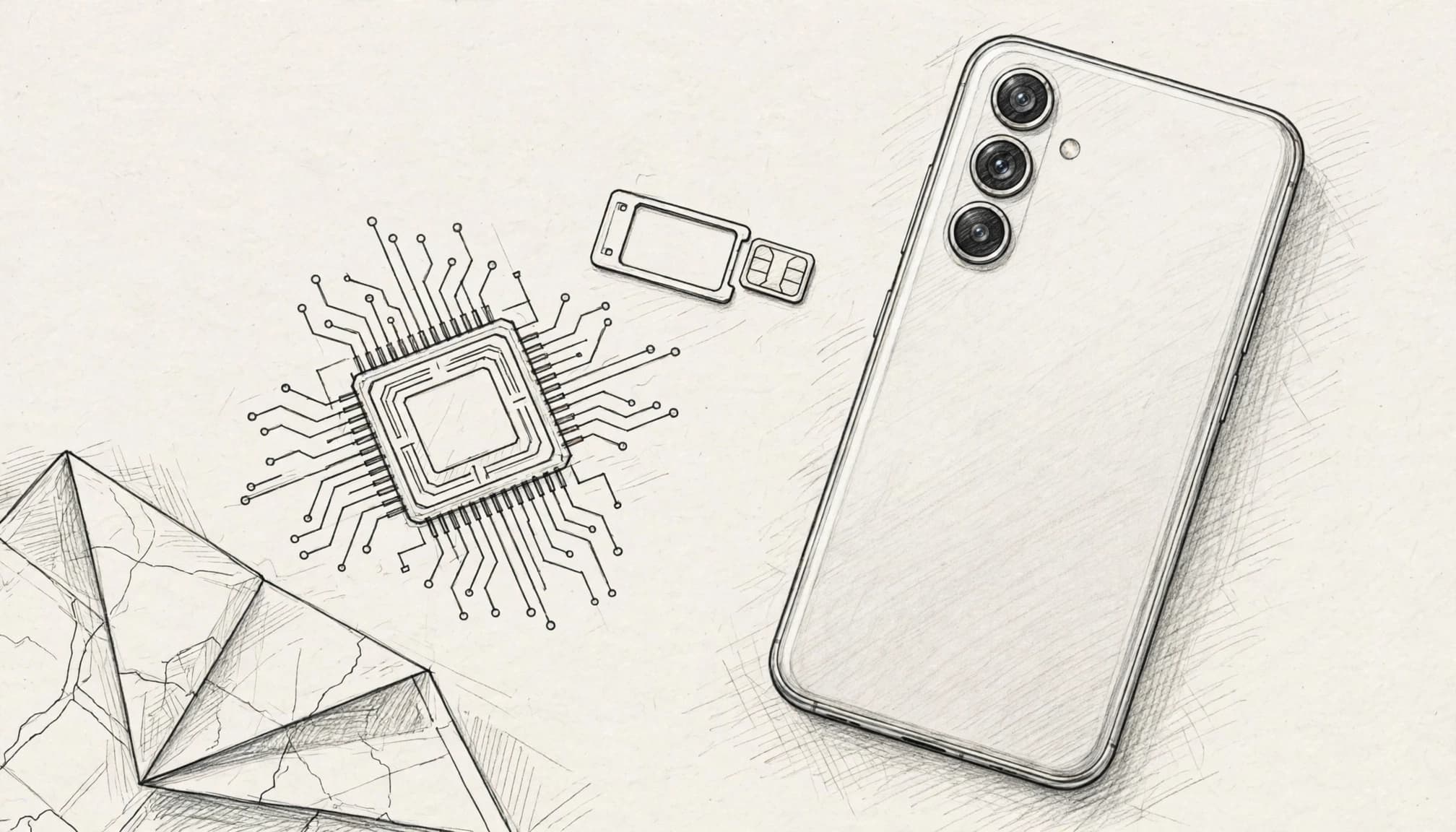
Galaxy S24 eSIM compatibility by model
These models commonly offer eSIM support, but regional variants and carrier restrictions can change what your phone can do. Samsung also notes that eSIM availability depends on the device and supported network carrier. Check Samsung’s eSIM and carrier guidance alongside your carrier’s requirements.
| Galaxy model | eSIM support check |
|---|---|
| Galaxy S24 | Verify the exact regional variant and carrier support. |
| Galaxy S24+ | Verify the exact regional variant and carrier support. |
| Galaxy S24 Ultra | Verify the exact regional variant and carrier support. |
| Galaxy S24 FE | Verify the exact regional variant and carrier support. |
Don’t assume every S24 supports two active eSIMs. The number of profiles you can store and use at once can depend on the model, software, and carrier.
Check for an EID and eSIM settings
First, open the Phone app and enter *#06#. If an EID appears, your phone usually has eSIM hardware. However, that alone doesn’t confirm your carrier will activate an eSIM, or that a locked phone can use a travel provider.
Next, open Settings > Connections > SIM manager. Look for eSIM controls, such as an option to add an eSIM. If the option is missing, check your model number and ask your carrier whether the device is locked or supports eSIM on its network.
For a model-specific check, use Gohub’s Galaxy S24 eSIM compatibility guide. Once your phone and carrier pass the check, you can get your free esim now. If you’re moving an existing line from an iPhone, follow this guide to transfer an eSIM from iPhone to Samsung.
How to Set Up an eSIM on a Samsung Galaxy S24
Before you scan anything, confirm your phone can use the plan and that you have the carrier’s activation details. You’ll need Wi-Fi or another working internet connection to download the profile. Activation time varies by provider, so don’t worry if the line takes a little while to connect.
Before You Scan, Check the Essentials
A quick check now can save you from a QR-code headache later. Confirm these details before you begin:
- Make sure your Galaxy S24 is unlocked and supports eSIM. Support can vary by model, region, and carrier, so check with your provider if you’re unsure.
- Confirm that your mobile carrier or travel-plan provider supports eSIM activation on your device. Ask whether it provides a QR code, an activation code, or setup through its app.
- Connect to stable Wi-Fi, or another working internet connection, before downloading the profile.
- Check that your QR code or activation details are valid and haven’t already been used. Many eSIM QR codes work only once, so keep the original message or card until setup succeeds.
If you’re using a travel plan, get the QR code or activation details from the provider’s app, website, or confirmation email. Samsung’s Galaxy eSIM setup instructions show the standard QR-code path, though your provider may use slightly different steps.

Install the Profile and Choose Its Label
Once you have the activation details, add the eSIM through your phone’s settings. Menu wording can vary by One UI version and provider, but the process usually follows these steps:
- Open Settings > Connections > SIM manager.
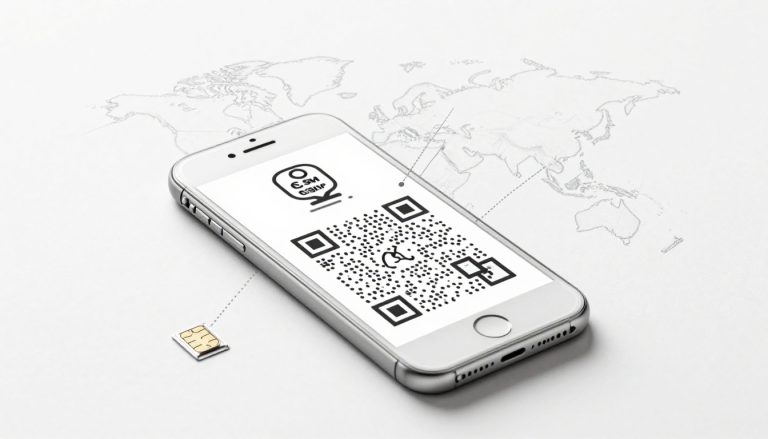
- Tap Add eSIM. Choose Scan QR code, then point your camera at the code from your provider.
- Follow the on-screen prompts to download and install the profile. If scanning isn’t available, look for an option to enter activation details manually. Some providers also offer setup through their app.
- When prompted, give the profile a clear name, such as Home or Travel. If you don’t see a naming prompt, check SIM manager after installation for an option to rename it.
- Confirm that the new profile appears in SIM manager. If you plan to use it for internet access, select it as your Mobile data line.
A completed installation doesn’t always mean the eSIM has connected to a local network. Depending on the provider and your location, service may start later or require you to turn on the line and data roaming. Test the connection before relying on it, and contact the provider if it still shows no service.
If you’ll keep your regular SIM active, review how to use an eSIM and physical SIM together. When you’re ready to choose a travel plan, Get your free esim now.
Use Home and Travel Lines Together Without Roaming Surprises
Your Galaxy S24 can keep a home SIM and travel eSIM available together, but supported combinations vary by model, region, carrier, and software. Check Samsung’s Dual SIM guidance and your device details before relying on both lines.

Set the Travel eSIM as Your Mobile Data Line
Open Settings > Connections > SIM manager. When the controls appear, choose which line handles Calls, Text messages, and Mobile data. Menu labels can vary, and some models or carriers may offer fewer choices.
While abroad, select the travel eSIM for mobile data. App traffic will then use that plan, while your home number can remain available for calls or texts if the home line stays active. After installing the travel profile, check the selected data line again. Repeat the check after removing, adding, or changing SIMs, since your preferred setting may change.
If you’re unsure which combinations your model supports, review Galaxy S24 Dual SIM and travel eSIM support.
Keep the Home Number Available With Care
Leaving your home line on can help you receive calls or SMS messages, but it may also trigger carrier fees. In Settings > Connections > Mobile networks, turn off Data roaming for the home line to reduce the chance that it handles cellular data abroad. Keep the travel eSIM selected for mobile data, and check whether its provider requires data roaming on for that profile.
Before departure, review your home carrier’s roaming terms for incoming calls, texts, and voicemail. Charges vary by plan, and even receiving a message or call may have a fee. Bank verification texts aren’t guaranteed to be free, so confirm the rules with your carrier before relying on them.
Fix the Most Common Galaxy S24 eSIM Setup Problems
A Galaxy S24 eSIM can install correctly and still fail to connect. Check the symptom first, then adjust the relevant setting or ask your carrier to verify the line.
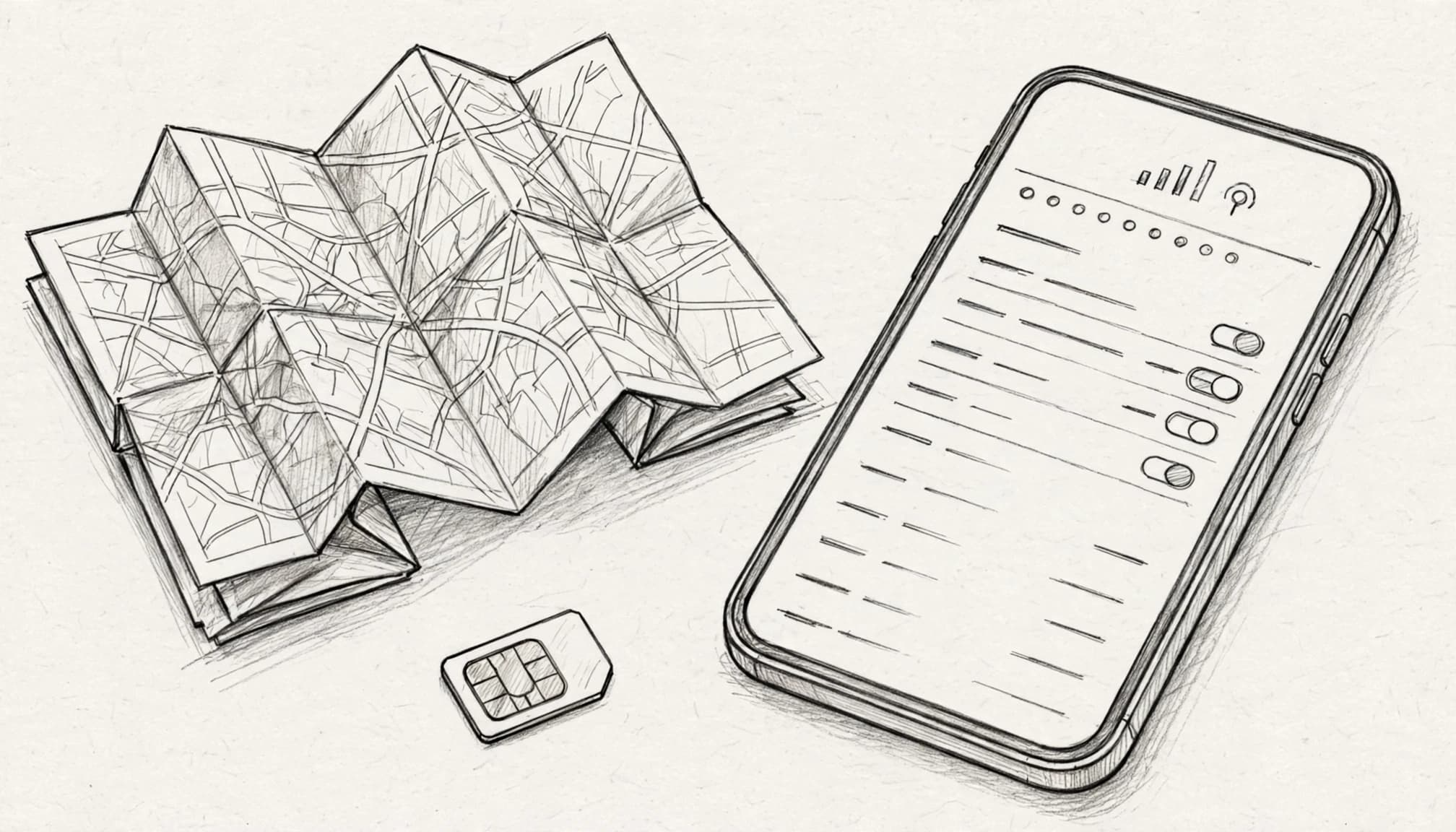
The Add eSIM Option Is Missing
Likely cause: Your exact model, regional variant, software, or carrier may limit eSIM support. A carrier lock can also prevent adding another provider’s profile.
Try this: Check your phone’s model number in Settings > About phone, then install any available update under Settings > Software update. Next, open the Phone app, enter *#06#, and look for an EID. Its presence can indicate eSIM hardware, but it doesn’t confirm carrier compatibility or an unlocked device.
Ask your carrier to confirm that your Galaxy S24 variant supports eSIM activation and whether the phone is locked. Samsung also explains how carrier support and SIM Manager settings can vary in its Galaxy eSIM and carrier guidance. For additional Android setup checks, see this guide to installing an eSIM on Android.
The eSIM Installed, but the Phone Has No Service
Likely cause: The plan may not have started, your location may lack coverage, or the phone may not have finished registering with a network.
Try this: Confirm the plan’s start date and coverage area with the provider. In Settings > Connections > SIM manager, make sure the travel line is turned on. If your provider requires roaming, enable Data roaming for that travel profile. Then restart the phone and give it a little time to connect.
If service still doesn’t appear, contact the eSIM provider and ask them to check activation and network registration. The Galaxy S24 eSIM compatibility guide can also help you review device support before choosing a plan.
The Home SIM Is Using Data Abroad
Likely cause: SIM Manager may still assign mobile data to your home line, or an automatic data-switching option may allow the phone to change lines.
Try this: Open Settings > Connections > SIM manager and select the travel eSIM under Mobile data. Turn off Data roaming for your home line, then review SIM Manager for any automatic data-switching setting and disable it if you don’t want the home line handling data.
Carrier charges depend on your plan, so check your home provider’s roaming terms and usage records. Once your settings and plan are confirmed, you can Get your free esim now before your trip.
Run This Quick Checklist Before You Leave
Before you head to the airport, give your Galaxy S24 eSIM setup one last check. A few minutes now can save you from hunting through emails or settings after landing.
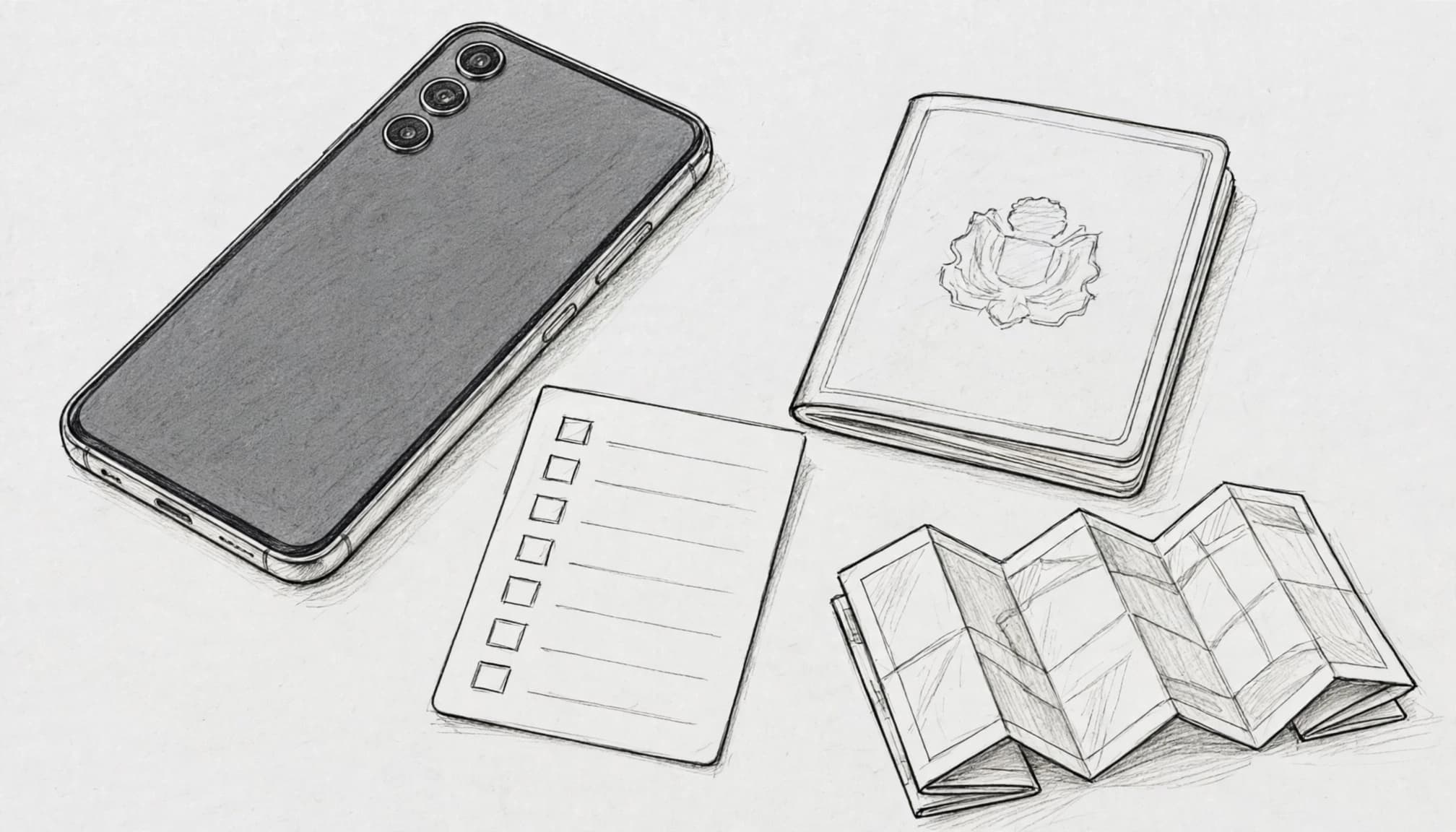
Galaxy S24 eSIM travel checklist
- Confirm compatibility. Check your exact model and look for an EID by entering
*#06#in the Phone app. An EID suggests eSIM hardware, but your carrier must also support activation. - Check the carrier lock. Ask your home carrier to confirm your phone is unlocked before installing a travel eSIM.
- Verify installation. Open Settings > Connections > SIM manager and make sure the travel profile appears and is turned on. Samsung’s Galaxy eSIM setup instructions show the standard SIM Manager path.
- Choose the right data line. Set the travel eSIM as your Mobile data line. Menu options can vary by model and software.
- Protect your home line. Turn off Data roaming for your home SIM, and check your carrier’s terms for calls and texts abroad.
- Test before departure. Connect to Wi-Fi, then confirm the profile is ready. If your plan only activates at your destination, check its instructions and start date instead of expecting a connection at home.
- Save support details offline. Keep the provider’s contact information and activation instructions somewhere you can access without mobile data.
Once these checks are complete, you’re ready to choose a plan. Get your free esim now.
Conclusion
A successful Samsung Galaxy S24 eSIM setup starts with checking your exact model, region, carrier support, and unlock status. Then add the profile through SIM Manager, select the travel eSIM for mobile data, and review roaming settings for both lines.
Before your trip, take one last peek at SIM Manager and confirm the right profile is ready. With those settings checked, your Galaxy S24 is set to keep the connection plans as tidy as your packing list. Review Samsung Galaxy S24 eSIM compatibility