You land, switch off Airplane Mode, and your iPhone still says “No Service” or “Searching…” while your maps and ride-share apps sit uselessly on the screen. Often, this points to a temporary connection or settings issue, not a broken or deleted eSIM.
Check that your travel line is on, then review Data Roaming if your plan requires it. If service still doesn’t appear, carrier selection may need a quick adjustment; these iPhone eSIM troubleshooting steps can help you get connected.
This post may contain affiliate links. If you make a purchase through these links, I may earn a small commission at no extra cost to you.
Why Your eSIM iPhone Says “No Service” at the Airport
A travel eSIM needs to register with a supported local carrier before your iPhone can connect. A short delay after landing is common, especially when airport networks are busy or registration takes longer than usual.

The local network needs time to recognize your eSIM
Your iPhone uses the eSIM profile to request service from a local carrier that works with your plan provider. That carrier checks the connection with the provider before allowing your phone onto its network. During a busy arrival rush, or a slower registration process, the first connection can take a few minutes. Give it a little time, but don’t assume a specific wait is guaranteed.
Data roaming or the travel line is switched off
Many travel plans require Data Roaming to be on for the travel eSIM, and the line itself must also be enabled. Check your provider’s setup instructions, since plan settings can vary. Apple also explains using an iPhone eSIM while traveling internationally, and you can review iPhone eSIM data roaming settings.
Airport buildings and automatic carrier selection get in the way
Concrete walls, metal structures, underground areas, and crowded terminals can weaken reception just when your phone is searching for a network. Automatic selection may also pick a carrier your plan doesn’t support. If the connection stays unavailable, check your provider’s recommended network and select it manually in Cellular settings.
How to Fix eSIM iPhone No Service, One Step at a Time
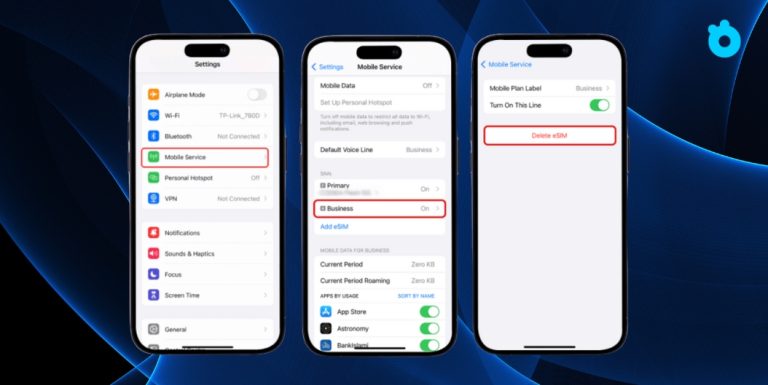
Work through these fixes in order, starting with a quick connection refresh before changing your cellular settings. Menu names can vary slightly by iOS version or carrier, but the options are usually under Settings > Cellular or Settings > Mobile Data. Keep the travel eSIM installed while troubleshooting; deleting it can make reactivation harder.

Refresh the connection with Airplane Mode and a restart
Turn on Airplane Mode for about 15 seconds, then turn it off. Your iPhone will scan for nearby networks again, so give it a few minutes to search and register.
If service still hasn’t returned, restart the iPhone and wait for it to finish starting up. The phone needs time to reconnect to a local carrier after the restart. For more options, see this iPhone eSIM troubleshooting guide.
Make sure the travel eSIM line is turned on
Open Settings > Cellular (or Mobile Data) and tap your travel plan. Check that Turn On This Line is enabled. If it’s off, your iPhone can’t use that eSIM to connect.
Next, return to the Cellular or Mobile Data screen and check Cellular Data (or Mobile Data). Select the travel plan as the data line. This matters when your home SIM is still active, since your iPhone may otherwise use the wrong line for data.
Turn on Data Roaming for the travel plan
In Settings > Cellular, select the travel eSIM and look for Data Roaming. Turn it on if your provider’s setup instructions require it. Many travel plans rely on roaming agreements with local carriers, but the setting depends on the plan.
Also check the data-line selection on the main Cellular screen. If your home SIM remains selected, your iPhone may not use the travel plan for internet access, even when the eSIM line is enabled. Apple’s guide to using an iPhone eSIM while traveling explains the roaming setup and carrier-lock requirements.
Choose the carrier listed by your eSIM provider
If the phone still shows No Service or Searching, try selecting a supported network manually. Go to Settings > Cellular > [your travel plan] > Network Selection, then turn off Automatic. Wait for the available carriers to appear and choose a local partner listed in your provider’s instructions.
Carrier lists can take a little time to load, especially inside a crowded terminal. If manual selection fails, switch Automatic back on and let the phone search again. Use automatic selection if your provider recommends it.
Check plan activation, coverage, and iPhone compatibility
Settings won’t fix a plan that hasn’t activated or doesn’t cover your destination. Check your provider’s app or account to confirm the eSIM is active, the country is included, and your plan still has data available.
Then check whether your iPhone can use another carrier’s eSIM. Open Settings > General > About and find Carrier Lock. For an unlocked phone, it should say No SIM Restrictions. You’ll also need an iPhone model that supports eSIM. Apple provides more information about iPhone eSIM use while traveling internationally.
If these checks don’t restore service, contact your eSIM provider over Wi-Fi and ask them to confirm activation and the supported local network. Keep the eSIM profile installed unless the provider gives you specific reinstallation instructions.
Match the iPhone Symptom to the Right Fix
Your iPhone’s status bar can narrow down the problem before you change any settings. Use the message and connection behavior as clues, since the same symptom can have more than one cause.

| What the screen shows | Likely cause | Next step |
|---|---|---|
| “Searching…” or “No Service,” with no bars | Weak indoor coverage, delayed network registration, a disabled eSIM line, or a carrier the plan doesn’t support | Move near a window or outside, refresh the connection, then check the line and carrier selection |
| Signal bars appear, but mobile data won’t load | The wrong line is selected for data, roaming is off, the plan has run out of data, or the provider requires specific APN settings | Check the data line, roaming toggle, and plan balance; use APN details only if your provider supplied them |
| “SIM Failure” or “Invalid SIM” | A carrier lock, incomplete activation, an eSIM installation issue, or a provider-side error | Check Carrier Lock and contact the eSIM provider before removing the profile |
“Searching…” or “No Service” with no signal bars
When bars disappear, your iPhone hasn’t registered with a cellular network. Airport walls can weaken reception, while a newly arrived eSIM may need more time to connect. The line could also be off, or the nearby carrier may not support your plan.
Move to a window or step outside if possible. Refresh the connection, then check Settings > Cellular > Network Selection against your provider’s recommended carrier. Apple’s steps for No Service or Searching offer another way to troubleshoot if the status doesn’t change.
Signal bars appear, but mobile data won’t load
Bars mean the phone has a cellular connection; they don’t confirm that mobile data is working. First, verify that your travel eSIM is selected under Cellular Data and that its roaming setting matches the provider’s instructions. Then check your plan balance or validity in the provider’s app.
If those details look right, review any APN instructions from the provider. Don’t guess at APN values; incorrect settings can prevent data from working. For more targeted steps, see how to fix an iPhone eSIM with no internet.
“SIM Failure” or “Invalid SIM” appears
This alert can point to a carrier lock, an activation or installation problem, or an issue on the provider’s side. Check Settings > General > About > Carrier Lock. If the phone isn’t unlocked, it may not accept an eSIM from another carrier. Apple’s Dual SIM and eSIM requirements explain the carrier-lock condition.
Before deleting the eSIM, contact your provider and ask them to confirm activation and the next safe step. Removing a profile may complicate setup, especially if the original activation code can’t be reused.
Avoid These Airport eSIM Mistakes and Know When to Get Help
When your iPhone still shows “No Service,” avoid changes that could make a temporary connection problem harder to fix. Keep the eSIM profile in place, use a trusted Wi-Fi connection to check your options, and contact the provider if basic checks haven’t helped.

Do not delete the eSIM just because service is missing
Removing an eSIM profile doesn’t necessarily solve a network registration problem. Worse, depending on the provider and its QR-code rules, you may not be able to reinstall the profile yourself. Some providers issue a replacement or reset the plan, while others restrict reusing an activation code.
So, leave the eSIM installed unless your provider specifically tells you to remove it. Before following that instruction, ask them to confirm that you can reinstall or reactivate the plan, and get the required steps. If you’re preparing for another trip, review this iPhone eSIM travel guide before departure.
Use airport Wi-Fi while you check the settings
Connect to the airport’s official Wi-Fi network to open your provider’s setup guide, check whether your plan is active, or contact support. Wi-Fi can also help you arrange a ride while cellular service is unavailable. Apple’s iPhone cellular setup guide explains how Wi-Fi can support eSIM setup.
Choose the network listed by the airport, and be cautious with unexpected pop-ups or lookalike network names. Avoid entering passwords, payment details, or other sensitive information on public Wi-Fi unless you trust the connection. If you need to check an account, use the provider’s official app or website.
Contact support with the details they need
If the usual checks haven’t restored service, contact your eSIM provider while you’re on Wi-Fi. Include your iPhone model, iOS version, destination, plan name, and the exact message on the screen. Also explain what you’ve already tried, so support can skip the repeat-the-basics routine.
The provider can confirm whether your plan covers the destination, which local partner networks it supports, and whether activation has completed. They can also check APN settings and tell you whether any profile change is safe. If you’re choosing a travel plan for a future trip, Get your free esim now.
Conclusion
An eSIM iPhone showing “No Service” at the airport often has a temporary settings, coverage, or network-registration issue. First, confirm the travel line is on and Data Roaming is enabled if your plan requires it. Then refresh or restart your iPhone, and choose a supported network manually only if your provider recommends it.
If service still won’t connect, contact your eSIM provider before removing the profile. A missing signal can be frustrating, but it doesn’t mean your eSIM is broken. Configure your iPhone’s eSIM and roaming settings before your next trip.