Using an eSIM on your iPhone is simple once you know the steps. But for many travelers, the first setup feels tricky. Common issues include roaming charges that add up fast, QR codes that refuse to scan, or not knowing which plan works in different Asian countries.
eSIM use is growing quickly. GSMA reports more than 1.5 billion active eSIM profiles in 2024, with Asia leading much of that growth. More iPhone users now choose eSIMs over physical SIMs because they are faster, cheaper, and easier when moving across borders.
In this guide, we’ll show you how to add an eSIM to your iPhone before your trip to Asia, how to manage data roaming, and how to pick the right plan to save money. By the end, you’ll have clear steps to stay connected wherever you travel.
Quick Answer: The Fastest Way to Add a Travel eSIM on iPhone
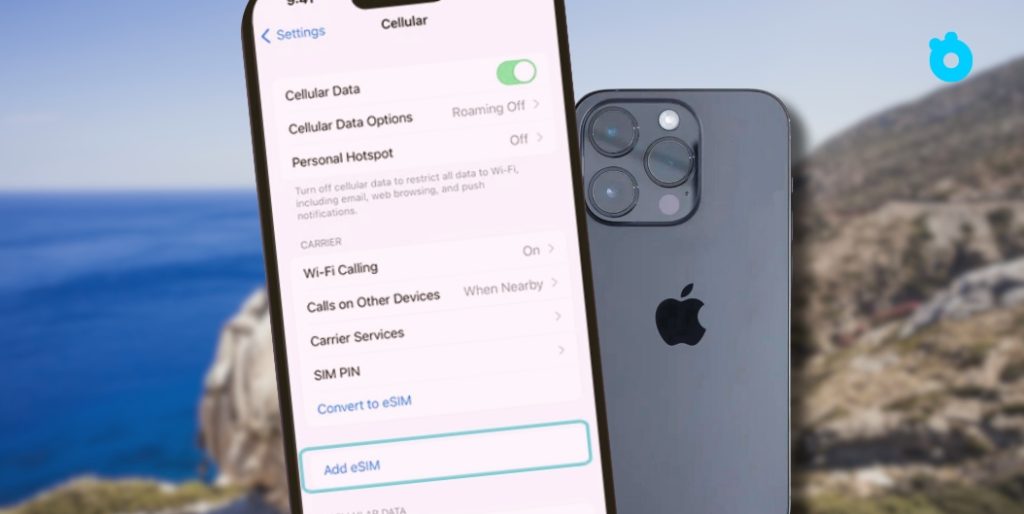
The quickest way to add an eSIM on iPhone is through Settings → Cellular → Add eSIM. You can do it in three ways.
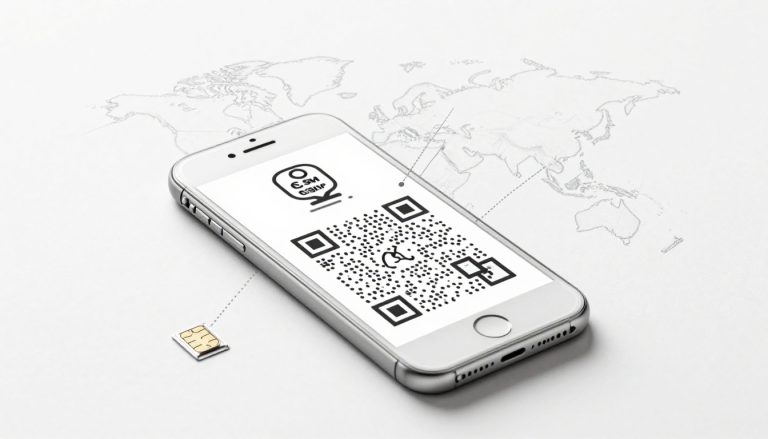
- Scan a QR code. Most providers give you one after purchase.
- Use the provider’s app. The app installs and activates the eSIM automatically.
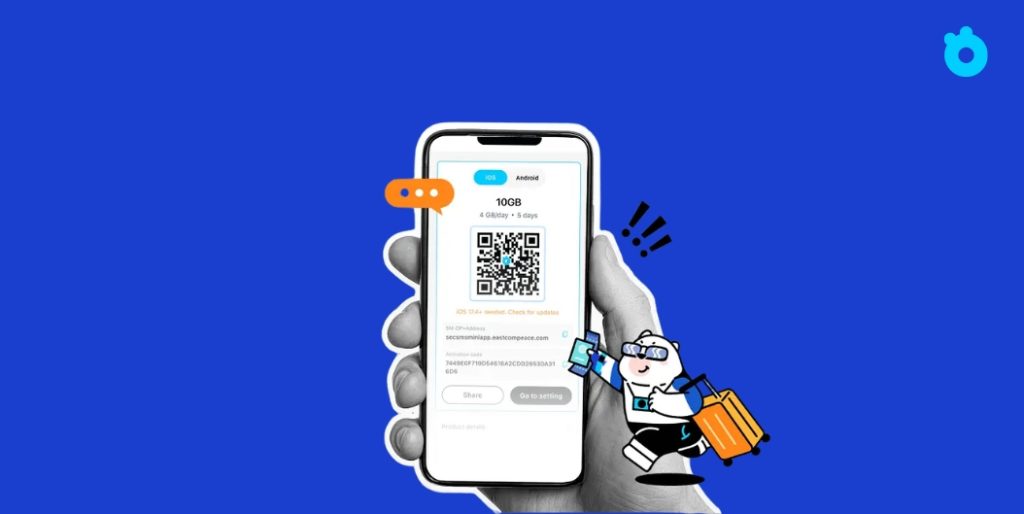
- Enter details manually. Type in the SM-DP+ address and activation code.
Check first that your iPhone is unlocked. Go to Settings → General → About. If Carrier Lock shows “No SIM restrictions,” your phone can use travel eSIMs. If it is locked, you are limited to your carrier’s eSIM.
For Asia trips, a regional eSIM plan is often better than roaming with your home carrier. It works in several countries under one profile, so you stay connected without switching SIMs.
👉 Pro tip: Give your eSIM a clear label, such as “Asia Travel Data,” and set it as the default line for data. This helps avoid mix-ups when switching numbers.
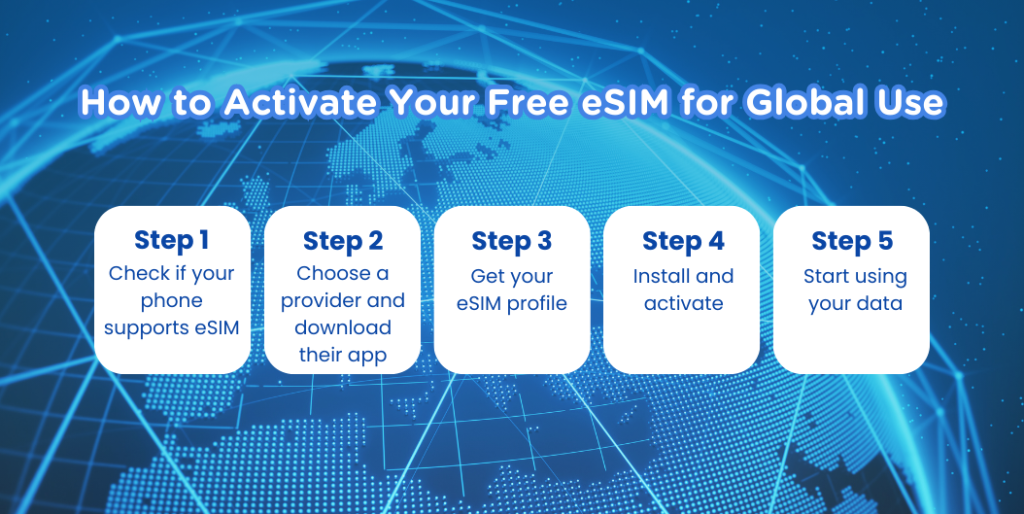
Step by Step: How to Add eSIM to iPhone for International Travel
Step 1: Open Settings
Go to Settings → Cellular → Add eSIM.
Step 2: Choose your method
- QR code: Point the camera at the QR code from your provider.
- App install: Open the provider’s app and follow the install guide.
- Manual entry: Type the SM-DP+ address and activation code you received.
Step 3: Confirm activation
Wait for your iPhone to show the new eSIM profile. You will see signal bars once it connects.
Step 4: Label your eSIM
Give it a clear name like “Asia Travel” to avoid confusion.
Step 5: Set data line
Go to Cellular Data → Default Line and pick the new eSIM.
Step 6: Test the connection
Turn off Wi-Fi and open a webpage to check if mobile data works.
👉 Tip: Put your iPhone in Airplane Mode for a few seconds, then turn Cellular back on. This often fixes first-time connection issues.
iPhone Data Roaming: Settings That Save You Money
Data roaming lets your iPhone connect when you move across countries. But if you set it wrong, the bill can rise fast.
Turn roaming on only when needed.
If your eSIM plan includes international coverage, keep roaming on. If not, turn it off to avoid charges.
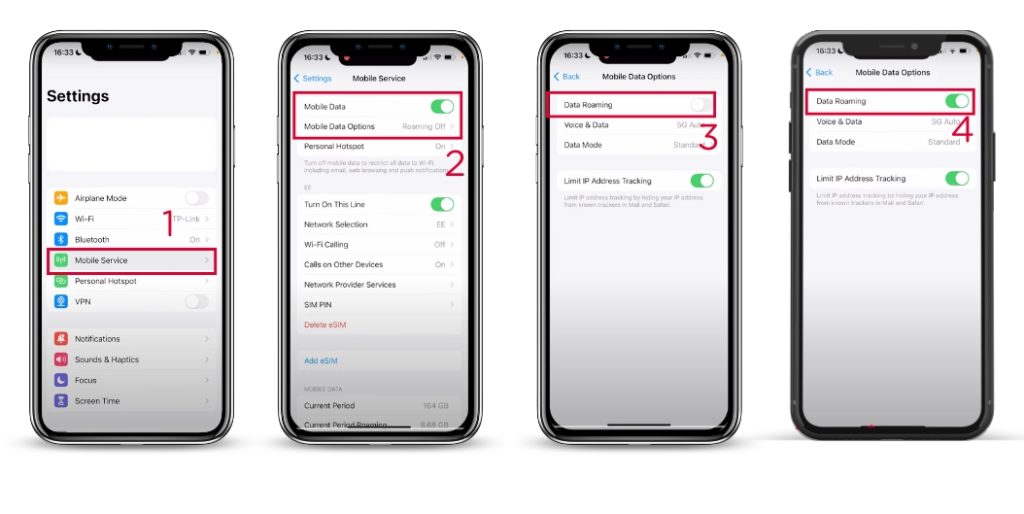
🔗 Learn more about Data Roaming on iPhone from Apple Support.
Check the path: Settings → Cellular → Cellular Data Options → Data Roaming.
Use Low Data Mode.
This setting reduces background use. Go to Settings → Cellular → Data Mode → Low Data Mode.
Turn off Voice Roaming if unused.
Voice roaming is separate from data. Disable it if your plan only covers internet.
Watch iMessage and FaceTime.
They may use your primary number. Switch them to “Use Apple ID” or your travel eSIM to avoid surprise costs.
👉 Tip: Download maps, guides, and music before your trip. Less roaming means more savings.
Best eSIM Options for iPhone When Traveling in Asia (2025)
There are many travel eSIM providers in Asia, but the quality and price can vary a lot. Here’s a breakdown of the most talked-about options, with a closer look at why Gohub has become a favorite among frequent travelers.
Gohub – Smart Choice for Asia Travelers
Why it stands out:
- Works in 195+ countries with strong partnerships in Asia (Japan, Korea, Vietnam, Thailand, Singapore, and more).
- 24/7 real human support via live chat — something many competitors still lack.
- Flexible data plans from 1–30 days, so you don’t overpay if you only need a short trip pack.
- 100% refund if the eSIM doesn’t work — rare among providers.
- Affordable pricing, often lower than Airalo and Holafly.
👉 Many travelers on Reddit and Facebook groups mention that with Gohub, they got connected within minutes and could chat with support in real time when needed. One user even shared: “Tried Gohub in Japan this April. Price was surprisingly low and when I had a small issue, a real person helped me in minutes. Totally smooth experience.”
Airalo (Asialink Plan)
Airalo is well-known for its app and quick setup. The Asialink plan covers multiple Asian countries. It’s affordable, but it’s data only — no phone number, and no live chat support if something goes wrong.
Holafly
Holafly offers unlimited data packages in Asia. It’s convenient for heavy users, but the cost is much higher and there’s a Fair Usage Policy, which means speeds can drop after hitting certain thresholds.
Saily
Saily is another option with flexible data sizes and competitive pricing. However, reports show that unlimited plans can throttle, and support response times aren’t always quick.
Why Gohub Is Safer for Asia Trips
If you’re crossing several countries in Asia, you need both coverage and support. While Airalo and Holafly are big names, many users complain about lack of real-time help and unclear unlimited terms. Gohub solves this with instant activation, fair pricing, and always-on live chat, so you never feel stuck when traveling.
👉 Pro tip: If you’re planning trips through more than two countries in Asia, start with a regional plan from Gohub. It’s cheaper and more reliable than paying roaming fees or buying multiple local SIMs.
Comparison Table: Gohub vs Airalo vs Holafly (Asia Travel Plans, 2025)
| Provider | Sample Plan / Price* | Data / Validity | Asia Coverage | Key Features & Support | Price per GB (approx) | Notes |
| Gohub | USD 3.18 – Southeast Asia + HK & Macao plan (Traveloka) USD 4.08 – Japan 2 GB/day plans (Traveloka) Reddit user: 5 GB/15 days ≈ USD 5 in Vietnam | Flexible daily or fixed-data plans (1–30 days) | 190+ countries globally, strong Asia focus | Instant activation, 24/7 live chat, 100% refund guarantee | As low as $1–$1.5/GB (depending on plan) | Cheapest entry price among top providers, strong regional packs |
| Airalo | 1 GB/7 days ≈ USD 5 5 GB/30 days ≈ USD 20 10 GB/30 days ≈ USD 37 (TechRadar) | 7–30–90 day options, fixed data caps | Asialink plan covers ~18 Asian countries | Easy purchase via app, self-install | $3.5–$5/GB | Good app and wide coverage, but higher cost per GB |
| Holafly | Unlimited Asia plan: 7 days ≈ €34 (~USD 37) (Holafly) | Unlimited or large-quota options, 1–90 days | Many Asian countries | Unlimited data, simple app | Hard to measure (but often >$10/GB equivalent when throttled) | Best for heavy streaming, but very costly; FUP throttling applies |
Key Insights
- Gohub offers the lowest cost per GB in Asia travel eSIMs — often 70% cheaper than Airalo and far cheaper than Holafly’s unlimited packages.
- Airalo is convenient with its app and works well if you only need small packs, but it quickly gets expensive for medium or heavy data users.
- Holafly is the go-to if you really need unlimited data, but for most travelers it’s overkill, since FUP throttles speeds after a threshold.
👉 Bottom line: For most iPhone travelers in Asia, Gohub gives the best balance of price, coverage, and real support.
Troubleshooting: eSIM Installed but No Data?
Sometimes your eSIM installs correctly but mobile data doesn’t work. Here are the most common fixes:
1. Check APN settings
Go to Settings → Cellular → your eSIM → Cellular Data Network. Enter the APN given by your provider. Without the right APN, data won’t load.
2. Enable Data Roaming
For travel eSIMs, data roaming must be on. Go to Settings → Cellular → Cellular Data Options → Data Roaming. Switch it on.
3. Select the correct line for data
In Settings → Cellular Data, make sure your travel eSIM is set as the data line. If your home SIM is still active, iPhone may try to use it instead.
4. Restart network connection
Turn on Airplane Mode for 10 seconds, then turn it off. This refreshes the connection.
5. Reset Network Settings
If nothing works, go to Settings → General → Transfer or Reset iPhone → Reset → Reset Network Settings. Re-enter Wi-Fi passwords after this step.
6. Re-download or re-scan the eSIM
Some providers, like Gohub, allow you to re-send or re-scan your eSIM if activation fails. Check your email or account dashboard.
👉 Pro tip: Gohub support is available 24/7 via live chat, so if these steps don’t solve the problem, you can get help from a real person instantly.
Cost-Saving Checklist for Asia Trips
Travel eSIMs are cheaper than roaming, but you can save even more with a few smart habits.
1. Compare cost per GB
Regional Gohub plans often cost $1–$1.5 per GB, much lower than Airalo or Holafly. Pick the plan that matches your data needs.
2. Turn off roaming on your home SIM
This avoids surprise charges. Go to Settings → Cellular → your home SIM → turn off Data Roaming.
3. Control background data
Disable Background App Refresh and automatic app updates. This stops apps from using data you don’t notice.
4. Use Low Data Mode
In Settings → Cellular Data Options → Data Mode, choose Low Data Mode. It helps stretch your plan further.
5. Download before you go
Save maps, playlists, and travel guides offline. Less streaming = less data spent.
6. Share data with hotspot
If traveling with friends, one Gohub eSIM with hotspot can be cheaper than everyone buying separate plans.
7. Choose regional over single-country plans
If visiting three or more countries, a regional plan from Gohub is usually cheaper and simpler than buying multiple local SIMs.
👉 Pro tip: Always keep an eye on data usage in Settings → Cellular. This helps you avoid going over your allowance.
FAQs: eSIM on iPhone for Asia Travel
Q1. Can I use a travel eSIM if my iPhone is locked?
No. Your iPhone must be unlocked to use a travel eSIM. Go to Settings → General → About → Carrier Lock. If it says “No SIM restrictions,” you’re good to go.
Q2. Should I turn on Data Roaming when using a travel eSIM?
Yes. For most travel eSIMs, Data Roaming must be on. Don’t worry — charges come from your eSIM plan, not your home carrier.
Q3. Can I share data with hotspot on a travel eSIM?
Yes, if the provider allows it. Gohub supports hotspot sharing, so you can connect your laptop or share with friends.
Q4. Does unlimited data really mean unlimited?
Not always. Some providers, like Holafly, use a Fair Usage Policy (FUP). This means your speed may drop after a certain amount of data.
Q5. What if my eSIM shows “No Service” after installation?
Check APN settings, enable Data Roaming, and set the eSIM as your data line. If it still doesn’t work, Gohub lets you contact 24/7 live chat for instant help.
Q6. Is a regional eSIM better than buying local SIMs in Asia?
Yes, if you visit three or more countries. A single Gohub regional eSIM is cheaper and easier than swapping SIMs at every border.
Final Thoughts
Adding an eSIM to your iPhone before traveling in Asia is one of the easiest ways to stay connected. You avoid the long lines at airports, skip expensive roaming bills, and enjoy stable internet from the moment you land.
Airalo and Holafly are well-known names, but they come with trade-offs: higher prices, no real-time support, or strict fair-usage limits. Gohub, on the other hand, gives you what most travelers really need — affordable regional plans, instant setup, and 24/7 live chat with a real human.
If you’re backpacking through Southeast Asia, flying for business meetings in Japan and Korea, or planning a long work-from-anywhere trip, a Gohub eSIM can keep you connected without the stress.
👉 Ready to travel smarter? Choose a Gohub Asia eSIM and enjoy your trip with fast internet, fair pricing, and support that’s always there when you need it
Related Articles
- Google Fi eSIM iPhone 16 Setup – Guide to configuring Google Fi’s eSIM on iPhone 16.
- Best Free eSIM Trial for iPhone – Reviews and comparisons of free/trial eSIM options.
- Best Free Government eSIM for iPhone – Government-backed eSIM programs and eligibility details.
- T-Mobile eSIM iPhone Setup & Transfer Guide – How to set up or transfer a T-Mobile eSIM on your iPhone.
- Best eSIM App for iPhone in Taiwan – Recommendations and setup tips for eSIM apps in Taiwan.
- How to Enable and Fix eSIM Hotspot on iPhone – Guide to activate and fix eSIM Hotspot on iOs Devices
Asia eSIM, travel eSIM, roaming, iPhone eSIM