Are you using an iPhone or preparing for a trip abroad and want to use the dual SIM feature? Combining an eSIM and a physical SIM on your iPhone offers flexibility, allowing you to keep your primary contact active while enjoying affordable data for your travels around the globe.
Those unfamiliar with setting up dual SIMs on an iPhone may find it confusing at first. This guide provides the simplest way to get your device configured properly. We will cover how to split mobile data and select the correct SIM for calls without mixing them up. This walkthrough will answer your questions from A to Z.
How do dual SIMs on an iPhone actually work?
Since the iPhone XS and XR series, Apple has integrated dual SIM technology into its devices. This allows you to use two phone numbers simultaneously on a single handset. This is useful for separating work and personal life or for keeping your home number active while using a local data plan abroad.
Typically, the most common configuration is a combination of eSIM and physical SIM. The physical SIM is the traditional card you insert into the tray. In contrast, the eSIM is a small chip integrated inside the device. It allows you to add digital plans by scanning a QR code without touching the SIM tray.
From the iPhone 13 series onwards, Apple improved this by supporting dual eSIM functionality. This means you can activate two digital plans at the same time without needing a physical card at all. It is helpful to understand the limitations of iPhone dual eSIM standby before you start adding multiple profiles to your device.
iPhones use Dual SIM Dual Standby (DSDS) technology. This means both numbers can make and receive calls and send texts. However, if you are on a call using one line, incoming calls to the other number will go to voicemail.
Steps to set up Dual SIM on iPhone
Setting up your lines starts with naming them so you don’t get confused. When you activate two plans, your iPhone will ask you to name each one for easy identification when you dial a number or send a message.
Step 1: Assign labels to each SIM card
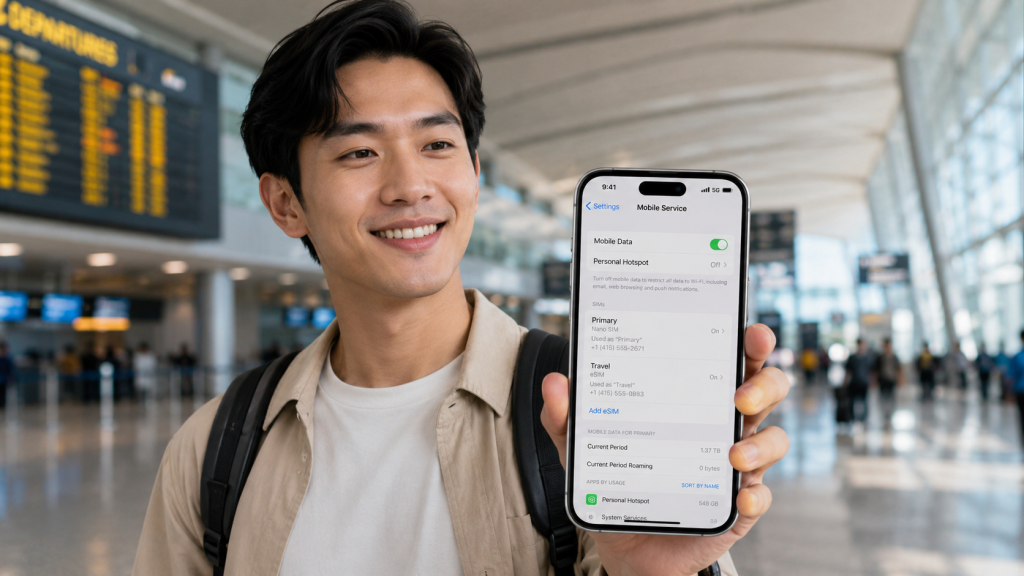
Go to your Settings and tap on Cellular. You will see your phone numbers listed there. Tap the number you want to rename and select Cellular Plan Labels. You can choose from standard labels like Primary, Secondary, Personal, or Travel. If these don’t fit, you can customise the name yourself to something like “Home” and “Holiday”.
Step 2: Set the default SIM for calls and messages
After labelling, you need to decide which line handles your daily tasks. Your iPhone will ask you to select a primary SIM for making calls and sending texts to people not found in your Contacts app.
You have three main options during this setup:
- Use Primary as the default line for calls, SMS, Data, iMessage, and FaceTime.
- Use Secondary as the default line for those same services.
- Use Secondary for mobile data only, which is perfect if you are using a travel eSIM for internet while keeping your home number for calls.
If you are a T-Mobile customer, you might find specific T-Mobile eSIM dual sim activation steps useful for getting your first line running alongside a secondary plan.
How to split mobile data and manage calls intelligently
This is the most important part for controlling costs and avoiding unexpected international roaming charges. You don’t want your main SIM to start downloading data at expensive roaming rates when you have a cheaper travel plan active.
Switching numbers for internet access
To change which SIM provides your 4G or 5G access, go to Settings, then Cellular, and tap Cellular Data. Select the SIM you want to use. If you are abroad, ensure your travel plan is the one selected here.
⚠️Be very careful with the “Allow Mobile Data Switching” feature found in these settings. If you enable this, the iPhone will automatically use data from your main SIM if the travel eSIM signal is weak. This can lead to massive roaming bills from your home carrier. It is best to turn this feature off when you are away from home.
For more technical details on how these lines interact, you can check Apple’s guidance on using Dual SIM with an eSIM.
Choosing a SIM before calling or texting
You don’t have to stick to your default choice for every single interaction. In the Phone app, when you are about to dial a new number, a small label like “P” or “S” appears at the top of the screen. Tap it to switch lines instantly.
For people already in your Contacts, you can set a preferred line. Open the contact, tap “default”, and choose which SIM you want to use for that specific person. This ensures your boss always gets calls from your work number while your friends see your personal one.
The benefits of combining eSIM and physical SIM when traveling
Taking advantage of this dual setup offers massive benefits for frequent travellers. It removes the stress of losing your tiny home SIM card or being disconnected from important services.
Step 1: Assign labels to each SIM card
Go to Settings -> select Cellular. You will see your phone number listed there. Tap on the number you want to rename and select Cellular Plan Label. You can choose from standard labels such as Primary, Secondary, Personal, or Travel. If these are not suitable, you can customize the name yourself to something like “Home” and “Vacation”.
Step 2: Set the default SIM for calls and messages
After labelling, you need to decide which line handles your daily tasks. Your iPhone will ask you to select a primary SIM for making calls and sending texts to people not found in your Contacts app.
You have three main options during this setup:
- Use Primary as the default line for calls, SMS, Data, iMessage, and FaceTime.
- Use Secondary as the default line for those same services.
- Use Secondary for mobile data only, which is perfect if you are using a travel eSIM for internet while keeping your home number for calls.https://gohub.vn/esim/huong-dan-cai-dat-esim-tren-dien-thoai?srsltid=AfmBOorwCRltq1N25UZkzAvfZPF-N6szLn-EhvcXJJrz1JCXkr9I8jp2
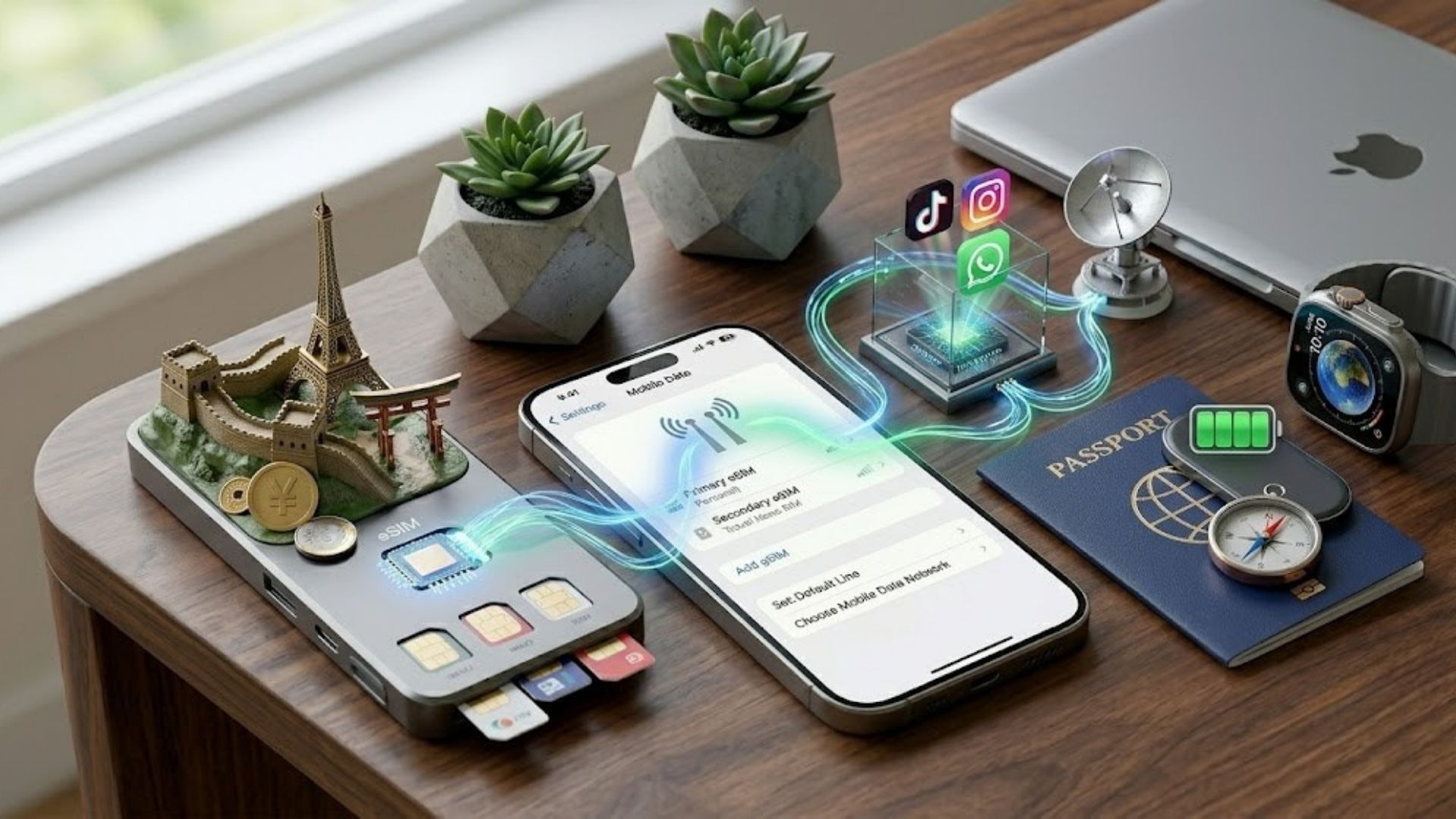
If you are a T-Mobile customer, you might find specific T-Mobile eSIM dual sim activation steps useful for getting your first line running alongside a secondary plan.
How to split mobile data and manage calls intelligently
This is the most important part for controlling costs and avoiding unexpected international roaming charges. You don’t want your main SIM to start downloading data at expensive roaming rates when you have a cheaper travel plan active.
Switching numbers for internet access
To change which SIM provides your 4G or 5G access, go to Settings, then Cellular, and tap Cellular Data. Select the SIM you want to use. If you are abroad, ensure your travel plan is the one selected here.
Be very careful with the “Allow Mobile Data Switching” feature found in these settings. If you enable this, the iPhone will automatically use data from your main SIM if the travel eSIM signal is weak. This can lead to massive roaming bills from your home carrier. It is best to turn this feature off when you are away from home.
For more technical details on how these lines interact, you can check Apple’s guidance on using Dual SIM with an eSIM.
Choosing a SIM before calling or texting
You don’t have to stick to your default choice for every single interaction. In the Phone app, when you are about to dial a new number, a small label like “P” or “S” appears at the top of the screen. Tap it to switch lines instantly.
For people already in your Contacts, you can set a preferred line. Open the contact, tap “default”, and choose which SIM you want to use for that specific person. This ensures your boss always gets calls from your work number while your friends see your personal one.
The benefits of combining eSIM and physical SIM when traveling
Taking advantage of this dual setup offers massive benefits for frequent travellers. It removes the stress of losing your tiny home SIM card or being disconnected from important services.
| Criteria | Traditional Physical SIM | Dual SIM (eSIM + Nano SIM) |
| Convenience | Requires removing and replacing SIM cards. Easy to misplace or lose your Vietnamese SIM. | Activate instantly online via QR code while keeping your Vietnamese SIM securely inside your iPhone. |
| Communication Management | Your home phone number becomes unavailable after swapping SIM cards. | Continue receiving banking OTPs, verification codes, and urgent calls from Vietnam through your primary SIM. |
| Cost | Expensive international roaming fees or the hassle of purchasing a local SIM card at the airport | Purchase a GoHub travel eSIM before departure and enjoy instant connectivity as soon as you land. |
If you have a newer device, such as the latest flagship, you might even consider a dual eSIM setup on iPhone 16 to manage two digital plans even more efficiently without any physical cards involved.
Key Takeaways
Using two SIMs on your iPhone isn’t as complicated as it might look. With a few basic setup steps, you can master the balance between your physical SIM and eSIM. This configuration helps you keep your work and personal life separate or drastically reduce travel costs.
If you are planning a trip soon and own a compatible iPhone, consider using a high-speed travel eSIM. It allows you to stay connected without those expensive roaming fees or the hassle of swapping tiny plastic cards.
Are you ready to set up your second line for your next adventure? All it takes is a scan of a QR code to get started.