You’ve landed in Bangkok or Phuket, turned off Airplane Mode, and your iPhone responds with “No Service” or “Searching…” instead of a cheerful stack of signal bars. The usual culprits are disabled Data Roaming on the travel eSIM, Cellular Data assigned to the wrong line, or a tower handshake that needs a moment to finish.
You can usually restore service within minutes without exposing your home SIM to surprise roaming charges. Start with these iPhone eSIM troubleshooting steps, then follow the quick iOS checks below to get your Thailand connection back on track.
This post may contain affiliate links. If you make a purchase through these links, I may earn a small commission at no extra cost to you.
Fix “No Service” on iPhone After Landing in Thailand with These Quick Checks
A dead signal after touchdown feels dramatic, but the fix often takes less time than finding your luggage. Use the message on your iPhone as a clue, then apply the matching check below.
Scan the problem before changing settings
Stay connected to airport Wi-Fi while you troubleshoot. You may need it to open your eSIM installation details or contact support.
| What the iPhone shows | Likely cause | Immediate fix | Expected recovery time |
|---|---|---|---|
| “No Service” | Data Roaming is off, or the travel line is disabled. | Open Settings, tap Cellular, select the travel eSIM, and turn on Data Roaming. Confirm the line is active. | 10 to 30 seconds |
| “Searching…” | The iPhone needs a fresh connection with a nearby Thai tower. | Turn Airplane Mode on, wait 5 seconds, then turn it off. Keep the phone still while it searches. | About 15 seconds |
| Signal bars, but no internet | Cellular Data uses the home SIM, or the travel eSIM lacks the right APN. | Set Cellular Data to the travel line. Keep Cellular Data Switching off, then check the eSIM’s APN instructions. | Instant to 2 minutes |
| “SIM Failure” or grayed-out cellular option | The iPhone may have a carrier lock, disabled eSIM, or profile installation error. | Check Settings, General, About, then Carrier Lock. The phone should show “No SIM restrictions.” | Up to 3 minutes, or carrier approval |
“No Service” often points to roaming or line settings, while “Searching…” usually means the phone needs a fresh tower connection. Give the iPhone up to three minutes after each change before trying another fix.
Check the travel line, not just the signal bars
Open Settings > Cellular and select your Thailand eSIM. Confirm that Turn On This Line is enabled and Data Roaming is on for that profile. Keep roaming off on your home line to avoid unexpected charges.
Next, tap Cellular Data and choose the travel eSIM. A phone can display full bars while sending every data request through the wrong line. That little mix-up is why messages may fail while the signal icon looks perfectly innocent.
If bars appear but apps remain offline, follow these steps to fix iPhone eSIM internet problems. If you still need a travel plan, Get your free esim now.
How to Fix iPhone eSIM No Service After Landing in Thailand
A reliable dual-SIM setup keeps your home number available while your Thailand eSIM handles mobile data. Follow these steps in order, and wait up to three minutes after each network reset before moving on.
Keep the Home SIM Safe From Surprise Roaming Charges
Open Settings > Cellular and tap your Thailand travel eSIM. Turn on Turn On This Line, then enable Data Roaming for that line. This permission belongs to the travel eSIM, not your home SIM.
Next, return to Settings > Cellular, tap Cellular Data, and select the Thailand eSIM. This makes the travel line responsible for internet access. Then open Cellular Data Switching and turn it off. Your iPhone will stay with the chosen travel line instead of falling back to your home carrier when the signal gets fussy.
Keep your home line active if you need bank verification codes or incoming calls. However, open the home line’s settings and leave Data Roaming turned off. Receiving SMS messages may still work without mobile data roaming, depending on your home carrier and plan. Check those terms before answering calls or calling someone back, because voice roaming charges can follow different rules.
For a fuller walkthrough, use this iPhone eSIM data roaming setup guide.
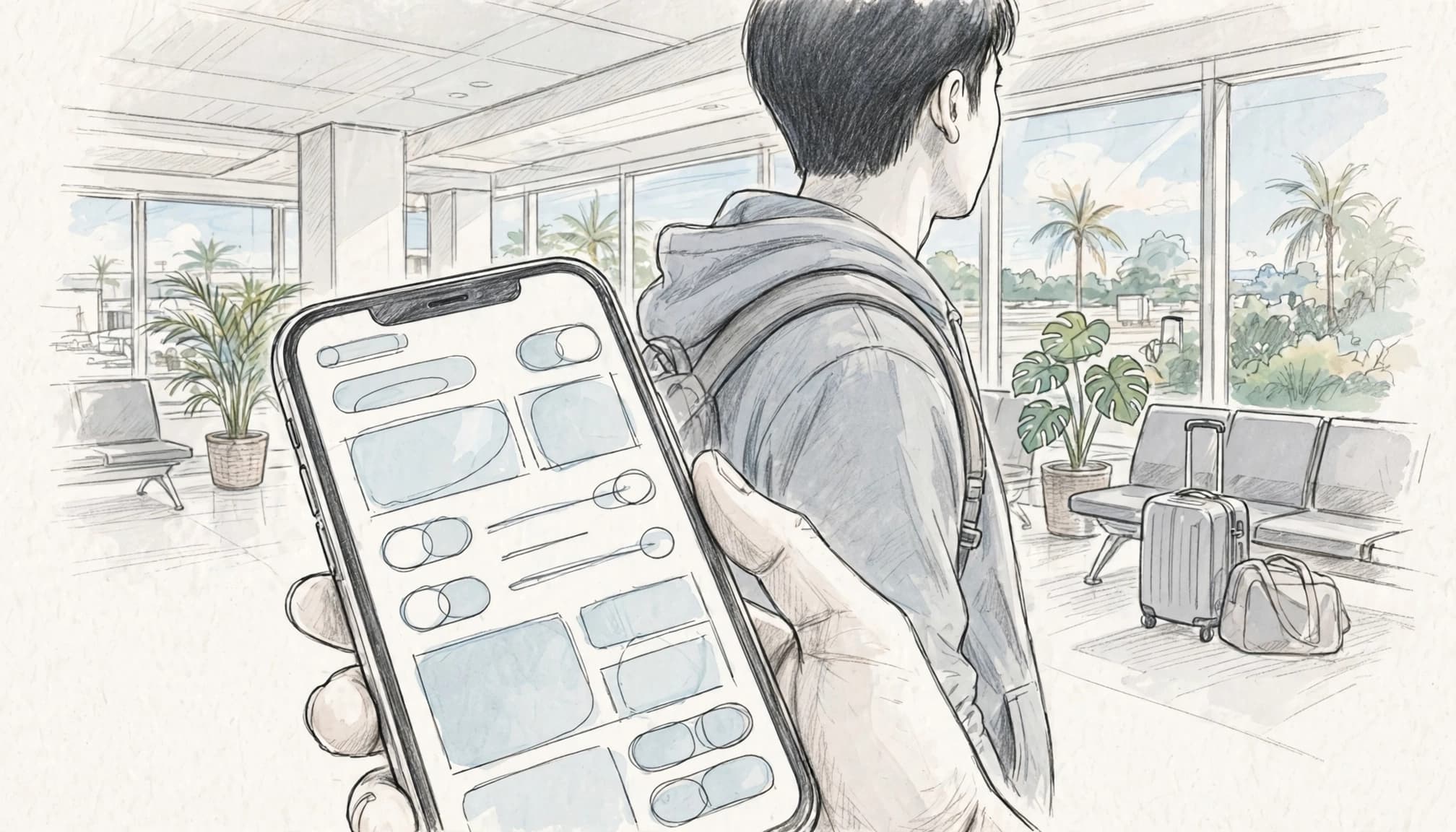
If the phone still shows “No Service,” reset the radio connection. Turn on Airplane Mode, wait five seconds, and turn it off. Give the iPhone up to three minutes to register with a Thai tower before changing another setting.
When Manual Network Selection Restores the Connection
Use manual network selection when your iPhone stays on “Searching…” or connects briefly before dropping out. Open Settings > Cellular, tap the Thailand eSIM, and select Network Selection. Turn off Automatic, then wait for the available Thai networks to appear.
The scan may take about a minute, especially inside an airport terminal. Concrete walls, underground areas, and crowded arrival halls can also change which networks appear. Once the list loads, choose the Thai partner network named in your eSIM provider’s instructions. The list may include networks your plan cannot access, so don’t pick at random.
After selecting a network, wait up to three minutes. If the iPhone remains offline, try another approved partner from the provider’s list. When service returns, open Network Selection again and turn Automatic back on, unless your provider specifically tells you to keep the manual choice. This lets the phone select a suitable partner as you travel between Bangkok, Phuket, Chiang Mai, and other areas.
Why Your iPhone Loses Signal Right After Touchdown
An iPhone eSIM showing no service after landing usually has a settings issue, not a broken phone. The four common causes are disabled roaming, a delayed tower connection, an incorrect APN, or a carrier lock.

Data Roaming Is Different for Your Home Line and Travel eSIM
Many passengers turn off roaming before travel to avoid expensive home-carrier charges. However, a travel eSIM may need Data Roaming enabled to reach its local partner network in Thailand.
First, open Settings > Cellular and check which line is active. Confirm the travel profile’s label, then open Cellular Data and verify that it uses the Thailand eSIM.
For example, your home SIM might charge roaming fees in Bangkok. Your travel eSIM may require roaming to connect through a Thai network. These settings apply separately, so changing one line doesn’t change the other.
Select the travel eSIM under Cellular, then turn on Turn On This Line and Data Roaming. Keep Data Roaming off for your home line. Also, turn off Cellular Data Switching so your iPhone doesn’t jump back to the home SIM.
A fresh tower connection can take up to three minutes after landing. If the phone still shows “Searching…”, toggle Airplane Mode for five seconds. You can also manage dual SIM data settings before changing other options.
APN Errors Can Leave You with Bars but No Internet
Signal bars show that your iPhone can reach a cellular tower. They don’t prove that mobile data can reach the internet. As a result, an incorrect APN can leave you with bars while websites, maps, and messaging apps refuse to load.
APN means Access Point Name. It tells the travel eSIM where to send mobile data traffic. Some providers install this information automatically, while others require manual entry.
If your provider exposes the setting, open Settings > Cellular > Cellular Data Network. On some iPhones, you may need to select the travel eSIM first.
Enter the exact APN string from your eSIM installation instructions. Leave username, password, and other fields blank when the provider says to do so. Avoid random APN values from online forums because the wrong entry can block data.
After saving the details, turn Airplane Mode on for five seconds. Turn it off, then wait for the data connection to return. If the menu doesn’t appear, your provider may manage APN settings remotely.
A Carrier Lock Can Block an Otherwise Valid eSIM
An eSIM QR code cannot bypass a carrier lock. If your iPhone remains tied to its original carrier, the device may reject a valid Thailand eSIM during installation or activation.
Check the phone before departure. Open Settings > General > About, then scroll to Carrier Lock. The correct message is “No SIM restrictions.”
If you see another message, contact the original carrier and request an official unlock. Approval may depend on your contract status, payment history, remaining device payments, or carrier policy.
A locked iPhone can still display Wi-Fi and home-network service, which makes this problem easy to miss. However, a foreign travel profile may fail with “SIM Failure,” “Invalid SIM,” or a grayed-out cellular option.
Don’t delete the eSIM repeatedly while investigating. First confirm the carrier lock status, then ask the original provider to unlock the hardware. Once the carrier approves the request, restart the iPhone and try the travel profile again.
Use This Pre-Flight iPhone Setup Checklist Before You Fly
A few minutes of setup can prevent the dreaded iPhone eSIM no service problem after landing in Thailand. Complete these checks at home, then test the profile over Wi-Fi before boarding.
| iOS setting or check | Recommended choice | Reason |
|---|---|---|
| Primary home SIM | Turn on when you need calls or texts | Keeps your usual number available for bank codes and messages. |
| Home Data Roaming | Turn off | Helps prevent unexpected roaming data charges. |
| Travel eSIM line | Turn on | Allows the Thailand profile to connect when you arrive. |
| Travel Data Roaming | Turn on | Many travel eSIMs need roaming to access Thai partner networks. |
| Cellular Data | Choose the travel eSIM | Routes apps and browsing through your travel plan. |
| Cellular Data Switching | Turn off | Stops the iPhone from falling back to your home line. |
| Carrier Lock | Confirm “No SIM restrictions” | An unlocked iPhone accepts travel eSIM profiles. |
| iOS version | Install the latest available update | Updates can improve eSIM and network compatibility. |
Also confirm that your iPhone supports eSIM technology. You can check iPhone eSIM compatibility before purchasing a plan. Then verify the phone shows Settings > General > About > Carrier Lock > No SIM restrictions.
Test the Travel eSIM Without Disabling Your Home Number
Open Settings > Cellular and confirm that the travel profile appears. Rename the lines clearly, such as Home and Thailand Data. Clear labels matter when you’re sleepy, jet-lagged, and tapping through menus like a raccoon with a boarding pass.
Connect to Wi-Fi, then review the travel eSIM’s installation details. If needed, set up your iPhone eSIM before traveling. Keep your home line active if you need incoming calls or verification texts. Leave its Data Roaming off.
Next, check that the Thailand profile is turned on and that Cellular Data points to it. Avoid using the travel line before arrival unless your provider says early activation is safe. Some plans begin immediately, while others activate only after connecting to a supported network.
Save a screenshot of the eSIM details, APN instructions, and provider support steps. Also download offline maps and save hotel bookings, airport transfers, and emergency contacts. Keep the QR code or installation guide available, then Get your free esim now if you still need a travel plan.
What to Do If Your iPhone Still Has No Service in Thailand
If your iPhone still shows “No Service” after the basic checks, slow down before deleting anything. A few account and location checks can reveal whether the problem comes from iOS, the eSIM plan, or the network itself.

Restart the iPhone and check for updates
First, restart the iPhone. A restart clears a stuck cellular process and gives the eSIM another chance to register with a Thai network.
After the phone turns back on, open Settings > General > About. Wait for several seconds. If iOS offers a carrier settings update, install it, then restart the phone again. You can also troubleshoot iPhone eSIM connectivity if the connection remains stuck.
Next, check your eSIM account through airport Wi-Fi. Confirm that:
- Your plan still has data remaining.
- The account shows as active.
- The plan covers Thailand.
- The installation profile has not expired.
- The provider lists available Thai network partners.
A full data allowance cannot fix an expired profile, and a valid profile cannot connect when the account sits inactive.
Test the signal outside the airport
Airport buildings, parking garages, and underground trains can weaken cellular signals. Walk outside or stand beside a large window, then wait two or three minutes for the phone to register.
Keep the eSIM installed while testing. Deleting a working profile may require a new QR code.
If the QR code failed during installation, the network list doesn’t include an approved Thai partner, or the APN details appear incorrect, contact the eSIM provider through its official support channel. Ask support to confirm the plan status and approved network settings.
Contact your home carrier when Carrier Lock shows anything besides “No SIM restrictions,” or when the iPhone reports a SIM-related restriction. Your home carrier controls the device lock, so the eSIM provider cannot remove it.
While mobile service remains unavailable, use airport Wi-Fi, an official provider website, or an airport information desk. When you’re ready to prepare another travel profile, follow the iPhone eSIM installation guide or get your free esim now.
Conclusion
An iPhone showing No Service after landing in Thailand usually has a settings problem, not a broken phone. Choose the travel eSIM for Cellular Data, enable Data Roaming on that line, and keep Data Roaming off on your home SIM. Then reset Airplane Mode and give the iPhone time to complete its tower handshake.
If the signal still refuses to cooperate, check the line status, network selection, plan details, and Carrier Lock settings before deleting the eSIM. These simple checks often separate a temporary connection hiccup from a device or account issue. You can also review this iPhone eSIM setup guide before your next trip.
Before departure, review your cellular settings, save the provider instructions, and follow the esimthailand.co installation guide. A few minutes of preparation can keep your first Thailand airport stop focused on finding a taxi, not wrestling with a stubborn signal icon.