Setting up a new connection used to involve a frantic search for a paperclip. You also needed a steady hand. Otherwise, you might drop a tiny piece of plastic.
Those days are completely gone. Now you are just a few taps away from browsing your favorite sites. You can connect easily on a mountain peak or a city bus. The process runs incredibly fast. You might actually miss the old frustration.
While the technology sounds complex, it is really just a digital handshake. The system connects your phone directly to a local cell tower.
Anyone can master this simple system without technical expertise. Campers and travelers only need a stable Wi-Fi signal to complete the process. A single minute of patience is all it takes to finish.
To see how quickly you can get moving, you can get your free activation profile now. Test the digital water for yourself today
Scanning Your Way to Data Freedom
Your journey to a clutter-free phone starts with a simple scan. The process feels much like ordering lunch from a digital menu.
Before you begin, ensure you connect to a stable Wi-Fi network. Your phone must communicate with the carrier’s servers to download the profile.
Once you are online, follow these steps to get your line up and running:
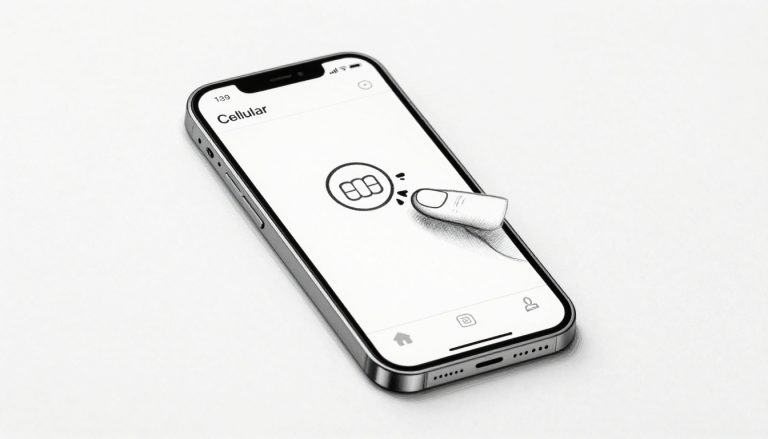
- Open your Settings app and tap on the Cellular menu.
- Select Add eSIM or Set Up Cellular to begin the digital magic.
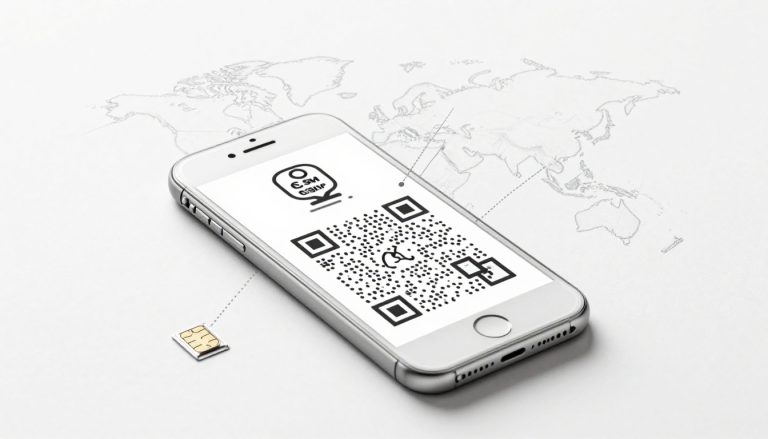
- Tap on Use QR Code when the option pops up on your screen.
- Position your iPhone 15 camera over the code provided by your carrier until it clicks into place.
- Hit Continue once the plan is detected and wait for the activation bars to appear.
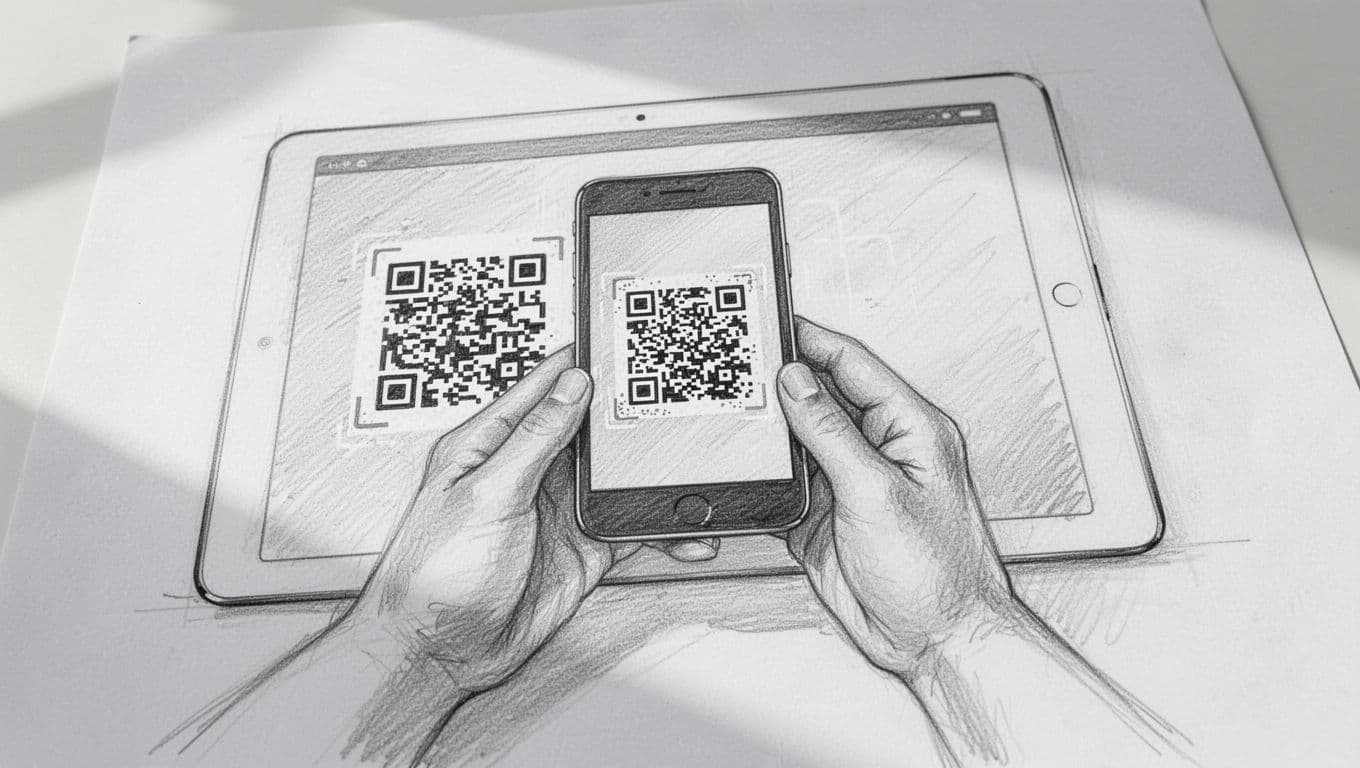
The final step is the most organized part of the whole process: naming your new line. Your iPhone will ask you to label the connection, which is a lifesaver if you’re juggling multiple plans. You can call it “Travel,” “Business,” or “Secret Tropical Getaway” so you always know which bucket of data you’re dipping into.
If the QR code decides to be stubborn, you can always set up Google Fi eSIM on iPhone or use similar manual entry methods. Apple makes sure you have a backup plan by allowing you to type in the details manually if your camera is feeling shy. For more official troubleshooting, check out the Apple support guide for eSIM setup to clear up any lingering tech hiccups.
Memory and Profile Limits for the Global Nomad
Think of your iPhone 15 as a digital suitcase with a hidden compartment. This secret space holds your cellular plans securely.
Your photos and apps live in the main storage area. However, your connectivity profiles reside inside a high-security vault. Technicians call this secure vault the eUICC.
This specialized hardware chip acts like a digital SIM card. Apple solders it directly onto the motherboard. This placement keeps your sensitive data locked away from the rest of the system.
Data security is a big deal when you travel. You constantly bounce between public airport Wi-Fi and local networks abroad.
This dedicated chip uses advanced encryption to protect you. Your carrier profiles remain safe even if your software suffers a compromise.
The chip functions as a secure hardware cache for your cellular identity. It provides a tamper-resistant environment. Traditional physical plastic cards simply cannot match this level of protection.

Stashing Eight or More Profiles
You are not limited to just one or two digital plans. Your phone can actually juggle a whole library of them. Most users can store eight or more profiles on their device at once. The exact number depends on the data size of each plan.
This layout means you can keep your home line plus several travel plans ready. You do not need to re-download them every time you cross a border.
Managing a large collection of plans is surprisingly easy. You only activate the specific ones you need. You can get your free activation profile now. Add it to your digital collection without deleting your existing primary number.
Think of these stored profiles as a deck of cards. You own the whole deck, but you only play two cards at a time. The dual standby feature handles this setup effortlessly.
Dual standby is the magic trick that keeps two lines alive simultaneously. You might use one for your work calls. Then, use the second line for cheap local data.
Learn the exact eSIM profile storage capacity on iPhone to maximize your device. This knowledge helps if you constantly switch between different networks during your travels.
- You can swap between stored profiles in seconds via the cellular settings.
- Only two lines can be “Active” at any given moment.
- The dedicated secure element in Apple hardware ensures these profiles stay isolated and protected.
This flexibility is a lifesaver for nomads who visit five countries in a single month. You download the plans before you leave, keep them tucked away in your digital “safe,” and toggle them on as you land in each new destination. It makes the logistics of international travel feel as simple as changing the wallpaper on your home screen.
Regional Nuances and Carrier Locks to Keep in Mind
Technology usually feels universal, but where you swipe your credit card for that shiny new iPhone 15 actually matters quite a bit. Physical hardware differs significantly across borders, and software restrictions can quietly stay behind the scenes until you land in a new time zone. Staying informed is the difference between instant 5G and a very expensive paperweight.
Before you start planning your international data, it is smart to check if your specific hardware version allows for digital flexibility. You can get your free esim now to test your phone’s readiness, but some regional models might stop you before you even begin. Let’s look at the hardware quirks that exist in specific parts of Asia and the software walls carriers build to keep you locked in.
The China Hardware Exception
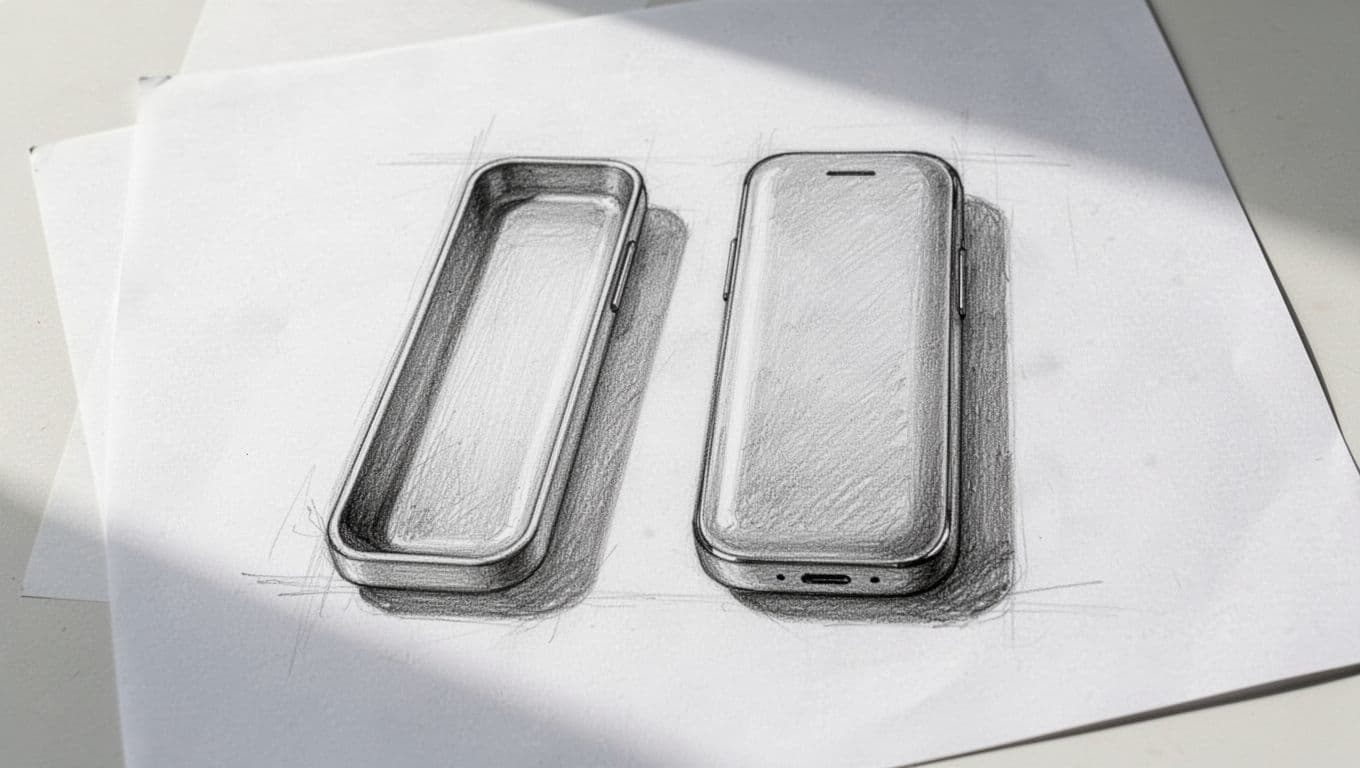
If you picked up your iPhone 15 in Mainland China, Hong Kong, or Macau, you are holding a bit of a hardware unicorn. While the rest of the world is sprinting toward an all-digital future, these specific models are anchored in the world of physical plastic. Apple designed these units with a unique dual-sided SIM tray that holds two physical nano-SIM cards, one on the front and one on the back.
The catch is that these devices typically lack any digital chip for remote activation entirely. You won’t find the option to add a cellular plan via QR code in your settings because the digital components simply aren’t there. This makes these phones excellent for regions where physical cards are still king, but a headache for travelers who want to download a quick travel plan.
| Feature | Mainland China | Hong Kong / Macau | US / International |
|---|---|---|---|
| Physical SIM Slots | 2 (Dual-Sided) | 2 (Dual-Sided) | 1 (0 in US) |
| eSIM Capability | No | No | Yes |
| FaceTime Audio | Restricted | Available | Available |
This physical-only design means you’ll be hunting for physical SIM kiosks at the airport instead of activating a plan in the air. If you are an expat or a frequent traveler with one of these models, you’ll need to rely on the physical slots for every single connection.
Checking for SIM Restrictions
Even if your phone has the right digital guts, a carrier lock can act like a digital padlock on your connectivity. Many iPhones sold through monthly payment plans or subsidized contracts stay “locked” to a specific provider until the device is fully paid off. This means you won’t be able to use a local digital plan or a travel provider because the phone is trained to only recognize one master.
Testing your status is the most important pre-flight check you can perform. It only takes a few seconds and avoids the frustration of trying to troubleshoot a plan that was never allowed to work in the first place. You can check if your iPhone is carrier locked by digging into your system info:
- Open Settings and tap on General.
- Tap About and scroll down toward the bottom of the list.
- Look for the Carrier Lock field.
- If it says No SIM restrictions, your phone is free and clear for any provider.
If a specific carrier name appears there instead, your phone is currently restricted. You will need to contact that carrier directly to request an unlock, which usually follows the official Apple unlock process once your financial obligations are met. Don’t wait until you’re at the boarding gate to find this out, because carrier unlock requests can sometimes take a few business days to process.
Conclusion
The iPhone 15 is a connectivity power player that makes traditional plastic cards look like bulky relics. Whether you’re rock climbing in the desert or running a business from a train, those digital profiles keep your life moving. You’ve got the hardware to juggle multiple lines without ever needing a paperclip.
Travel light and leave the stress of lost SIM cards behind on your next big excursion. You can find ready-to-use data packages and more advice at esimiphone.co to keep your device’s digital vault full. If you’re on a specific carrier, check out our Simple Mobile eSIM activation guide for iPhone 15 to get your service running in minutes.
This post may contain affiliate links. If you make a purchase through these links, I may earn a small commission at no extra cost to you.