Switching to an eSIM on your iPhone 15 can feel confusing the first time. Many Simple Mobile users run into issues like QR codes not scanning, plans stuck on “Activating,” or mobile data that refuses to connect. That’s why having a clear step-by-step guide is important. In this article, you’ll learn exactly how to set up your Simple Mobile eSIM iPhone 15, from checking device eligibility to scanning the QR code and entering details manually. You’ll also find tips on transferring your number, updating carrier settings, and fixing common errors so your connection works smoothly.
Get your Simple Mobile eSIM
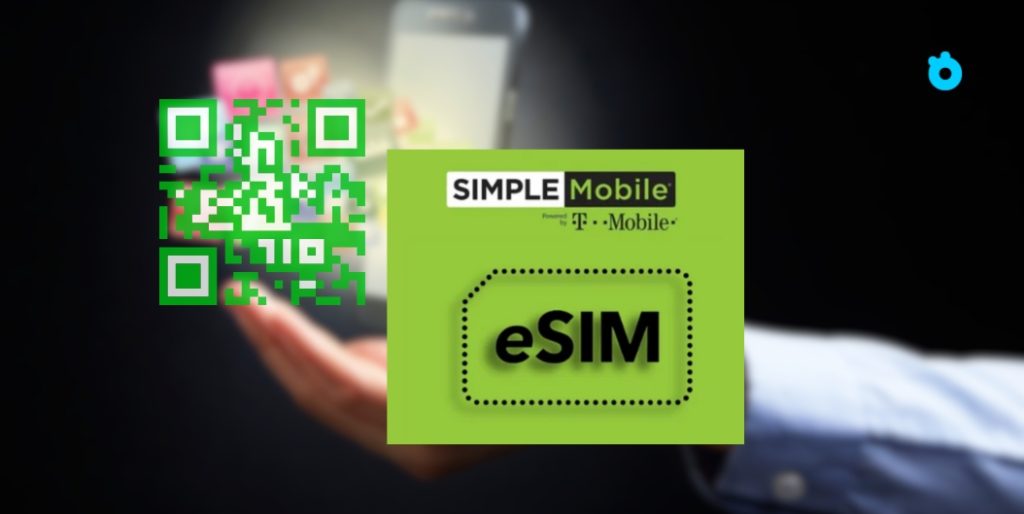
To begin, sign in to your Simple Mobile account or create a new one if you are a first-time user. From there, you can either purchase a new plan or convert your existing line to eSIM. During checkout, choose eSIM delivery and select how you want to receive it.
Simple Mobile usually provides two options: a QR code sent by email or a direct push to your iPhone. If the push method does not work, don’t worry—you can always switch to QR code scanning or manual entry later. Keep your email handy since the QR code will be required in the next step.
Activate through the Simple Mobile website
Go to the official Simple Mobile activation page on your computer or iPhone browser. Enter your device’s IMEI number and follow the on-screen prompts. The system will check your eligibility, link your plan, and prepare your eSIM profile.
If you selected a push delivery, the eSIM should appear on your iPhone automatically within a few minutes. Accept the prompt to install it. In case the push method fails, Simple Mobile will guide you to use a QR code or enter the eSIM details manually. Always keep your Wi-Fi on during this process to avoid interruptions.
Enter eSIM details manually
If the QR code method doesn’t work, you can still set up your Simple Mobile eSIM iPhone 15 by entering the details manually. On your iPhone, go to Settings → Cellular → Add eSIM → Enter Details Manually.
Type in the SM-DP+ address and the activation code exactly as provided by Simple Mobile. Double-check each character to avoid errors, since even a small mistake can block activation. After entering the details, tap Next and wait until the eSIM status shows Activated. Keep Wi-Fi turned on during the process to ensure a smooth connection with the Simple Mobile server.

Post activation setup on iPhone
After activation, it’s important to set up your Simple Mobile eSIM iPhone 15 correctly. First, go to Settings → Cellular and choose your eSIM as the Cellular Data line. If you are using two lines, decide which one will handle calls, texts, and mobile data.
Next, enable Data Roaming for the eSIM line so it connects properly when you travel. Then check for a Carrier Settings Update by going to Settings → General → About. Accept the update if prompted. These steps help ensure smooth data, calls, and messages without unexpected issues.
Transfer your number or port in
If you want to keep your existing number, Simple Mobile allows you to transfer or port it to your new eSIM on iPhone 15. During activation, you’ll be asked to provide your current carrier details, account number, and PIN. Make sure this information is correct to avoid delays.
In most cases, the transfer completes within a few minutes, but sometimes it can take up to 24 hours. During this time, service may switch between carriers. If the port seems stuck, contact Simple Mobile support to reprovision your line and confirm the transfer status.
Common problems and quick fixes
Even with the right steps, some users face issues when setting up Simple Mobile eSIM iPhone 15. Here are the most common problems and how to solve them:
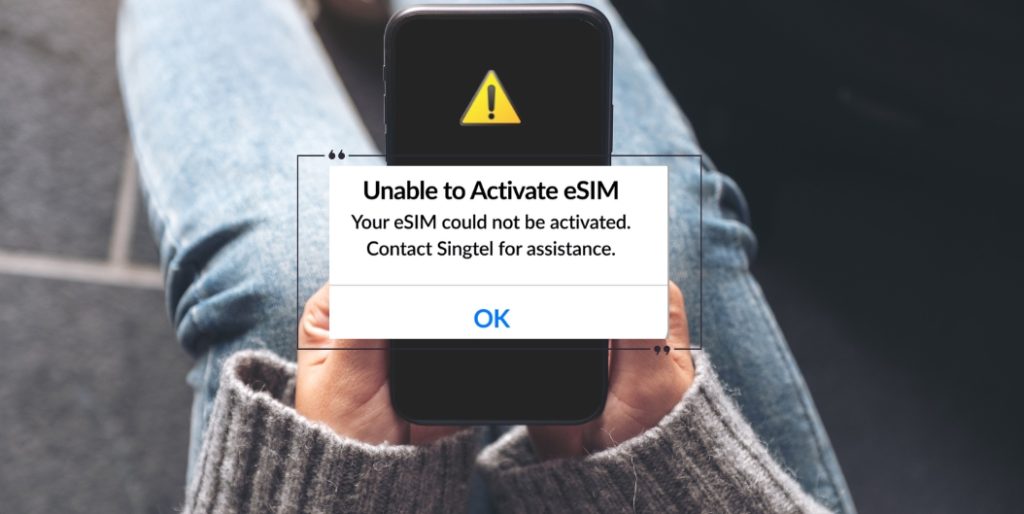
- Stuck on Activating: Restart your iPhone, toggle Airplane Mode, or check for a carrier settings update. If the issue continues, delete and reinstall the eSIM or ask support to reprovision your line.
- No mobile data: Make sure the eSIM is set as the active data line. Turn on Data Roaming and check the APN settings provided by Simple Mobile.
- QR code doesn’t scan: Increase screen brightness or print the code for easier scanning. If it still fails, switch to manual entry.
- IMEI error: On iPhone 15, use IMEI two instead of IMEI one for eSIM activation.
FAQs on Simple Mobile eSIM for iPhone 15
Does Simple Mobile support eSIM on iPhone 15?
Yes. All iPhone 15 models fully support eSIM with Simple Mobile.
How do I get a Simple Mobile eSIM QR code?
You can request one during plan purchase or account setup. It will be sent to your email.
Can I move the eSIM to another iPhone?
Yes, but you’ll need to delete it from the old phone and activate a new profile on the new device.
Why is my eSIM stuck on activating?
Restart your iPhone, enable Wi-Fi, check carrier settings, or contact support to reprovision.
Do I need to enable data roaming?
Yes. For data to work correctly on Simple Mobile eSIM, data roaming must be turned on in settings.
Final thoughts
Activating a Simple Mobile eSIM iPhone 15 is straightforward once you know the right steps. From checking device eligibility to scanning a QR code or entering details manually, each method ensures your line is ready to use quickly. With the correct setup, you can enjoy calls, texts, and mobile data without interruption.
If you face issues, Simple Mobile offers multiple troubleshooting options and support to help you get connected. For frequent travelers, exploring travel eSIM options can also be a smart way to stay online wherever you go.
Stay Connected Anywhere with Gohub Travel eSIM
While Simple Mobile keeps you connected at home, nothing beats the flexibility of a travel eSIM when you go abroad. With Gohub international eSIM, you get:
✅ Instant activation in 100+ countries
✅ Affordable data plans, up to 50% cheaper than roaming
✅ Keep your main number active while using local data
✅ 24/7 multilingual customer support
✅ 100% refund guarantee if activation fails
👉 Don’t let connectivity slow you down. Explore Gohub eSIM plans and travel with confidence—seamless internet is just one scan away.
Related Article
- Can You Use an eSIM on a Locked iPhone? The Real Answer – Discover how carrier locking affects eSIM use, and what to do if your iPhone is locked.
- How to Receive SMS on eSIM iPhone – Troubleshooting steps when your eSIM is active but text messages or OTP codes aren’t showing up.
- iPhone 16 eSIM Support – Details on what the iPhone 16 brings in terms of eSIM profile limits, coverage, and improvements.
- Reset eSIM on iPhone – Instructions to properly reset or reinstall your eSIM profile when nothing else seems to work.
- How to Use Airalo eSIM on iPhone – A step-by-step guide for activating and using Airalo’s travel eSIM service on your iPhone.
- iPhone eSIM Compatibility – A full compatibility checklist so you can quickly verify if your device supports eSIM.