How to receive SMS on eSIM iPhone is a question many new users face. In 2024 alone, more than 503 million eSIM-enabled devices were shipped worldwide, showing how fast adoption is growing. Yet a common issue remains: some people activate their eSIM but can’t receive OTP codes, banking alerts, or normal text messages. If your eSIM is not receiving SMS on iPhone or you notice that eSIM SMS is not working, it usually comes down to iPhone settings or the type of eSIM plan you’re using. This guide will show you what’s required, common problems, and how to fix them step by step.
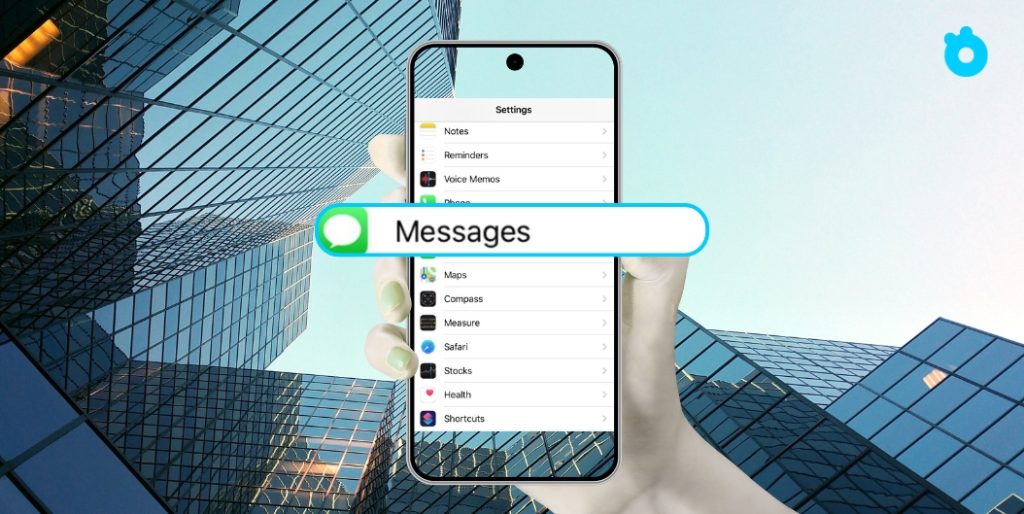
What You Need to Receive SMS on eSIM iPhone
Before fixing issues, it’s important to understand the basic requirements. An eSIM can only receive SMS on iPhone if these conditions are met:
- Full-service eSIM plan – Not every eSIM supports SMS. Many travel eSIMs are data-only, which means you can browse the internet but cannot receive text messages or OTP codes. To get SMS, your eSIM must include voice and SMS service.
- Unlocked iPhone model – Your iPhone needs to be unlocked and compatible with eSIM. Apple reports that all models from iPhone XS onward support eSIM, but a locked device may limit messaging.
- Correct carrier activation – The mobile carrier must provision SMS service for your eSIM profile. If SMS is missing from the plan, you’ll only have data access.
- Stable network signal – SMS still depends on the carrier network, not Wi-Fi. Weak signal, poor coverage, or roaming restrictions can cause delays or failed delivery.
- Updated iOS and carrier settings – Outdated iOS or missing carrier updates may cause conflicts that stop SMS from working on your eSIM.
Data-Only eSIM vs Full-Service eSIM
| Feature | Data-Only eSIM | Full-Service eSIM |
|---|---|---|
| Internet Access | ✅ Yes (4G/5G data) | ✅ Yes (4G/5G data) |
| SMS (Text Messages) | ❌ Not supported | ✅ Supported |
| Voice Calls | ❌ Not supported | ✅ Supported |
| Best Use Case | Travel eSIMs for browsing, maps, social apps | Main carrier plans, work numbers, receiving OTP codes |
| Limitations | Cannot receive OTP, banking alerts, or normal SMS | Usually more expensive than data-only eSIMs |
💡 Quick tip: If you only need internet while abroad, a data-only travel eSIM is fine. But if you need OTP codes or bank SMS, you must use a full-service eSIM or keep your home number active.
👉 If one of these conditions isn’t met, your iPhone may activate the eSIM successfully but still fail to receive messages.
How to Set Up eSIM to Receive SMS on iPhone
Once you’ve confirmed that your eSIM plan supports SMS, the next step is to set up your iPhone correctly. Even a small misconfiguration can stop messages from arriving. Follow these steps:
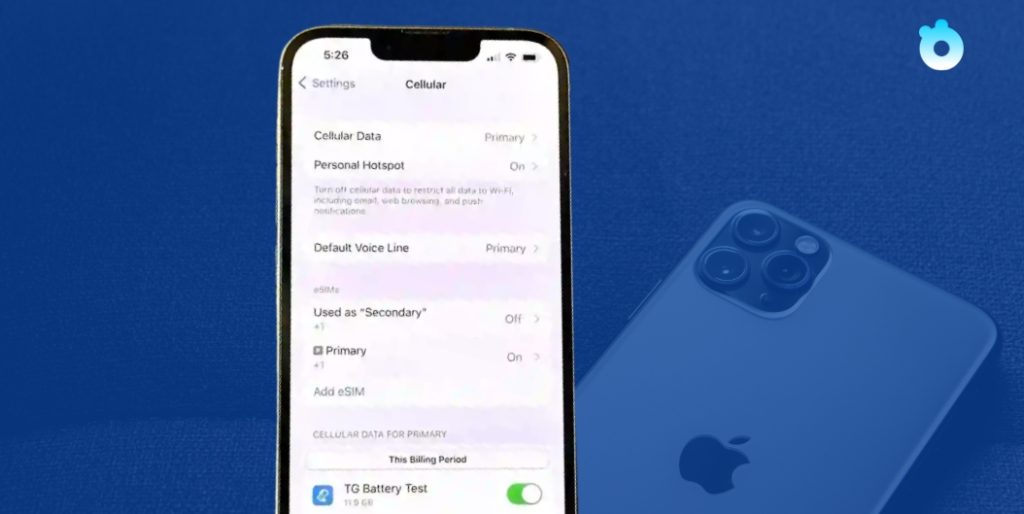
Assign a default line for SMS
- Go to Settings → Cellular → Default Line.
- Choose your eSIM if you want all messages to be sent and received through that number.
- If you use Dual SIM, make sure the correct line is selected for text messages.
Check iMessage and FaceTime settings
- Go to Settings → Messages → Send & Receive.
- Confirm that your eSIM number is ticked under “You can receive iMessages to and reply from.”
- This ensures your iPhone recognizes the eSIM number for both iMessage and SMS.
Enable MMS and group messaging
- Some OTP and service texts are routed as MMS.
- Go to Settings → Messages and switch on MMS Messaging and Group Messaging.
Update carrier settings
- Connect to Wi-Fi and go to Settings → General → About. If a carrier update appears, accept it. 📎 See Apple’s guide on updating carrier settings.
- If there’s a carrier update available, you’ll see a pop-up. Accept and update immediately.
Restart your iPhone
After changes, restart your device to refresh the eSIM profile.
👉 With these steps, most iPhones will start receiving SMS normally on eSIM. If you still face issues, you’ll need to check for common errors and troubleshooting options.
Common Issues: eSIM Not Receiving SMS on iPhone
Even after correct setup, some users still face problems where the eSIM is not receiving SMS on iPhone. Here are the most common reasons:
Data-only eSIM plan
Many travel or prepaid eSIMs are designed for internet access only. They don’t support voice or SMS, so OTP and verification codes will never arrive.
Wrong default line selected
If you’re using Dual SIM (physical SIM + eSIM), your iPhone may still be set to use the physical SIM for SMS. In this case, texts sent to your eSIM number won’t show up.
iMessage confusion
Some users think they’re not receiving SMS when in fact the message is sent via iMessage (blue bubble). This works fine with Apple devices but can fail when receiving texts from Android or banking services.
Carrier restrictions
Some carriers don’t enable SMS on eSIM by default. You may need to contact support to provision SMS and MMS services for your profile. (Example: AT&T’s eSIM support page.)
Software or network glitches
- Outdated iOS, missing carrier updates, or poor signal strength can cause messages to get delayed or blocked.
- Resetting network settings can often fix this (Settings → General → Transfer or Reset iPhone → Reset → Reset Network Settings).
👉 Identifying which of these problems applies to your case will make it easier to apply the right fix.
Troubleshooting eSIM SMS Problems
If your eSIM SMS is not working on iPhone, here are practical steps you can try to solve the issue:
Confirm your eSIM plan includes SMS
Contact your carrier or check the plan details. If it’s data-only, you’ll need a different eSIM with SMS support.
Re-select your default SMS line
- Go to Settings → Cellular → Default Line and set your eSIM as the primary line for messages.
- In Settings → Messages → Send & Receive, make sure your eSIM number is checked.
Reset network settings
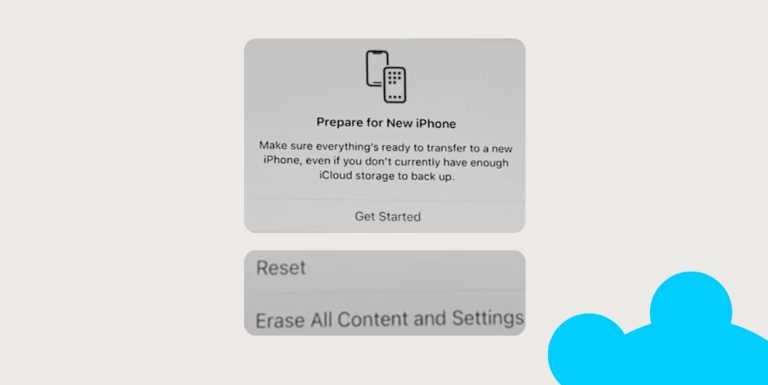
- Navigate to Settings → General → Transfer or Reset iPhone → Reset → Reset Network Settings.
- This clears old network conflicts and reloads the eSIM profile.
Update iOS and carrier settings
- Install the latest iOS update under Settings → General → Software Update.
- Carrier updates often fix SMS routing issues.
Turn off and on Airplane Mode
A quick toggle can refresh the network connection and allow pending SMS to come through.
Reinstall your eSIM
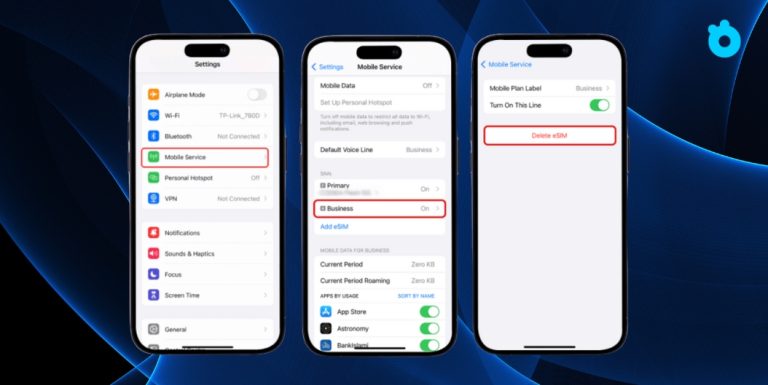
- Delete the eSIM profile under Settings → Cellular → eSIM Plans → Remove Plan.
- Scan your carrier’s QR code or use their app to reinstall the eSIM.
Contact your carrier support
If none of the above works, the issue is likely on the carrier side. Ask them to verify that SMS is activated on your eSIM account.
👉 In most cases, resetting network settings or reinstalling the eSIM solves the issue quickly.
Receiving SMS on eSIM When Traveling Abroad
When you travel internationally, receiving SMS on eSIM can become more complicated. Here are the key points to know:
Roaming support is required
- Not all carriers allow SMS to work while roaming. Even if data works, incoming OTP codes or banking alerts may fail unless roaming SMS is enabled. Example: T-Mobile international roaming.
- Always confirm with your carrier before traveling.
Travel eSIMs are usually data-only
Most eSIMs sold for tourists (e.g., in Japan, Europe, or the US) are designed for internet only. They cannot receive text messages, so you won’t get verification codes on these numbers.
Keep your home number active for OTP
- If you need OTP from your bank or social media apps, you should keep your original SIM or eSIM line active.
- On iPhone, you can set your physical SIM for SMS and your travel eSIM for data.
Check roaming charges
Some carriers allow SMS reception abroad but charge per message. Be aware of potential fees, especially for frequent OTPs.
Use alternatives when possible
Many banks and apps now support email-based verification or authenticator apps. Set these up before your trip in case SMS doesn’t work overseas.
👉 The best practice is to use a travel eSIM for data while keeping your home eSIM or SIM active for SMS and calls, ensuring you don’t miss important verification codes while abroad.
FAQs: Fix eSIM Not Receiving SMS
1. Why is my eSIM not receiving SMS on iPhone?
Most likely because your eSIM plan is data-only. To receive SMS, you need a plan that includes voice and text services.
2. Can I receive OTP codes on a travel eSIM?
No. Travel eSIMs are typically data-only. You need to keep your home SIM or eSIM active to receive OTP and banking codes.
3. How do I enable SMS on my eSIM iPhone?
Go to Settings → Cellular → Default Line and select your eSIM. Then check Settings → Messages → Send & Receive to make sure your eSIM number is ticked.
4. Will SMS still work if I turn off my physical SIM?
Yes, as long as your eSIM plan supports SMS and is set as the default line. If it’s data-only, you won’t get text messages.
5. Can I receive SMS on eSIM while abroad?
Only if your carrier supports SMS roaming. Most travel eSIMs cannot receive SMS. Use your home number or alternative verification methods instead.
6. Do iMessage and SMS use the same line?
No. iMessage uses Apple’s internet service, while SMS relies on your carrier. Make sure the correct line is set for SMS in your iPhone settings.
📎 For details, see GSMA’s eSIM overview.
👉 These quick answers help clarify the most common issues users face when their eSIM SMS is not working on iPhone.
Final Thoughts on Receiving SMS on eSIM iPhone
Receiving SMS on your eSIM iPhone depends on two main factors: the type of eSIM plan you have and how your device is configured. If you’re using a data-only eSIM, you won’t be able to get OTP codes or banking alerts — you’ll need a full-service plan that supports voice and text. If your plan does include SMS but you still face problems, double-check your default line settings, carrier updates, and network signal.
By following the setup steps and troubleshooting methods outlined in this guide, you can fix most cases where eSIM is not receiving SMS on iPhone. For frequent travelers, the best approach is to keep your home number active for verification codes while using a travel eSIM for data. That way, you’ll always stay connected without missing important messages.
Related Articles
- How to Delete eSIM from iPhone – Step-by-step instructions to safely remove an eSIM on different iOS versions.
- Free eSIM Service for iPhone – A comparison and review of free eSIM providers and trial eSIMs for users who want to test before paying.
- How Many eSIMs Can iPhone 14–17 Have? – A clear breakdown of how many eSIM profiles can be stored and used simultaneously on the latest iPhones.
- Activating eSIM on iPhone – A complete guide to activating eSIM on iPhone, including setup steps and common activation errors to avoid.
- Can You Use an eSIM on a Locked iPhone? The Real Answer – Detailed explanation of the restrictions and options for using eSIM on carrier-locked iPhones.