Many users search for how to reset eSIM iPhone when their eSIM gets stuck on Activating, fails to receive SMS, or stops working after switching devices. On iPhone, “resetting eSIM” does not mean tapping a single reset button. It usually means either deleting the eSIM profile and reinstalling it using a QR code or carrier app, or using Reset Network Settings to refresh all carrier links. If your eSIM is not working after reset, you may need to check iMessage and FaceTime settings, carrier updates, or even request a fresh eSIM profile. With over 441 operators worldwide supporting eSIM as of mid-2024, and more than 190 countries offering eSIM plans, the infrastructure is there. This guide explains in detail how to delete, reinstall, and fix eSIM issues on iPhone.
What Does “Reset eSIM iPhone” Actually Mean
When people search for reset eSIM iPhone, they often expect a single button that resets the eSIM just like a WiFi or network toggle. In reality, there is no direct “reset” option for eSIM. Instead, resetting an eSIM on iPhone usually refers to one of the following methods:
1. Deleting and reinstalling the eSIM profile
This is the most common meaning of “reset.” You remove the existing eSIM plan from your iPhone and reinstall it using a QR code, carrier app, or Quick Transfer.
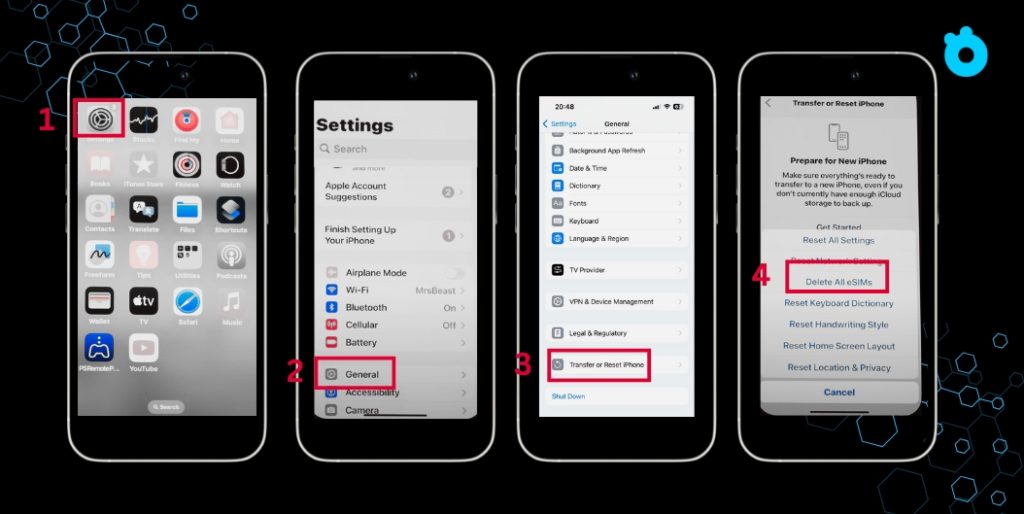
2. Reset Network Settings
This does not erase the eSIM profile, but it refreshes all saved WiFi, VPN, and carrier settings. It can fix configuration errors that stop an eSIM from working correctly.
3. Erase All Content and Settings
When you factory reset an iPhone, you can choose to keep or delete your eSIM. Even if you keep it, some services may need reactivation through your carrier.
👉 In short, “reset eSIM iPhone” means either reinstalling the eSIM profile or refreshing the network configuration, depending on the issue you are facing.
How to Delete eSIM on iPhone Step by Step
If your eSIM is not working correctly, the first step in a proper reset eSIM iPhone process is to remove the profile. Deleting the eSIM does not cancel your plan, but it clears the configuration from your device so you can reinstall it cleanly.
Follow these steps to delete an eSIM on iPhone:
- Open Settings.
- Tap Cellular or Mobile Data.
- Under “Cellular Plans,” select the eSIM you want to remove.
- Tap Delete eSIM (sometimes shown as Delete Cellular Plan).
- Confirm the action. Your iPhone will remove the profile.
⚠️ Important: Deleting an eSIM profile does not automatically stop billing. If you want to cancel the plan entirely, you must contact your carrier.
👉 Once the profile is deleted, you can reinstall the eSIM using a QR code, carrier app, or Quick Transfer.
How to Reinstall eSIM After Reset
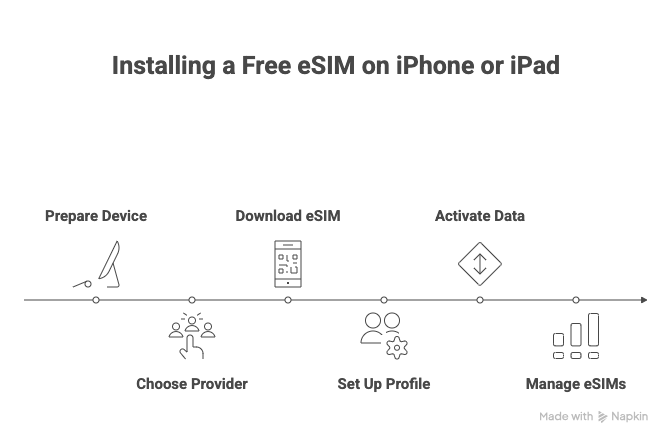
Once you delete a profile, the next step in the reset eSIM iPhone process is to reinstall it. Depending on your carrier, there are several ways to do this:
1. Using a QR code
- Go to Settings → Cellular → Add eSIM.
- Choose Use QR Code and scan the code your carrier provided.
- Follow the prompts until the plan is activated.
📎 Apple guide: Add or transfer eSIM on iPhone
2. Through your carrier’s app
- Many carriers allow you to download and install eSIM profiles directly from their apps.
- Open the carrier app, sign in, and follow the instructions to add an eSIM.
📎 Example carrier help: Verizon eSIM activation instructions
3. Quick Transfer between iPhones
- If your old iPhone has an eSIM, you can transfer it to a new iPhone during setup.
- Follow the onscreen steps to move the plan without scanning a QR code.
4. Manual activation
- Some carriers provide activation details (SM-DP+ address and activation code).
- Enter these manually under Add eSIM → Enter Details Manually
⚠️ Tip: After reinstalling, check for a Carrier Settings Update in Settings → General → About. If available, install it immediately to ensure smooth activation.
📎 Apple guide: Update your carrier settings on iPhone
Reset Network Settings vs Deleting eSIM
When troubleshooting, it is important to understand the difference between Reset Network Settings and deleting an eSIM profile. Both are often described as ways to reset eSIM iPhone, but they do very different things:
1. Reset Network Settings
- This option clears saved WiFi passwords, VPN configurations, and carrier settings.
- It does not erase your eSIM profile, so your plan remains on the device.
- Use this when you suspect a software or configuration glitch, such as poor connectivity or failed SMS delivery.
2. Deleting an eSIM profile
- This completely removes the eSIM plan from your iPhone.
- It is more drastic than a network reset because you must reinstall the eSIM to use it again.
- Use this when your eSIM is stuck on Activating, fails to connect after multiple resets, or if you are switching to a new device.
👉 In short: Reset Network Settings is a lighter fix for configuration issues, while deleting and reinstalling the eSIM is the full reset method when problems persist.

Common Issues When Resetting eSIM on iPhone
Even after you follow the steps to reset eSIM iPhone, some users still encounter problems. These are the most common issues:
1. eSIM stuck on Activating
The profile remains in a pending state and never completes setup. This usually means a carrier provisioning error.
2. No SMS or OTP messages
After reinstalling, iMessage or FaceTime may activate, but traditional SMS fails. Often this is because the eSIM is not set as the default line for messaging.
3. Data not working
The eSIM installs successfully but mobile data does not connect. In many cases, the APN settings or carrier updates are missing.
4. Lost eSIM during factory reset
If you erased your iPhone without choosing to keep the eSIM, the plan is removed and must be reissued by your carrier.
5. Travel or roaming issues
A local eSIM may not connect abroad if roaming is not enabled. Some carriers only provide data, not SMS, which confuses users expecting full service.
👉 Recognizing these problems helps you decide whether to try another reset, adjust settings, or call your carrier for support.
Troubleshooting: eSIM Not Working After Reset
If your eSIM is not working after reset, here are the most effective fixes to try before contacting your carrier:
- Restart your iPhone
- A simple reboot often refreshes the eSIM activation process.
- A simple reboot often refreshes the eSIM activation process.
- Toggle Airplane Mode
- Turn on Airplane Mode for 10 seconds, then turn it off. This forces the iPhone to reconnect to the network.
- Turn on Airplane Mode for 10 seconds, then turn it off. This forces the iPhone to reconnect to the network.
- Check Carrier Settings Update
- Go to Settings → General → About. If a carrier update is available, install it immediately.
- Go to Settings → General → About. If a carrier update is available, install it immediately.
- Set Default Line for SMS and Data
- Go to Settings → Cellular → Default Line. Choose the eSIM you just installed for calls, SMS, or mobile data.
- In Settings → Messages → Send & Receive, make sure your eSIM number is selected.
- Go to Settings → Cellular → Default Line. Choose the eSIM you just installed for calls, SMS, or mobile data.
- Reset Network Settings
- If data or SMS still fails, go to Settings → General → Transfer or Reset iPhone → Reset → Reset Network Settings. This refreshes all carrier configurations without deleting your eSIM.
- If data or SMS still fails, go to Settings → General → Transfer or Reset iPhone → Reset → Reset Network Settings. This refreshes all carrier configurations without deleting your eSIM.
- Reinstall the eSIM again
- If nothing works, delete the eSIM profile and reinstall it using your carrier’s QR code, app, or manual details.
- If nothing works, delete the eSIM profile and reinstall it using your carrier’s QR code, app, or manual details.
👉 If the eSIM still does not activate after these steps, the issue is likely on the carrier side. At that point, you should request a fresh eSIM profile.
When to Contact Your Carrier for a New eSIM
Sometimes, no matter how many times you try to reset eSIM iPhone, the problem is not with your device but with the carrier profile. In these cases, only your carrier can issue a fix.
Situations where you should contact your carrier:
- Stuck on Activating after multiple reinstalls
- If the eSIM never goes beyond the activation screen, your carrier must reprovision the plan.
- If the eSIM never goes beyond the activation screen, your carrier must reprovision the plan.
- Factory reset erased your eSIM
- When you erase all content and settings without choosing to keep the eSIM, the profile is permanently deleted. You will need a new QR code or activation details.
- When you erase all content and settings without choosing to keep the eSIM, the profile is permanently deleted. You will need a new QR code or activation details.
- Moving an eSIM between devices
- If you transfer your eSIM to another iPhone and try to move it back, some carriers block reuse of the old profile. Only a new eSIM will work.
- If you transfer your eSIM to another iPhone and try to move it back, some carriers block reuse of the old profile. Only a new eSIM will work.
- Provisioning or plan errors
- If your plan includes SMS and voice but you cannot receive calls or texts after reset, this may be a backend carrier issue.
- If your plan includes SMS and voice but you cannot receive calls or texts after reset, this may be a backend carrier issue.
- Travel and roaming failures
- Some carriers do not enable roaming by default. You may need to request activation or switch to a compatible roaming eSIM.
- Some carriers do not enable roaming by default. You may need to request activation or switch to a compatible roaming eSIM.
👉 If you reach this stage, ask your carrier to reissue a new eSIM profile. In most cases, this solves even the most persistent problems.
FAQs on Reset eSIM iPhone
1. Does Reset Network Settings delete my eSIM?
No. Reset Network Settings only clears WiFi, VPN, and carrier configurations. Your eSIM profile remains on the device.
2. How do I completely reset eSIM iPhone?
You must delete the eSIM profile under Settings → Cellular → Delete eSIM, then reinstall it using a QR code, carrier app, or manual details.
📎 Apple reference: Which iPhone models support eSIM (XS and later)
3. Can I restore an eSIM from iCloud or iTunes backup?
Not directly. eSIM profiles are not included in backups. If you restore a new iPhone, you need to reinstall or request a new eSIM from your carrier.
4. Why is my eSIM stuck on Activating?
This often means a provisioning issue with your carrier. Try reinstalling the profile. If it still fails, contact your carrier to reissue the eSIM.
5. Will deleting eSIM cancel my plan?
No. Removing the profile from your iPhone does not stop billing. You must contact your carrier if you want to cancel the service.
6. Can I receive SMS and OTP codes after resetting eSIM?
Yes, as long as your carrier supports SMS on your eSIM plan and you set it as the default line in Messages → Send & Receive.
7. Is eSIM available worldwide?
Yes. As of mid-2024, over 441 carriers in more than 190 countries support eSIM for iPhone users
Final Thoughts on Reset eSIM iPhone
Resetting an eSIM on iPhone can mean different things depending on the situation. For minor connectivity issues, a simple Reset Network Settings is often enough. For more serious errors, the real reset eSIM iPhone process is to delete the eSIM profile and reinstall it with a QR code, carrier app, or manual activation details.
With over 441 carriers across 190 countries now supporting eSIM, most users can quickly restore service after a reset. The key is to always check carrier settings, iMessage and FaceTime activation, and your default line for SMS and data. If your eSIM remains stuck on activating or disappears after a factory reset, contacting your carrier for a new profile is the fastest solution.
👉 Ready to try it yourself? Follow this guide step by step, reinstall your eSIM, and enjoy a fully working connection again. If you need reliable travel data options, check out these eSIM plans to stay connected anywhere in the world
Related Articles
- How Many eSIMs Can iPhone 14–17 Have? – Discover how many eSIM profiles can be stored vs how many can be active on newer iPhones.
- Activating eSIM on iPhone – Step-by-step guide to set up your eSIM and avoid common activation issues.
- Can You Use an eSIM on a Locked iPhone? The Real Answer – Explains the restrictions and what you can do when your iPhone is carrier-locked.
- How to Receive SMS on eSIM iPhone – Solutions for when your eSIM is active but not receiving texts or OTPs.
- iPhone 16 eSIM Support – Everything you need to know about eSIM capabilities on the iPhone 16.