Maybe your phone is glitching. Maybe it’s headed for a trade-in. Either way, wiping it raises a fair question: what happens to your eSIM when you reset the phone?
Unlike a physical SIM card, an eSIM is a digital profile stored on the device. A factory reset doesn’t always remove it. Your phone may offer a choice to keep or erase the profile, although the exact prompt depends on the device and software version. Knowing which reset you’re about to use is the first step.
This post may contain affiliate links. If you make a purchase through these links, I may earn a small commission at no extra cost to you.
What happens to your eSIM when you reset the phone?
A restart leaves your cellular profile in place. A network settings reset usually keeps it, too. A factory reset is different: you may be asked whether to keep or erase your eSIM. Read the confirmation screen before tapping through, especially on Android, where menus vary by manufacturer.
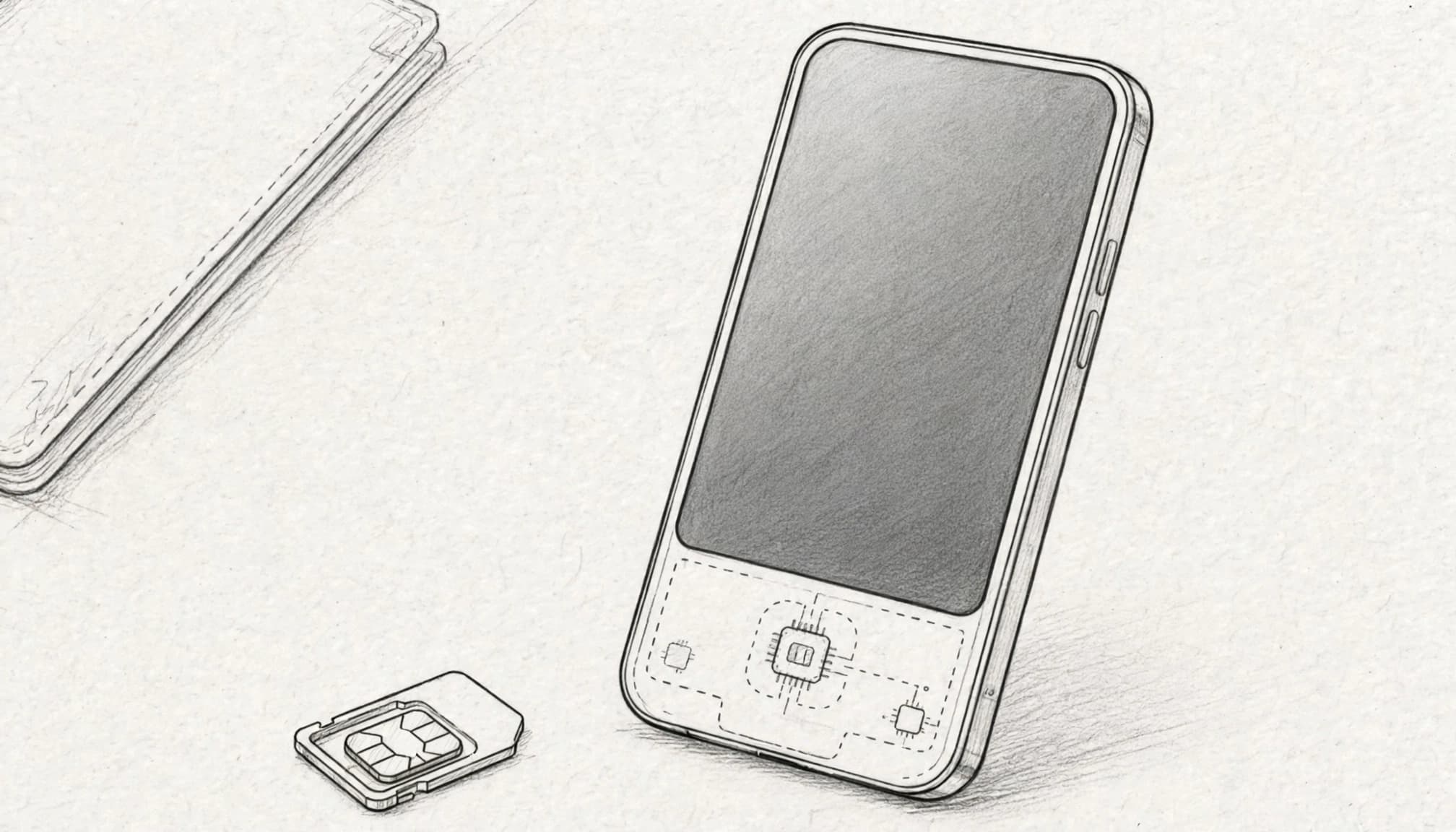
A restart or network reset usually keeps your eSIM
A force restart turns the phone off and back on without wiping its stored cellular plans. It’s a reasonable first move when the phone freezes, and it shouldn’t send your eSIM packing.
Reset Network Settings goes further. It typically clears saved Wi-Fi networks, Bluetooth pairings, and network preferences while leaving the eSIM profile installed. You may need to reconnect to Wi-Fi afterward, so have its password handy.
A factory reset gives you a keep-or-erase choice
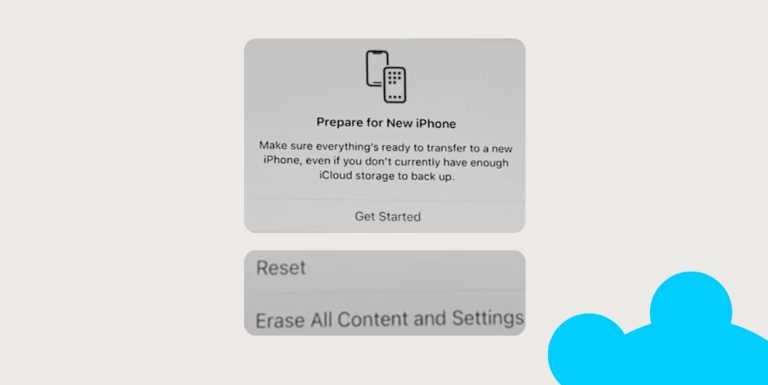
On iPhone, the erase process may offer an option to retain or delete your eSIMs. Apple also lists Delete All eSIMs among iPhone reset options, so check which action you’ve selected.
Android choices and wording differ by device and software version. If you erase the profile, you’ll need to set up cellular service again. Your carrier can tell you whether it can reactivate the line or provide a replacement activation method.
How to reset an iPhone without losing your eSIM
If you’re keeping the iPhone, back up anything you need first. Then follow Apple’s factory-reset steps, paying close attention to the eSIM choice:
- Open Settings, then tap General.
- Tap Transfer or Reset iPhone.
- Choose Erase All Content and Settings.
- When the eSIM choice appears, select the option to keep your eSIMs if you’ll continue using those lines. Review the confirmation screen before proceeding.
After setup, check Settings > Cellular for your line. You may need to reconnect to Wi-Fi or complete carrier setup steps before service works.
On Android, look under Settings > System > Reset options as a starting point. Your device may use different menu names, so read its eSIM prompt rather than assuming it matches an iPhone’s.
Check what each reset does before you tap confirm
The word “reset” covers several actions. This quick comparison can help you pick the right one, but your device’s confirmation screen has the final say.
| Reset or action | eSIM result | What to expect next |
|---|---|---|
| Force restart | Profile stays installed. | Phone starts again without a setup wipe. |
| Network settings reset | Profile usually stays installed. | Reconnect Wi-Fi and Bluetooth devices. |
| Factory reset, eSIM kept | Profile remains on the phone. | Set up the phone and check cellular service. |
| Factory reset, eSIM erased | Profile is removed. | Ask the carrier about reactivation. |
| Prepare phone for sale | Erase the eSIM before handoff. | Confirm your carrier account separately. |
Factory-reset wording and behavior can vary by device and software version. If you’re unsure what a button will remove, pause before confirming. A minute with the screen is easier than an afternoon without service.
If your eSIM disappears, here’s how to get service back
Deleting a profile isn’t the same action as canceling an account, but don’t assume your plan’s status. Check with your carrier. First, connect to Wi-Fi so you can use its app or support channel without cellular data.
Ask for a new activation method
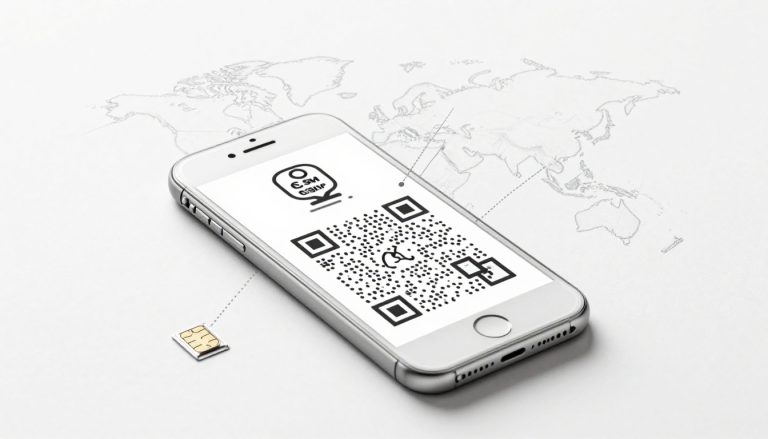
Tell the carrier that you erased the eSIM and ask how to activate your line again. It may offer an app-based setup, a new QR code, or another method. Some activation codes can’t be reused, so ask before relying on an old QR code tucked away in your email. If activation stalls, these iPhone eSIM troubleshooting steps may help you narrow down the problem.
If you need travel data instead
Restoring your old line and buying a new travel plan are separate tasks. If you need a fresh data plan for a trip, Get your free esim now. A new plan won’t recover a deleted profile or restore your original phone number, so contact your previous carrier for that line.
Before you trade in or give away your phone

Keeping the phone? Preserve an eSIM you still use, especially if it’s your way to receive account verification texts while traveling. If you have several lines, review how to manage eSIM plans on iPhone before wiping anything.
For a sale or giveaway, remove your personal data and eSIM before the handoff. Apple provides steps to erase an eSIM if you need to remove a particular profile. Erasing the phone doesn’t settle your carrier account; ask the carrier about a transfer or cancellation separately. Back up important data and make sure you can access your carrier account before you wipe the device.
The rule to remember
A restart leaves your eSIM alone, and most network settings resets keep it installed. A factory reset calls for more attention because you may have a choice to keep or erase the profile.
If you’re keeping the phone, choose keep eSIM when that option appears. If you remove the profile by mistake, connect to Wi-Fi and ask your carrier how to activate your line again.