You land abroad, activate a travel eSIM, and open Messages with one urgent question: which line will send your text? The short answer depends on the message type. iMessage uses an internet connection, usually through your active cellular-data line or Wi-Fi, while regular SMS and MMS typically use the line assigned to the conversation or your Default Voice Line.
Blue bubbles usually point to iMessage, while green bubbles indicate SMS or MMS, but those colors aren’t the whole story. Your iPhone’s line settings, Apple ID selections, and carrier support can change what happens, so check your setup before takeoff. This iPhone Dual SIM guide explains the basic two-line setup, while the steps ahead show how to check, switch, and test your sending line before you leave. If you still need travel data, you can also Get your free esim now.
This post may contain affiliate links. If you make a purchase through these links, I may earn a small commission at no extra cost to you.
How iPhone dual SIM send text message routing works
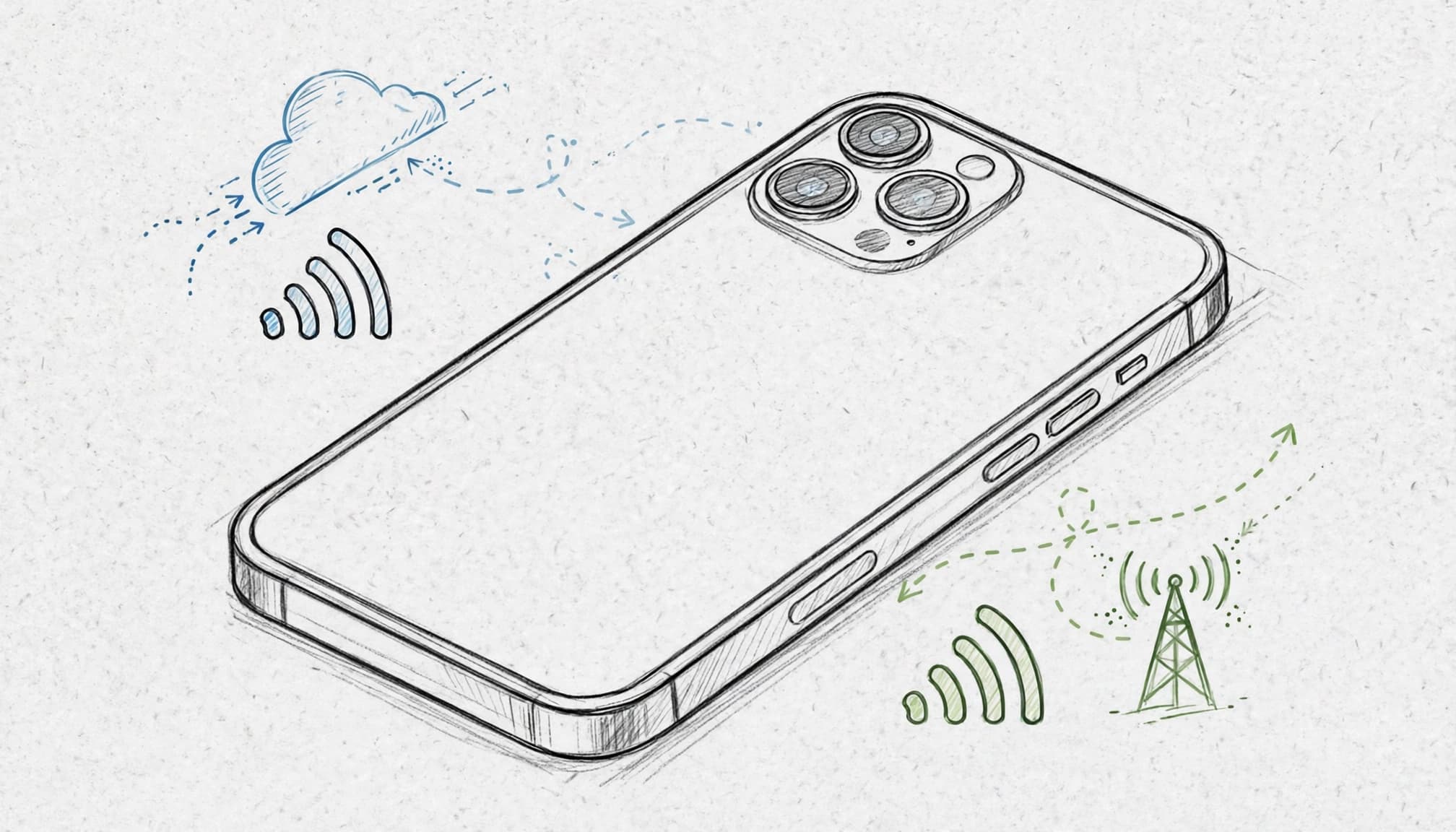
Your iPhone chooses a sending path based on the message type, not simply the SIM you installed last. Blue iMessages use an internet connection, while green SMS and MMS messages use carrier services tied to a phone line.
| Message type | Bubble color | Connection used | Likely line choice | Travel cost risk |
|---|---|---|---|---|
| iMessage | Blue | Wi-Fi or cellular data | Active Cellular Data line, or Wi-Fi | Uses data, but not SMS charges |
| SMS text | Green | Cellular voice and messaging network | Conversation line or Default Voice Line | Roaming charges may apply |
| MMS picture message | Green | Carrier messaging service and cellular data | Sending line plus its data support | Carrier and roaming fees may apply |
| Incoming verification SMS | Green | Cellular network | Line receiving the message | Fees and rules vary by carrier |
Blue bubbles and green bubbles follow different rules
iMessage travels through Apple’s internet service. Your iPhone can send it over Wi-Fi or the active Cellular Data line, including a travel eSIM. The message usually stays blue when the recipient has iMessage enabled and your phone number or Apple ID is registered correctly.
Green bubbles follow carrier rules instead. Traditional SMS uses the cellular voice and messaging service connected to the selected line. MMS adds another wrinkle because picture messages may need cellular data and carrier support on that line.
A message can switch from blue to green when the recipient can’t use iMessage, your iPhone loses internet access, or your number isn’t registered correctly in Messages. The Send button and bubble color provide a useful final warning before the message leaves your phone.
Check the bubble color before sending sensitive details or expensive travel messages. Green usually means your carrier’s messaging rules now matter.
If a banking code arrives by SMS, it may reach your home line while that line roams abroad. Incoming messages often have different pricing rules than outgoing texts, but carriers don’t all handle roaming the same way. Check your carrier’s policy before you assume the code is free.
What Default Voice Line actually controls
Default Voice Line is the line your iPhone prefers for outgoing calls when you haven’t chosen another one. That preference also guides many traditional SMS messages, especially when you start a new conversation or text someone without an established line preference.
An existing conversation can remember its assigned line. As a result, a thread may continue using your home number even after you set a travel eSIM as the Default Voice Line. Open the conversation details and check the selected line before sending.
Default Voice Line and Cellular Data are separate settings. The first controls calling and often traditional texting. The second controls internet traffic, including iMessage when your iPhone uses cellular data. To prepare for travel, configure your eSIM and physical SIM together and test one blue message and one green message before departure.
Set the right iPhone lines before you leave home
A few minutes in Settings can prevent your iPhone from sending a green-bubble text through the wrong plan. Use the sequence below before boarding, then test each message type while both lines still have service.
Label your home and travel lines so settings make sense
Open Settings, tap Cellular, then select a plan under the SIMs list. Tap Cellular Plan Label and choose a label such as Home or Travel Data. iOS wording can vary slightly by version and carrier.
Clear labels turn a two-line menu into something you can understand at a sleepy airport gate. Before changing other options, confirm which line connects to the local network. Select each plan and check its signal, carrier name, and Turn On This Line setting.
Your iPhone must have the travel line active before it can use that eSIM abroad. Also, confirm that your iPhone is unlocked and supports eSIM service. A carrier-locked phone or incompatible model may reject the travel plan, even when the QR code scans correctly.
Choose the Default Voice Line for regular texts
Go to Settings > Cellular > Default Voice Line, then select the line you want for outgoing calls and many new SMS conversations. Travelers often keep Home selected so their usual number can receive verification texts and handle important calls.
However, Travel Data may make more sense when the travel line supports local calls or SMS. That choice can reduce reliance on the home carrier, but check the travel plan’s calling and messaging terms first.
The Default Voice Line does not automatically move iMessage to that line. Blue-bubble messages use Wi-Fi or cellular data, while green SMS messages follow the selected phone line. Existing conversations can also remember their own line preference, so check a thread before sending.
Set the Cellular Data line and stop unwanted switching
Return to Settings > Cellular > Cellular Data, then choose your travel eSIM. Next, turn Allow Cellular Data Switching off if you want to prevent the iPhone from falling back to your home line when the travel signal weakens.
For additional protection, open the Home plan and turn Data Roaming off. Keep the travel plan’s roaming option on when its instructions require roaming on a partner network. Disabling home-line data roaming doesn’t normally disable that line’s ability to receive calls or SMS.
For a visual walkthrough, use this guide to select a travel eSIM for cellular data. You can also Get your free esim now before you leave.
Check iMessage Send & Receive settings
Open Settings > Messages > Send & Receive. Under You Can Receive iMessages To and Reply From, review the phone numbers and Apple Account email addresses available for iMessage.
If you expect to change SIMs or travel profiles, select your Apple Account email under Start New Conversations From. Your iMessage identity can then stay consistent when your phone number changes or needs reactivation.
A phone number may not appear immediately. iMessage activation can require Wi-Fi, carrier support, and an active line. Before departure, send one blue-bubble message, one green-bubble SMS, and one picture message. Check the selected line in each conversation, then fix any surprise routing while you still have reliable service. For installation help, follow this iPhone eSIM setup guide.
Manage text messages while traveling internationally
International travel makes one iPhone behave like two phones with a shared screen. Your travel eSIM can handle data, while your home line stays available for important messages. Before departure, Get your free esim now and prepare the travel data plan before you leave.
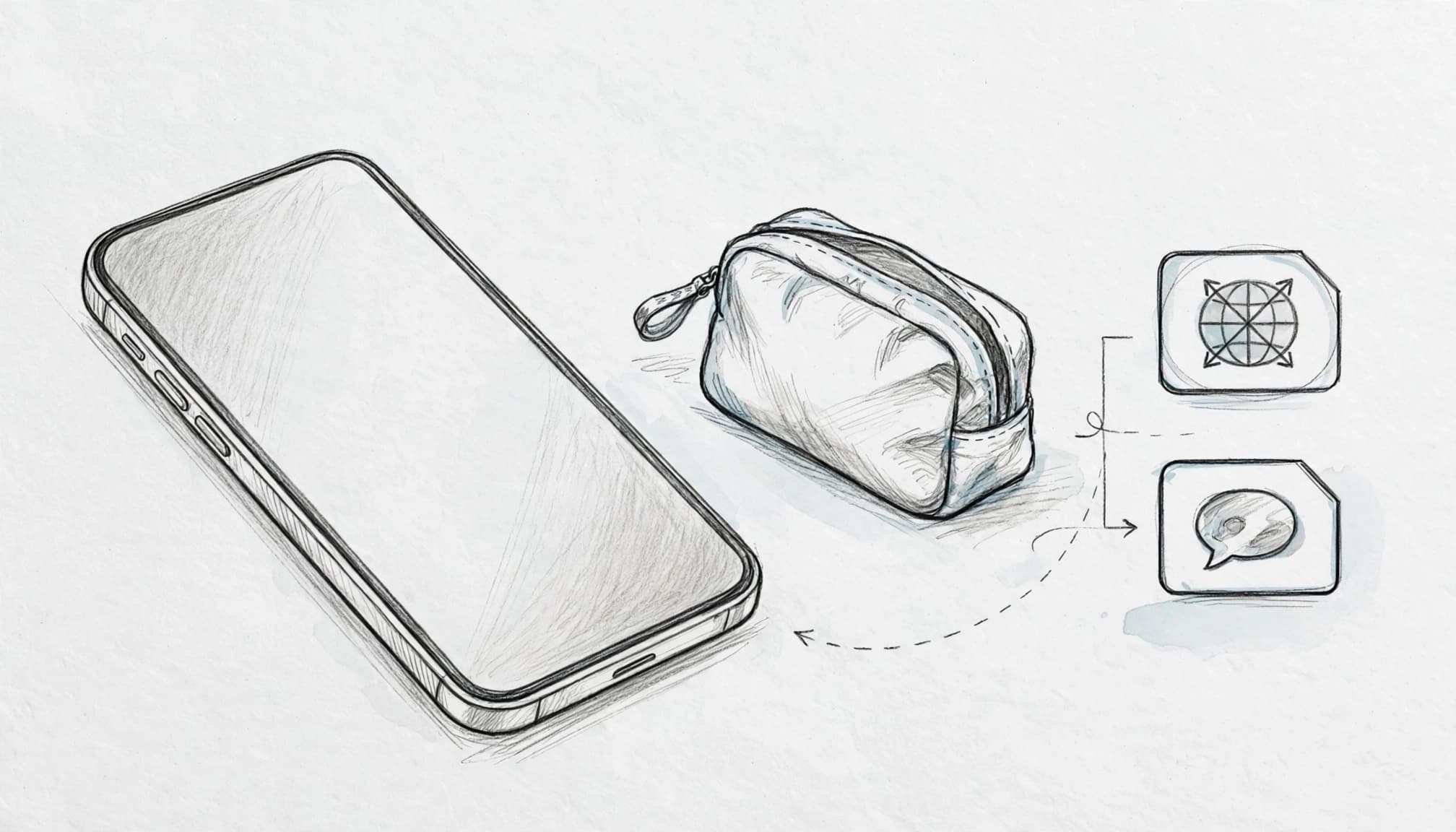
Switch the sending line inside a live conversation
Open the existing conversation in Messages, then tap the contact name or details at the top. Look for Conversation Line, or tap the displayed phone line when iOS shows it. Select the Home or Travel line you want to use.
The option may not appear in every conversation. iOS and carrier support determine whether you can switch lines inside that thread. Group conversations can also follow their own rules, especially when members use different phone numbers or messaging services.
Before sending a green-bubble SMS, pause for one small but valuable check. Confirm the selected line near the message field, then tap Send. That quick glance can stop a casual “I’m here!” from taking the scenic route through your expensive home plan.
Receive bank verification texts without using home data
Keep your home line turned on when you need bank codes, login alerts, or other incoming SMS messages. However, turn Data Roaming off for that line under Settings > Cellular > Home.
Next, open Settings > Cellular > Cellular Data and select your travel profile. This lets the travel eSIM handle internet access while your home line remains available for supported calls and texts.
Roaming rules vary by carrier. Calls, outgoing SMS messages, and voicemail can still create charges even when home-line data roaming is off. Check your carrier’s international policy before relying on SMS abroad, and use this SMS receiving guide for iPhone eSIM if verification messages fail.
Keep iMessage working after changing SIM profiles
iMessage can use your Apple Account email address when your phone number changes, becomes inactive, or has not finished activating. Open Settings > Messages > Send & Receive, then review the addresses listed under You Can Receive iMessages To and Reply From.
Under Start New Conversations From, choose the identity you want to use. Selecting your Apple Account email can keep iMessage available while a travel profile handles cellular data.
Start a new chat after changing this setting, rather than assuming every old thread will update automatically. Recipients may see a new conversation if your messages switch from your phone number to your email address.
Avoid MMS charges when sending photos and videos
MMS is different from iMessage. Picture and video messages in green-bubble conversations may require cellular data, carrier support, and the correct sending line. A travel eSIM with data does not automatically make every MMS attachment free.
Use iMessage or another data-based messaging service when the recipient supports it. You can disable MMS Messaging in Settings > Messages, but regular picture messages will fail afterward.
Test one small photo before traveling. That experiment is far cheaper than discovering that a holiday video took the billing route home.
Fix the most common Dual SIM texting problems
When your iPhone dual SIM sends a text through the wrong line, start with the simplest checks. Confirm that the phone is unlocked, the eSIM is installed, the correct line is enabled, and network selection has finished.
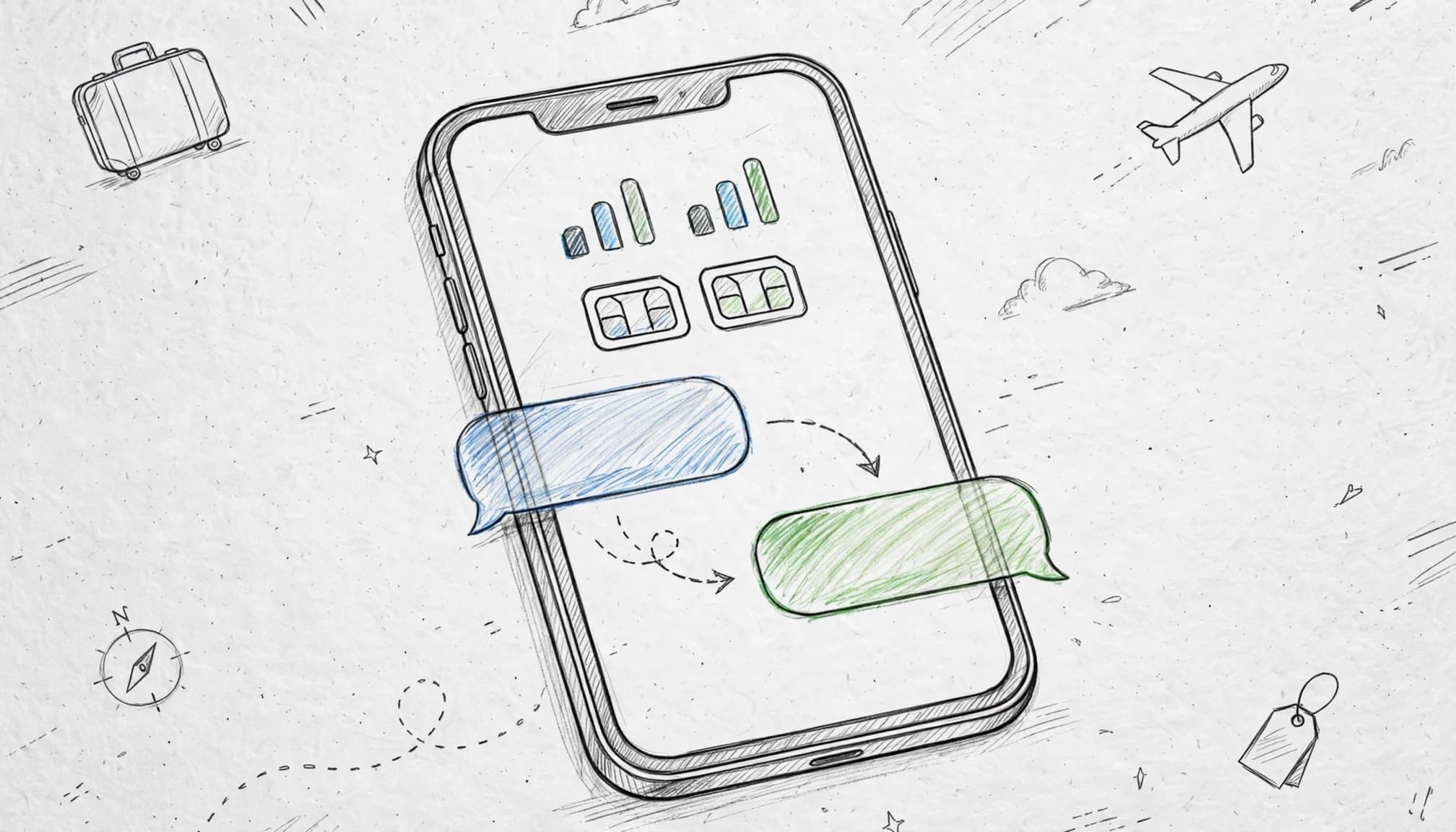
Your message sends from the wrong line
Open the conversation, tap the contact name, and inspect Conversation Line. Select your Home or Travel line before sending a green-bubble message.
Next, check Settings > Cellular > Default Voice Line. Then review each plan under Settings > Cellular and confirm that the intended line remains turned on.
An existing thread may remember a line from an earlier message. Start a new message to the same contact and compare the selected line with the current default. Don’t delete the old conversation until you confirm the correct sending identity.
If the wrong line remains selected, check whether your carrier supports dual-line SMS while roaming. Contact the carrier if the line shows service but still cannot send.
iMessages turn green or refuse to send
A green bubble usually means iMessage cannot use an internet connection or the recipient lacks iMessage. Check Settings > Messages > iMessage, then open Send & Receive and confirm your phone number or Apple Account email appears.
Also, go to Settings > Cellular > Cellular Data and select the line with working data. Missing Wi-Fi, delayed iMessage activation, an unavailable phone number, or incorrect recipient details can all interrupt delivery.
If the recipient uses a non-Apple phone, SMS may be the only option. Sending SMS while roaming can create charges, so confirm your carrier’s international rates first. Contact the carrier if iMessage activation stays pending or SMS fails with full signal.
Picture messages fail while text messages work
MMS needs carrier support and cellular data, while ordinary SMS can work without the same data connection. Open Settings > Cellular and verify that cellular data works on the selected line.
Then check Settings > Messages > MMS Messaging. Carrier restrictions, disabled MMS, or a travel plan without MMS support can block photos even when short texts send normally.
When the bubble stays blue and data works, send the photo through iMessage instead. If green picture messages continue to fail, ask the carrier whether MMS works on that line and network.
Bank codes never arrive on the home number
Keep the Home line enabled under Settings > Cellular and confirm that it has network service. Test it by receiving an ordinary SMS before relying on a bank code.
During travel, don’t delete the Home eSIM or remove its number from Messages > Send & Receive. Some banks block short-code messages, while some carriers restrict roaming SMS. Contact the bank first if other SMS messages arrive, then contact the carrier if all short codes fail. For setup help, see this guide to fix an eSIM that is not working on iPhone.
Use this pre-flight checklist for safer Dual SIM texting
A five-minute check can stop your iPhone dual SIM from sending a text through the wrong plan. Run it before boarding, while both lines still have reliable service.
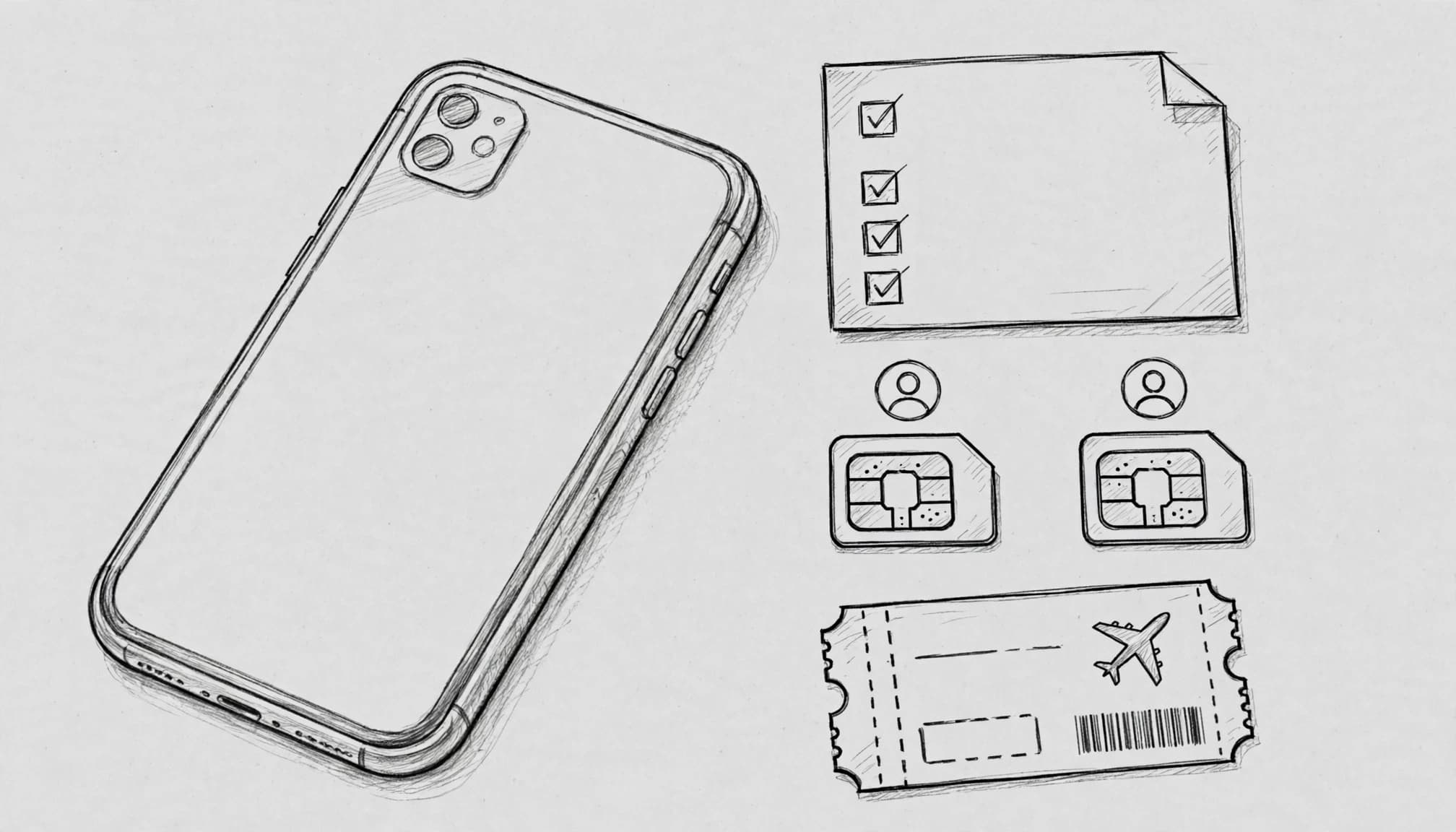
The five-minute test that catches costly mistakes
Use this compact checklist before you leave:
| Setting or test | What to confirm |
|---|---|
| Home line label | Label the primary plan Home so you can identify it quickly. |
| Travel line label | Label the travel plan Travel or Travel Data. |
| Default Voice Line | Choose the line that should handle new calls and green SMS messages. |
| Cellular Data | Select the travel line for internet access abroad. |
| Allow Cellular Data Switching | Turn it off to stop iOS from falling back to home data. |
| Home Data Roaming | Turn it off to reduce unexpected roaming data charges. |
| Travel Data Roaming | Turn it on only when the travel provider requires it. |
| iMessage Send & Receive | Confirm your preferred phone number or Apple Account email. |
| MMS Messaging | Keep it on only if your carrier and plan support picture messages. |
| Trusted contact test | Send test messages and confirm the sender identity each time. |
If you still need to install the travel profile, follow this iPhone eSIM installation guide before testing.
First, confirm that the travel line shows service. Next, check Settings > Cellular > Cellular Data and verify the selected line. Send a blue iMessage, then inspect the sender number or email in the conversation details.
After that, send a regular green SMS. Check the selected conversation line and sender identity again. Send a small picture only if you need MMS, since that test may involve carrier data or roaming fees.
Settings to review after you land
Once you arrive, confirm that the travel line connects to a local network. Keep Allow Cellular Data Switching off if you want the travel line to remain your only data source.
Watch the status bar for the active data line. Before sending any green-bubble message, check that the Home line isn’t selected by mistake.
After returning home, restore your preferred Cellular Data line and review Data Roaming for both plans. Finally, screenshot important settings before takeoff and keep your carrier account details available. Your future, jet-lagged self will appreciate the paperwork.
Conclusion
When your iPhone dual SIM sends a text message, the route depends on the message type. iMessage follows the active data connection, while traditional SMS and MMS usually follow the selected conversation line or Default Voice Line.
Blue and green bubbles offer clues, but iOS settings and carrier rules decide the final result. Label both lines, choose the travel line for data, disable roaming data on your home line, and run a quick test before departure.
Prepare your iPhone before takeoff, then Get your free esim now for a smoother trip. A tiny settings check can prevent a surprisingly expensive text.