Imagine you are cruising at 30,000 feet, ready to post a stunning sunset photo, but a wave of dread hits because you aren’t sure if your data will work. The short answer is no, your esim iphone cannot use cellular data while Airplane Mode is active because that setting acts like a master kill switch for all radio signals.
While the “Airplane Mode anxiety” is real, you don’t have to stay in the dark during your entire flight. You can still use Wi-Fi even with the cellular radio off, and Get your free esim now to prepare for the moment your wheels touch the tarmac.
We are going to explore every detail of how these settings interact so you can stay connected without any surprise roaming bills. From signal basics to troubleshoot eSIM connection issues, let’s dive into this deep travel tech guide.
Understanding How Airplane Mode Affects Your eSIM iPhone
Think of Airplane Mode as a huge hush button for your smartphone. When you toggle that little airplane icon in your control center, you are effectively telling your device to stop all its radio gossip. In a typical day, your phone is constantly chatting with cell towers, whispering to Bluetooth headphones, and searching for Wi-Fi handshakes. Airplane Mode puts an immediate end to this digital chatter to ensure your phone doesn’t interfere with the aircraft’s sensitive communication systems.
While your esim iphone feels like a futuristic piece of magic, it still relies on a physical radio chip buried deep inside the hardware. This chip handles the heavy lifting of sending and receiving data through the air. When you activate Airplane Mode, the iOS software sends a direct command to this baseband processor to cut power to the antennas. It doesn’t matter if your plan is on a plastic card or a digital chip; if the antenna is powered down, the signal cannot move.
This process is essentially a temporary disconnection from the outside world rather than a permanent change to your settings. Because the eSIM is software-based, it handles this transition more gracefully than older tech. Modern iPhones even use state retention features to remember exactly which cell tower they were talking to last. This means that as soon as you flip the switch back off, your phone can jump back onto the network in a fraction of a second.
Does Airplane Mode disable eSIM iPhone connectivity?
The short answer is a firm yes, but don’t worry because your data plan isn’t being evicted. When you turn on Airplane Mode, your eSIM profile stays perfectly safe and sound exactly where you left it. It doesn’t get deleted, and you won’t need to go through the step-by-step iPhone eSIM setup all over again once you land. It simply enters a dormant state, like a cat taking a nap in a sunbeam.
Airlines mandate this setting because cellular radios emit high-power signals that may potentially interfere with sensitive flight deck instrumentation. Although Airplane Mode temporarily pauses your eSIM’s network connection, the digital identity of your carrier remains securely stored in your phone’s memory. It stands ready to automatically re-establish a connection the moment your wheels touch the tarmac and you toggle the setting off, as explained in this guide on using Airplane Mode on your iPhone
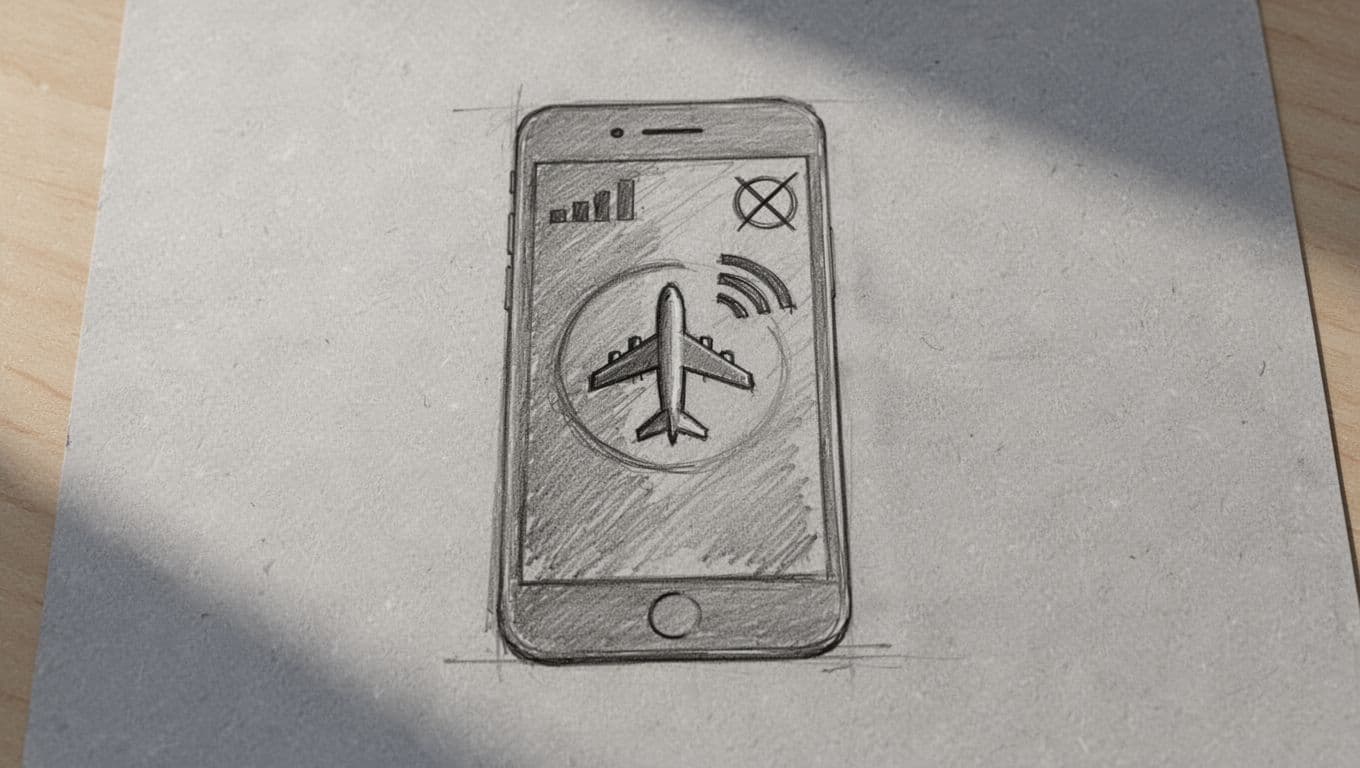
Since the antennas are powered down, your phone also stops “pinging” for a signal, which is a major win for your battery life during long-haul flights. This prevents your device from frantically searching for a tower at 35,000 feet, a task that usually drains battery faster than a hungry toddler eats snacks. You can rest easy knowing that your mobile plan is just waiting for your signal to start the party again.
If you are planning a trip and want to ensure you have data the second you land, you should Get your free esim now to have it staged and ready. Just remember that while you can’t use cellular data in the air, you can often manually turn Wi-Fi or Bluetooth back on after enabling Airplane Mode. This allows you to browse the web or use your headphones while keeping the high-power cellular radio in time-out.
How to Stay Connected While Your eSIM iPhone Is in Airplane Mode
How Airplane Mode Functions
Think of Airplane Mode as a digital bouncer. It stands at the door of your eSIM iPhone and blocks all cellular traffic. This usually means no Instagram scrolling or checking emails while you are high above the clouds. However, seasoned travelers use a legendary workaround to stay connected without breaking FAA rules. It acts as a secret door. It keeps the cellular radio off while letting the internet sneak in through a different path.
Staying Connected During Long Flights
By using this loophole, you can keep your cellular data in a “coma.” Meanwhile, your phone remains fully capable of chatting with the world. This strategy is perfect for staying productive on long hauls. You also avoid the fear of your carrier slapping you with a massive bill. This prevents your phone from attempting to “roam” on a satellite network.
Using Wi-Fi while keeping your eSIM iPhone in Airplane Mode
Executing this technical sidestep is surprisingly simple. When you flip that airplane icon on, your iPhone instinctively kills Wi-Fi and Bluetooth along with your cellular signal. But here is the thing: those settings aren’t actually glued together. You can manually invite Wi-Fi back to the party immediately after Airplane Mode has kicked everything else out.

To pull off this ninja move, follow these quick steps:
- Swipe into your Control Center and tap the Airplane Mode icon.
- Watch as your signal bars and Wi-Fi symbol disappear.
- Tap the Wi-Fi icon right then and there to turn it back on.
- Select your airline’s network or the local hotspot.
Once the Wi-Fi icon glows blue, your eSIM iPhone is back in business. You cannot send traditional green-bubble SMS texts, as those require a cell tower. However, iMessage works perfectly because it travels over data. This allows your blue-bubble chats to continue uninterrupted. If you use WhatsApp, you are also in luck. WhatsApp relies entirely on an internet connection. You can message, send voice notes, or make calls if the Wi-Fi is strong.
This combination is a lifesaver for avoiding “accidental” roaming charges. These charges occur when a phone grabs a stray signal from a tower on the ground. It also helps if you need to troubleshoot iPhone eSIM activation later. A steady Wi-Fi connection is often the missing ingredient for a smooth setup.
If you are worried about landing, remember that getting an eSIM ahead of time is a great way to prepare. Setting up your plan in advance ensures your digital life resumes without a hitch when you turn off Airplane Mode. According to unofficial Apple threads, this manual override is a standard feature. It allows passengers to use in-flight entertainment and messaging systems safely.
Essential Travel Tips: Managing eSIM iPhone for Campers
Trading the buzz of the city for the silence of the pines is the ultimate reset, but your tech needs a different strategy once you cross into the wilderness. When you are miles from the nearest Starbucks, your phone ceases to be a social media hub and transforms into a vital survival tool. Managing your connectivity becomes a game of cat and mouse with the local topography.
Understanding Hardware Realities in Rural Areas
You might assume that having a digital SIM makes your device immune to the struggles of rural life, but the hardware does not change just because the card is invisible. Whether you have a physical chip or an active eSIM profile, your phone is still a radio at its core. Learning to toggle settings correctly ensures you have power when it matters most, because a dead phone is just a very expensive paperweight in a backpack.
Conserving Battery on Your eSIM iPhone During Camping
When you venture into deep valleys or thick forests, your phone enters a frantic state of mind known as the “Death Spiral”. In a typical city, your device maintains a gentle, low-power handshake with nearby towers.
Managing Signal Loss and the “Death Spiral”
When your signal vanishes, your phone does not just give up. It starts “screaming” into the void, pumping massive amounts of power into the internal antenna to find a signal that simply isn’t there. This persistent search cycle is often referred to as a “death spiral” for your battery.
The Mechanics of Signal Searching
This process is like searching for a needle in a haystack, except every second you spend looking, someone pokes a hole in your water bottle. Your device is constantly negotiating with distant, non-existent towers, which requires it to operate at its maximum transmission capacity.
Why Remote Areas Drain Power
Because the device must work so hard to stay connected in the woods or remote areas, it can drain a full battery in a matter of hours. The internal hardware must maintain a constant, high-energy link with distant towers, forcing your battery to output power at a sustained, intense rate.
The Contrast with Urban Connectivity
This is the primary reason why weak cell signals drain your phone’s battery far more aggressively than typical daily use. In a city, your phone “sees” towers everywhere, allowing it to relax its transmission power. In the wilderness, that luxury vanishes, leaving your device to struggle against the distance until the power is depleted.
Stopping the “Internal Panic”
Flipping on Airplane Mode is the only way to stop this internal panic. By disabling the cellular radio, you tell your phone to stop the expensive search and relax.
The Benefit of a Digital Sedative
This simple toggle acts as a digital sedative, keeping your device cool and preserving your power for photos or emergency use. If you want to know more about the technology under the hood, you can explore how an eSIM affects phone battery life compared to old-school cards.

### Ensuring reliable data for offline navigation
While Airplane Mode is a hero for your battery, it’s a bit of a villain for your navigation. The second you flip that switch, your real-time traffic updates and map tiles disappear into thin air. If you rely on the cloud to tell you which trail leads back to camp, you might find yourself wandering in circles. Cellular data is the fuel that keeps most map apps running smoothly.
The secret to staying found is preparation before you lose sight of the trailhead. Modern navigation apps allow you to download huge chunks of geography directly to your device. When the maps are stored locally, your phone doesn’t need to bark at a cell tower to show you the way. You can keep your phone in its battery-saving coma while still seeing your blue dot move across the screen.
Since navigation is naturally a heavy task for any processor, you should take every step to keep things efficient. Using a steady connection before you depart is much better than hunting for shaky Wi-Fi at a ranger station. Grab your maps while you still have a solid bar of LTE or a home connection.
- Open your preferred map app while you still have data.
- Search for the park or forest where you will be staying.
- Select the option to download the map for offline use.
- Verify the file is saved before you lose service.
By downloading your data ahead of time, you turn your phone into a dedicated GPS unit that doesn’t need the internet to function. This ensures you can find the best scenic overlooks without the fear of your screen going blank. If you haven’t secured a plan for your next hike yet, Get your free esim now to ensure you have a fallback if you need to reconnect once you hit a high ridge.
Setting Up Your eSIM iPhone Before Your Next Adventure
Preparing for a trip is often a whirlwind. You might struggle to find your passport or wonder how many socks to pack. Before you zip your suitcase, your eSIM iPhone needs some digital preparation. This ensures it behaves well once you cross borders. Planning ahead is the secret to avoiding those heart-stopping “international usage” alerts from your home carrier.
You want your phone to be a helpful companion. You certainly do not want it to become a financial liability. Spend a few minutes navigating your settings now. This allows you to step off the plane and immediately find your rideshare or hotel. You will avoid a digital breakdown upon arrival. Simply ensure your device knows which data plan is in charge and which one is on standby
Steps to Configure Your eSIM iPhone for International Travel
Getting your phone ready for a trip is a straightforward process handled entirely within the Settings app. First, tap the gear icon and locate the Cellular menu. Think of this as the command center where all your SIM cards—both physical and digital—are managed. If you have already followed a setup guide for a travel eSIM, you should see both lines listed under the “SIMs” section.
The Importance of Clear Labeling
One of the most important steps is labeling your lines to avoid confusion. Most people name their home line “Primary” and the new one “Travel” or the name of their destination. This simple step makes the rest of the configuration a breeze because you will never have to guess which line you are adjusting. It is much easier to manage your digital life when your labels are crystal clear.
Protecting Your Wallet: Data Roaming
After naming your lines, you need to dive into the specific settings for your home plan. Click on your primary line and look for the Data Roaming switch. You must ensure this is toggled Off.
Ensuring a Safe Connection
Setting your home roaming to “Off” creates a digital wall. This prevents your home carrier from charging you astronomical fees while you are exploring abroad. If you need more clarity on how these toggles interact, Apple’s official guide for cellular data settings offers a great breakdown of how these options work in tandem.
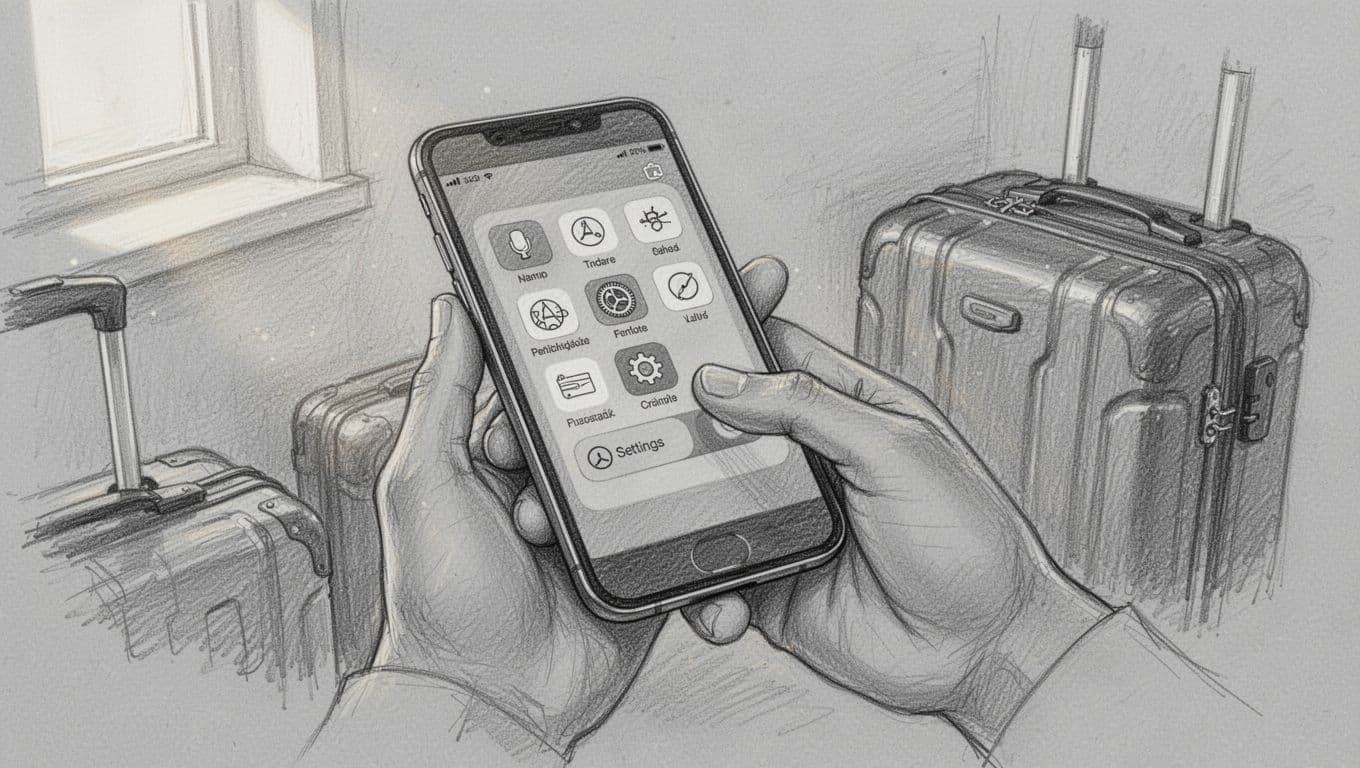
When you are ready to switch over to your travel plan, go back to the main Cellular screen. Tap on Cellular Data at the top and select your travel line as the winner. Beneath that selection, you will see a toggle for “Allow Cellular Data Switching.” You should leave this off. Keeping this disabled ensures the phone doesn’t get clever and try to use your home line if the travel signal gets a bit weak.
Finally, you can manage data roaming on iPhone specifically for your travel plan. Unlike your home line, the travel eSIM usually needs roaming turned on to function properly in a new country. Tap on your travel line, flip the Data Roaming switch to on, and you are officially ready for departure. To keep things simple, here is a quick checklist for your final setup:
- Label your lines clearly (Home vs. Travel).
- Turn Data Roaming OFF for your primary home line.
- Select the travel line as your main Cellular Data source.
- Turn “Allow Cellular Data Switching” OFF.
- Turn Data Roaming ON for the travel line only.
By following these steps, you ensure that your esim iphone stays on a strict data diet of only the local, affordable plan you purchased. This prevents any accidental connections to expensive roaming networks. If you haven’t grabbed a plan yet, you should Get your free esim now to start this process before you even head to the airport. Your future self will thank you when you land with a working connection and a stable bank account.
Frequently Asked Questions (FAQs)
Navigating the intersection of cellular signals and aviation rules can feel like solving a puzzle without all the pieces. Because an esim iphone relies on invisible software rather than a physical tray; you might wonder if the rules of the road change when you hit the sky. We have rounded up the most common head-scratchers to keep your travel plans smooth and your data bills predictable.
Will I miss calls if my eSIM iPhone is in Airplane Mode?
The most immediate change you will notice is that your phone stops ringing. Since Airplane Mode severs the connection between your device and the nearest cell tower; traditional incoming calls have no way to find you. Your carrier essentially treats your phone as if it turned off or went deep into a tunnel.
Your callers aren’t just left hanging in the void. Usually, they are redirected to your voicemail exactly as if your phone were out of service. You can listen to these messages once you land and regain a signal. However, if you are using an internet connection while in the air, you have a clever way to keep the conversation going.
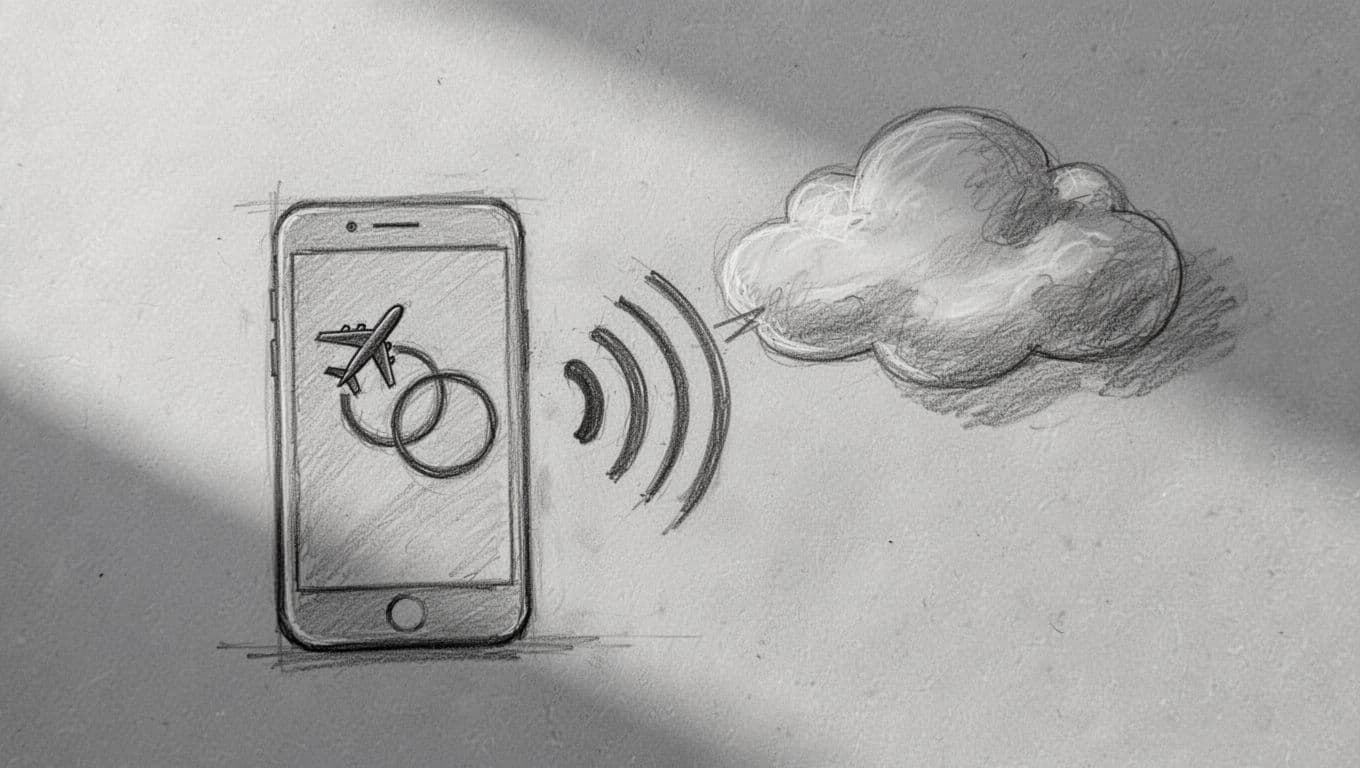
If you enable Wi-Fi calling before you leave the ground; your phone can still receive calls over a stable Wi-Fi network. This allows you to answer the phone at 30,000 feet just like you were sitting in your living room. According to Apple Communities discussions on Wi-Fi calling; this feature basically turns your internet connection into a virtual cell tower.
- Enable Wi-Fi calling in your iPhone settings before your flight.
- Connect to the airplane Wi-Fi once you reach cruising altitude.
- Keep an eye out for the carrier name next to the Wi-Fi icon in your control center.
Can I install a new eSIM profile on my iPhone while in Airplane Mode?
Trying to install a new plan while your radios are off is a bit like trying to download a movie with your router unplugged. The short answer is no; your phone needs an active link to the outside world to fetch the necessary credentials from your carrier. An eSIM installation is a digital conversation between your hardware and a remote server.
When you start the process, your iPhone reaches out to a specific activation server to grab your unique profile. If Airplane Mode is active, that line of communication is completely dead. Even if you turn Wi-Fi back on while in Airplane Mode; many carriers require a direct cellular “ping” to verify the device identity during the initial handshake.
It is always better to how to activate eSIM on iPhone while you still have a steady home connection or at the airport terminal. Trying to do it mid-flight is often a recipe for frustration and error messages. If you want to be fully prepared before the boarding door closes; you should Get your free esim now and finish the setup while you are still on solid ground.
Checking your list of eSIM compatible iPhones ensures your hardware is ready for the task. Once that profile is safely tucked away in your settings; you can toggle Airplane Mode as much as you like without losing the data plan. The hard part is the initial download; so get that finished before you put your seat in the upright and locked position.
Conclusion
Mastering your eSIM iPhone turns you into a digital magician who never breaks a sweat at the boarding gate. You now know that Airplane Mode keeps the peace with the pilot while a quick Wi-Fi toggle keeps your chats alive. This clever balance ensures your battery stays full and your roaming bill stays at zero.
Being a tech-savvy traveler means you stay one step ahead of every connection glitch and signal dead zone. Your phone is a tool for freedom rather than a source of stress. You can move through the world with the confidence of a local because your data plan is always ready for the next destination.
If you are ready to ditch the plastic cards and upgrade your travel game, Get your free esim now and start your next journey with total peace of mind.
This post may contain affiliate links. If you make a purchase through these links, I may earn a small commission at no extra cost to you.