eSIM Free Trial: 5-Day Device & Setup Test
Landing in a new country only to discover your phone has become an expensive paperweight is a special kind of travel joke, especially when the punchline is an airport Wi-Fi password. This hands-on test follows a free travel eSIM across five real travel days, checking setup speed, connection quality, data use, device compatibility, and the cost after the trial ends.
The test compares iPhone, Android, and Apple Watch behavior, with extra attention to iPhone travelers who want to get online without hunting for a physical SIM. Results can vary by country, provider, phone model, and local carrier, so treat this as a practical test rather than a universal promise. For context, you can also compare the best free eSIM trials before choosing one.
Throughout the trip, each option is judged by three measures: price per GB, activation speed, and access to strong local networks. The goal is simple: find out whether a free trial is useful travel insurance or a tiny data snack that disappears before your maps finish loading. First, we’ll check the devices and setup steps before departure.
This post may contain affiliate links. If you make a purchase through these links, I may earn a small commission at no extra cost to you.
Before the Trip: Device Compatibility and eSIM Setup Checks
A five-day eSIM test starts before the suitcase closes. Confirm that your phone is unlocked, supports eSIMs, has current software, and can connect to reliable Wi-Fi for the initial download. Keep a backup of important travel details, and leave your home SIM active if you still need calls or texts through your regular number.
Check these items before departure:
- Look for “No SIM restrictions” under your phone’s carrier or SIM lock settings.
- Install pending software updates while you have dependable Wi-Fi.
- Save the provider’s QR code, activation code, APN details, and support contact offline.
- Back up your phone before adding a new cellular profile.
- Confirm that your destination, device model, and trial terms match.
If your phone passes those checks, you can get your free esim now and test the setup without waiting until you reach the airport.
How the iPhone Setup Went With QR Codes and Manual Activation
On the iPhone, I connected to stable Wi-Fi first, opened the cellular settings, and chose the option to add an eSIM. After scanning the provider’s QR code, the phone downloaded the cellular plan and displayed it as a new line. Apple describes the same iPhone eSIM setup process, although menu names can vary across iOS 14 through iOS 18 and newer.
I labeled the profile Travel so it was easy to identify, selected it for cellular data, and turned off data switching. That last setting matters because the iPhone may otherwise move data back to your home line and create roaming charges. If the QR code failed, manual activation details such as the SM-DP+ address and confirmation code provided a useful backup.
The EID is under Settings > General > About. Support teams may request it when they need to identify the phone’s eSIM hardware or fix an activation problem. Older compatible models deserve extra attention, so review this iPhone 11 eSIM setup guide before traveling.
What Changed on Samsung Galaxy and Google Pixel
Android setup followed the same basic path, but the signposts moved. Samsung Galaxy phones usually place eSIM controls inside SIM Manager, while Google Pixel phones generally use Network & internet and SIMs. One UI and stock Android can use different labels, especially after software updates.
After selecting the option to add a mobile plan, the phone prompted me to download the provider’s profile over Wi-Fi. Some devices filled in the APN automatically, while others required manual entry from the provider’s instructions. Once the profile appeared, I selected the travel eSIM for mobile data and checked that the home SIM remained active only for calls or texts.
Save the activation details before leaving Wi-Fi. A screenshot or offline note can rescue you when the airport connection is overloaded and your phone decides to become a pocket-sized bureaucrat.
The Apple Watch Reality Check Travelers Often Miss
A standard travel eSIM usually cannot be installed directly on an Apple Watch Cellular model. The watch is not a second independent travel eSIM, even when it has cellular hardware.
During travel, the watch normally uses Bluetooth or Wi-Fi through its paired iPhone. I tested notifications, location sharing, and basic watch functions beside the phone, then repeated the checks farther away. Notifications and location features depended on the iPhone’s connection, while standalone cellular service generally required an eligible carrier plan that supports Apple Watch activation.
Keep the iPhone close when you need reliable watch connectivity abroad. A travel eSIM on the phone can provide the connection, but it doesn’t automatically give the watch its own roaming line.
The 5-Day eSIM Free Trial Field Test, Day by Day
A free eSIM trial only earns its keep when it works outside a perfect Wi-Fi bubble. This field test tracked activation time, signal strength, data consumed, hotspot behavior, indoor and underground coverage, and the data left at the end of each day.
The results below reflect one trip and one setup, not a universal promise. Airport congestion, phone models, local carriers, and provider rules can all change the outcome.
Day 1: Airport Arrival and the First Network Handshake
I installed the travel profile before leaving the terminal Wi-Fi, then selected it as the cellular data line after landing. When the airport connection was stable, the profile downloaded and connected in under two minutes. That quick handshake felt less like technology and more like a small travel miracle.
A different result can happen when airport Wi-Fi struggles. Weak internet may interrupt the profile download, while crowded airport towers can delay network registration. Some providers also require authentication before granting data access. If the phone remains stuck on “Activating…” for several minutes, check this eSIM activation delay guide before deleting anything.

To confirm that the travel line handled data, I turned off Wi-Fi and loaded a familiar website, refreshed a map, and sent a message. I also checked the cellular indicator and the phone’s data usage screen. One successful signal bar isn’t enough because a phone can show a network connection without passing usable data.
Before testing, I made three settings checks:
- The travel eSIM was selected for cellular data.
- Data switching was disabled, so the phone couldn’t quietly use the home line.
- Data roaming was enabled only for the travel eSIM when the provider required it.
Apple explains that dual-SIM users can allow cellular data switching, but that setting can send traffic through the wrong line when coverage changes. I left it off during the test and kept the home line available for calls and texts. That small choice helped keep surprise roaming charges out of the story.
Day 2: Data Use, Speed Tests, and the Real Cost per GB
On the second morning, I recorded the starting balance before using maps, messaging, browsing, and a short video call. At night, I checked the ending balance and noted which activities consumed the most data. A screenshot of both readings created a simple record instead of relying on memory, which tends to become suspiciously generous after a long travel day.
Speed tests worked best when I ran only one at a time in the same location. I tested near the hotel window, inside the room, and outdoors, recording download speed, upload speed, latency, and signal bars. Repeating the test in a crowded station would show real network pressure, but it wouldn’t provide a clean comparison with a quiet street.
For a broader comparison, review an esim free trial by checking its allowance, network access, top-up prices, and expiration rules. A larger starting allowance can look tempting, yet expensive add-ons may erase that advantage quickly.
The cost calculation is straightforward:
price per GB = top-up price / top-up data
For example, a $10 top-up that adds 3 GB costs $3.33 per GB. Record whether the provider shows that price before checkout, and check whether a credit card is required to activate the free trial or purchase more data. A no-card trial lowers the risk of an unwanted charge, while transparent top-up pricing makes the post-trial decision easier.
A trial with more data is not automatically better if its network slows heavily during busy periods or its top-ups cost twice as much.
Day 3: Hotel Rooms, Subways, Hotspots, and Apple Watch Sync
Outdoor signal bars tell only part of the story. Inside the hotel, I tested navigation, message delivery, a short video call, and a personal hotspot connection from the room rather than beside the window. Thick walls, lower floors, and the building’s location affected performance more than the country name on the plan.
Underground travel exposed a different weakness. The phone lost service in some subway sections, then reconnected after returning above ground. That behavior is normal where tunnels lack coverage, but long gaps can make live navigation unreliable. Downloading key maps before leaving the hotel remains a sensible backup.
A coverage map needs closer inspection than a large country outline suggests. Read the eSIM coverage maps guide by carrier and location, especially when your route includes rural areas, subway lines, or remote hotel districts.
The hotspot test showed whether another device could use the travel line without disrupting phone data. Provider restrictions matter here, so check the plan terms before treating tethering as guaranteed. Meanwhile, the paired Apple Watch continued receiving notifications when it stayed near the iPhone. Its standalone cellular functions did not become independent simply because the iPhone carried a travel eSIM.
Day 4: Connection Drops and the Fixes That Actually Help
When the connection dropped, I used a calm troubleshooting order instead of repeatedly poking at settings like an impatient airport pigeon. First, I confirmed that the travel eSIM remained the selected data line. Next, I toggled Airplane Mode for about 10 seconds and restarted the phone.
After that, I checked data roaming for the travel line and reviewed the APN. Some providers configure the APN automatically, while others supply values that must be entered manually. I then tried manually selecting a supported network, but only after checking the provider’s instructions because available options vary by country and plan.
If those steps failed, provider support was the next stop. I avoided deleting the eSIM profile during troubleshooting. A QR code may be single-use, and removing a profile can turn a temporary network problem into a reinstall problem with no working code.
Day 5: Remaining Data and the Decision to Convert
On the final day, I compared the original allowance with total usage, remaining data, connection quality, and the provider’s paid options. The numbers showed whether the free trial covered real travel needs or only handled light messages and a few map searches.
A top-up made sense when the network stayed reliable and the price per GB remained reasonable. Switching to another eSIM was better when coverage was poor, hotspot access failed, or the paid plan carried a steep price. For a short remaining trip, Wi-Fi may be the cheapest choice, provided you download maps and travel details first.
If the trial performs well for your route, Get your free esim now is one option to test the service yourself. Trial allowances, coverage, pricing, and credit-card requirements can change, so the link isn’t a guarantee that the same offer will still be available.
How to Choose the Best Free eSIM Trial for Your Trip
The best free esim trial depends on more than the size of its welcome allowance. Your destination, phone model, data needs, local network partners, activation rules, and the price after the free data ends all shape the decision. Before choosing, check the trial size, expiry window, no-credit-card policy, identity checks, top-up prices, tethering rules, and customer support.
Look Past the Free Data and Check the Paid Price
Free data can get you through airport pickup, map searches, and a few messages. However, the first paid package may turn that bargain into an expensive snack. Compare the price per GB, total cost for your trip, validity period, and whether you can buy small add-ons instead of paying for a large replacement plan.
Use the calculation in this travel eSIM price per GB guide. For example, 1 GB for $5 costs $5 per GB, while 5 GB for $15 costs $3 per GB. The larger plan offers better value if you’ll use the data, but price isn’t the only test. A cheaper plan with weak coverage can waste more time and money than a slightly pricier plan that connects reliably.
Confirm Local Network Access and Coverage Before You Fly
Check the actual partner networks in every destination, especially if your itinerary includes rural towns, islands, mountain roads, or multiple countries. A sales page may show a country name in large letters while hiding the carriers that provide service in each region.
Signal presence and useful data speed are different things. Your phone might display bars but struggle to load maps, send photos, or support a hotspot. Match the eSIM to your route, not just the country listed on the checkout page. If you’re crossing borders, confirm that the same plan remains active and connects to approved networks in each stop.
For a broader planning check, review travel eSIM plans by destination alongside your phone model and expected data use.
Check the Rules That Can Ruin a Good Trial
A free trial can expire before your plane leaves if its timer starts at installation. Other offers begin on first use, require activation within a set number of days, or limit the data to a single short window. Read those rules before scanning the QR code.
Also check whether the offer:
- Requires a credit card, identity check, or account verification.
- Allows hotspot or tethering, since some trials block it.
- Renews automatically after the free allowance ends.
- Uses a single-use QR code that cannot be scanned again.
- Restricts service to data only, with no calls or text messages.
- Provides live chat, email support, or only a help center.
Save the activation email, QR code, APN details, expiry terms, and support contact offline before departure. That small bit of preparation matters when airport Wi-Fi vanishes and your phone starts behaving like a stubborn toaster. Apple also explains the main considerations for using an iPhone eSIM internationally, including how the travel line fits alongside your regular number.
The Most Common eSIM Activation Errors and Fast Recovery Steps
Most eSIM problems come from a short list of settings, network registration issues, or one-time activation rules. Use the least disruptive fix first, and avoid deleting the profile unless the provider tells you to do so.
Why Full Bars Can Still Mean No Internet
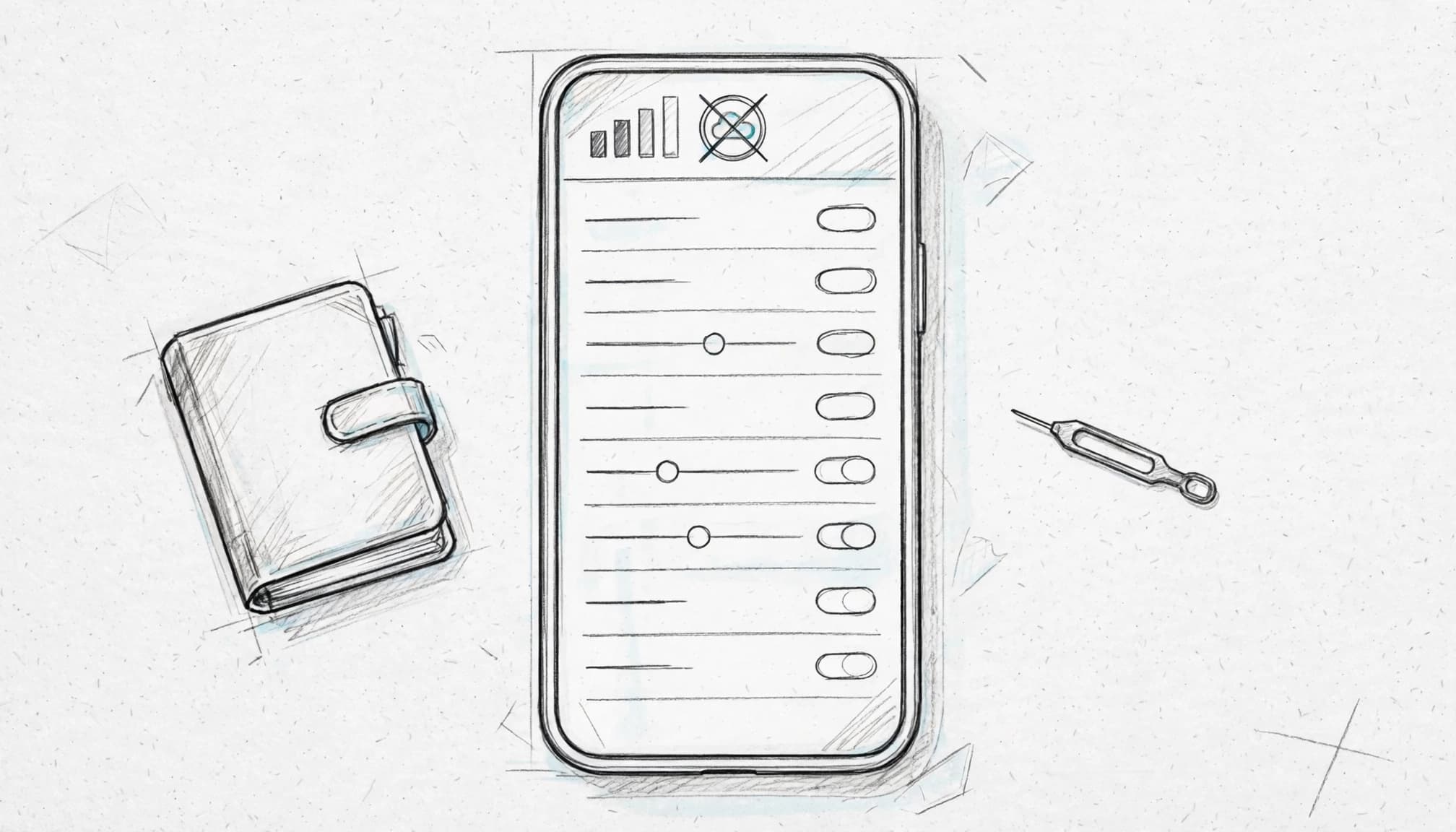
Signal bars only show that your phone has registered with a mobile network. They don’t prove that the eSIM has permission to use mobile data. If the wrong line is selected for cellular data, data roaming is off, or the APN is incorrect, your phone can display full bars while every webpage refuses to load.
First, select the travel eSIM as the data line. Then check data roaming and confirm the APN matches the provider’s instructions. Automatic network selection can also choose a partner that doesn’t support your plan, so manually select an approved network when the provider lists one. For iPhone users, this eSIM internet troubleshooting guide covers the main settings.
A temporary roaming registration problem often clears after you turn on Airplane Mode for about 10 seconds, then turn it off. However, that trick can’t revive an expired plan, add missing data, or connect an unsupported network. An Apple Community troubleshooting discussion also shows why similar symptoms can have different causes.
| Symptom | Likely cause | First fix |
|---|---|---|
| Cellular plan change won’t complete | Wi-Fi failed during the profile download | Reconnect to stable Wi-Fi and try the QR code again |
| Full bars but no internet | Wrong APN, data line, or roaming setting | Select the eSIM for data and verify APN and roaming |
| “PDP Authentication Failure” | Incorrect APN, exhausted data, or failed roaming registration | Check the allowance, APN, and supported network |
| Profile remains on “Activating…” | The destination network hasn’t completed registration | Reach the destination, restart the phone, and wait several minutes |
| QR code no longer works | The single-use code was consumed or expired | Contact the provider before deleting anything |
When to Stop Troubleshooting and Contact Support
Contact support when a single-use QR code has been consumed, your account needs identity verification, your phone is unsupported, or the plan still won’t activate after you reach the destination. The provider may need to reset the order or reissue the eSIM profile.
Send support the details that help them find the problem quickly:
- Your phone model and software version.
- Your destination and current location.
- The exact error message.
- Your EID, but only when support requests it.
- Screenshots of the settings and error, with phone numbers, QR codes, payment details, and personal information hidden.
Don’t reset network settings or delete the eSIM as a first move. Those actions can erase saved Wi-Fi passwords and activation details, while support may still be able to repair the existing profile.
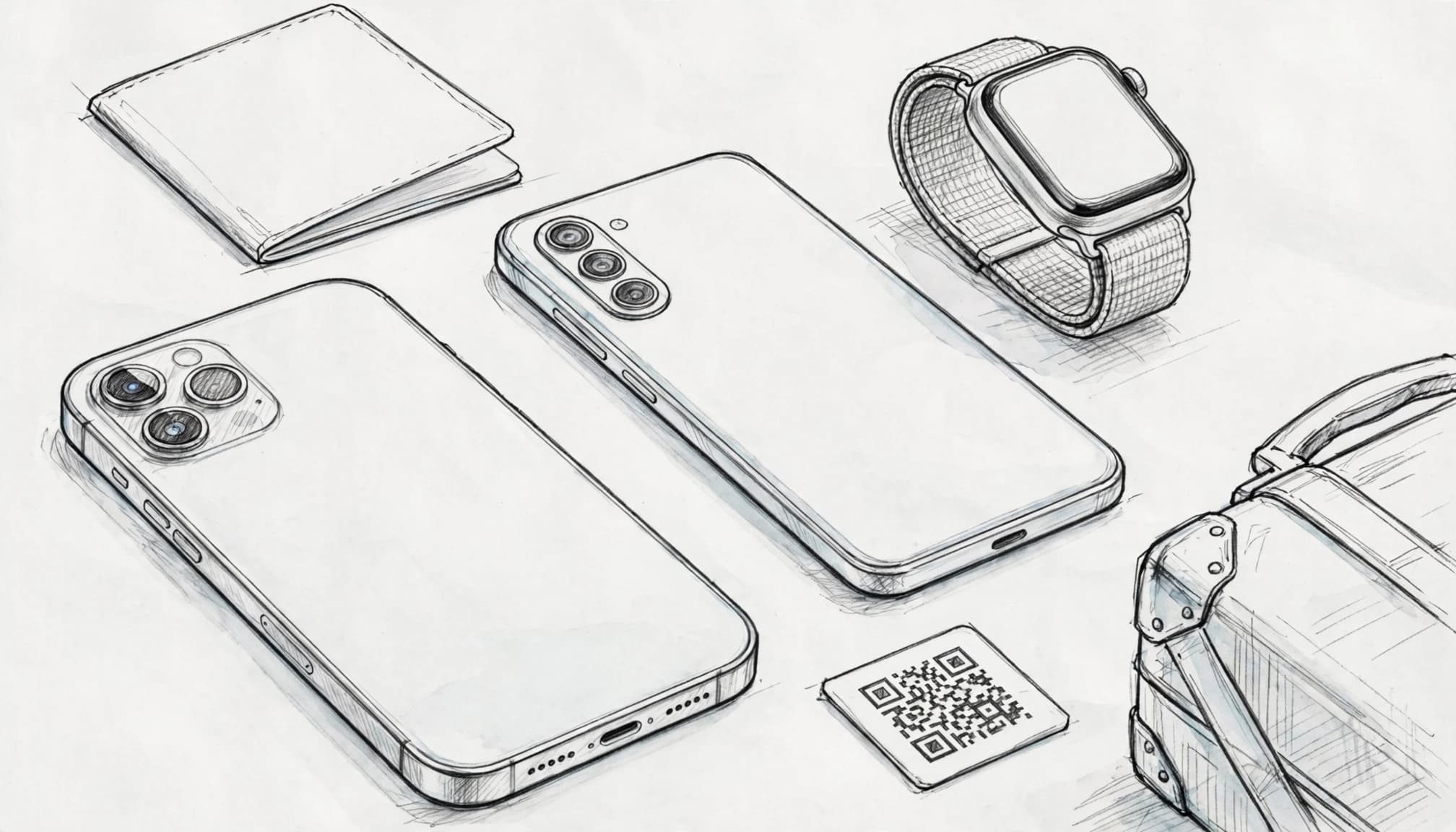
iPhone vs. Android vs. Apple Watch: Which Device Handled the Trial Best?
The iPhone delivered the most predictable experience during this five-day test. Android worked well too, but required more attention to carrier settings. The Apple Watch stayed useful as a companion, although it wasn’t an independent travel eSIM device.
The iPhone Experience Was Usually the Most Predictable
The iPhone handled QR provisioning with the least friction. After scanning the code over Wi-Fi, the travel profile appeared as a separate cellular line, and clear labels made it easy to select the correct line for mobile data. Many plans also filled in the APN automatically, so browsing and hotspot use worked without a settings scavenger hunt.
The setup still has a few banana peels. Older iPhone models, carrier-locked phones, outdated iOS versions, and incorrect data-line settings can block activation or send data through the home SIM. Before flying, review this iPhone eSIM hotspot setup guide and confirm that data switching is off.
Android Offered More Flexibility, With More Settings to Check
Samsung Galaxy and Google Pixel phones connected successfully, but Android exposed more variables. Carrier permissions, APN fields, network selection, and menu locations differed by manufacturer, Android version, and provider. The Android eSIM setup guide is useful when the profile installs but data refuses to cooperate.
That flexibility can help experienced users, yet it adds setup friction. Install and test the profile at home, while stable Wi-Fi and support details are available. The baggage carousel is a terrible place to meet your phone’s hidden network settings for the first time.
The Apple Watch Was a Companion, Not a Separate Travel Line
A regular travel eSIM on the iPhone doesn’t give an Apple Watch its own independent travel service. The watch can use connectivity through the paired iPhone’s Bluetooth or Wi-Fi connection, so notifications, maps, activity tracking, and location features worked when the phone remained nearby and connected.
For this reason, the watch shouldn’t receive an independent score in the device comparison. The iPhone won on predictable setup, automatic settings, hotspot convenience, and recovery options. Android earned flexibility with extra checks, while the Apple Watch followed the iPhone’s lead like a small wrist-mounted travel assistant.
Conclusion
The five-day experiment showed that a free eSIM trial can be a smart way to test activation, coverage, and data habits before paying. However, the word “free” doesn’t guarantee strong service or a good post-trial price. The best free eSIM trial is the one that works on your route, connects through reliable local networks, and has clear top-up terms when the welcome data runs out.
The winning checklist is simple: use a compatible, unlocked device; install the profile over stable Wi-Fi; select the correct data line; verify local coverage; check transparent top-up pricing; and keep a backup plan ready. iPhone users should confirm the travel line and disable data switching. Android users should be prepared to review APN and network settings. Apple Watch owners should keep the paired iPhone nearby because a travel eSIM doesn’t create an independent watch connection.
The verdict is favorable, with sensible limits. A trial can prove whether the setup fits your trip, but five minutes of preparation at home beats troubleshooting beside an airport charging station while your phone performs its best impression of a stubborn little brick.