Setting up an eSIM for the first time can feel confusing, especially if you are using Airalo on an iPhone. Many travelers search for how to use Airalo eSIM iPhone because they want a simple way to install, activate, and stay connected abroad without swapping SIM cards. Airalo offers three methods to get started: install directly from the app, scan a QR code, or enter details manually in iPhone settings. Once installed, you need to set it as your data line and enable roaming to make it work properly. This beginner’s guide walks you step by step through setup, activation, and troubleshooting so your Airalo eSIM runs smoothly on iPhone.
What is Airalo eSIM and Why Use it on iPhone
An Airalo eSIM is a digital SIM card you can purchase and install directly on your iPhone without needing a physical SIM. Instead of swapping plastic SIM cards when you travel, you simply download a mobile plan through the Airalo app or by scanning a QR code.
Why it’s useful on iPhone:
- iPhones fully support eSIM technology, which makes setup quick and seamless.
- You can keep your home number active for calls and SMS while using Airalo only for data when abroad.
- It saves you the hassle of finding local SIM vendors at airports or paying expensive roaming charges.
- Airalo covers more than 200 destinations, making it a flexible choice for international travelers.
👉 For first-time users, this combination of flexibility and convenience is the biggest reason to try Airalo on iPhone.
Before You Start: Requirements and Checks
Before learning how to use Airalo eSIM iPhone, you should confirm a few basics to avoid activation issues:
- Check iPhone model
- Your device must support eSIM. Most iPhones from XS and newer are compatible.
- Your device must support eSIM. Most iPhones from XS and newer are compatible.
- Make sure your iPhone is unlocked
- If your iPhone is locked to a specific carrier, it may not accept an Airalo eSIM. Contact your provider to confirm.
- If your iPhone is locked to a specific carrier, it may not accept an Airalo eSIM. Contact your provider to confirm.
- Stable internet connection
- A reliable WiFi or mobile data connection is required to download and install the eSIM profile.
- A reliable WiFi or mobile data connection is required to download and install the eSIM profile.
- Download the Airalo app
- Create an account and purchase the data package you want before installation.
- Create an account and purchase the data package you want before installation.
- Have your QR code or details ready
- If you choose QR code installation, prepare the code from the Airalo app. For manual setup, keep the SM DP address and activation code handy.
- If you choose QR code installation, prepare the code from the Airalo app. For manual setup, keep the SM DP address and activation code handy.
👉 Once these checks are complete, you are ready to install your Airalo eSIM on iPhone without unexpected errors.
Method One: Install Directly from the App
The easiest way to set up Airalo on your iPhone is by installing the eSIM directly from the Airalo app. This method is beginner friendly and requires only a few taps.
Steps to install from the app:
- Open the Airalo app on your iPhone and log in.
- Go to My eSIMs and select the plan you purchased.
- Tap Install eSIM and choose Install directly on device.
- Follow the prompts that appear in iPhone settings to confirm adding the new cellular plan.
- Wait until you see the status change to Activated.
⚠️ Tip: Stay connected to WiFi during installation. A weak connection may cause the download to fail or leave the eSIM stuck on activating.
👉 For most first time users, this in app method is the fastest and smoothest way to get online with Airalo.
Method Two: Scan a QR Code in iPhone Settings
Another simple way to set up Airalo is by scanning a QR code directly in your iPhone settings. This option works well if you prefer handling the setup yourself instead of relying on the app.
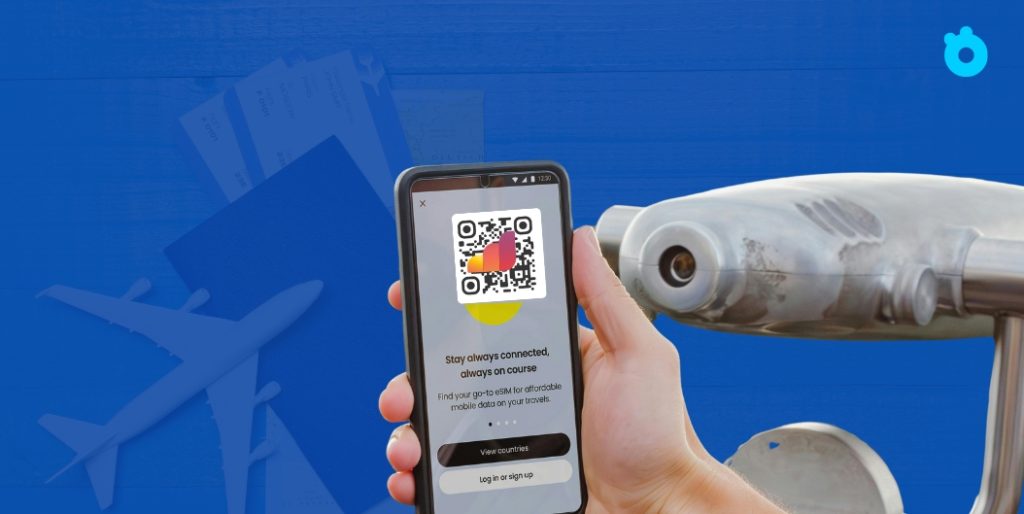
Steps to install with a QR code:
- Open the Airalo app and go to My eSIMs.
- Tap your purchased plan and select View QR code.
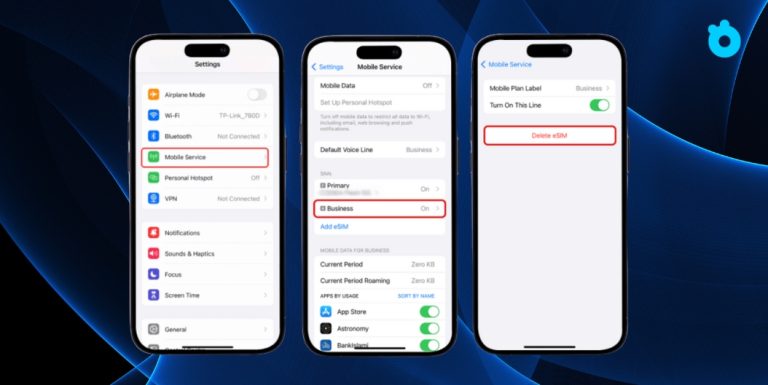
- On your iPhone, go to Settings → Cellular → Add eSIM.
- Choose Use QR Code and point your camera at the code.
- Follow the onscreen instructions until the profile is added and shows as Activated.
⚠️ Tip: If you are traveling, only scan the QR code when you are ready to start using the plan. Activation often begins right after installation.
👉 This QR code method is reliable and especially useful if you want a backup option besides installing directly from the app.
Method Three: Enter Details Manually
If you cannot install through the app or scan a QR code, you can still set up Airalo by entering the details manually. This method takes more effort but works as a fallback.
Steps to install manually:
- Open the Airalo app and find your purchased eSIM under My eSIMs.
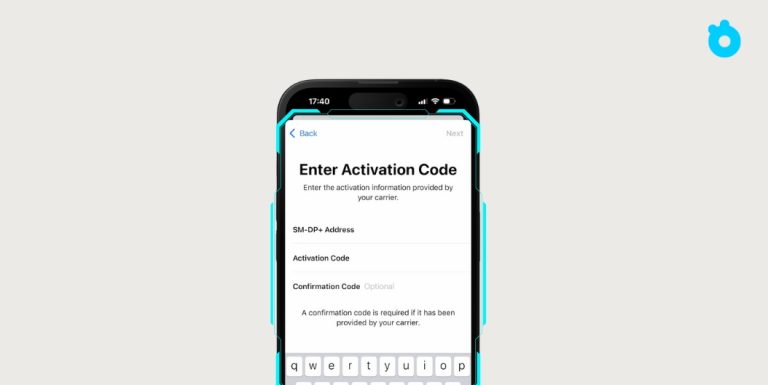
- Tap the plan and copy down the SM DP+ address and Activation Code.
- On your iPhone, go to Settings → Cellular → Add eSIM.
- Choose Enter Details Manually.
- Type in the SM DP+ address and Activation Code exactly as shown.
- Save and wait until the eSIM status changes to Activated.
⚠️ Tip: Manual input requires precision. Even a single missing character in the SM DP address or code will prevent activation.
👉 While less common, the manual method ensures you can still install your Airalo eSIM on iPhone even if QR scanning or in app installation fails.
Post Install Setup on iPhone
After you install the Airalo eSIM, there are a few important settings to adjust so it works correctly on your iPhone.
Steps to set up after installation:
- Choose your data line
- Go to Settings → Cellular → Cellular Data.
- Select your Airalo eSIM as the data line.
- Enable Data Roaming
- Still in Cellular settings, tap your Airalo eSIM plan.
- Turn on Data Roaming so the eSIM can connect abroad.
- Set default line for calls and messages
- If you also have a physical SIM or another eSIM, decide which one handles calls and SMS.
- Most travelers keep their home number for SMS and calls, while using Airalo for data only.
- Check APN settings if needed
- Some carriers may require you to enter APN details manually.
- Airalo usually provides these inside the app.
👉 Completing these steps ensures your Airalo eSIM is fully functional and ready to provide internet access while you travel.
When to Activate the Plan
Timing matters when using Airalo on your iPhone. If you activate the plan too early, you may lose days of service before you even travel.
Best practices for activation:
- Install in advance, activate later
- You can install the Airalo eSIM at home before your trip. This lets you prepare without rushing at the airport.
- The plan usually activates only when you first connect in the destination country.
- Check plan validity
- Some packages start counting the validity period immediately after installation. Always read the plan details in the Airalo app before you confirm.
- Switch data line on arrival
- Once you land, go to Settings → Cellular → Cellular Data and select your Airalo eSIM.
- Make sure Data Roaming is enabled so it connects right away.
👉 The safest approach is to install early but only start using the eSIM once you arrive in the destination country.
Common Problems and Fixes
Even after following the setup steps, some users face issues when learning how to use Airalo eSIM iPhone. Here are the most common problems and how to fix them:
- eSIM stuck on Activating
- Restart your iPhone and make sure you have a stable WiFi connection.
- Try reinstalling via QR code instead of in app installation.
- If you are not yet in the destination country, wait until arrival to activate.
- No internet connection
- Go to Settings → Cellular → Cellular Data and confirm Airalo is selected.
- Make sure Data Roaming is enabled.
- Check APN settings provided in the Airalo app.
- Cannot send SMS or make calls
- Most Airalo plans are data only, meaning traditional calls and texts will not work.
- Use apps like WhatsApp, FaceTime, or Messenger for communication.
- QR code not scanning
- Increase brightness on the second device or print the code.
- Alternatively, choose Enter Details Manually in iPhone settings
👉 These quick fixes solve most issues for first time users. If problems persist, reinstall the eSIM or check Apple’s activation troubleshooting guide.
Travel Tips for First Time Users
Using an Airalo eSIM on your iPhone can save you time and money, but a little preparation goes a long way. Here are some practical tips:
- Keep a backup of your QR code
- Save a screenshot or print the code so you can reinstall the eSIM if needed.
- Install before your trip
- Add the eSIM at home while you have reliable WiFi. Activation will only start once you arrive in your destination country.
- Download the Airalo app in advance
- Do this before leaving so you do not rely on airport WiFi to install or manage your plan.
- Check device compatibility
- Confirm your iPhone is unlocked and supports eSIM, especially if you recently bought it from a carrier.
- Have a backup option
- Some travelers carry a physical SIM or a second eSIM plan as a safety net in case of network issues.
👉 Following these tips makes the experience of using Airalo smoother and ensures you stay connected throughout your trip.
FAQ: Airalo eSIM on iPhone
1. What is Airalo eSIM?
A digital SIM you install on your iPhone for data abroad, no physical SIM needed.
2. Which iPhones support Airalo eSIM?
All iPhones from XS and newer support eSIM.
3. Do I need an unlocked iPhone?
Yes. A locked iPhone may not accept Airalo eSIM.
4. How can I install Airalo eSIM?
Three ways: install via Airalo app, scan QR code, or enter details manually.
5. Can I use Airalo for calls and SMS?
Most Airalo plans are data-only. Use apps like WhatsApp or FaceTime for calls and texts.
6. When should I activate my plan?
Install before travel, but activate once you arrive at your destination.
7. What if my eSIM is stuck on “Activating”?
Restart iPhone, ensure WiFi is stable, or try reinstalling via QR code.
Final Thoughts on Using Airalo eSIM on iPhone
For first time users, setting up Airalo on an iPhone may look intimidating, but the process is straightforward once you know the steps. You can install the eSIM directly from the app, scan a QR code, or enter the details manually. After installation, remember to set Airalo as your data line, enable data roaming, and check APN settings if needed. Most common issues such as “stuck on activating” or “no data connection” can be fixed with a quick reinstall or by adjusting cellular settings.
👉 If you are exploring more flexible ways to stay connected while traveling, check out these travel eSIM plans to compare options and choose the one that best fits your trip.
Related Articles
- Activating eSIM on iPhone – A full guide for correctly setting up and activating your eSIM, with tips to avoid activation problems.
- Can You Use an eSIM on a Locked iPhone? The Real Answer – Learn about the limitations and possibilities when your iPhone is carrier-locked.
- How to Receive SMS on eSIM iPhone – Solutions for when your eSIM is active but you aren’t getting texts or OTPs.
- iPhone 16 eSIM Support – All you need to know about how the iPhone 16 handles eSIM profiles, networks, and compatibility.
- Reset eSIM on iPhone – Steps to properly reset or reinstall an eSIM profile when nothing else works.