Switching between iPhone and Android is exciting, but moving your number can feel stressful. Luckily, eSIM makes it easier than ever. In fact, more than 6 in 10 new smartphones sold in the US in 2024 came with eSIM support. This trend keeps growing as Apple, Google, and Samsung move toward eSIM-only devices.
The good news is you don’t need to worry. Whether you want to transfer eSIM from iPhone to Android or the other way around, there are simple ways to do it. Apple offers built-in tools, Android has its own transfer features, and major carriers also provide QR codes and apps to help.
In this guide, you’ll learn every method step by step, plus how to fix common issues along the way.
Quick Answer: How to Transfer eSIM from iPhone to Android Fast
The fastest method depends on which way you are switching.
From iPhone to Android
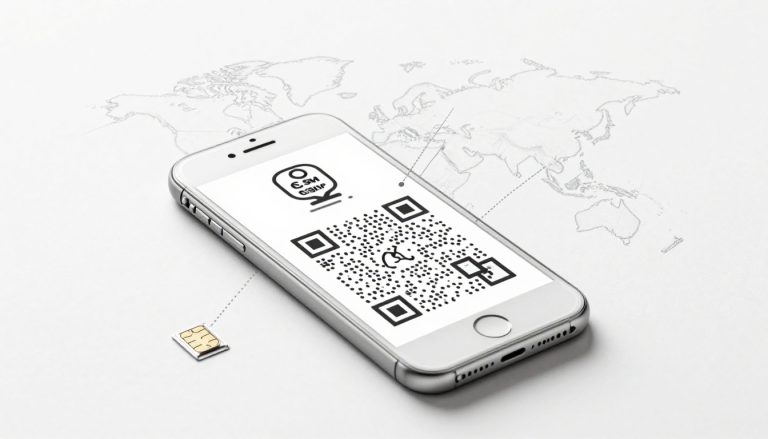
The easiest way is to use your carrier. Most carriers, like Verizon, AT&T, T-Mobile, and Vodafone, let you re-issue your eSIM through their app or website. You simply request a new QR code, scan it on your Android phone, and your number is active within minutes. Some newer Android models, like Pixel or Samsung, also allow direct eSIM transfer from another device if both phones are nearby.
From Android to iPhone
Apple makes this process simple. On your new iPhone, go to Settings > Cellular > Add eSIM > Transfer from Android. Place the phones close together, follow the prompts, and wait for activation.
Pro tip: Do not delete the eSIM on your old phone until the new one is fully active. This avoids service interruptions.
Prerequisites Before You Start
Before you try to transfer eSIM from iPhone to Android, it’s smart to check a few things first. These simple steps save you time and help avoid activation errors.
1. Update your software
Keep both phones on the latest iOS/Android version. Updates fix bugs and enable new eSIM features.
📲 Check for iOS updates here
2. Keep both phones close
Place the devices side by side during the transfer. Some methods, like Quick Transfer or Smart Switch, only work when the phones are nearby.
3. Turn on Wi-Fi and Bluetooth
Both features need to be enabled on each device. This allows your phones to detect each other and communicate securely.
4. Do not erase the old eSIM yet
Wait until the new eSIM is fully active on your Android phone before deleting it from your iPhone. This ensures you don’t lose service in the middle of the process.
5. Check carrier support
Most major carriers like Verizon, AT&T, T-Mobile, and Vodafone support eSIM transfers between iPhone and Android. Still, it’s best to confirm through your carrier’s website or app before starting.
6. Prepare your account login
Some transfers require you to log in to your carrier app, such as My Verizon or T-Mobile. Having your login ready avoids delays.
Once these steps are complete, you’re ready to move on. Let’s look at the first method for moving your eSIM from iPhone to Android.
Method A: Transfer eSIM from iPhone to Android
There are two main ways to move your eSIM from iPhone to Android. The first is through your carrier’s QR code or app, which is the most reliable. The second is direct transfer, available on newer iOS and Android versions.
A1. Using Carrier QR Code or App
This is the method most people use, and it works across all major carriers.
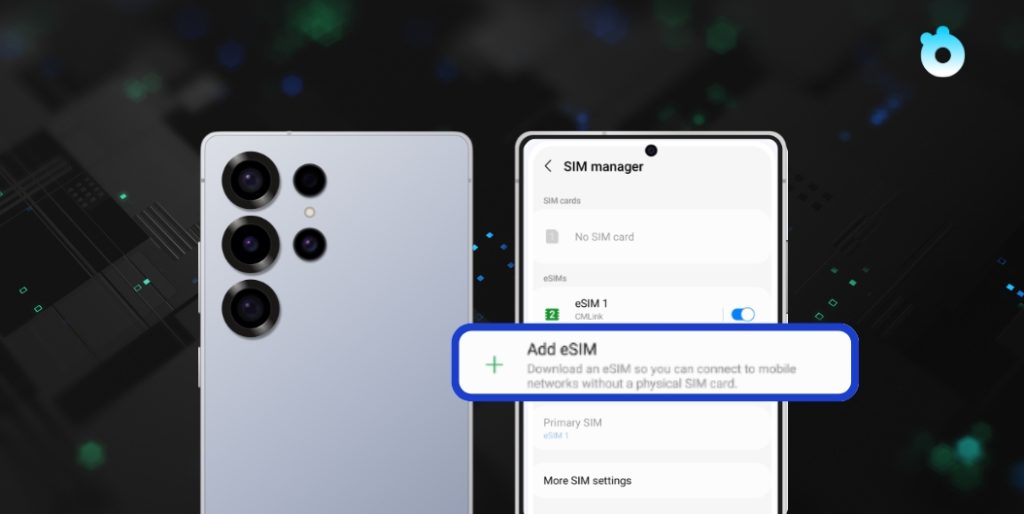
Step 1: On your Android phone, open Settings > Network & Internet > SIMs > Add SIM.
Step 2: Choose Download a SIM instead of physical SIM.
Step 3: Log in to your carrier’s app (such as My Verizon, T-Mobile, or AT&T) or your online account.
Step 4: Request a new eSIM QR code. Some carriers call this “Reissue eSIM” or “Switch device.”
Step 5: Scan the QR code with your Android phone’s camera.
Step 6: Wait for activation. Once done, test your calls and data.
📎 Need help from Verizon? Check their official eSIM activation guide
💡 Tip: Vodafone and many European carriers often require a fresh QR code each time you change devices. Don’t try to reuse an old one.
A2. Direct Transfer on Newer Devices
Some newer phones now allow direct transfers without a QR code. This is rolling out gradually with updates.
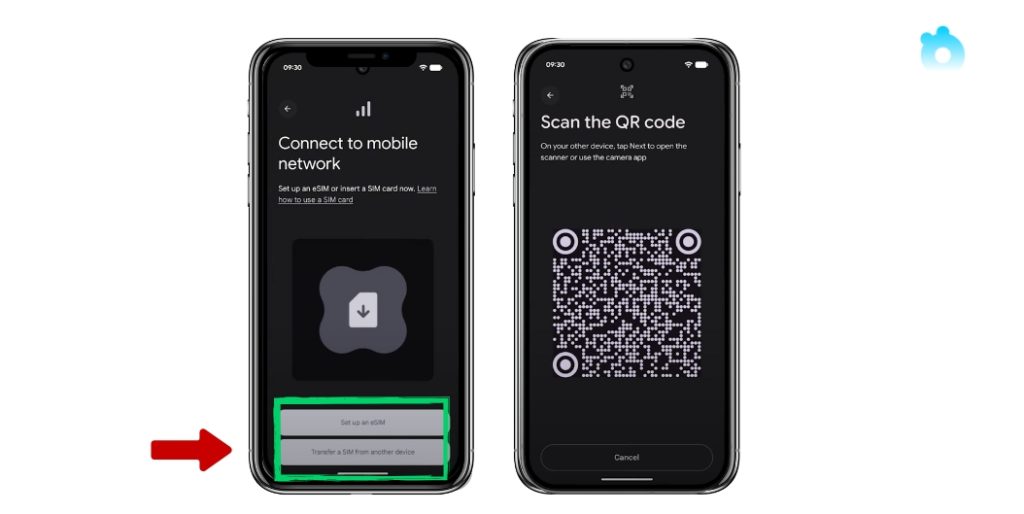
Step 1: On your Android device (Pixel or Samsung), go to Add SIM and select Transfer SIM from another device.
Step 2: Place your iPhone and Android phone close together.
Step 3: On your iPhone, confirm the request to move the eSIM.
Step 4: Follow the prompts until you see Activating eSIM on your Android phone.
Step 5: Once it’s active, test your number to confirm.
📎 Google Pixel users can learn more in Google’s eSIM help guide
💡 Note: This option may not appear on every device yet. If you don’t see it, use the QR code or carrier app method instead.
Method B: Transfer eSIM from Android to iPhone
Moving your eSIM from Android to iPhone is usually easier, because Apple has built this option directly into iOS.
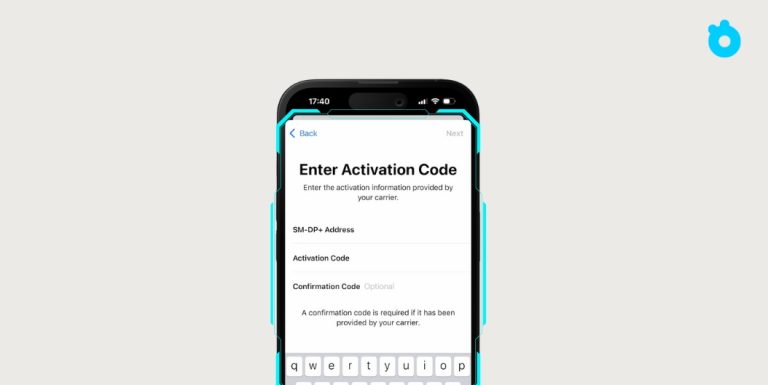
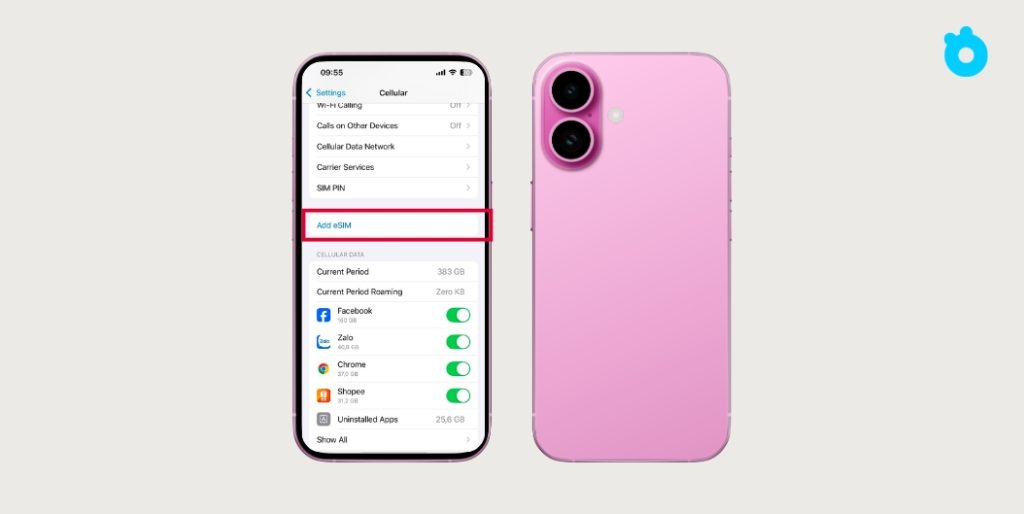
Step 1: On your new iPhone, go to Settings > Cellular > Add eSIM.
Step 2: Choose Transfer from Android.
Step 3: Place your Android and iPhone close together, with Wi-Fi and Bluetooth turned on.
Step 4: Follow the on-screen prompts. Your iPhone may ask for a confirmation code.
Step 5: Wait while your number moves over. The iPhone will display Activating eSIM, which can take a few minutes.
Step 6: Once activated, test your connection by making a call or using mobile data.
📎 Need a backup? Apple’s official guide for adding eSIM
💡 Tip: If the transfer option doesn’t appear, ask your carrier to issue a fresh QR code. You can then scan it directly on your iPhone to finish the setup.
Carrier Playbooks: Verizon, T-Mobile, AT&T, Vodafone
Each carrier has slightly different steps when you transfer eSIM between iPhone and Android. Here’s a quick guide to the most common ones.
Verizon
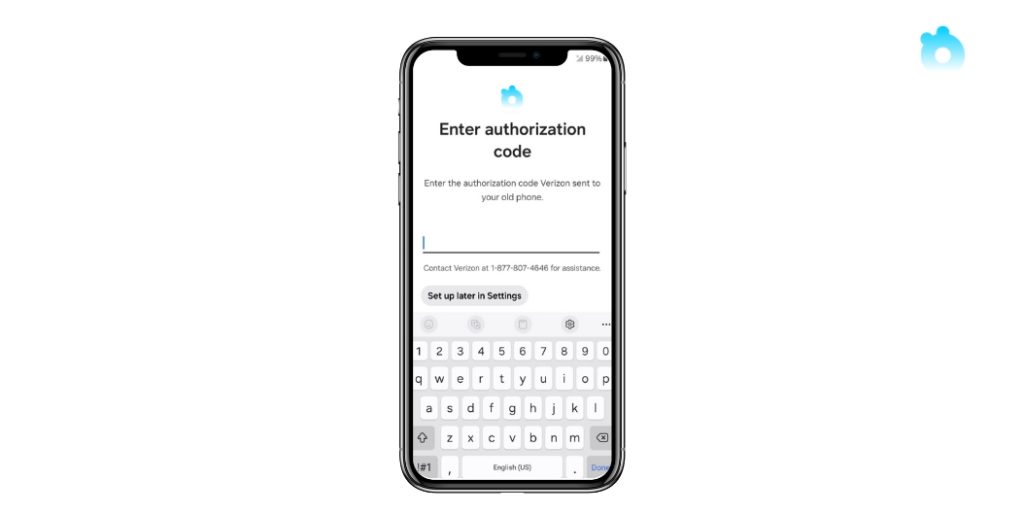
- Step 1: Download and open the My Verizon app on your new phone.
- Step 2: Sign in to your account and go to Devices > Activate or Switch Device.
- Step 3: Select your new device and request an eSIM activation.
- Step 4: Follow the prompts until your number is active.
💡 Tip: If you see “Activation Failed,” restart your device and try again on Wi-Fi.
T-Mobile
- Step 1: On your new phone, open Settings > Cellular > Add eSIM (iPhone) or SIM Manager > Add eSIM (Samsung).
- Step 2: If Quick Transfer doesn’t appear, use the T-Mobile app.
- Step 3: In the app, go to Lines > Replace SIM with eSIM.
- Step 4: Choose your number and follow the instructions to activate it.
💡 Tip: Don’t erase your old eSIM until the new one works properly.
AT&T
- Step 1: Log in to your AT&T account online or via the myAT&T app.
- Step 2: Go to My Devices > Manage > Get a new eSIM.
- Step 3: AT&T will send you a new QR code for your line.
- Step 4: Scan the code on your new iPhone or Android to activate.
💡 Tip: Make sure your Wireless Account Lock is turned off before switching devices.
Vodafone
Step 1: Log in to your Vodafone account or app.
Step 2: Request a new eSIM QR code (Vodafone usually requires a fresh one for each new device).
Step 3: On your new phone, scan the QR code via Settings > Add eSIM.
Step 4: Wait for activation and test your line.
📎 Need more help? Here’s Vodafone UK’s official eSIM page
💡 Tip: Vodafone customers in Europe often need to verify identity before the carrier issues a new QR.
Troubleshooting eSIM Transfer Issues
Even with the right steps, problems can happen when you move your eSIM between iPhone and Android. Here are the most common issues and how to fix them.
1. No Transfer Option Appears
Problem: Your new phone doesn’t show “Transfer from Nearby Device” or “Transfer from Android.”
Fix:
- Update both phones to the latest iOS or Android version.
- Make sure Wi-Fi and Bluetooth are turned on.
- Keep the devices side by side.
- If the option still doesn’t appear, use your carrier’s app or request a QR code.
2. eSIM Stuck on Activating
Problem: The phone shows Activating eSIM for too long.
Fix:
- Stay on a strong Wi-Fi network.
- Restart both devices.
- Toggle Airplane Mode on, then off.
- If nothing works, contact your carrier to refresh your line.
3. Activation Failed
Problem: You get an error while scanning or setting up the eSIM.
Fix:
- Delete the failed eSIM profile and try again.
- Double-check that your phone is unlocked. Locked phones often block transfers.
- Switch to your carrier’s app or website to request a fresh QR code.
4. No Calls or Data After Transfer
Problem: The eSIM looks active, but you can’t make calls or use mobile data.
Fix:
- Go to Settings > Cellular (iPhone) or Settings > Network & Internet > SIMs (Android).
- Set your new eSIM as the default line.
- Turn mobile data off, then back on.
- If needed, reset network settings on your phone.
5. Deleted eSIM by Mistake
Problem: You erased the eSIM before finishing the transfer.
Fix:
- Ask your carrier for a new QR code.
- Most carriers can issue a replacement instantly through their app or website.
💡 Pro tip: Always confirm the new eSIM works by making a quick call or sending a text before erasing the old one.
FAQ: eSIM Transfer Between iPhone and Android
Can I transfer eSIM directly from iPhone to Android?
Yes, but it depends on your phone and carrier. Some newer devices support direct transfer. If you don’t see the option, use your carrier’s app or request a new QR code.
Do I need a new QR code to move my eSIM?
Often, yes. Many carriers require a fresh QR code each time you switch phones. You can usually request it through your carrier’s app or website.
Can I move eSIM from Android to iPhone?
Absolutely. Apple has a built-in option called Transfer from Android under Settings. It guides you through the process step by step.
Why is my eSIM transfer failing?
Common reasons include weak Wi-Fi, outdated software, or a locked device. Update your phone, check your carrier lock, and try again.
Can I use two eSIMs after switching to a new phone?
Yes, most modern iPhones and many Android phones support dual eSIM. You can keep one for your main number and another for travel data.
Does the iPhone 17 support eSIM transfers from Android?
Yes. All iPhone 17 models in the US are eSIM-only. You can move your number from Android using either Quick Transfer or a carrier QR code.
Final Tips for Travelers Using eSIM
Switching your eSIM between iPhone and Android may sound technical, but once you know the steps, it’s quick and simple. The key is to prepare first: update your phones, keep Wi-Fi on, and always wait until the new eSIM is active before erasing the old one.
If you travel often, here’s an extra tip. Use one eSIM for your main number and add a travel eSIM for data abroad. This way, you stay connected without paying expensive roaming fees. You can keep calls and texts on your primary line while using affordable data for maps, social apps, and streaming.
👉 With Gohub, you get instant eSIM setup, flexible data plans in over 190 countries, and 24/7 support. It’s the easiest way to stay online no matter which phone you’re using.Get your travel eSIM with Gohub and enjoy seamless connectivity on your next trip.
Related Articles
- How to Transfer eSIM to a New iPhone – Step-by-step guide to moving your eSIM when upgrading to a new device.
- How to Delete eSIM from iPhone – Learn how to safely remove an eSIM profile without affecting your other settings.
- Free eSIM Service for iPhone – Explore the best free eSIM trials and services you can try in 2025.
- How Many eSIMs Can iPhone 14–17 Have? – Find out how many profiles you can store and how many can run at the same time.
- Activating eSIM on iPhone – Complete activation steps with tips to avoid common mistakes.
- Can You Use an eSIM on a Locked iPhone? The Real Answer – Understand the difference between locked vs unlocked iPhones when it comes to eSIM use.