Using a hotspot on your iPhone with an eSIM is one of the easiest ways to share data when traveling. You can connect your laptop, tablet, or even friends’ phones without buying extra SIM cards. But many users still ask the same questions: “Does eSIM hotspot work on iPhone?”, “Why is my iPhone eSIM hotspot not showing?”, or “How do I fix it when it stops working?”
The good news is that the iPhone supports eSIM hotspot on almost all recent models. The problem usually comes from setup steps, APN settings, or restrictions from certain eSIM providers. In this guide, you’ll learn how to enable hotspot on eSIM iPhone, how to fix common issues when it doesn’t work, and which providers give you the best experience.
What Is eSIM Hotspot on iPhone?
An eSIM hotspot on iPhone works the same way as a hotspot with a physical SIM. Your iPhone uses mobile data from the eSIM plan and shares it with other devices through WiFi, Bluetooth, or USB.
The feature is called Personal Hotspot in iOS. Once it is turned on, your iPhone becomes a small WiFi router. Laptops, tablets, or other phones can connect using the password you set.
With eSIM, the process is digital. You can buy a travel eSIM, install it in minutes, and then share the connection with your group. This is very useful in Asia where many travelers prefer one eSIM with hotspot instead of buying multiple SIMs.
👉 Note: Not every eSIM provider handles hotspot the same way. Gohub supports hotspot on all its iPhone plans. Some unlimited providers like Holafly may restrict or slow down hotspot use after heavy data consumption.
How to Enable Hotspot on eSIM iPhone (Step by Step)
Setting up a hotspot with an eSIM on iPhone is simple once you follow the right path. Many travelers miss a small detail, like APN or password, and end up thinking the hotspot is broken. Below are the steps you should take, with explanations for each stage.
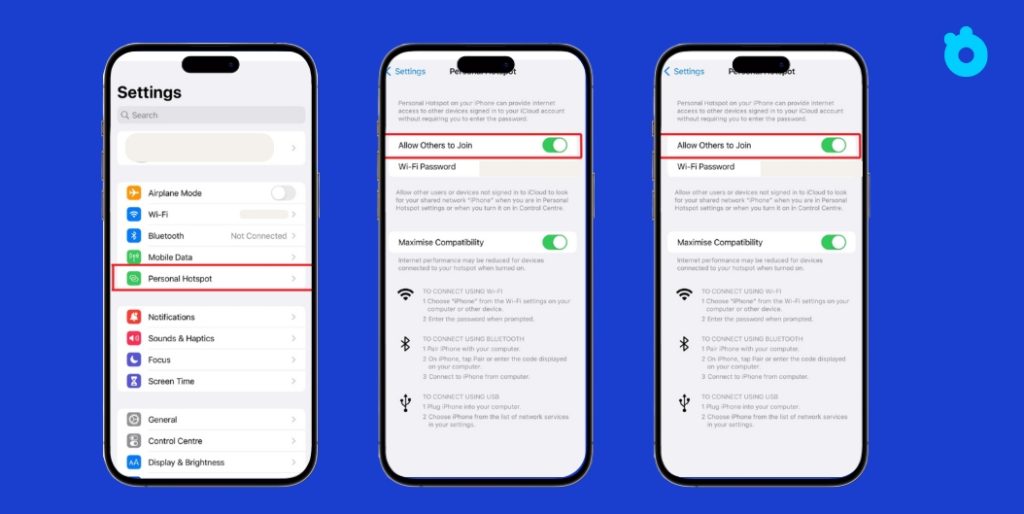
Step 1. Open Settings
Unlock your iPhone and go to Settings. Tap Cellular (or Mobile Data, depending on your region). Look for the Personal Hotspot option.
Step 2. Turn on Personal Hotspot
Inside Personal Hotspot, switch on Allow Others to Join. This makes your iPhone visible to nearby devices. Once activated, the status bar at the top of your iPhone usually turns blue, showing that hotspot is active.
Step 3. Set your WiFi password
Tap WiFi Password and choose a strong but easy-to-remember code. Avoid using simple passwords like “12345678” because anyone nearby could connect and consume your data.
Step 4. Connect other devices
On your laptop, tablet, or another phone, go to WiFi settings. Find your iPhone’s name in the list, select it, and enter the password you just created. Your iPhone will now act as a router, sharing its eSIM data connection.
Step 5. Use Bluetooth or USB if WiFi fails
If WiFi is unstable, you can connect via Bluetooth tethering or USB cable. Go to Personal Hotspot settings and follow the on-screen instructions. This is useful when WiFi interference is strong, such as in airports or busy cafes.
Step 6. Check APN if the option is missing
Sometimes the Personal Hotspot option does not show up after installing a new eSIM. Go to Settings → Cellular → Cellular Data Network. Scroll to Personal Hotspot APN and enter the details given by your eSIM provider. Without the right APN, the hotspot feature may stay hidden.
👉 Pro tips for travelers
- Hotspot drains your iPhone battery quickly. Keep a power bank handy.
- Limit the number of connected devices. More than three devices can slow down the connection.
- Gohub eSIMs fully support hotspot. Some providers, especially unlimited ones, may throttle or block it. Always check before buying.
Common Issues: iPhone eSIM Hotspot Not Working
Even after setting up everything, some iPhone users find that the hotspot option is missing or does not provide internet. Most of these problems come from small misconfigurations or provider restrictions. Here are the most common issues and how to solve them.
Issue 1. Hotspot toggle not showing
Sometimes the Personal Hotspot option is missing from Settings. This usually means the APN was not entered correctly. Go to Settings → Cellular → Cellular Data Network, and check the APN under the Personal Hotspot field. Enter the APN details from your eSIM provider. Restart your iPhone and the option should appear.
Issue 2. Devices connect but no internet
Your laptop or tablet connects to the iPhone hotspot but cannot load websites. This happens when data roaming is off or the wrong data line is active. Go to Settings → Cellular → Cellular Data Options → Data Roaming, and make sure it is on. Also check that your travel eSIM is selected as the data line.
Issue 3. Carrier restrictions on hotspot
Some providers allow mobile data but block tethering or throttle speeds. For example, unlimited eSIM plans often have a Fair Usage Policy (FUP) that limits hotspot use. Holafly is known for this in some regions. On the other hand, Gohub fully supports hotspot on iPhone plans without hidden limits.
Issue 4. Connection drops or is unstable
Hotspot can disconnect when too many devices join at once. Limit the number of connected devices to two or three for a stable signal. If the problem continues, try USB tethering for a direct and stable connection.
Issue 5. Network bugs after installing eSIM
Sometimes iOS itself is the culprit. If hotspot still does not work, go to Settings → General → Transfer or Reset iPhone → Reset → Reset Network Settings. This clears saved WiFi and APN but often solves the problem.
👉 Quick fix tip: Turn on Airplane Mode for 10 seconds, then switch it off. This refreshes network settings and often restores hotspot instantly.
Personal Hotspot with eSIM: Things You Should Know
Using hotspot on iPhone with eSIM is convenient, but there are a few details that every traveler should keep in mind. These will help you avoid wasted data, poor performance, or unexpected costs.
Data consumption is higher than you think
When you share data through hotspot, your iPhone uses much more than normal browsing. Streaming video or downloading files on a laptop can eat gigabytes in hours. Always monitor usage in Settings → Cellular.
Hotspot drains battery quickly
Running hotspot turns your iPhone into a router, which consumes power fast. Keep a power bank or charging cable with you, especially during travel days.
Limit connected devices
iPhone hotspot works best with two or three devices at a time. More devices can slow speeds or cause disconnects.
Providers handle hotspot differently
Not all eSIM providers treat hotspot equally. Gohub supports hotspot across all its iPhone plans, making it safe for travelers. Some unlimited providers like Holafly may restrict hotspot use or reduce speed after heavy use.
Group travel tip
One traveler with a Gohub eSIM can share hotspot with friends. This can be cheaper than everyone buying separate plans, especially for short group trips in Asia.

Best eSIM Providers for Hotspot on iPhone (2025)
Not every eSIM provider handles hotspot the same way. Some fully support it, while others apply restrictions or throttle speeds. Here is a quick comparison of the most popular options for iPhone users in 2025.
| Provider | Hotspot Support | Speed / Fair Usage | Asia Coverage | Price / Data Value | Key Notes |
| Gohub | ✔️ Works on all iPhone plans | Stable speed with no hidden limits | 190+ countries, strong Asia focus | From $1.28 per GB, flexible daily or fixed plans | 24/7 live chat support, instant activation, 100% refund if not working |
| Airalo | ✔️ Allowed on most plans | Stable, but some users report throttling on higher packs | Asialink plan covers ~18 countries | $3.5–$5 per GB | Easy app, wide coverage, but more expensive than Gohub |
| Holafly | ⚠️ Hotspot restricted on some unlimited plans | Unlimited data, but throttled after Fair Usage Policy | Covers popular Asia destinations | Equivalent often >$10 per GB after throttling | Good for heavy streaming, but costly and limited for hotspot |
| Saily | ✔️ Hotspot generally supported | Good speed, but unlimited plans may slow after FUP | Asia and international options | Mid-range pricing | Flexible plans, but customer support not as responsive |
| Ubigi / Maya Mobile / Yesim | ✔️ Hotspot supported depending on plan | Speed depends on partner networks | Selected Asia countries | Varies, often $2–$4 per GB | Cheap for single-country trips, but less flexible across multiple borders |
👉 According to TechRadar’s eSIM reviews, Gohub consistently wins for cost per GB and clear hotspot rules.
And GSMA confirms eSIM adoption is accelerating worldwide, making hotspot reliability an essential feature for modern travelers.
Key Insights
- Gohub offers the lowest cost per GB (from $1.28), making it the most budget-friendly hotspot option for iPhone travelers in Asia.
- Airalo is convenient with its app but becomes expensive for medium or heavy hotspot use.
- Holafly is attractive with “unlimited” data but applies Fair Usage Policies that can throttle hotspot speeds, making it unreliable for shared use.
- Saily and others work fine for short trips or light data needs, but they lack Gohub’s mix of pricing, support, and coverage.
👉 Bottom line: If you plan to use your iPhone hotspot while traveling in Asia, Gohub is the safest and most affordable choice.
FAQs: eSIM Hotspot on iPhone
Q1. Can I use hotspot with an eSIM on iPhone?
Yes. All recent iPhones support Personal Hotspot with eSIM. You can share data with laptops, tablets, or other phones.
Q2. Why is my eSIM hotspot not working on iPhone?
This usually happens when the APN is missing or Data Roaming is off. Go to Settings → Cellular → Cellular Data Network and enter the APN from your provider. Also make sure your eSIM is set as the default data line.
Q3. Do all eSIM providers allow hotspot on iPhone?
No. Some providers support hotspot on all plans (like Gohub). Others, such as Holafly, may restrict hotspot or slow it down with Fair Usage Policies.
Q4. Does unlimited eSIM data include hotspot?
Not always. Many “unlimited” eSIMs limit hotspot after you use a certain amount of data. That is why choosing a provider with clear hotspot rules is important.
Q5. How much data does hotspot use on iPhone?
It depends on the activity. Streaming HD video can use up to 3 GB per hour, while browsing or messaging uses much less. Always monitor usage in Settings → Cellular.
Q6. Which provider is best for hotspot on iPhone in Asia
Gohub is often the best value, with hotspot fully supported and data from $1.28/GB. It also has 24/7 live chat to solve issues quickly.
Final Thoughts
Turning your iPhone into a hotspot with an eSIM is one of the most practical ways to stay connected on the road. You can share data with your laptop, tablet, or even travel partners without buying multiple SIM cards. The setup is simple, and most issues come down to APN or provider restrictions.
Airalo and Holafly are well-known, but they come with limits: higher cost per GB, no live chat, or restrictions on hotspot. Gohub stands out with data from just $1.28 per GB, full hotspot support, and 24/7 live chat with a real human. That means you can work, stream, or share with friends without worrying about surprise limits.
👉 If you want a stress-free trip with reliable hotspot access, choose a Gohub eSIM. It gives you fast internet, clear pricing, and support that is always there when you need it.
Related Articles
- Best Free eSIM Trial for iPhone – Compare top free/trial eSIMs you can try on your iPhone.
- Best Free Government eSIM for iPhone – Learn about government-supported eSIM programs and eligibility.
- T-Mobile eSIM iPhone Setup & Transfer Guide – Steps to set up or transfer a T-Mobile eSIM on iPhone.
- Best eSIM App for iPhone in Taiwan – Recommendations and setup tips for eSIM services in Taiwan.
- eSIM iPhone Asia Travel Guide – A travel-focused guide to using eSIMs across Asian countries.