Your limited international data pass can disappear fast when apps refresh, photos sync, and weak Wi-Fi quietly triggers cellular backup. To check data usage on iPhone, open Settings, tap Cellular or Mobile Data, then review total usage and each app’s consumption.
Menu names can vary by region and iOS version. Since iPhone tracks data from the last reset, reset the counter when your trip or billing cycle begins; next, we’ll cover app usage, system services, travel eSIM lines, Low Data Mode, Wi-Fi Assist, and Dual SIM controls.
This post may contain affiliate links. If you make a purchase through these links, I may earn a small commission at no extra cost to you.
How to Check Data Usage on iPhone: Choose the Right Tracking Method
Your iPhone measures cellular traffic inside Settings > Cellular or Settings > Mobile Data. The menu records how much data each app and system feature sends through cellular networks. It also shows a total under the current period.
That counter starts from the last manual reset. Therefore, it only becomes useful for a trip after you reset it when your travel plan begins. The right tracking method depends on whether you need a broad total, a travel-line check, or a way to stop background activity.
| Tracking option | Accuracy | Setup needed | Best use case |
|---|---|---|---|
| iOS Cellular settings | High, with real-time device-level tracking | Reset statistics at trip start | Monitor daily app consumption |
| Individual travel line statistics | Exact for the selected data line | Select the travel line for cellular data | Isolate foreign eSIM usage |
| Low Data Mode | Limits background activity, but does not measure usage | Turn it on for the active line | Protect a small prepaid allowance |
| System Services | Shows hidden iOS activity by category | Open System Services at the menu bottom | Find system-related data drain |
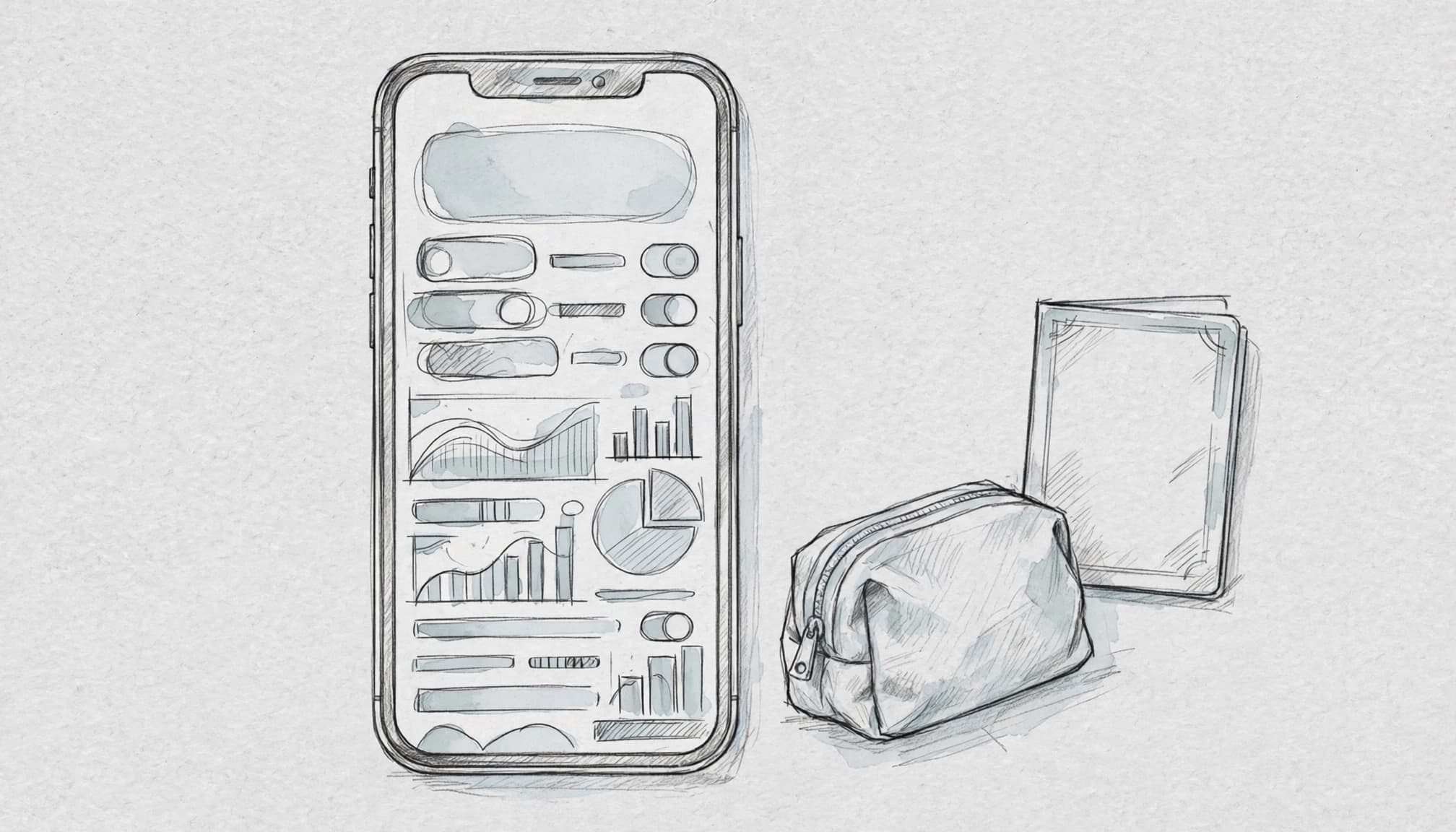
Use iOS Cellular settings for a live usage total
The native Cellular screen gives you the clearest device-level snapshot. It lists total cellular data and breaks usage down by app, so you can spot a video app, cloud backup, or map service consuming your allowance.
Before leaving the airport, scroll to the bottom and tap Reset Statistics. Then check the same screen each day. If your prepaid plan includes 5 GB, a rising total tells you how much remains before your allowance becomes a sad little memory.
You can view iPhone cellular data usage for a practical walkthrough of the same settings.
Select the travel line to isolate foreign data
A travel eSIM can separate your trip data from your regular phone plan. Open Settings > Cellular, tap Cellular Data, and select the travel line before using maps, messages, or browsing.
Your iPhone then sends cellular traffic through that selected profile. This setup makes the usage figure more useful because it focuses on the line paying for your overseas connection. Also check that Allow Cellular Data Switching is off, so the phone doesn’t quietly fall back to another line.
If your travel eSIM needs roaming enabled, confirm that setting inside the travel line’s options. You can also set up a travel eSIM on iPhone before departure.
Use Low Data Mode to prevent background waste
Low Data Mode doesn’t count data. Instead, it asks iOS and apps to reduce background work, automatic downloads, and some syncing activity. Turn it on for the travel line when your allowance is tight.
For a 1 GB prepaid plan, this setting can help preserve data for navigation and essential messages. However, keep checking Cellular statistics because Low Data Mode reduces activity without showing exactly what each app used.
When you need a travel connection before takeoff, Get your free esim now and select the correct data line before resetting your counter.
Check System Services for hidden activity
Tap System Services at the bottom of the Cellular screen to inspect data that doesn’t belong to a regular app. Categories can include software updates, push notifications, time and location services, and account syncing.
This screen explains why your total may rise even when you barely open any apps. If System Services uses more data than expected, keep Low Data Mode active and review background settings before your next travel day.
Follow These Steps to Check and Reset iPhone Data Usage
Checking iPhone data usage takes less than a minute once you know where to look. The Cellular menu shows total usage, app-by-app activity, system services, and the line currently handling mobile data.
Apple uses Cellular in some regions and Mobile Data in others. Your iOS version may also place certain options in slightly different spots. The labels can move, but the tracking tools remain easy to find.
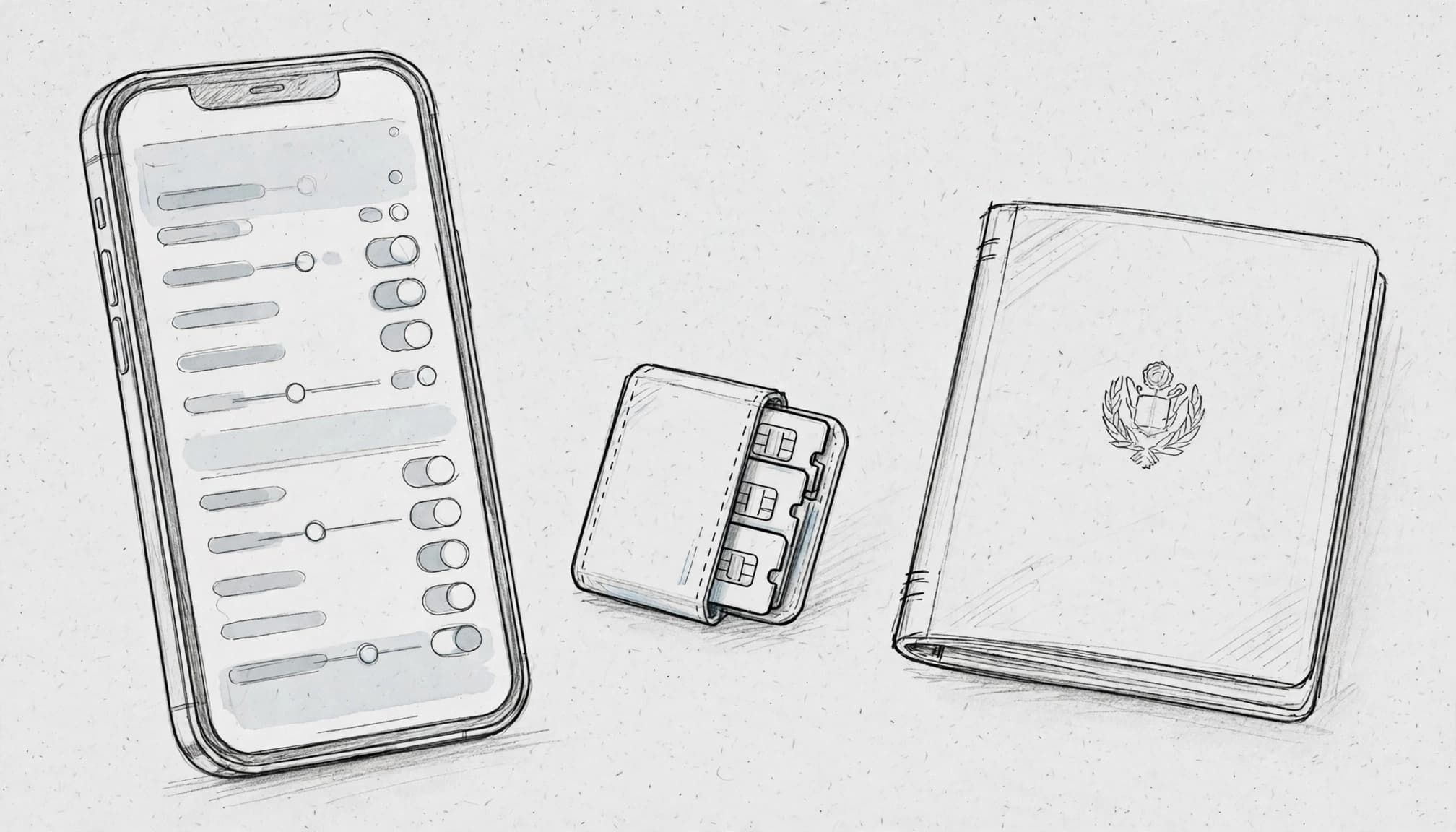
1. Open the iPhone cellular data settings
Start by opening the Settings app. Then tap Cellular or Mobile Data.
At the top of the screen, check the line listed under Cellular Data. This setting controls which SIM or eSIM supplies your iPhone’s internet connection. If you use a travel eSIM, select that line before checking your usage.
For example, your iPhone may show your regular number and a travel eSIM as separate options. Tap Cellular Data, then choose the travel line you want to monitor. This prevents you from studying the wrong counter while your home line handles the connection.
If you use Dual SIM, review Allow Cellular Data Switching as well. Turn it off when you want one specific line to handle data. Otherwise, your iPhone may switch lines when coverage changes.
You can change the active mobile data line on iPhone if you need a more detailed Dual SIM walkthrough.
2. Review each app’s cellular data usage
Next, scroll down to the Cellular Data list. You will see every app that has permission to use cellular data. A number beneath each app shows its usage in megabytes or gigabytes.
The figures include data used since the last time you tapped Reset Statistics. They don’t automatically match your carrier’s billing period. Your carrier may measure usage from a different date or use separate rules for roaming data.
Look for apps with surprisingly high totals. A video app might use several gigabytes after a few long viewing sessions. A cloud photo service could also consume hundreds of megabytes while uploading images in the background.
Tap the switch beside an app to block its cellular access. The app can still work over Wi-Fi, but it won’t use your travel allowance while connected to mobile data.
Pay close attention to apps you rarely open. Automatic photo uploads, social media refreshes, and video previews can nibble away at a small travel plan. For more practical limits and settings, see this guide to managing eSIM data usage on iPhone.
The Cellular screen shows iPhone activity since the last reset, not necessarily usage from your current billing cycle.
3. Inspect background activity under System Services
The app list doesn’t show every source of cellular traffic. To inspect iOS activity, scroll to the bottom of the list and tap System Services.
This screen groups data under system categories. Depending on your iOS version, you may see entries connected to notifications, time and location services, software updates, account services, or other background tasks.
A high total here doesn’t always point to a problem. Your iPhone needs some cellular data for essential services. However, the list can explain why usage increased when you barely opened any apps.
For example, a system category may rise after your phone syncs accounts or refreshes location information. Compare these figures with your app totals before deciding which settings need attention.
Apple’s official cellular data instructions also explain how to view usage and reset the statistics. If the categories look unusual, monitor them again after starting a fresh tracking period.
4. Reset statistics before a trip or billing period
When you reach the bottom of the Cellular screen, keep scrolling past the app list and system entries. Tap Reset Statistics.
Your iPhone may ask you to confirm the action. Follow the prompt to reset the counter. Afterward, app and system totals should start from zero.
Reset the statistics immediately after activating your travel eSIM. You can also reset them after arriving at your destination, especially if you tested the line before departure.
This timing gives you a clean record for the trip. It also makes daily checks easier because the total reflects your current travel period instead of months of old activity.
Record your travel plan’s allowance before resetting. If you have 5 GB available, compare that amount with the rising Cellular total each day. The iPhone counter won’t show how much data your plan has left, but it will show how much your device has used.
5. Check the counter at the same time each day
A single reading tells you where usage stands. A daily reading shows your pattern.
Check the Cellular screen at the same time each day, such as after breakfast or before bed. Note the total and any app that moved sharply higher. A consistent routine turns scattered numbers into a useful trend.
If the total jumps by 500 MB overnight, inspect cloud photo services, streaming apps, and System Services first. You can then disable cellular access for heavy apps or switch on Low Data Mode for the active travel line.
When you need a travel connection before departure, Get your free esim now and reset the counter after activation. That small bit of housekeeping can keep your data allowance from vanishing before the vacation even begins.
Stop Hidden Cellular Data Drain Before It Eats Your Travel Plan
Checking your iPhone data usage helps you find the culprit. A few settings then stop that culprit from returning with a tiny suitcase and a fresh appetite.
Your usage screen might reveal a video app, cloud service, or system feature consuming data. Once you spot the pattern, adjust the settings below. These controls protect your travel allowance without blocking essential maps or messages.
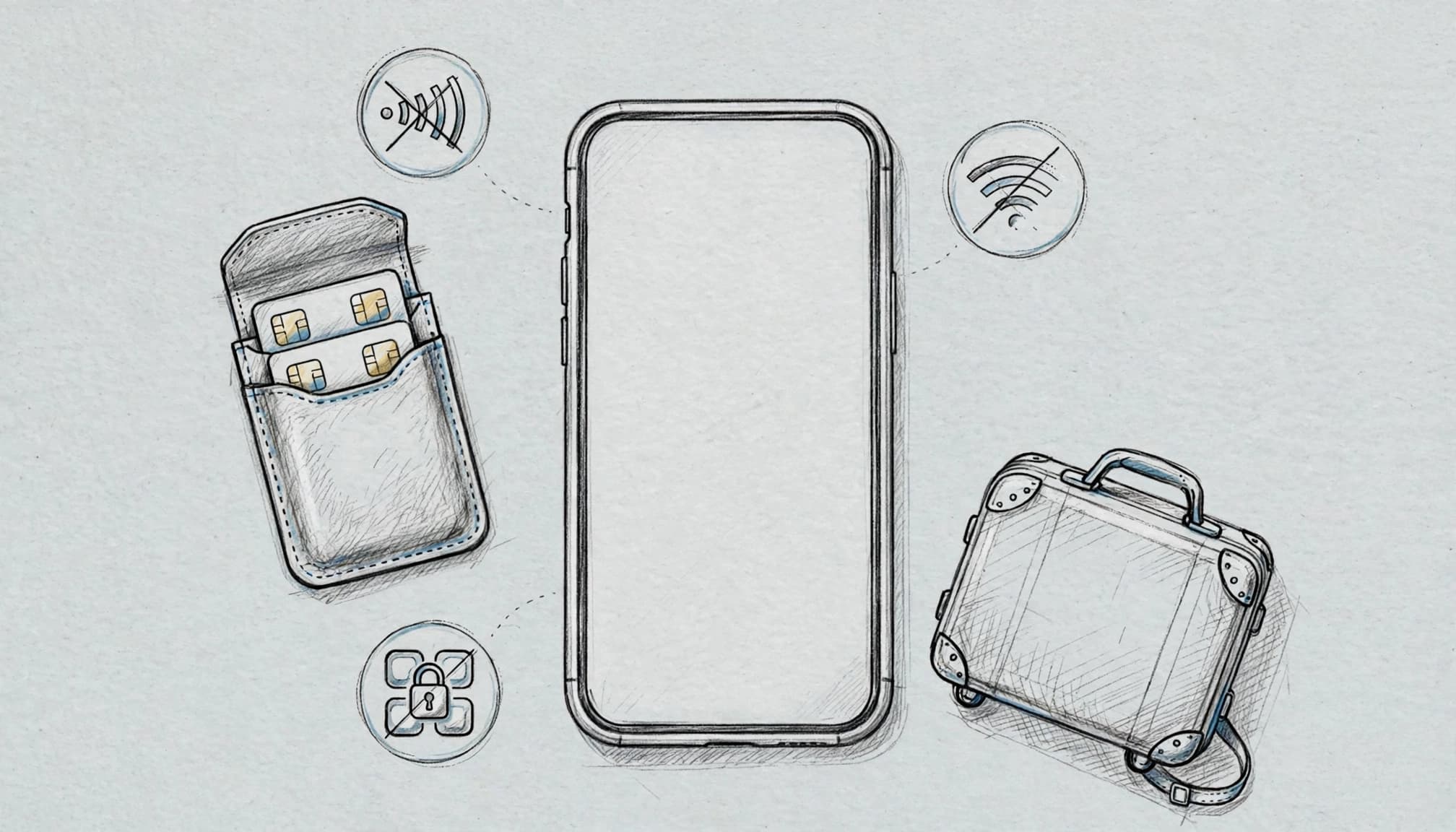
Turn on Low Data Mode for your travel line
Low Data Mode reduces background activity on the active cellular line. It can pause automatic updates, limit syncing, and reduce some background downloads.
Open Settings > Cellular, select your travel line, then tap Cellular Data Options. Choose Low Data Mode and switch it on. Some iOS versions show the setting under Data Mode instead.
This control matters most when your travel plan has a small allowance. A photo app may wait for Wi-Fi before syncing, while an App Store update may postpone its download. Your iPhone still handles essential communication, but nonessential activity loses its backstage pass.
Apple explains how Low Data Mode works on iPhone, including the steps for different cellular connections. You can also review this 1GB eSIM data guide before choosing how strict your settings should be.
Low Data Mode won’t replace daily checks. It reduces waste, but it doesn’t show which app caused yesterday’s data spike. Keep checking your Cellular screen so you can catch unusual activity early.
Disable Wi-Fi Assist when Wi-Fi gets flaky
Wi-Fi Assist can use cellular data when a Wi-Fi connection performs poorly. That feature helps pages load in a weak coffee-shop network, but it can also nibble at your travel plan while you think you’re safely on Wi-Fi.
Scroll to the bottom of Settings > Cellular and turn Wi-Fi Assist off. On newer iOS versions, Apple may describe related behavior as Connectivity Assist. The exact label can vary by device and software version.
This setting deserves attention in airports, hotels, and rental apartments. Their Wi-Fi may show full bars while delivering the speed of a sleepy tortoise. Without a cellular fallback, your connection may slow down, but your prepaid data won’t silently pick up the bill.
Apple’s Connectivity Assist explanation describes how cellular data can support a weak Wi-Fi connection. For a closer look at travel-related roaming behavior, read this guide to iPhone roaming data usage.
Block heavy apps from cellular data
Your usage list identifies the apps that consume the most data. Use that information to decide which apps should work only on Wi-Fi.
Return to Settings > Cellular and scroll through the app list. Turn off cellular access for video streaming, cloud storage, automatic photo backups, and large games. Those apps can still use Wi-Fi, so you aren’t deleting anything or locking yourself out forever.
Keep cellular access enabled for tools you need outdoors. Maps, translation apps, airline passes, and messaging services usually deserve priority. You can restore access temporarily when necessary, then switch it off again before the next data-hungry surprise.
Checking data usage finds the leak; app restrictions help seal it.
If your total rose sharply overnight, start with the highest-usage apps rather than changing every setting at once. That approach keeps your iPhone useful while protecting the allowance you paid for. When you still need a travel connection, Get your free esim now, then assign it as your iPhone’s data line before browsing abroad. You can also review gohub.com’s iPhone data usage guide for another look at the tracking screen.
Set Up Your iPhone for Safer eSIM Data Use Abroad
Dual SIM settings decide which line uses cellular data while you travel. Before takeoff, choose your travel eSIM, check your home line, and confirm that iPhone won’t switch plans behind your back.

Select the travel eSIM for cellular data
Open Settings, tap Cellular or Mobile Data, then tap Cellular Data. Choose your travel eSIM from the available lines.
This setting controls which plan pays for app activity, browsing, maps, and other mobile data. Apple provides the same Dual SIM data selection steps, although menu wording can vary between iOS versions.
Next, look for Allow Cellular Data Switching and turn it off. When enabled, iPhone can use another line if the selected line has weak coverage. That fallback may send data through your home carrier and trigger roaming charges.
You can also review Apple’s iPhone Dual SIM guide for travelers before activating your plan. The guide covers the relationship between your home line, travel line, and data settings.
Separate voice calls from mobile data
Your default voice line is a different setting from your cellular data line. Under Settings > Cellular, tap Default Voice Line, then choose the number you want to use for regular calls and texts.
You might keep your home line as the default voice line while selecting the travel eSIM for data. That arrangement lets you receive calls on your usual number, but your carrier may charge for calls, texts, or voicemail abroad.
If roaming charges concern you, open your home line’s settings and check Data Roaming. Turn off cellular data access or data roaming for that line, based on your carrier’s instructions. Keep the travel eSIM enabled for data, and turn on its roaming option only when the travel provider requires it.
Before boarding, use this quick checklist:
| Pre-flight setting | Recommended action |
|---|---|
| Reset cellular statistics on arrival | Reset the counter after activating the travel plan. |
| Low Data Mode for the travel line | Turn it on to reduce background activity. |
| Wi-Fi Assist | Turn it off to prevent cellular fallback. |
| Cellular access for heavy apps | Turn off access for streaming and cloud apps. |
| Cellular Data line | Choose the travel eSIM. |
| Allow Cellular Data Switching | Turn it off. |
Airplane Mode doesn’t replace correct line selection. If you want to use a travel eSIM, turn off Airplane Mode, select the travel line, and confirm its network settings. You can Get your free esim now before departure, then reset your iPhone’s cellular statistics when the trip begins.
Conclusion
Learning check data usage on iPhone takes only a minute. Open Settings > Cellular or Mobile Data, review app activity and System Services, then reset the statistics when your trip begins. That fresh counter gives you a clean view of your travel usage instead of mixing it with old data.
Before departure, select the correct SIM or eSIM for cellular data. Turn on Low Data Mode, disable Wi-Fi Assist, and block cellular access for apps that can wait for Wi-Fi. These small settings help stop background activity from nibbling through your allowance.
A quick daily check can catch a runaway sync before it grows into a giant data bill. Review your settings before takeoff, then Get your free esim now when you need a travel data option.