You’re admiring a beach view when you make a quick FaceTime call home, then discover your travel data package has vanished. Yes, FaceTime uses cellular data whenever Wi-Fi isn’t available, and a video call typically consumes about 3 MB to 5 MB per minute, or roughly 200 MB to 300 MB per hour.
Actual usage varies with video quality, network strength, and call activity. Before your next trip, learn how FaceTime uses cellular data and fix five common iPhone errors, including silent data switching, the wrong cellular line, roaming settings, weak video, and wasted high-definition data.
This post may contain affiliate links. If you make a purchase through these links, I may earn a small commission at no extra cost to you.
FaceTime Data Use: How Much Does Each Call Mode Consume?
Yes, FaceTime uses cellular data when Wi-Fi isn’t available. The amount depends on your call mode, video quality, signal strength, and how much movement appears on camera.

Use this quick benchmark before you troubleshoot unexpected data loss:
| FaceTime call mode | Average data per minute | Average data per hour | Recommended travel setting |
|---|---|---|---|
| HD video call | 3.5 MB to 5 MB | 200 MB to 300 MB | Use Wi-Fi whenever possible |
| Standard video call | 2 MB to 3 MB | 120 MB to 180 MB | Turn on Low Data Mode |
| FaceTime Audio | 0.5 MB to 1 MB | 30 MB to 60 MB | Best choice for conserving data |
These figures are estimates, not guarantees. A long call can use more data, especially with a weak signal, frequent video movement, or a high-quality connection. Streaming a busy beach scene uses more bandwidth than showing a quiet room.
FaceTime Audio gives travelers the best balance
FaceTime Audio uses far less data because it doesn’t send or receive video. It works well for quick check-ins, airport calls, and long family conversations when your travel plan has a small allowance.
Video calls still make sense when seeing someone’s face matters. However, switch to audio when the picture freezes, your signal weakens, or your data balance starts looking nervous.
Apple’s Low Data Mode settings reduce FaceTime video bitrate and limit other background activity. Before flying, also switch your iPhone mobile data to an eSIM so your travel line handles cellular data instead of your home plan.
5 FaceTime Data Errors That Drain Your Travel Plan
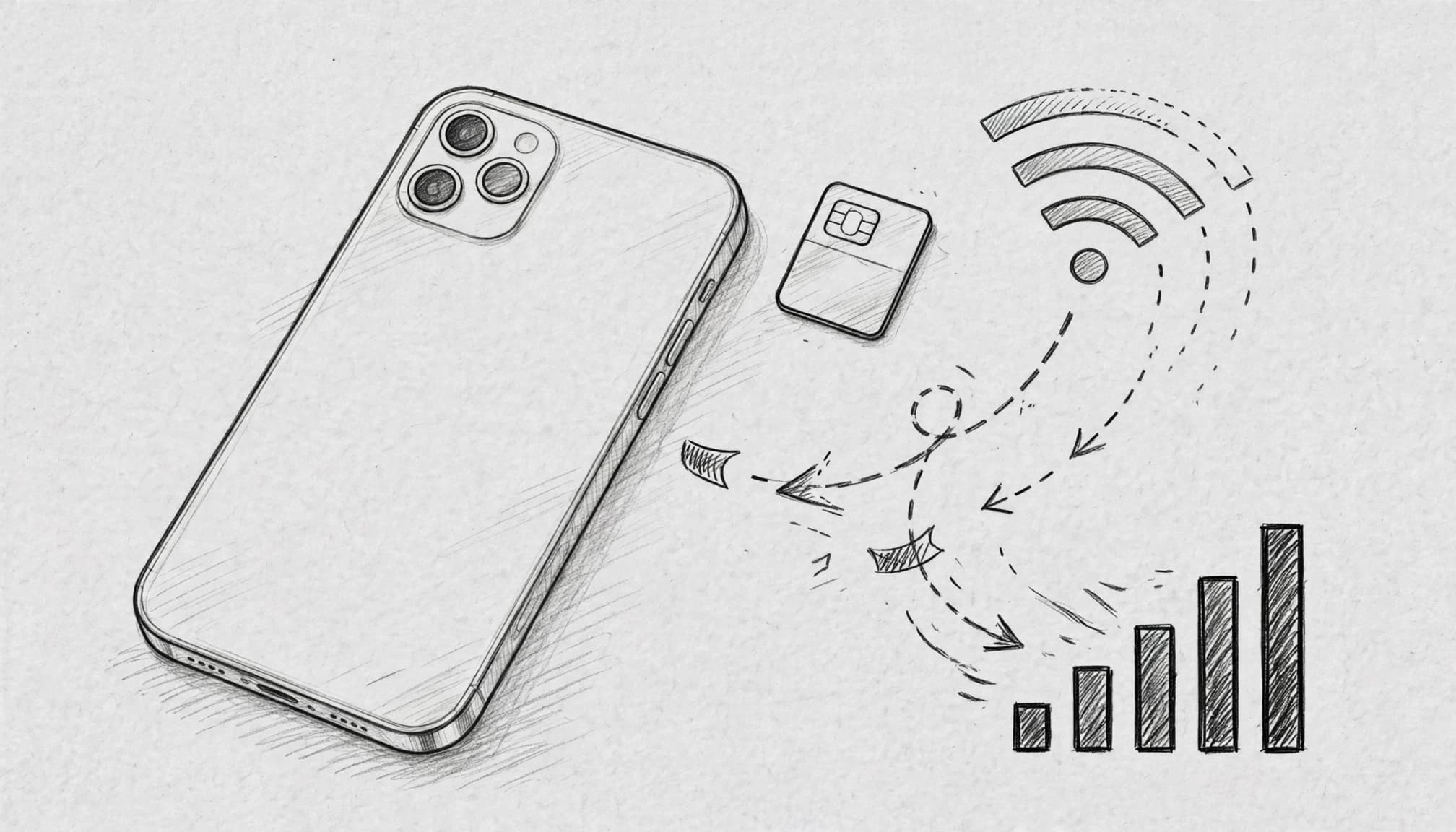
FaceTime usually uses Wi-Fi first, then cellular data when Wi-Fi disappears. These five iPhone settings can decide which line pays for the call and how quickly your plan runs out.
Wi-Fi Assist switches FaceTime calls to cellular data
Hotel, airport, and café Wi-Fi can weaken without warning. Your iPhone may keep FaceTime connected by using cellular data when the Wi-Fi signal becomes unreliable.
Wi-Fi Assist can trigger that switch automatically. The call continues, but your travel allowance takes the hit. A busy lobby or crowded hotel network can create this problem even when the Wi-Fi icon remains visible.
To stop this behavior, follow these steps:
- Open Settings.
- Tap Cellular.
- Scroll to the bottom of the page.
- Turn Wi-Fi Assist off.
The label may appear as Mobile Data in some regions. iOS menu names can also vary by version and language.
With Wi-Fi Assist disabled, FaceTime may pause or buffer when Wi-Fi fades. That interruption is frustrating, but it gives you a clear warning instead of spending cellular data without notice.
Before using public Wi-Fi abroad, check Wi-Fi Assist while you still have a reliable connection.
This setting helps answer the question, “Does FaceTime use data when Wi-Fi becomes weak?” It can, even when your phone has not fully disconnected from Wi-Fi. You can also review whether to turn data roaming on or off before making calls overseas.
FaceTime shows “Connecting…” because cellular access is off
FaceTime may work perfectly on Wi-Fi but fail over a mobile network. The call can remain stuck on “Connecting…” because iOS has blocked cellular access for the FaceTime app.
Check the app permission before changing other settings:
- Open Settings.
- Tap Cellular.
- Scroll through the app list.
- Find FaceTime.
- Turn its toggle on.
Some iPhones display Mobile Data instead of Cellular. If FaceTime already has access, turn the setting off and on again. Then close FaceTime and reopen it.
Your active travel eSIM also needs a working data connection. Open Settings, tap Cellular, and confirm the travel line has mobile data enabled. Check that the line connects to a supported local network.
If the call still refuses to start, restart FaceTime or restart the iPhone. A restart can refresh the cellular registration after you change eSIM or app permissions.
For extra help, review this step-by-step iPhone eSIM setup. It covers line selection and data settings that affect FaceTime abroad.
FaceTime uses the home SIM instead of your travel line
Your iPhone can have several lines active at once. If it selects your home SIM for cellular data, FaceTime may expose that line to international roaming charges.
FaceTime itself normally uses data, not traditional per-minute calling charges. However, the wrong active data line can still connect the call through your home carrier.
Set your travel eSIM as the data line before calling:
- Open Settings.
- Tap Cellular.
- Tap Cellular Data.
- Select your travel eSIM.
- Turn off Allow Cellular Data Switching if you want strict control.
Disabling data switching prevents the iPhone from choosing another line when the travel connection weakens. Your call may stop instead, but your home plan won’t quietly become the backup.
Next, check FaceTime’s caller identity:
- Open Settings.
- Tap FaceTime.
- Find Start New Calls From.
- Choose your Apple ID email when that option appears.
Using your Apple ID email can keep FaceTime separate from your home phone number. It doesn’t replace the need to select the correct cellular data line, but it reduces confusion about which address starts new calls.
Before departure, configure your travel eSIM on iPhone and test FaceTime with Wi-Fi turned off. A short test call can reveal the wrong line before you leave home.
FaceTime lags or freezes after a network change
FaceTime can drop during a train ride, road trip, or flight after landing. Moving between cities also forces your iPhone to switch towers and network partners.
Weak coverage is one possible cause. Crowded networks, a data cap, or a plan’s fair usage policy can cause the same symptoms. Video needs a steady stream of bandwidth, so it often freezes before audio fails.
Try these fixes in order:
- Move to an area with a stronger signal.
- Reconnect to trusted Wi-Fi.
- Switch from FaceTime Video to FaceTime Audio.
- Check your travel plan balance.
- Restart FaceTime after the network changes.
FaceTime Audio needs far less bandwidth than video. It can remain usable when a video call shows a frozen face or drops every few seconds.
A fast network doesn’t guarantee unlimited data. Some travel plans reduce speeds after you reach a daily or total allowance. Check your provider’s usage page before blaming the iPhone for a crowded network.
For long calls, start with audio and add video when the connection looks stable. Your family can still hear your travel stories, even if the scenery waits for a better signal.
HD video uses your data allowance faster than expected
A long family catch-up can use several hundred megabytes or more. FaceTime transfers more data when the call uses higher-resolution video, shows constant movement, or runs over a fast 5G connection.
A quiet face in a room usually needs less data than a busy street, moving crowd, or sweeping beach view. Video quality can also change during a call as network conditions improve.
Turn on Low Data Mode for your travel line:
- Open Settings.
- Tap Cellular.
- Select the active travel line.
- Tap Cellular Data Options.
- Turn on Low Data Mode when the option appears.
Some iOS versions place this setting directly inside the selected line’s menu. The label can vary, but look for Low Data Mode under cellular data options.
Low Data Mode reduces background activity and may lower FaceTime video quality. That tradeoff protects your allowance, especially when other apps try to sync photos or download updates during your call.
Use FaceTime Audio for long conversations whenever video adds little value. Then check usage after a short test call by opening Settings, tapping Cellular, and reviewing the active travel line’s data total.
If you’re ready to set up a separate line, Get your free esim now. A correctly selected travel plan gives FaceTime a clear path to mobile data, while the right iPhone settings help keep your home line out of the billing drama.
How to Optimize FaceTime Before an International Flight
A few iPhone settings can protect your travel data before you reach the gate. Complete these four steps at home, then test FaceTime with Wi-Fi turned off.

1. Turn off Wi-Fi Assist
Open Settings, tap Cellular, and scroll to the bottom. Turn Wi-Fi Assist off.
Wi-Fi Assist can move FaceTime to cellular data when airport or hotel Wi-Fi becomes weak. Your call continues, but your travel allowance starts paying the bill.
The call may pause when Wi-Fi drops. That small interruption gives you a useful warning before cellular data takes over. Apple also explains how to change cellular data settings on iPhone.
2. Enable Low Data Mode on your travel line
Return to Settings, tap Cellular, and select your travel eSIM or travel line. Tap Cellular Data Options, then turn Low Data Mode on.
This setting reduces background activity and can lower FaceTime video quality. As a result, long calls use less data on your international plan.
Low Data Mode also limits automatic updates and background syncing. Apple’s Low Data Mode instructions cover the related Wi-Fi and cellular options.
3. Choose your Apple ID for FaceTime calls
Open Settings, tap FaceTime, and find Start New Calls From. Select your Apple ID email when that option suits your travel setup.
Your Apple ID can keep FaceTime separate from your home phone number. It doesn’t select your cellular data line, but it can reduce confusion when multiple lines remain active.
You still need to confirm FaceTime has cellular access. In Settings, tap Cellular, then keep the FaceTime toggle enabled.
4. Block heavy background apps
Open Settings, tap Cellular, and review the app list. Turn off cellular access for apps that consume large amounts of background data.
Common examples include:
- Video streaming apps that preload shows or clips.
- Cloud backup apps that sync photos and videos.
- Social media apps that refresh image-heavy feeds.
Keep FaceTime enabled. Your iPhone can then reserve cellular data for calls while blocked apps wait for Wi-Fi.
Before boarding, turn Wi-Fi off and make a short FaceTime test call. Check that the travel line handles data, the video connects, and your home line stays unused.
If you still need affordable mobile data, Get your free esim now. You can also review a travel eSIM that works on this phone before departure. A five-minute test at home beats discovering a settings problem above the clouds.
The FaceTime Travel Checklist for Reliable Calls Abroad
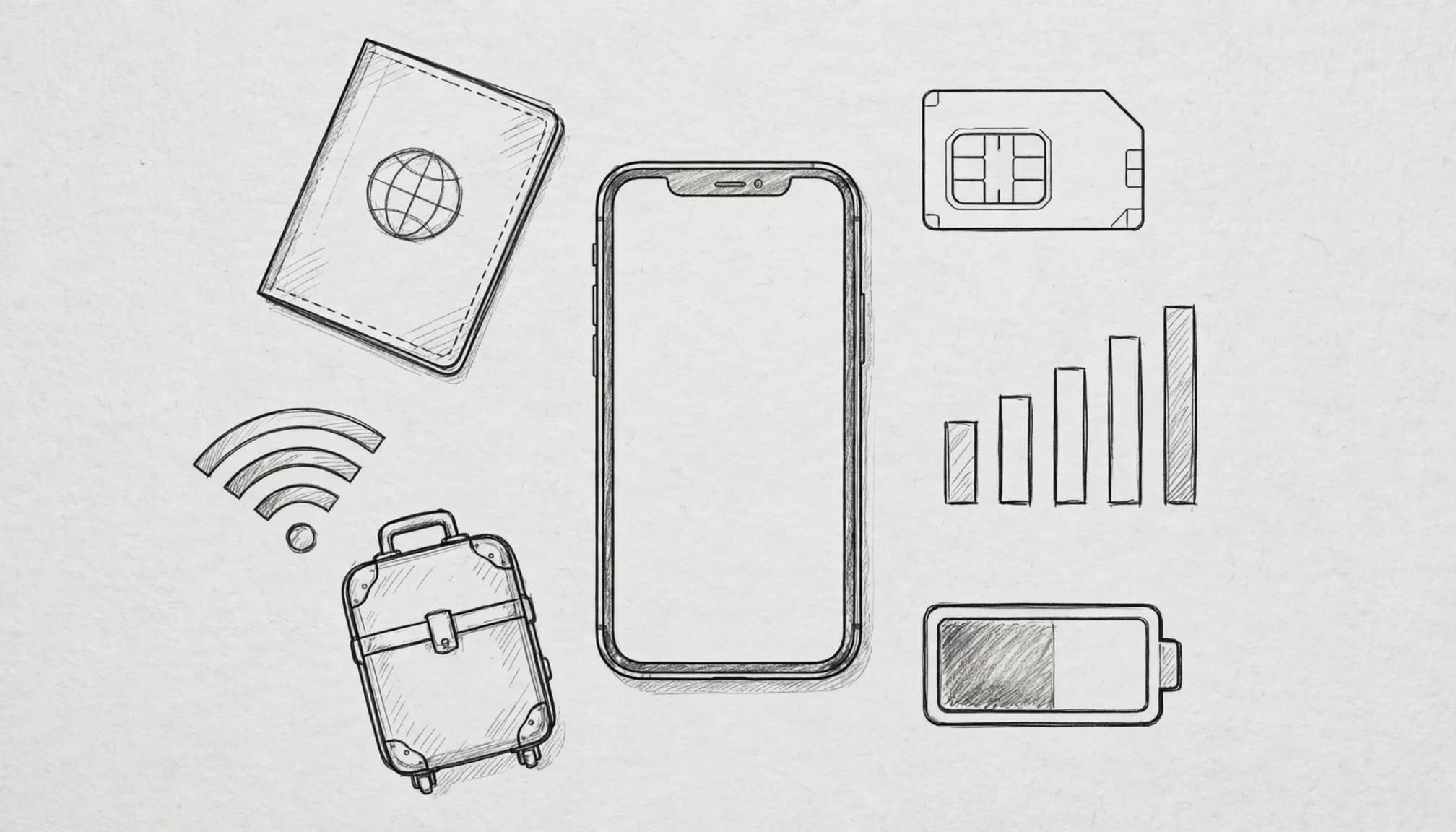
Before takeoff, check your iPhone settings while you still have stable internet. A five-minute review can prevent roaming surprises and failed calls after landing.
Complete this checklist before departure
Use this table as a quick screenshot reference. Confirm every setting before you leave home.
| Check | Recommended setting |
|---|---|
| Wi-Fi Assist | Disabled |
| Low Data Mode | On for the travel line |
| FaceTime cellular access | On |
| FaceTime Caller ID | Apple ID email, when appropriate |
| Cellular Data line | Travel eSIM selected |
| Cellular Data Switching | Review or disable for strict control |
| eSIM activation | Confirm the line turns on |
| Network coverage | Check supported coverage at your destination |
| Remaining data | Verify your plan balance |
| Battery level | Charge your iPhone before departure |
| Wi-Fi backup | Save access to trusted hotel or home Wi-Fi |
For eSIM setup details, follow this iPhone eSIM setup guide for international travel. Then place a short test call with Wi-Fi turned off.
Open Settings > Cellular and select your travel eSIM under Cellular Data. Review Allow Cellular Data Switching, then disable it if you want strict control over the active data line.
Next, visit Settings > FaceTime. Keep cellular access enabled, and choose your Apple ID email under Start New Calls From when that fits your setup.
Airplane Mode needs careful handling. Turning it on disables cellular data, so active mobile FaceTime calls cannot continue. You can turn Wi-Fi back on afterward, but Airplane Mode itself isn’t a data-saving setting for cellular calls. Apple explains these travel controls in its iPhone travel settings guide.
Finally, switch on Low Data Mode for the travel line. Apple explains how Low Data Mode reduces cellular usage. If your eSIM still needs activation, Get your free esim now before your departure date.
How to Keep FaceTime Calls Smooth Without Surprise Charges
A few simple habits can keep FaceTime useful without turning your data plan into airport snack money. Start with Wi-Fi for long video calls, then switch to lighter options when cellular data must do the work.
Build a low-data calling routine
Use trusted Wi-Fi for long family catch-ups, hotel calls, and scenic tours. For quick check-ins, FaceTime Audio uses much less data than video and usually handles weaker connections better.
If your plan has a small allowance, turn on Low Data Mode for your active travel line. Apple explains how this setting limits background activity and reduces cellular usage in its Low Data Mode guide.
Set a timer before a long call. A friendly 30-minute alert can prevent a two-hour conversation from quietly eating your allowance. Also check Settings > Cellular after major calls, especially when you travel between networks.
Data estimates vary with video quality, signal strength, and movement on camera. Treat the benchmark table as a planning guide, not a promise carved into an ancient iPhone tablet.
Before leaving Wi-Fi, download maps, playlists, podcasts, and entertainment. Those files can consume far more data than a short FaceTime call. Finally, confirm your travel eSIM handles cellular data and get your free esim now if you still need a separate plan.
With Wi-Fi for long calls, Audio for quick chats, and regular usage checks, a few settings changes can protect your allowance while keeping family calls easy.
Conclusion
Yes, FaceTime uses cellular data whenever Wi-Fi is unavailable, and five settings issues cause most travel surprises. Wi-Fi Assist can switch calls to mobile data, blocked FaceTime access can stop calls, the wrong SIM can trigger roaming, weak networks can freeze video, and high-definition calls can consume your allowance quickly.
Before departure, complete the pre-flight checklist and test your travel eSIM with Wi-Fi turned off. Review the cellular data line, FaceTime access, background app permissions, and switching settings using this iPhone cellular settings for travel.
When your data starts running low, switch to FaceTime Audio instead of letting a frozen video call nibble through the rest of your plan. A quick settings check before boarding keeps your travel data where it belongs, in your pocket rather than in a surprise bill.