High roaming charges and a scramble for Wi-Fi can make landing abroad feel less relaxing than it should. Many Samsung Galaxy phones support eSIM, and setup usually takes just a few minutes through One UI, though support varies by model, region, and carrier.
You’ll check compatibility, install your travel profile, and choose the right line for mobile data. Start with the Android eSIM installation guide if you want a quick preview of the basic setup steps.
This post may contain affiliate links. If you make a purchase through these links, I may earn a small commission at no extra cost to you.
Which Samsung Galaxy phones support eSIM?
Many newer Samsung Galaxy flagships support eSIM, but the series name alone won’t confirm compatibility. Support can vary by exact model, region, software, and carrier, so check your phone before buying a travel plan.
Check your Galaxy model and regional version
eSIM support appears across many Galaxy S and Z models, plus select A-series phones, including some A35, A54, and A55 variants. However, FE, regional, and carrier-specific versions can differ, so don’t assume every phone in a series supports it. Check Samsung’s eSIM and carrier guidance and verify your exact model number with your carrier. You can also check Samsung Galaxy eSIM-compatible phones.
Use the EID to confirm eSIM hardware
Open the Phone app, enter *#06#, and look for an EID. Its presence is a useful sign that your Galaxy has eSIM hardware, but it doesn’t confirm carrier support or that the phone is unlocked. If no EID appears, verify the model with Samsung or your carrier before purchasing a plan.
Check carrier lock and dual-SIM limits
A carrier-locked phone may reject a travel eSIM from another provider. Request an official unlock before your trip. Also, active SIM combinations vary by model and region, so check SIM Manager for the options your phone supports. Once your phone is ready, get your free esim now.
Get your Samsung eSIM ready before you travel
A little preparation can prevent setup delays at the airport or after landing. Before installing a Samsung eSIM, check the plan’s rules, save its activation details, and make sure your phone can connect to the internet during setup.
Confirm the travel plan works with your destination
Check that the plan covers every country on your itinerary, including any layover where you expect to use mobile data. Then compare its data allowance and validity period with your trip. A plan with plenty of data can still expire before your return flight.
Also check which local networks the provider supports and whether it sets a specific installation or activation window. Installing the profile and using it for the first time may happen at different times. Some plans start their validity at installation, while others start when the eSIM connects to a network. Follow your provider’s instructions so you don’t start the clock early.
Once you’ve checked the details, get your free esim now if you still need a travel plan. You can also review a step-by-step eSIM installation guide before you begin.
Gather the QR code or activation details
Keep the provider’s QR code, manual activation details, and setup instructions within reach. If you’ll scan the code with your Galaxy, open it on another device or print it before setup. Your phone may need internet access to download the eSIM profile, so don’t rely on a QR image saved only on that same phone.
Some providers issue QR codes that work only once. Therefore, don’t delete an installed profile or scan the same code repeatedly if setup fails. Check the provider’s instructions or contact support before trying again. Samsung’s Galaxy eSIM setup guidance covers the basic QR-code process.
Connect to Wi-Fi and update One UI
Use a stable Wi-Fi connection and charge your phone before installation. A weak connection can interrupt the profile download, while a low battery can turn a quick setup into an inconvenient pause. Wi-Fi may be required to download the plan, so install it before departure if airport access could be unreliable.
Before you start, check for available Android software updates and carrier updates. Update names and menu locations can vary slightly by One UI version and region. Once your phone is ready, follow the provider’s steps in order, then confirm the profile appears in SIM Manager.
How to set up a Samsung Galaxy eSIM, step by step
Once your Galaxy supports eSIM and you have the travel plan details ready, install the profile through One UI’s SIM Manager. Menu labels can vary slightly by model, carrier, and software version, but the process is similar across supported phones.
Open SIM Manager in Settings
1. Open Settings, tap Connections, then choose SIM Manager. On some Galaxy phones, this menu may appear as SIM card manager.
Tap Add eSIM or Add mobile plan to begin. Your phone may briefly search for plans from your carrier before showing the setup options.
If neither option appears, don’t assume your Galaxy is broken. eSIM support can depend on the exact model, regional version, software, and carrier restrictions. Check your model’s compatibility and EID before troubleshooting further, or check whether your Samsung phone supports eSIM.
Scan the QR code or enter details manually
2. Choose the option to scan a QR code, then point your Galaxy’s camera at the code from your eSIM provider. Keep the code open on another screen or printed nearby, since your phone can’t scan a QR code displayed on its own screen.
Follow each prompt to download and add the profile. Samsung’s Galaxy eSIM setup instructions also describe the QR-code process.
If your provider gives you an activation code and server address instead, select the manual-entry option and enter the details exactly as provided. Don’t guess at missing information. Keep the phone connected to Wi-Fi or mobile internet during setup, and avoid closing SIM Manager while the profile downloads.
Wait for the profile to install and name it
3. Leave the setup screen open until your Galaxy confirms that the eSIM profile has installed. A slow connection may take a little longer, so give the download time to finish before trying again.
When prompted, assign the profile a clear name, such as Travel or the destination country. A useful label makes it easier to pick the right line later, especially if you keep a home SIM and more than one eSIM on your phone.
Installation doesn’t always mean the plan is active or connected. Some providers start the plan’s validity when you install it, while others activate it after the eSIM connects at your destination. Follow the provider’s timing instructions to avoid starting your travel plan too early.
Choose the travel line for mobile data
4. Return to Settings > Connections > SIM Manager and select your travel profile as the preferred line for Mobile data. The exact wording can differ, but look for the setting that chooses which SIM handles cellular data.
You can often leave your home number active for calls or texts while the travel eSIM handles data. However, check your home carrier’s roaming charges first, and make sure the home SIM doesn’t handle mobile data abroad. If your Galaxy shows options for automatic data switching, review them so the phone doesn’t switch lines unexpectedly.
After you arrive, follow your provider’s instructions for connecting to a local network. Some plans also require Data roaming on for the travel eSIM, so check the plan details before changing that setting.
Turn on travel data and avoid roaming surprises
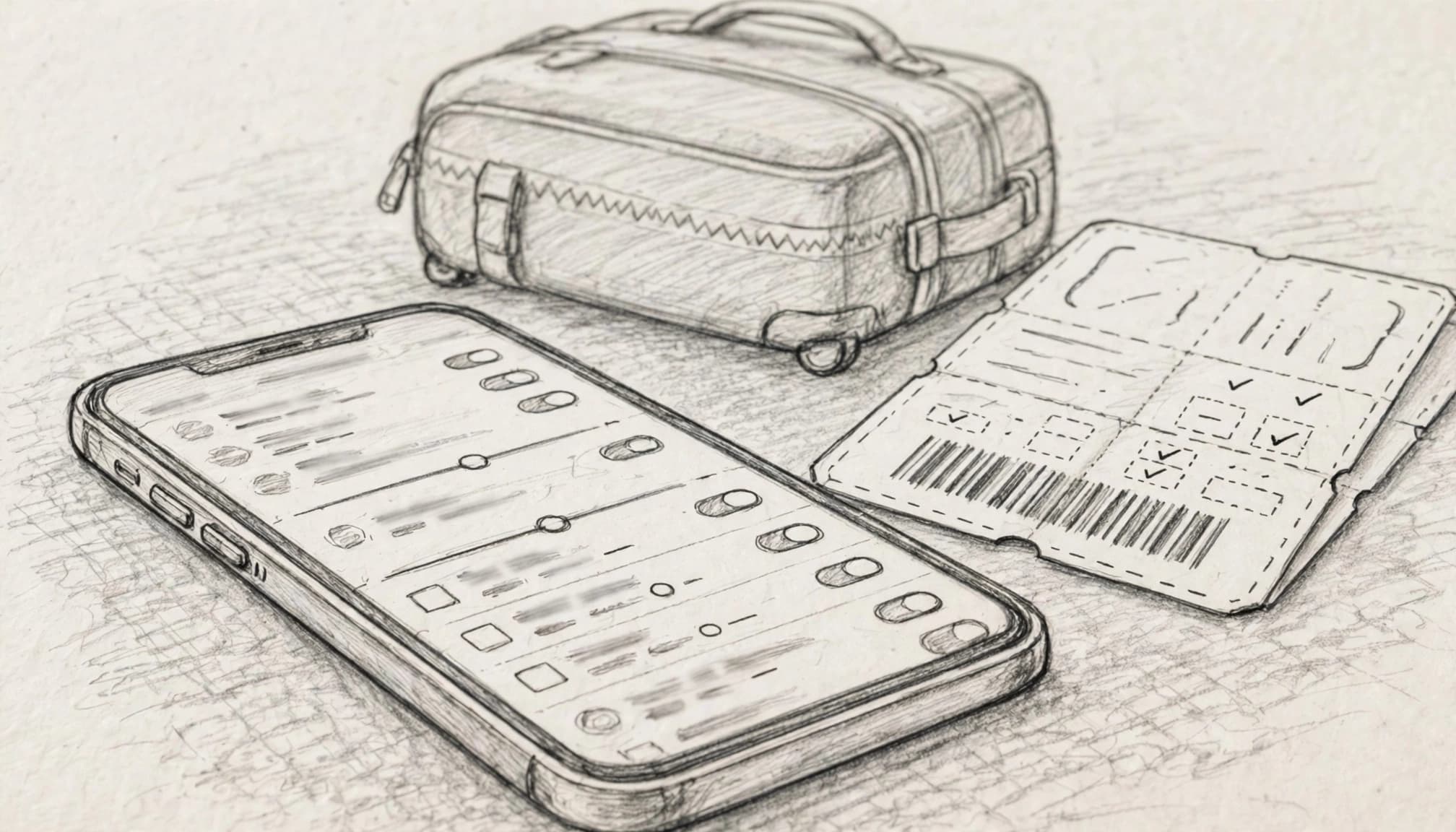
Before departure, confirm that your travel eSIM is installed and selected for mobile data in Settings > Connections > SIM Manager. Then check your provider’s activation and roaming instructions. The eSIM profile controls which plan you use, while roaming settings tell the phone whether that SIM can connect to partner networks abroad.
Set data roaming for the correct SIM
On your Galaxy, open Settings > Connections > Mobile networks, then find Data roaming. Before changing it, confirm which SIM or eSIM is selected. Menu labels can vary by model and One UI version, so use SIM Manager to check that the travel profile is active.
Some travel eSIMs need Data roaming turned on to connect to local networks. Follow your provider’s instructions for that profile, and keep roaming off for your home line to reduce the chance of unexpected data charges. Samsung also outlines the setting in its Galaxy data roaming instructions.
Keep your home number available without using its data
Some Galaxy phones let you keep your home SIM active for calls or bank verification texts while the travel eSIM handles mobile data. In SIM Manager, set the travel profile as the preferred line for Mobile data. If your phone offers automatic data switching, review or disable it so the home line doesn’t unexpectedly take over. These dual-SIM travel settings can help you keep both profiles organized.
Your home carrier may charge for calls, texts, or voicemail abroad, even when the travel eSIM handles data. Check its international rates before leaving, and don’t assume incoming texts are free. When your settings are ready, get your free esim now.
Test the connection after landing
After you land, turn off Airplane mode and confirm the travel eSIM is enabled. Give the phone a minute to register on a supported local network. If service doesn’t appear, compare the available network with your provider’s supported network list, then restart your Galaxy and check again.
Finally, open a webpage to confirm data works and check your plan’s data balance in the provider’s app or account page. If pages won’t load, verify that mobile data still points to the travel eSIM and that its roaming setting matches the provider’s instructions.
Fix common Samsung eSIM setup problems
Most Samsung eSIM issues come down to device compatibility, profile settings, or carrier restrictions. Check those in order before reinstalling a profile, since some eSIM QR codes work only once.
The Add eSIM option does not appear
First, open the Phone app and enter *#06#. If an EID appears, your Galaxy has eSIM hardware, but the exact regional model must also support eSIM. Check the full model number in Settings > About phone, then compare it with Samsung’s list of eSIM-supported models and carriers.
Next, install any available software updates and restart the phone. A carrier lock or regional restriction can still block setup, even when the hardware supports eSIM. If your model should support it and Add eSIM remains missing, ask your carrier to check the lock status or contact Samsung.
The profile installs but shows No service
Check the plan’s activation timing first. Some travel eSIMs connect only after you reach the covered destination, while others require a setting change before they register. In SIM Manager, confirm the profile is enabled, then check network selection and the provider’s roaming instructions.
Restart your Galaxy and allow a few minutes for local network registration. If service still doesn’t appear, contact the eSIM provider with your exact phone model and any error message. That gives support a useful starting point, rather than a vague report that the phone has gone quiet.
The home SIM uses data or roaming charges appear
Open Settings > Connections > SIM Manager and confirm your travel profile is selected for Mobile data. If your Galaxy offers automatic data switching, turn it off so the phone doesn’t shift data use to your home line. Also disable data roaming on the home SIM.
You can switch between eSIM plans on a Samsung phone if you need to select another active profile. Finally, review your home carrier’s billing details. Changing SIM settings can prevent future data use, but it can’t reverse charges that have already appeared.
Run this quick Galaxy eSIM checklist before takeoff
Before you head to the airport, give your Samsung eSIM setup one last look. These quick checks can catch compatibility or line-selection problems before you’re relying on mobile data abroad.
Your pre-flight eSIM checklist
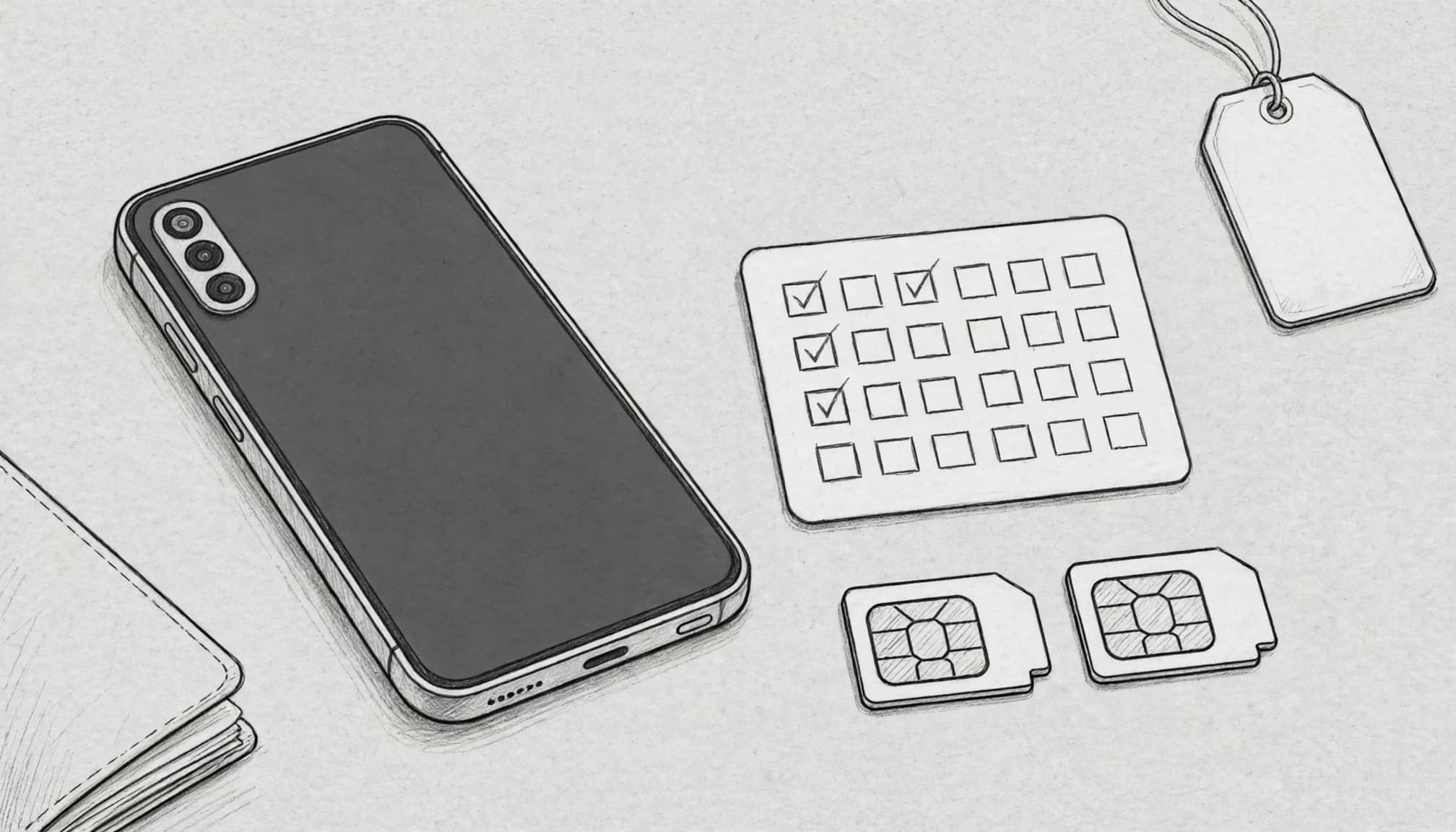
- EID appears: Dial
*#06#and confirm your phone displays an EID. This indicates eSIM hardware, but it doesn’t confirm support for every model or carrier. - Model and region support eSIM: Check your exact model number and regional version against the list of eSIM-compatible phones. Samsung also provides Galaxy eSIM and carrier guidance.
- Phone is unlocked: Confirm your carrier has unlocked the Galaxy if you plan to use a travel eSIM from another provider.
- Travel profile is installed: Open Settings > Connections > SIM Manager and make sure the travel eSIM appears there.
- Mobile data uses the travel line: Check that SIM Manager selects the travel profile for Mobile data, not your home SIM.
- Roaming matches each plan’s instructions: Check the roaming setting for both SIMs. Turn it on for the travel eSIM only if the provider requires it, and keep it off for your home line if you want to avoid roaming data charges.
Once those settings check out, keep your provider’s activation details handy. You can get your free esim now if you still need a travel plan.
Conclusion
Setting up a Samsung eSIM is straightforward once you confirm your exact Galaxy model supports it. Install the profile over Wi-Fi, then select the travel eSIM for mobile data in SIM Manager. When your plan requires roaming, follow its instructions after you arrive.
With those checks done, your phone is ready for the trip, and your home line is less likely to handle travel data by mistake. Need a plan? Get your free esim now. For a destination-specific walkthrough, see the steps for adding an eSIM on your Samsung Galaxy.