Your plane lands in Bangkok, and your phone suddenly becomes mission control. You need maps, ride-hailing, hotel directions, and messages before your luggage carousel starts its slowest performance.
Buying a Thailand eSIM before takeoff usually saves time and stress. You can prepare at home, then connect when you land, instead of shopping while tired and carrying more bags than patience.
Airport counters still work, but queues, tourist pricing, and setup delays can complicate arrival. Buying early also gives you time to check your iPhone, choose the right trip length, and review Thailand eSIM plans before departure.
However, buying there may suit travelers who prefer in-person help or want to decide after arrival. The better choice depends on your comfort with preparation, your itinerary, and how quickly you need data.
Next, we’ll compare both options so you can choose your Thailand connection without airport guesswork.
This post may contain affiliate links. If you make a purchase through these links, I may earn a small commission at no extra cost to you.
Buying Early vs. Buying There: Which Thailand eSIM Option Wins?
Buying a Thailand eSIM before departure usually wins on convenience, timing, and price clarity. You can install it on stable home Wi-Fi, test your iPhone, and land with data ready for maps or a ride.
Airport kiosks in Bangkok and Phuket remain useful, especially when your iPhone has compatibility problems. However, queues, staff availability, and unreliable airport Wi-Fi can turn a quick purchase into an arrival chore.
| Comparison point | Buying online at home | Buying at a Bangkok or Phuket airport kiosk |
|---|---|---|
| Setup convenience | Install the eSIM before your flight. | Wait for a kiosk and complete setup after landing. |
| Internet access | Connect as soon as your plane lands. | Access starts after the purchase and activation finish. |
| Price clarity | Review the plan price before paying. | Airport pricing may include higher tourist markups. |
| Airport queues | Skip the counter completely. | Wait times depend on arrivals and staff availability. |
| Device testing | Check installation and compatibility at home. | Discover problems when you already need service. |
| Main risk | You must confirm your phone supports eSIM. | Queues, weak Wi-Fi, or activation delays can interrupt setup. |
Why buying before departure feels easier
At home, your Wi-Fi connection is stable and your charger is probably nearby. You can scan the QR code, follow the iPhone prompts, and leave the travel line ready for your arrival.
Before you buy esim thailand plans online, check that your phone shows “No SIM restrictions” under Settings, General, and About. Apple’s carrier lock instructions explain this check. A locked iPhone may reject a travel eSIM, so solve that problem before packing.
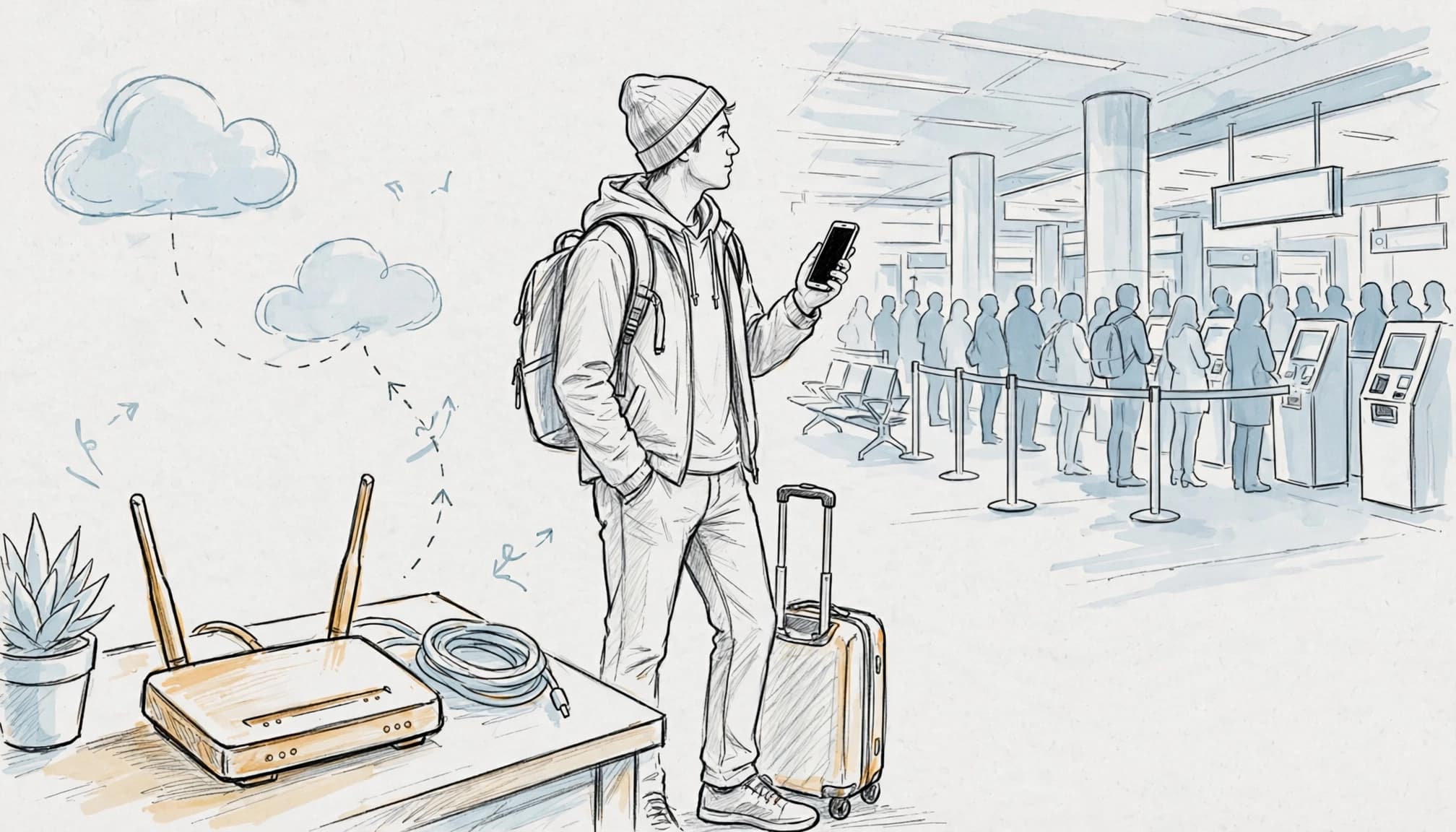
When an airport kiosk makes sense
An airport purchase suits travelers who want face-to-face help or feel unsure about installing an eSIM. Staff may also help when your phone lacks eSIM support or has a carrier lock.
Still, the process depends on more than the salesperson. You may need working airport Wi-Fi, enough battery, and time to wait. If you want to prepare your phone before departure, learn how to buy an eSIM before your flight. You can also get your free esim now if you want to arrange connectivity early.
Why Buying Your Thailand eSIM Before Flying Makes Arrival Easier
Buying your Thailand eSIM before departure gives you more control when you land. You can prepare on reliable Wi-Fi, check your iPhone, and compare plans without airport pressure.
Skip weak airport Wi-Fi and long arrival queues
Free airport Wi-Fi may ask for extra logins, SMS verification, or repeated connection attempts. A crowded arrivals hall is a poor place to troubleshoot tiny settings menus.
Instead, install your eSIM at home before boarding. Save the QR code somewhere secure, such as your email or cloud storage, in case you need it later.
Installation doesn’t always mean immediate usage. Many plans activate after the eSIM connects to a supported Thai network. Follow your provider’s activation terms carefully, especially when choosing when to turn on the line.
Avoid tourist markups and rushed purchase decisions
Airport counters have higher operating costs and limited shelf space. Those factors can affect pricing and reduce your plan choices.
Before flying, compare the total price, data allowance, validity period, network access, hotspot rules, and customer support. A fixed data package also helps you match the plan to your trip length.
A seven-day visit probably doesn’t need a thirty-day plan with unused data. Likewise, a remote island trip may require different network access than a short Bangkok stay.
Don’t choose a plan simply because a counter employee recommends it. Airport advice can help, but rushed decisions leave little time for comparison. Buying at the airport still makes sense when you forgot to prepare or need face-to-face assistance.
Test iPhone compatibility before the trip
Check your iPhone before purchasing any travel eSIM. Open Settings, tap General, select About, and find Carrier Lock.
The screen should show “No SIM restrictions.” If it shows a carrier restriction, contact your home provider before flying. Resolving the lock abroad can become slow, expensive, and frustrating.
Older iPhone models may not support eSIMs. Regional model differences can also affect compatibility, even when two phones share the same model name. Confirm your exact model with the provider before purchase.
Get maps and ride-hailing working as soon as you land
An active travel eSIM can help you book a Grab ride, open your hotel map, or translate a taxi address. You can also message a host when your arrival time changes.
Before departure, download important addresses, booking details, and boarding information. Offline copies provide a backup if coverage drops or activation takes longer than expected.
Coverage still depends on the supported Thai network and your location. Check the provider’s network details before you buy, especially if your itinerary includes rural areas or islands.
How to Buy and Set Up a Thailand eSIM on an iPhone
Set up your Thailand eSIM before leaving home, while you have reliable Wi-Fi and time to fix mistakes. This four-step walkthrough covers compatibility, purchase decisions, installation, line labels, and roaming controls.
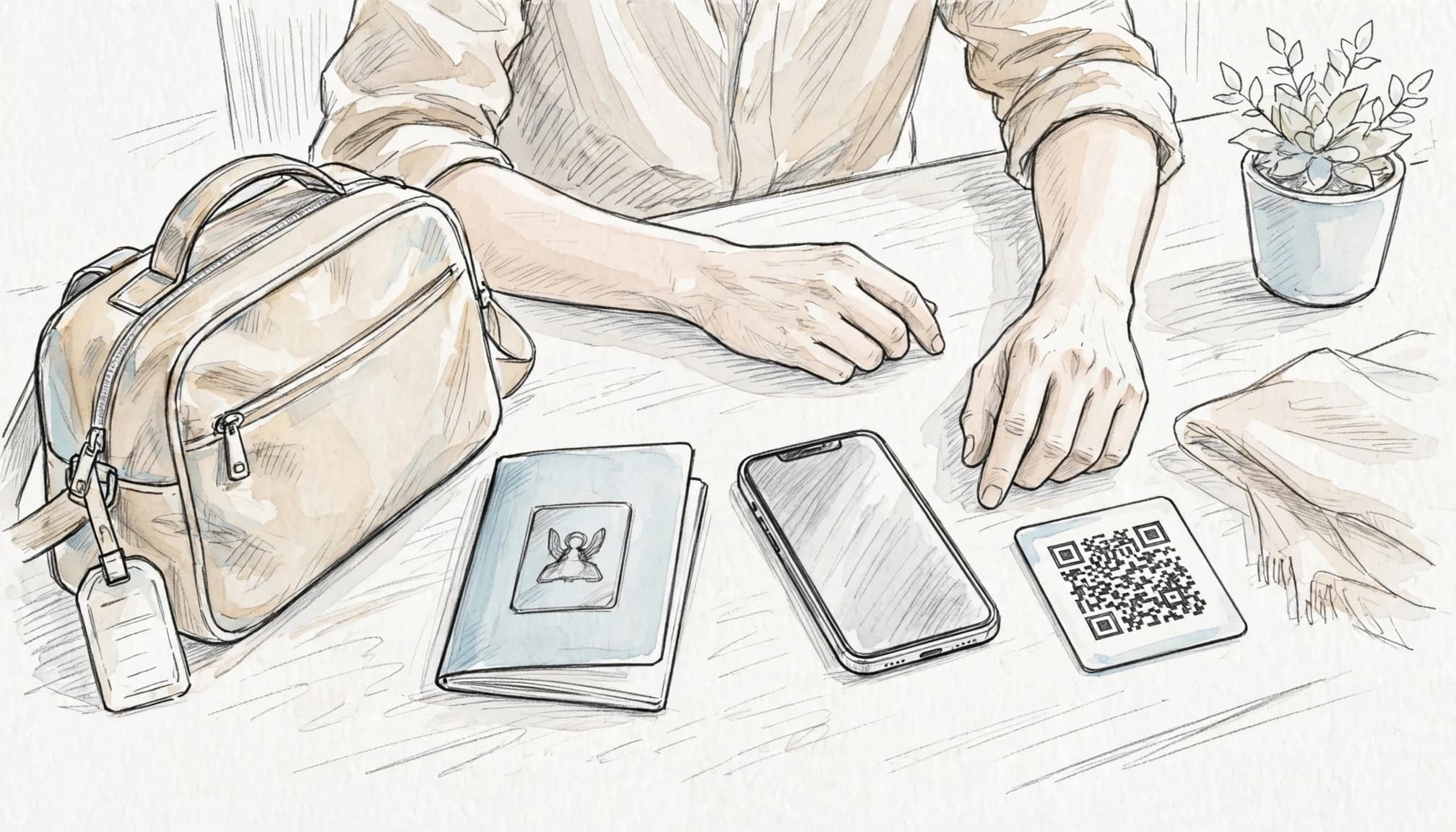
Check your iPhone settings before purchase
Step 1: Check the carrier lock and device model. Open Settings, tap General, select About, then find Carrier Lock. The screen should say “No SIM restrictions.” In plain English, your iPhone can accept a travel eSIM from another carrier.
The iPhone XS, iPhone XR, and newer models generally support eSIM. Regional versions and carrier limits can still affect compatibility, so confirm your exact model before you buy. Also check your iOS version and available storage, since both can affect the setup process.
If you need a plan, compare the trip length and data allowance through the esimthailand.co purchase guide. Choose a fixed package that matches your itinerary instead of grabbing the biggest option by default. A short Bangkok visit needs less data than a longer trip with daily video calls and island transfers.
Install the profile without activating the wrong line
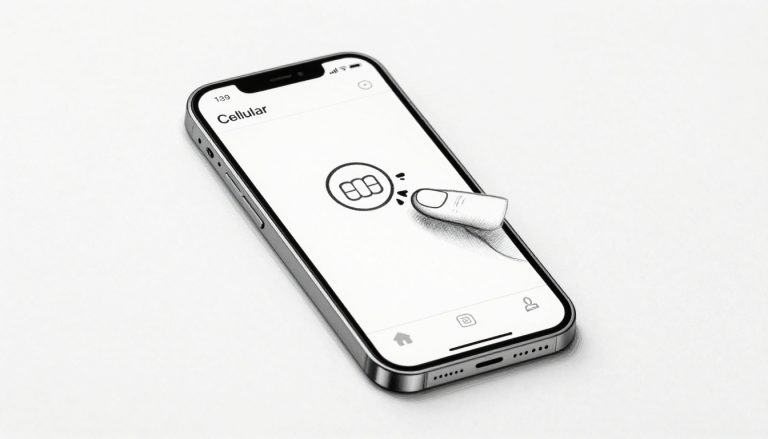
Step 2: Install the eSIM at home. Complete the setup on reliable Wi-Fi before your flight. Open Settings, tap Cellular, select Add eSIM, and choose Use QR Code. Scan the code supplied by your provider, then follow the prompts until the profile finishes installing.
Apple also lists these same eSIM setup steps for iPhone. Save the QR code securely, but don’t delete the installed eSIM afterward. Some plans allow only one installation, so removing the profile may prevent you from reinstalling it.
Step 3: Label and select the travel line. When iPhone asks you to name the new line, choose Thailand Travel. Under Cellular settings, select that line for cellular data. Then turn off Allow Cellular Data Switching so your iPhone doesn’t quietly switch to your home line.
You can still keep your primary line active for calls when necessary. However, roaming charges may apply, so use it sparingly while traveling. If you need a plan before departure, you can also get your free esim now.
Set roaming controls before takeoff
Step 4: Control data roaming before boarding. Open your primary home line in Settings > Cellular and turn off Data Roaming. This helps prevent your regular carrier from charging for accidental overseas data.
Check your Thailand eSIM provider’s instructions before changing the travel line. Some plans require Data Roaming to stay on because the eSIM connects through a partner network. The provider’s instructions control this setting, so don’t assume both lines need identical options.
Before you leave, take screenshots of the active line, cellular data selection, and roaming controls. Keep the QR code in a secure email or cloud account as a backup. Then, when you land, turn off Airplane Mode and confirm that Thailand Travel handles cellular data.
What to Do When Your Plane Lands in Thailand
Your first few minutes after landing should be simple: connect the Thailand travel eSIM, check the signal, and confirm that your phone uses the right line. Network registration may take a few minutes, so don’t panic if service doesn’t appear instantly.
Confirm the travel line carries your mobile data
Once you leave Airplane Mode, open Settings, tap Cellular, then select Cellular Data. Choose your Thailand travel profile, which you may have labeled “Thailand Travel” during setup.
Next, check the signal indicator at the top of your iPhone. Local 4G or 5G bars should appear after the eSIM registers with a Thai network. Open Maps or a weather page to run a quick test.
Turn off Allow Cellular Data Switching if you want full control over which line uses data. Apple’s Dual SIM instructions explain how this setting affects cellular data.
Protect your home number from surprise roaming charges
Keeping your home line active isn’t the same as allowing it to use mobile data abroad. You can leave the line available for selected calls or texts, but turn off Data Roaming on that line.
Open Settings > Cellular, select your home number, tap Cellular Data Options, and disable Data Roaming. Keep the setting enabled on your Thailand eSIM only if the provider requires it. Check Apple’s roaming settings guidance if the menu looks different.
Calls, texts, and voicemail may still create charges through your home carrier. Before departure, review its international policy and decide whether you need the home line active at all.
Troubleshoot a missing signal without panicking
If your eSIM doesn’t connect, follow these steps in order:
- Move away from crowded areas, thick walls, or busy arrivals zones.
- Toggle Airplane Mode on, wait ten seconds, then turn it off.
- Restart your iPhone if the signal remains missing.
- Reopen Settings > Cellular > Cellular Data and confirm the Thailand line.
- Check your provider’s network and roaming instructions.
- Use airport Wi-Fi to contact provider support if the problem continues.
Wait a few minutes between steps because network registration can take time. Don’t delete the installed eSIM unless support directs you to do so. Airport Wi-Fi works as a temporary backup, but your travel line should handle maps and messages once registration finishes.
When Buying an eSIM in Thailand Still Makes Sense
Buying before departure works for most iPhone travelers, but airport and local purchases still have their place. Your phone model, carrier settings, trip plans, and need for calls can change the best choice.
Choose airport setup if your phone cannot use eSIM
A physical SIM can rescue travelers with older iPhones, carrier-locked devices, or regional restrictions. Some phones look compatible but lack eSIM support in specific markets, so check your exact model before purchasing.
Airport kiosks can also help if your QR code is damaged, your installation fails, or you want staff to configure the line. Bring your passport or another accepted form of identification because local registration may require it.
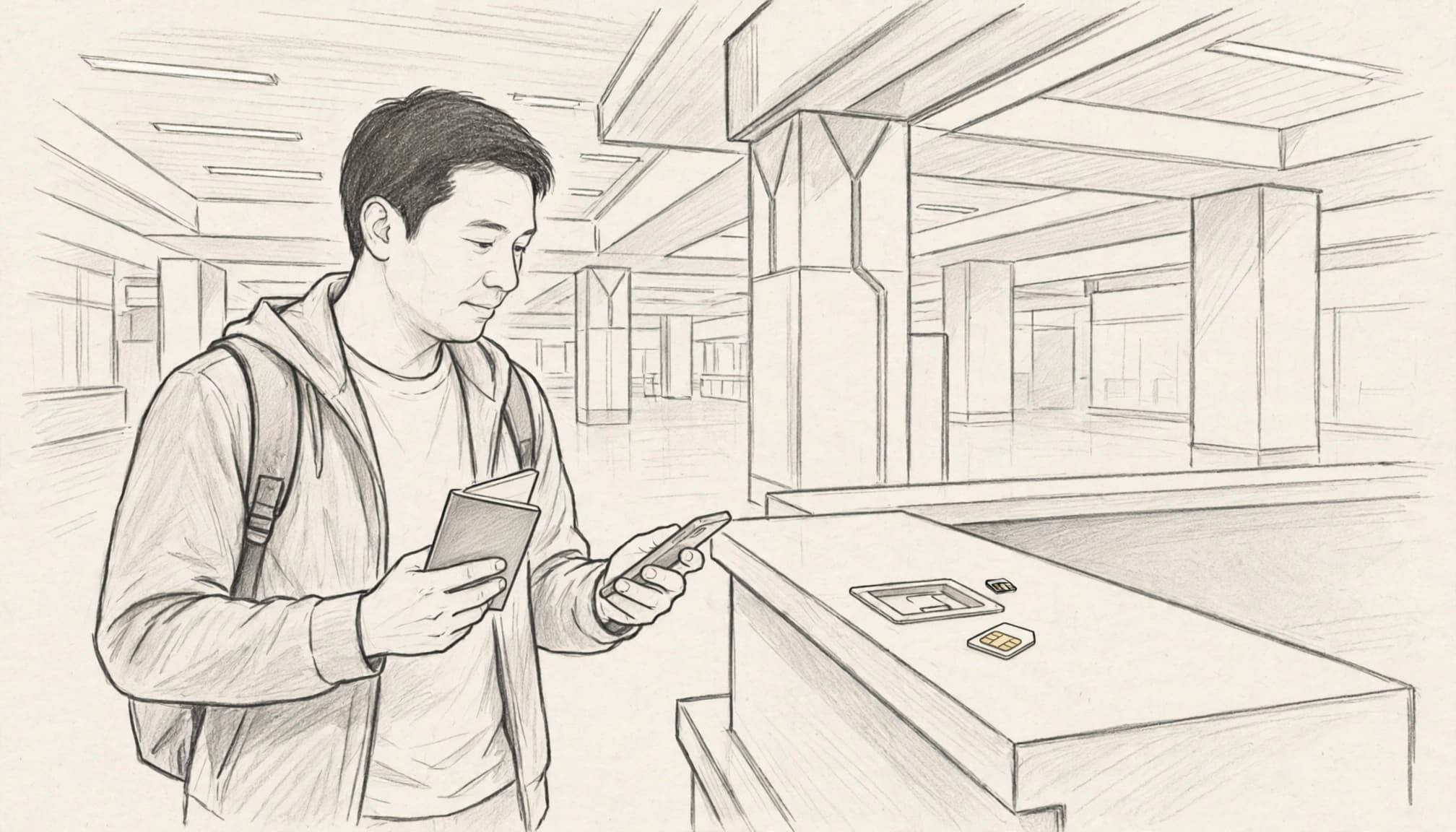
Before leaving the counter, ask staff to confirm the SIM works. Then store your original SIM in a small case, not loose in your wallet where it can vanish into the luggage abyss. Note which number belongs to each line, especially if you need calls or text messages through your home carrier.
Apple’s international eSIM travel guidance explains how travel connectivity works on supported iPhones. A physical SIM remains the practical fallback when your device cannot join that club.
Buy after arrival if your travel plans may change
Flexible travelers may prefer to wait before choosing a data package. After a day or two, you’ll know whether your habits involve light map use, daily video calls, or constant photo uploads. That information makes it easier to choose the right data volume instead of paying for unused gigabytes.
Waiting also helps travelers with uncertain trip dates, heavy data needs, or plans that require a Thai number for local calls. A local kiosk may offer physical SIM options and staff assistance, which can be useful when you need a voice line.
The tradeoff is timing. You must find a shop, handle possible language barriers, compare fewer plans, and stay connected during your first airport transfer. If you need a ride, hotel directions, or translation immediately, prepare an eSIM before departure or use airport Wi-Fi until you reach a reliable retailer.
Make the Smart Choice Before Your Thailand Trip
Your best option depends on your phone and your first-hour needs. If your iPhone supports eSIM, has no carrier lock, and needs immediate data, buy and install your Thailand eSIM before flying.
That choice lets you connect after landing without searching for a kiosk or wrestling with airport Wi-Fi. You can open Maps, book a Grab ride, and message your hotel while everyone else studies SIM cards under fluorescent lighting.
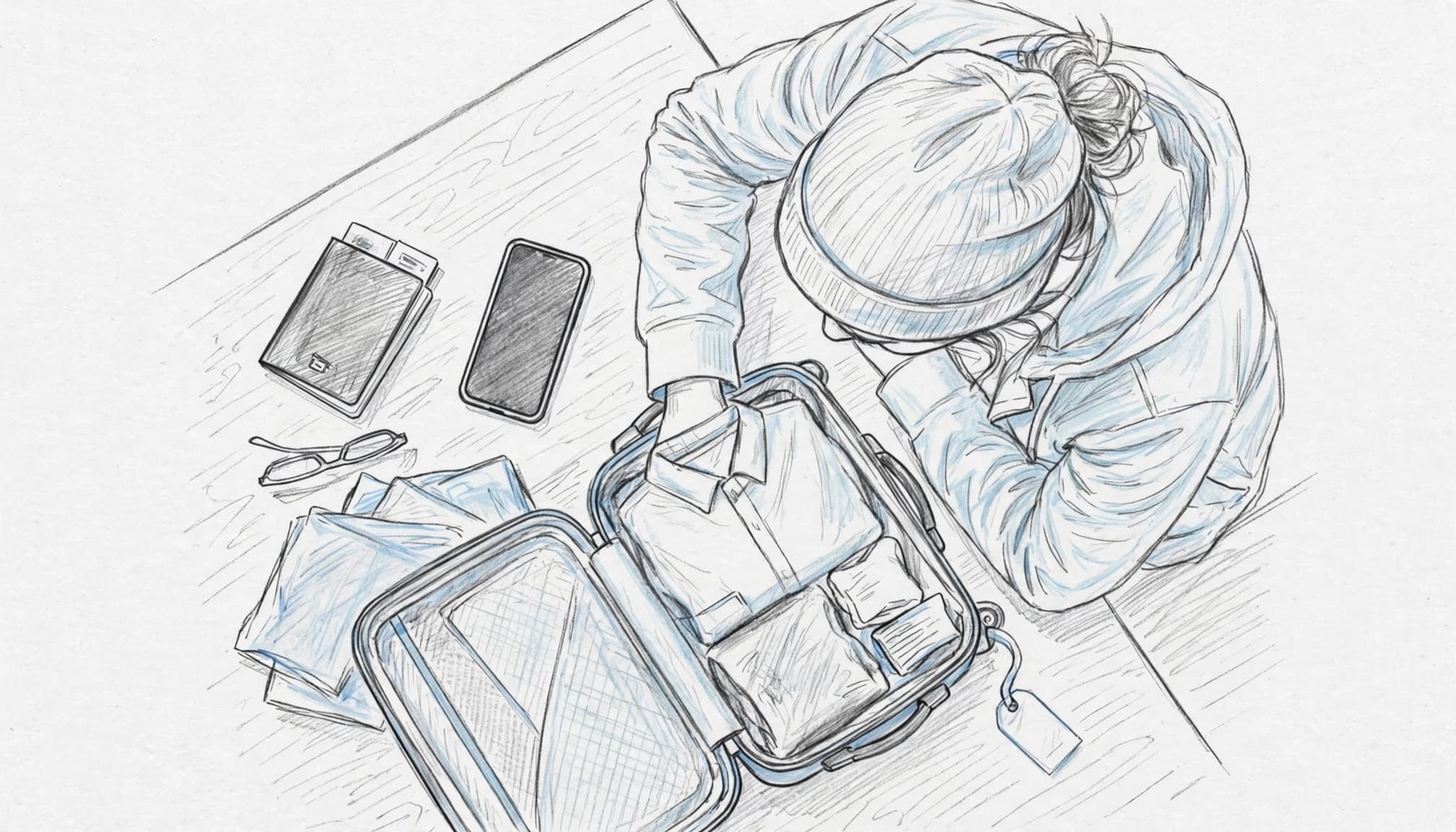
Use this simple rule
Choose an airport or local SIM when your device needs a physical SIM or you require a Thai voice number. Staff can help with installation, registration, and local calling options.
Otherwise, buy esim thailand plans online and set up your travel line at home. Review the Thailand eSIM buying guide before departure, then store your setup details securely.
Final pre-flight checklist
Before boarding, confirm these points:
- Check that your iPhone shows “No SIM restrictions” under Carrier Lock.
- Match the plan’s validity period to your actual Thailand trip.
- Save the QR code in secure email or cloud storage.
- Select the travel eSIM for cellular data.
- Turn off roaming on your home line, unless your carrier requires it.
- Keep roaming enabled on the travel line only when the provider instructs you.
- After landing, turn off Airplane Mode and test Maps or a browser.
When your phone passes these checks, preparation beats airport improvisation. Get your free esim now and arrive ready for your first ride, route, and hotel message.
Conclusion
Buying your Thailand eSIM before departure is the practical choice when your iPhone supports eSIM and has no carrier lock. Early preparation turns your first minutes in Thailand into useful travel time, with maps, messages, and ride details ready when you need them.
However, an airport or local purchase still fits travelers with locked phones, unsupported devices, or a need for Thai voice service. In those cases, staff can help you choose a physical SIM or local calling option after arrival.
Before flying, check your iPhone settings at home and install the travel profile on stable Wi-Fi. After landing, select the travel line, turn off Airplane Mode, and test the data connection. A few minutes of preparation can keep your arrival focused on Thailand, not a tiny settings menu.