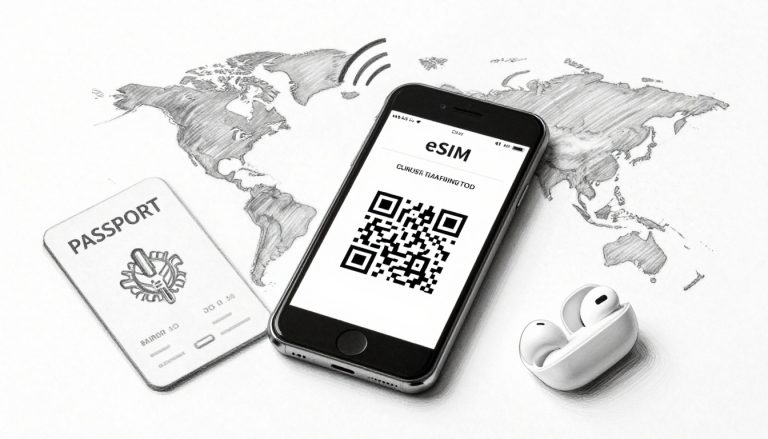
You land in Bangkok, ready for cheap internet, but your bank still needs to send OTP texts. Your family may message, and work might call before you find your hotel.
The fix is Apple Dual SIM Dual Standby. Keep your home physical SIM active while a dtac eSIM for Thailand travel handles mobile data.
Before takeoff, keep the home SIM enabled and add the travel profile through Settings, Cellular, and Add eSIM. Then choose the travel line for cellular data, while turning off data roaming on your home line. Your home number stays ready for texts and calls, without making your phone bill the trip’s biggest souvenir. This guide focuses on iPhone users preparing before takeoff, so you can land connected instead of wrestling with a SIM tray.
This post may contain affiliate links. If you make a purchase through these links, I may earn a small commission at no extra cost to you.
How to Use Dual SIM Without Losing Your Home Number in Thailand
Your home line handles calls and security texts. Your dtac eSIM handles everyday internet access in Thailand. Set both lines before departure, while reliable home Wi-Fi is still available.
The menu names may vary slightly by iOS version. However, the setup remains nearly identical on compatible iPhone models.
Leave the Home SIM in Place for Calls and Security Texts
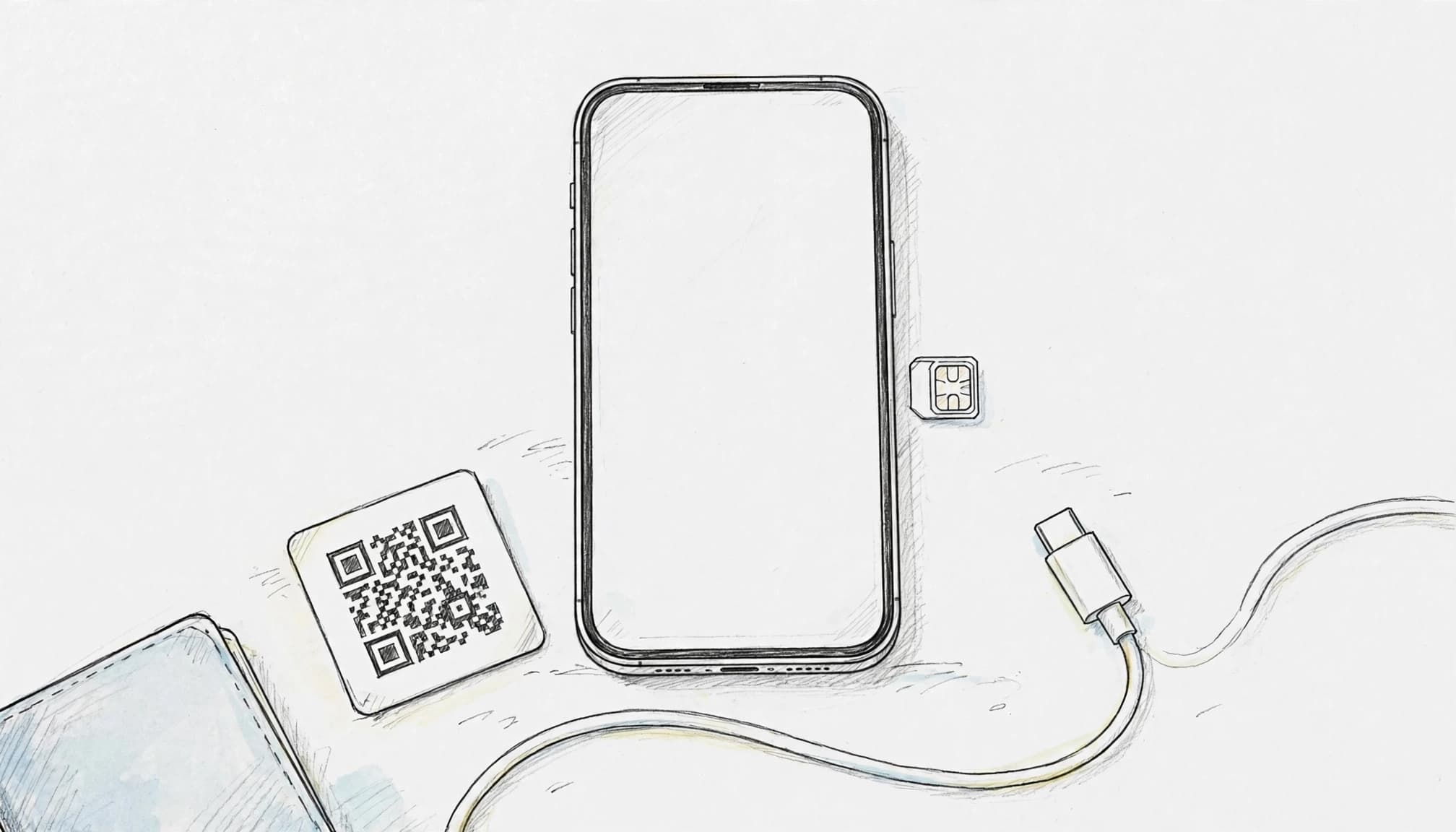
Keep your physical home SIM inside the iPhone. The line can remain active for incoming calls, bank alerts, and two-factor authentication codes.
Receiving texts may still depend on your home carrier’s roaming rules. Check those rules before departure, especially if your bank sends one-time passwords by SMS.
Open Settings > Cellular, then select your home line. Keep Turn On This Line enabled. However, don’t use that line for mobile data while traveling.
Label the lines clearly to avoid an expensive settings mix-up:
- Name the physical home line Home.
- Name the travel profile Thailand Data.
Clear labels make the correct choice obvious when you book a ride or check a map. Also, avoid removing the home SIM or deleting its cellular profile unless you understand the consequences.
Your home line can stay available for texts without carrying your regular travel data.
Add the Travel eSIM Before You Leave Home
Install the travel profile several hours before your flight. Use trusted home Wi-Fi, since downloading the profile requires a stable internet connection.
Follow these steps:
- Leave the physical home SIM inside your iPhone.
- Open Settings > Cellular, then tap Add eSIM.
- Choose the QR-code option and scan your travel QR code.
- Follow the activation prompts until iOS adds the new line.
- Label the new profile Thailand Data.
- Return to Settings > Cellular and confirm both lines appear.
Installing the profile doesn’t remove or replace your home SIM. Your iPhone stores the travel plan digitally, while the physical card remains in its slot.
Apple’s official eSIM setup steps also support QR-code activation. The travel line may not connect until you reach Thailand. That delay is normal, so don’t delete the profile if it shows no signal at home.
Choose the Travel Line for Data and Block Home Roaming
Set the Thailand profile as your default data line before boarding. Go to Settings > Cellular > Cellular Data, then select Thailand Data.
Your travel line will carry maps, messages, ride bookings, email, and web traffic. Meanwhile, your Home line can remain available for calls and SMS without using roaming data.
Next, open Settings > Cellular > Home > Cellular Data Options. Turn Data Roaming off for the Home line. Leave data roaming enabled only on the Thailand profile if its plan requires it.
Apple also includes Allow Cellular Data Switching. Turn this option off when you want firm control over data costs. If enabled, iOS may switch between lines when coverage changes. Apple’s Dual SIM guidance explains how this setting affects cellular data.
Before takeoff, check that Thailand Data appears under Cellular Data and Home shows roaming disabled. That small review can save you from a very large post-trip surprise.
Why a dtac eSIM Works Well Beside Your Home Line
A dtac eSIM lets your iPhone use a Thai travel line for data. Your home line can keep its number active at the same time.
That setup helps you stay reachable without sending every map request through home-carrier roaming. Review the dtac eSIM travel option before your trip, then confirm your iPhone meets the plan’s requirements.
Keep Bank OTP Texts Available for Two-Factor Authentication
Disabling or removing your home line can block important messages. Your bank may send login codes, fraud alerts, and account notices by SMS.
Dual SIM lets your home number stay registered while the travel line handles mobile data. That means you can use Thai data without changing the number linked to your bank.
However, incoming SMS access depends on your home carrier’s international service policy. Some carriers support incoming texts abroad without charge, while others apply roaming fees or require travel service.
Check your carrier’s international rules before departure. Also, avoid answering calls on your home line unless you understand the roaming rate. A quick “hello” can become a surprisingly expensive souvenir.
Apple’s Dual SIM travel guidance explains how iPhone lines handle calls, texts, and data. Keep your home line enabled, but select the dtac profile under Cellular Data.
Get Local Data for Maps, Messages, and Ride Apps
A local Thai data profile gives your everyday apps a direct connection to the travel plan. You can check an airport pickup, translate a menu, download a digital ticket, or message your hotel.
Maps and ride apps also work better when your phone has data immediately after landing. You won’t need airport Wi-Fi before requesting a car or opening directions.
The travel line becomes your default data path. It doesn’t replace your identity, home number, or messaging account. Your iPhone simply uses the dtac eSIM for internet traffic while the home line remains available.
Before purchase, check four plan details:
- Confirm coverage for every destination on your itinerary.
- Check how long the plan remains valid after activation.
- Review the included data allowance.
- Confirm whether the plan allows personal hotspot use.
Coverage and performance can vary by location, building, and network conditions. If you want to compare available options, you can also get your free esim now before booking your trip.
Keep WhatsApp, iMessage, and Your Phone Number Intact
Adding an eSIM doesn’t automatically change the number connected to WhatsApp or iMessage. Keep your current number if an app asks whether you want to update the account.
Avoid unnecessary re-registration while traveling. Changing numbers inside a messaging app can create verification delays, confuse contacts, or interrupt access to existing chats.
iMessage and FaceTime may show several reachable addresses after you add the travel line. Open their settings and confirm your preferred phone number remains selected. Apple explains how iMessage works with Dual SIM, including the difference between phone numbers and data connections.
Your dtac eSIM provides internet access. Your existing number still identifies you to the people and services already connected to it.
Avoid Losing a Tiny Physical SIM at Thirty Thousand Feet
Removing a SIM card on an airplane sounds simple until the card slips between the seat and the wall. Then your vacation includes an awkward search mission involving a phone flashlight.
An eSIM avoids that handling mistake. Leave your home physical SIM inside the iPhone, and install the Thai profile digitally through Wi-Fi before departure.
Still, protect the basics. Back up your iPhone, keep your account passwords private, and store recovery codes somewhere secure.
Your iPhone must support eSIM and remain unlocked. Check Settings > General > About, then look for Carrier Lock. The phone should show No SIM restrictions before you buy or install a travel plan.
The Best iPhone Settings for Two Active Lines in Thailand
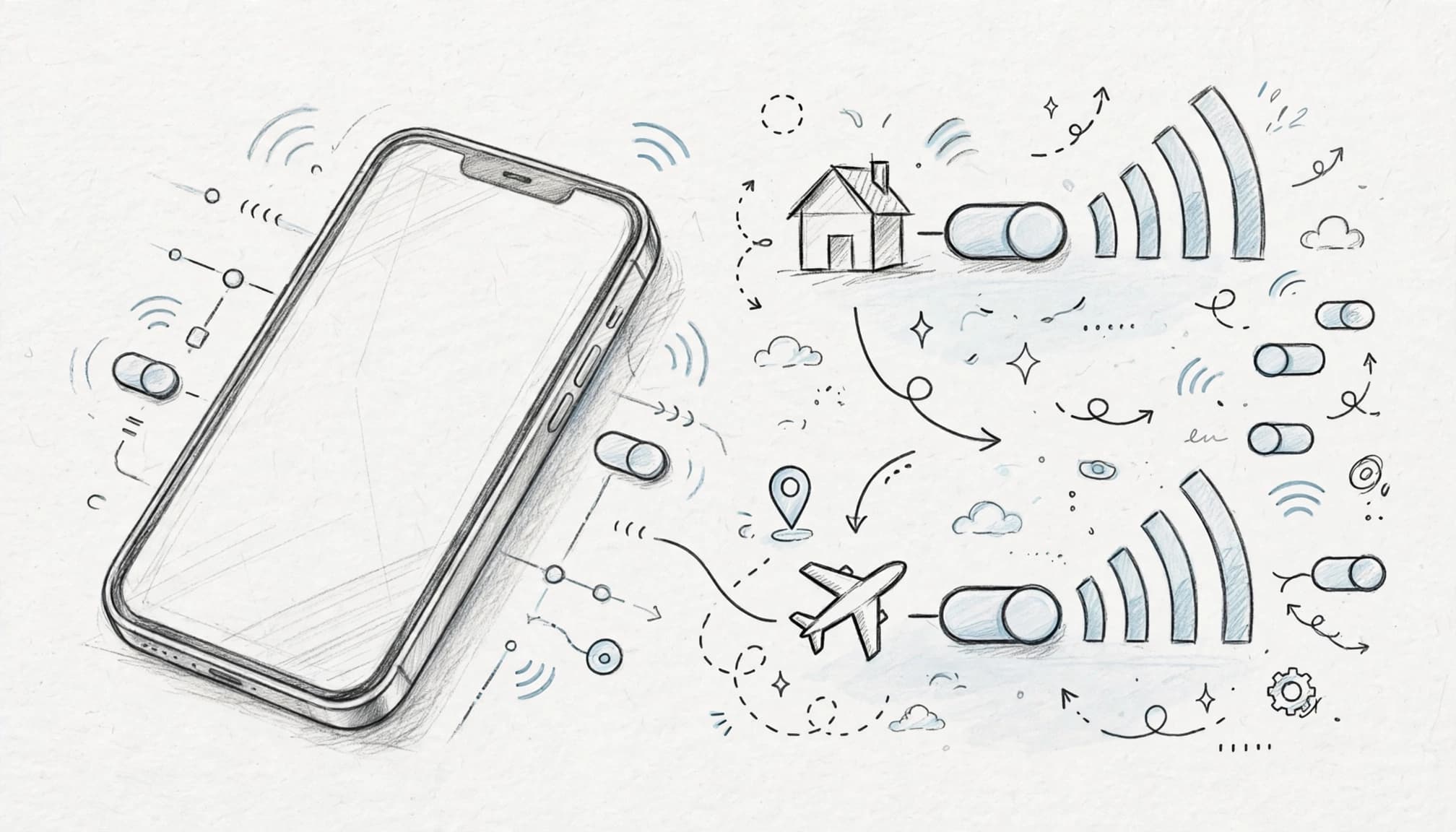
Your iPhone can keep both lines active, but each setting needs a clear job. Assign mobile data to the dtac eSIM, keep roaming off on your home line, and preserve your home number for normal calls.
The menu wording can vary by iPhone model, iOS version, and carrier. Apple’s Dual SIM instructions provide the current path for supported devices.
Set Cellular Data to the Thailand Travel Profile
Open Settings > Cellular > Cellular Data. Select your travel profile, such as Thailand Data or dtac Travel.
Return to the Cellular screen and confirm the travel line shows the selection indicator. After landing, check the status bar for the dtac network connection or its LTE/5G indicator. If the home line appears selected, switch back before opening maps or streaming apps.
Next, turn off Allow Cellular Data Switching. This prevents iOS from using your home line when the travel signal becomes weak. Apple’s cellular data settings guide explains these controls.
Background app refresh, photo backups, and video streaming can consume data quickly. Open Settings > General > Background App Refresh and disable unnecessary apps. Also review Settings > Cellular and turn off cellular access for apps that can wait for Wi-Fi.
Turn Off Home Data Roaming Before the Plane Takes Off
Open Settings > Cellular, select your Home line, and tap Cellular Data Options. Turn Data Roaming off for that line.
Check the travel line separately because each line has its own roaming control. Leave roaming enabled on the dtac profile if its plan requires it for Thai network access. Apple’s data roaming guidance covers Dual SIM roaming controls.
Turning off data roaming doesn’t necessarily block incoming calls or texts. Carrier charges can still apply, so review your home provider’s international rates before departure.
After landing, check both lines again. A weak travel signal can tempt iOS settings into mischief, especially after restarting your phone.
Use Wi-Fi Calling Carefully When Your Carrier Supports It
If your home carrier supports Wi-Fi Calling, enable it before leaving home. Find it under Settings > Cellular > Home > Wi-Fi Calling, then follow the activation prompts.
Test the feature before departure by turning on Airplane Mode, re-enabling Wi-Fi, and placing a test call. Hotel or airport Wi-Fi may help your home line connect, but carrier rules and fees still apply.
Wi-Fi Calling doesn’t guarantee free international calls. Check your carrier’s international calling terms before relying on it.
| iPhone setting | Recommended choice |
|---|---|
| Cellular Data | dtac travel profile |
| Data Roaming | Off for the home line |
| Default Voice Line | Home line |
| Allow Cellular Data Switching | Off |
| Wi-Fi Calling | On, if supported and tested |
With this setup, your dtac eSIM handles internet access while your home line keeps its familiar calling role.
What to Check Before You Fly to Thailand
A few checks at home can prevent a very awkward arrival at the airport. Confirm your iPhone supports eSIM, remove any carrier restriction, and prepare your dtac eSIM while reliable Wi-Fi is available.
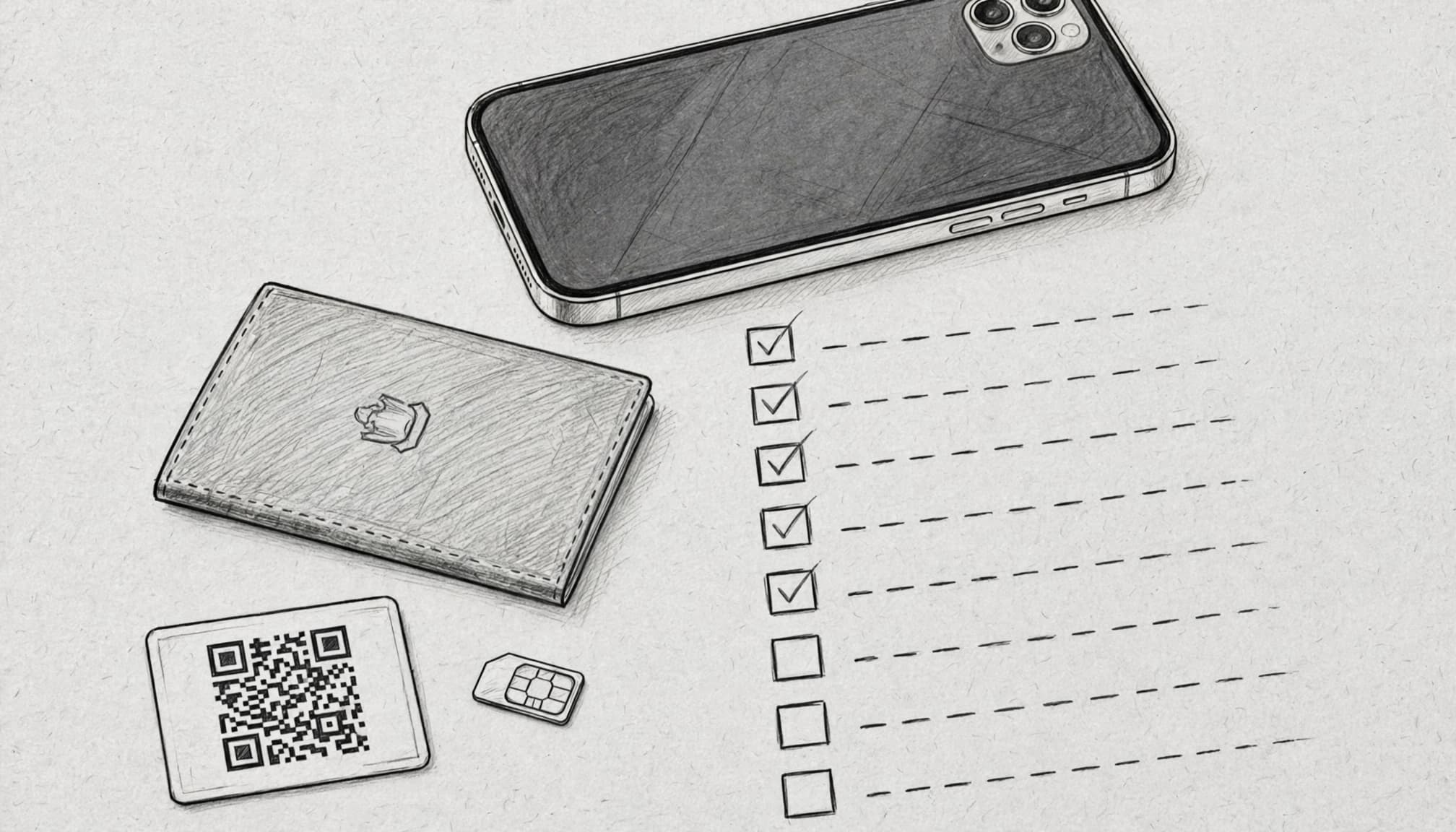
Confirm Your iPhone Supports eSIM and Has No Carrier Lock
First, check your iPhone model. Most recent iPhones support eSIM, but regional versions can handle physical SIMs differently. Some models use one physical SIM and one eSIM, while others support two eSIMs or physical dual SIMs.
Open Settings > General > About and review the device details. Look for Carrier Lock. Your phone should show No SIM restrictions before you buy or install a travel eSIM.
Apple’s international eSIM guidance explains where to find this status. A phone can support eSIM technology and still reject a dtac eSIM because the original carrier locked it.
If your iPhone shows a restriction, contact your home carrier early. Unlock requests may require account verification or other carrier conditions. Waiting until the airport leaves little room for helpful customer support.
eSIM support and carrier unlocking are separate checks. Your iPhone needs both.
Install and Test the Profile on Home Wi-Fi
Complete the QR-code scan before departure, preferably several hours before your flight. Open Settings > Cellular > Add eSIM, then scan the activation code provided with your plan.
After installation, return to Settings > Cellular. Confirm the travel profile appears beside your home line, then label it something clear, such as Thailand Data.
You can leave the travel line turned off until arrival if the plan allows it. However, check the plan terms first. Some eSIM plans begin their validity when you install or activate the profile, not when you connect in Thailand.
Save the QR code and activation details in a secure location. Keep the purchase email available offline, because airport Wi-Fi can be slow or unreliable. Never post the QR code publicly or send it through an unsecured group chat.
If you need to install the plan again, the code may already count as used. A little digital housekeeping now beats QR-code archaeology later.
Run a Final Airplane Mode and Line Check
Before leaving, turn on Airplane Mode, then turn Wi-Fi back on. If your carrier supports Wi-Fi Calling, confirm the home line can use it. Apple also provides Dual SIM troubleshooting steps for supported iPhone models.
Next, open Settings > Cellular and review both lines. Keep the home line enabled for incoming texts, choose the travel line for cellular data, and leave home data roaming off.
After landing, turn off Airplane Mode and wait for network registration. Confirm the dtac eSIM handles data while your home line remains available for bank messages.
If service doesn’t appear, restart the iPhone first. Then check the active line and review the eSIM plan details before changing several settings at once. One careful check usually beats a settings treasure hunt.
Stay Connected in Thailand Without Risking Your Home Number
You don’t need to choose between affordable Thai data and access to your home number. An iPhone with Dual SIM can handle both jobs without SIM-card juggling.
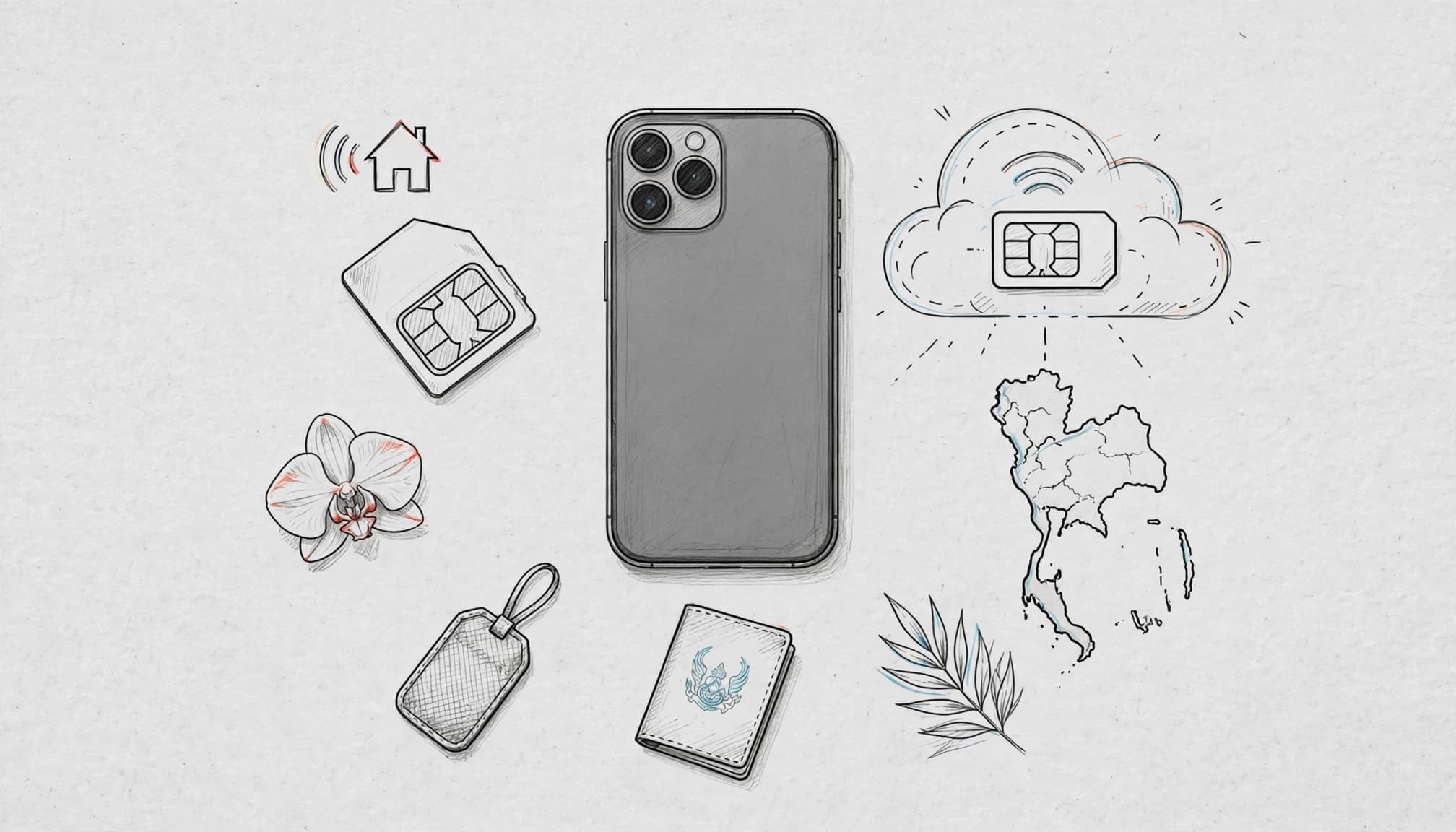
Keep your physical home SIM active for bank OTP texts and important calls. Then use the dtac eSIM travel option as your default cellular data line in Thailand.
Before departure, check your iPhone settings carefully:
- Leave the home physical SIM enabled.
- Set the dtac travel profile for Cellular Data.
- Turn off Data Roaming on the home line.
- Test both lines before leaving home.
Your carrier may still charge for calls, SMS, or Wi-Fi Calling abroad. Therefore, review its international policies before relying on your home number. Also confirm whether incoming texts cost anything.
When you’re ready, prepare your iPhone settings and review the dtac eSIM travel option. You can also Get your free esim now if you want to compare travel connectivity before your flight.